

Opening the Members tab
Click Program Settings in the top-right of any page. Select the Members tab in the sidebar. The Members area has three sub-tabs:- Students — every student in your program with their track, term, clearance status, insurance status, and last activity
- Instructors/Admin — faculty and admin accounts with an inline role selector
- Supervisors — site supervisor accounts, with profile, export, and View as Supervisor actions
Adding new users
Click Add Student on the Students tab or Add Instructor/Admin on the Instructors/Admin tab.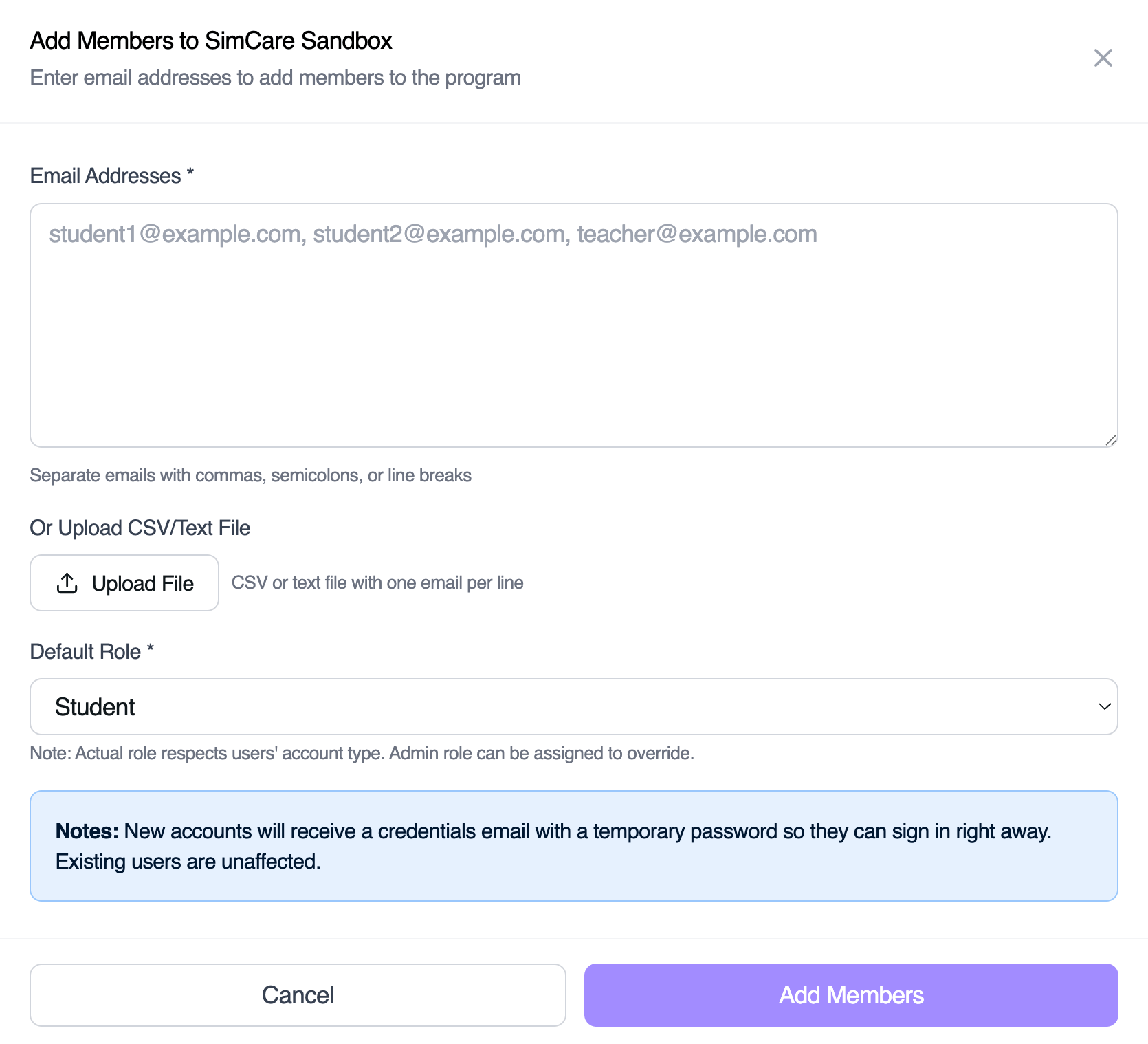
- Paste a list of emails (comma, semicolon, or newline separated)
- Or upload a CSV or text file — AI parses it so any format works
- Pick a Default Role:
Student,Teacher, orAdmin - Toggle Send credentials email to new accounts — when enabled SimCare creates the account and emails the user a login link; when off the user must self-sign-up using the email you added
Self sign-up by email domain
Students whose email address matches one of your program’s registered domains are enrolled automatically the first time they sign up — no invite, no join code. This is the fastest onboarding path for large first-year cohorts where you don’t want to pre-load every student in advance. You can see your program’s registered domains at the top of Program Settings → General Information, in the Domain card of the program header. How it works:- A student self-signs up at app.simcare.ai/sign-up with an email like
student@university.edu. - If
university.eduis a domain for exactly one program (yours), the new account is enrolled as a student in that program on their very first authenticated request — before they see the pre-application flow. - The student then continues straight into the standard clearance tasks (see Approving Students). You’ll see them appear in Members → Students with clearance status
Not Started.
- If you previously removed a student from your program (via the bulk Remove action), they are never re-enrolled by domain match — you must add them back explicitly.
- If a student is already an active or inactive member of any other program, domain-based enrollment is skipped so they aren’t silently moved between programs.
Shared domains: the program chooser
More than one program can register the same email domain — common when several departments at one university each run their own FieldX program. When that happens, students on that domain are not enrolled automatically. Instead:- The first time the student opens Field Experience, they see a Choose your program screen listing every program that uses their email domain (with each program’s location, when set).
- The student selects their program and clicks Continue. They’re enrolled in that program only and proceed into clearance tasks as usual.
- Students can only pick from programs that actually match their email domain, and the removal guardrail still wins: a student you removed sees an access-removed message instead of the chooser.
Managing your program’s domains
Program admins can edit the registered domains directly:- Open My Program → Overview and edit the program’s basic information (name, location, domain, and image).
- In the Domain field, enter one or more domains separated by commas, for example
example.com, university.edu. - Save. Entries that aren’t valid hostnames (full URLs, stray characters) block the save with an error listing the bad values — enter just the domain, like
lynn.edu.
Bulk actions
Select multiple students using the row checkboxes to open the bulk action bar:- Assign Term — move a group of students into a different academic term
- Assign Track — change their student track
- Assign Certs — add or remove program certificates
- Assign Role — switch their role
- Skip Clearance — grant the selected students full FieldX access immediately, without completing paperwork or insurance requirements. Students who are already cleared or already submitted for review are skipped automatically. Available on the Students sub-tab only.
- Remove — remove from the program (preserves their historical data)
Changing a student’s track
Students cannot change their selected track on their own after it has been set. A program admin can update it from the Members view:- Go to app.simcare.ai/program or click Program Settings in SimCare.
- Open Members and stay on the Students sub-tab.
- Find the student, select the checkbox for their row, then choose Assign Track from the bulk action bar.
- Pick the correct student track and confirm.
Re-clearance after a placement change
If your program has Placement level changes or Track changes enabled under Customization → Settings → Re-clearance requirements, reassigning a student to a new level (for example Practicum → Internship) or a new track type (for example CODAC → Clinical Mental Health) automatically re-locks that student’s Field Experience until they redo the clearance flow for the new placement. What happens when it fires:- The student’s previous clearance task is marked outdated and a fresh clearance draft is created for the new placement.
- The student sees a blocked overlay in Field Experience explaining that their placement changed and prompting them to complete clearance again.
- Handbook acknowledgements and agreements reset for the new placement; already-uploaded sites and insurance carry over.
- The change is recorded in the Activity Log as
preapp_reclear_required.
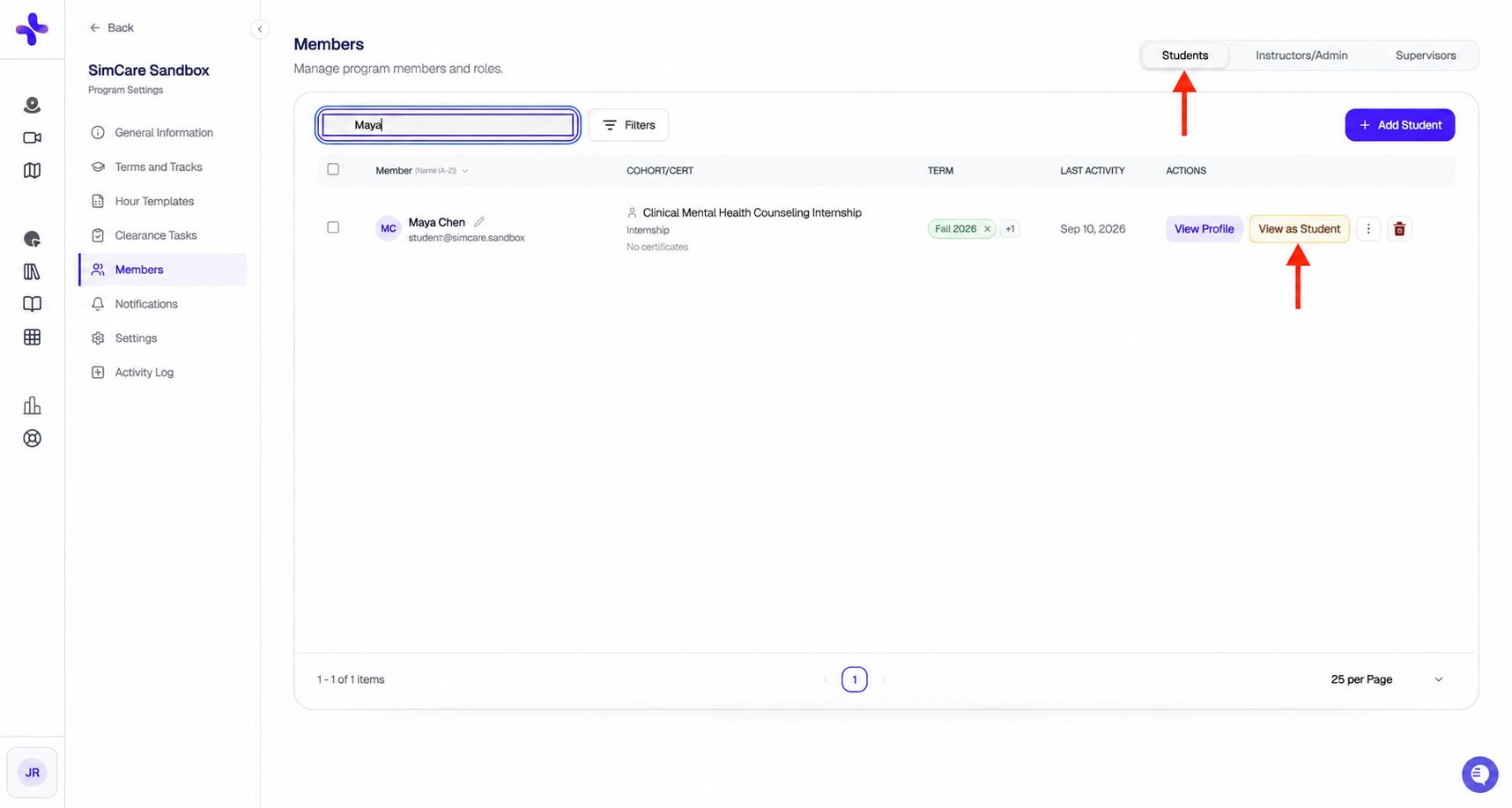
A student row includes View Profile and View as Student actions.
Per-row actions
Student rows provide View Profile, View as Student, and removal actions. Use the additional actions menu for other tools:- Create To-do — assign a task to that student
- View Profile — open the full Student Details modal (Overview, Insights, Sites, Timesheet, Learning Contract, Journal, Documents, Run Report)
- View as Student — impersonate the student read-only for up to one hour (more →)
- Remove — remove from program
Switching a user’s role
In the Instructors/Admin sub-tab, use the inline Role dropdown to flip a user between Instructor and Admin without removing them.Following up with members who never signed in
For members you invited with Send credentials email to new accounts on, but who haven’t logged in yet, the Members table surfaces a quick way to nudge them:- Open Program Settings → Members and click Filters. Under Sign-in status, choose Never logged in to narrow the table to just those accounts.
- On any row for a student, instructor, or admin who has never signed in, click Resend Credentials. SimCare generates a fresh temporary password, invalidates the old one, and emails the member a new welcome message with the updated credentials.
Resend Credentials only appears for members who have never signed in — once a member has an active session on record, they should use the standard password reset flow instead.
Pending invitations
Outstanding invitations appear in their own widget (Pending Invitations) at the bottom of cohort views. Each row has a Resend action that re-sends the original email.Supervisor invite emails
When you add a site supervisor (either manually or when a student requests them during clearance), SimCare automatically sends them an invitation email.The email comes from “SimCare” — not “FieldX.” Supervisors who search their inbox for “FieldX” won’t find it. Ask them to search for “SimCare” or check their spam folder. The sender address is
hello@mail.simcare.ai.- The invitation subject line is “Welcome to SimCare - You’ve Been Added as a Supervisor”
- The initial invitation includes sign-in credentials; the supervisor should follow the instructions in that email
- Use the available resend or reminder action for a supervisor who has not signed in
- A student-triggered resend has a 24-hour cooldown; admin reminder actions may differ
Recommended onboarding order for new programs
- Invite Clinical Coordinators or Staff
- Invite Faculty Supervisors
- Add established sites
- Create cohorts and invite faculty supervisors to them
- Invite students — either via direct email invitation (auto-connects them to a track and faculty supervisor) or by sharing the cohort enrollment code
- Manage and assign forms and reports
Next step: Set up your field placement sites so students can select them. See Managing Established Sites.