


The Assignments tab
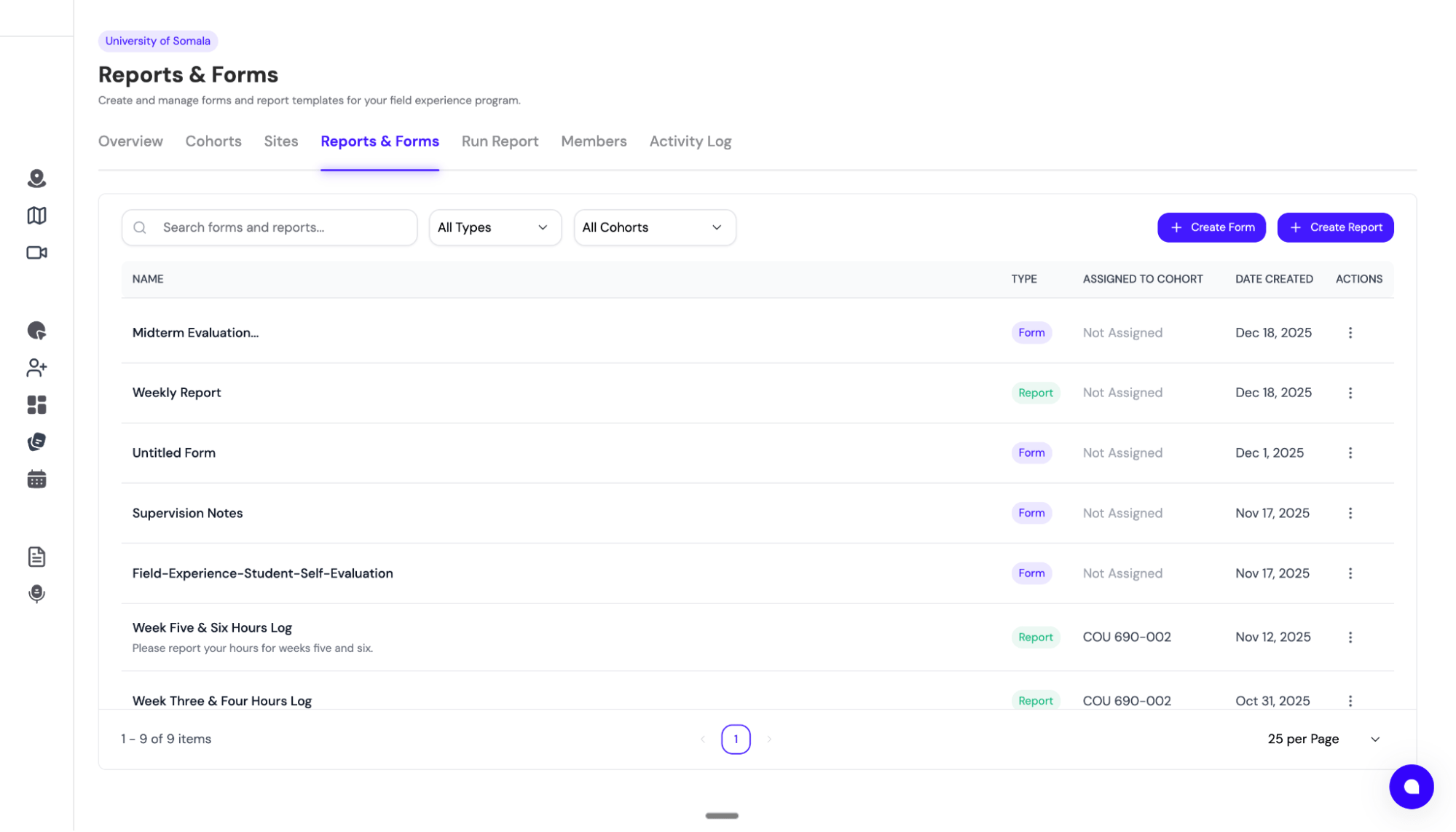
The tab has two primary actions in the top right:- New Group — create a folder to bundle related forms together (e.g., “Mid-term evaluations”)
- Create Assignment — open the assignment builder
All Types | Group | Form | Report), creator, and cohort. With groups in use the table columns are Name | Type | Created By | Assigned to Cohort | Actions; without groups it’s Name | Type | Created By | Contents / Cohorts | Actions.
Creating an assignment
Click Create Assignment to open the assignment builder. It has three tabs:Form
Two ways to build a form:- Build New — start with a blank canvas and drag-and-drop fields in the form builder
- Upload — Convert document to form with AI. Upload an existing PDF or Word doc (e.g., your current Mid-Term Evaluation) and SimCare parses it into a FieldX form, with a live progress indicator while it runs
Timesheet (Report)
A Report in FieldX is the schedule for logging hours — when hours are submitted and who needs to sign them.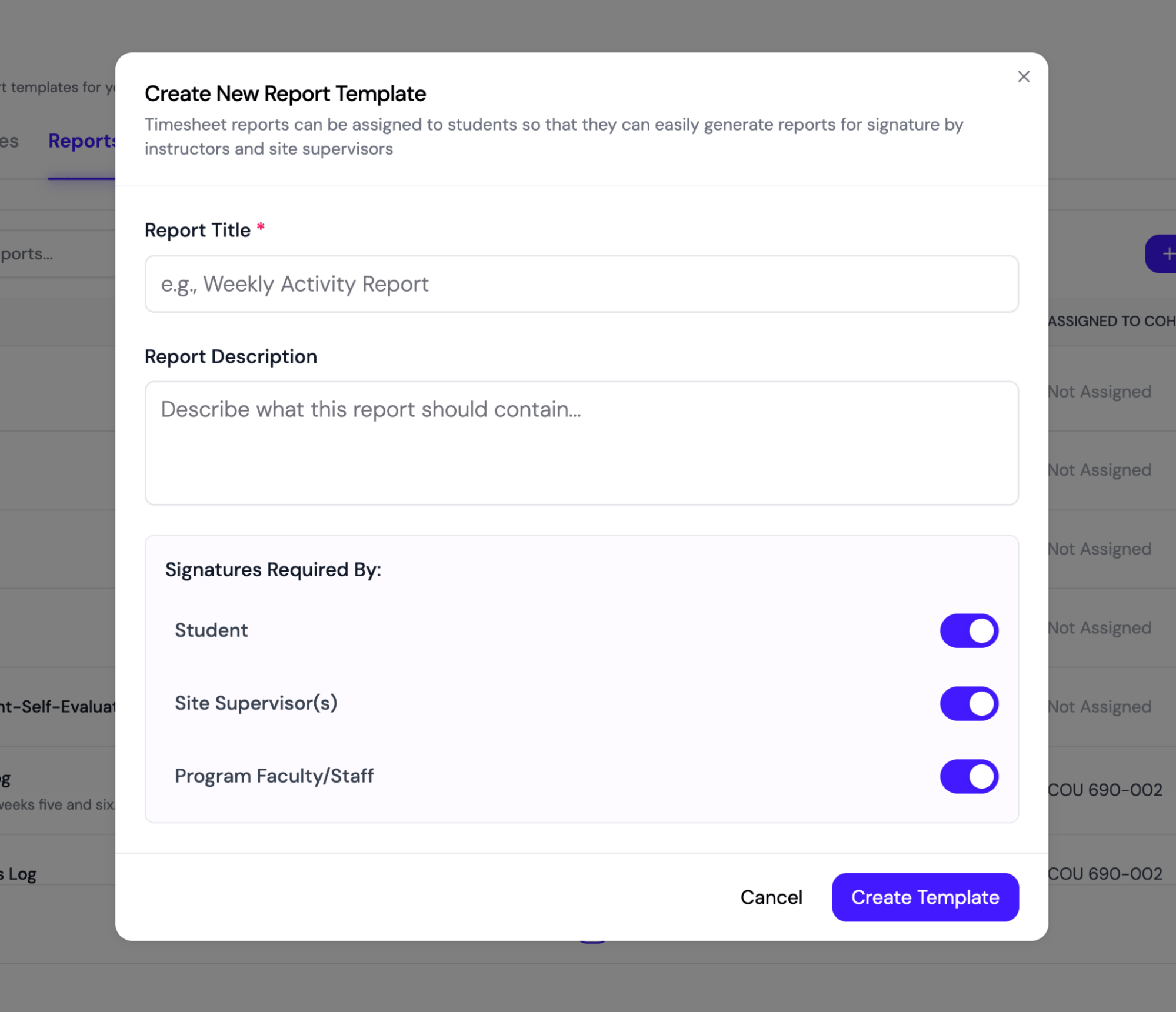
Templates
A grid of built-in templates you can use as a starting point — each has a Use template action.Assigning a form or report
Click the actions menu (⋯) on any row and choose Assign.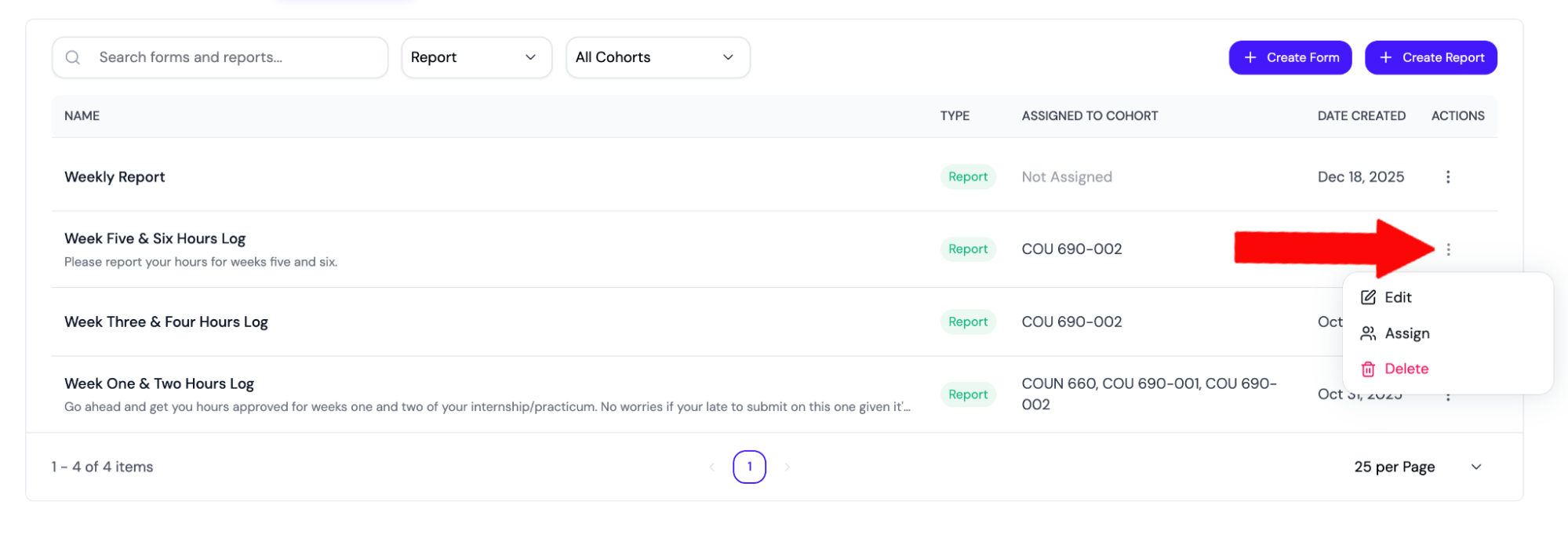
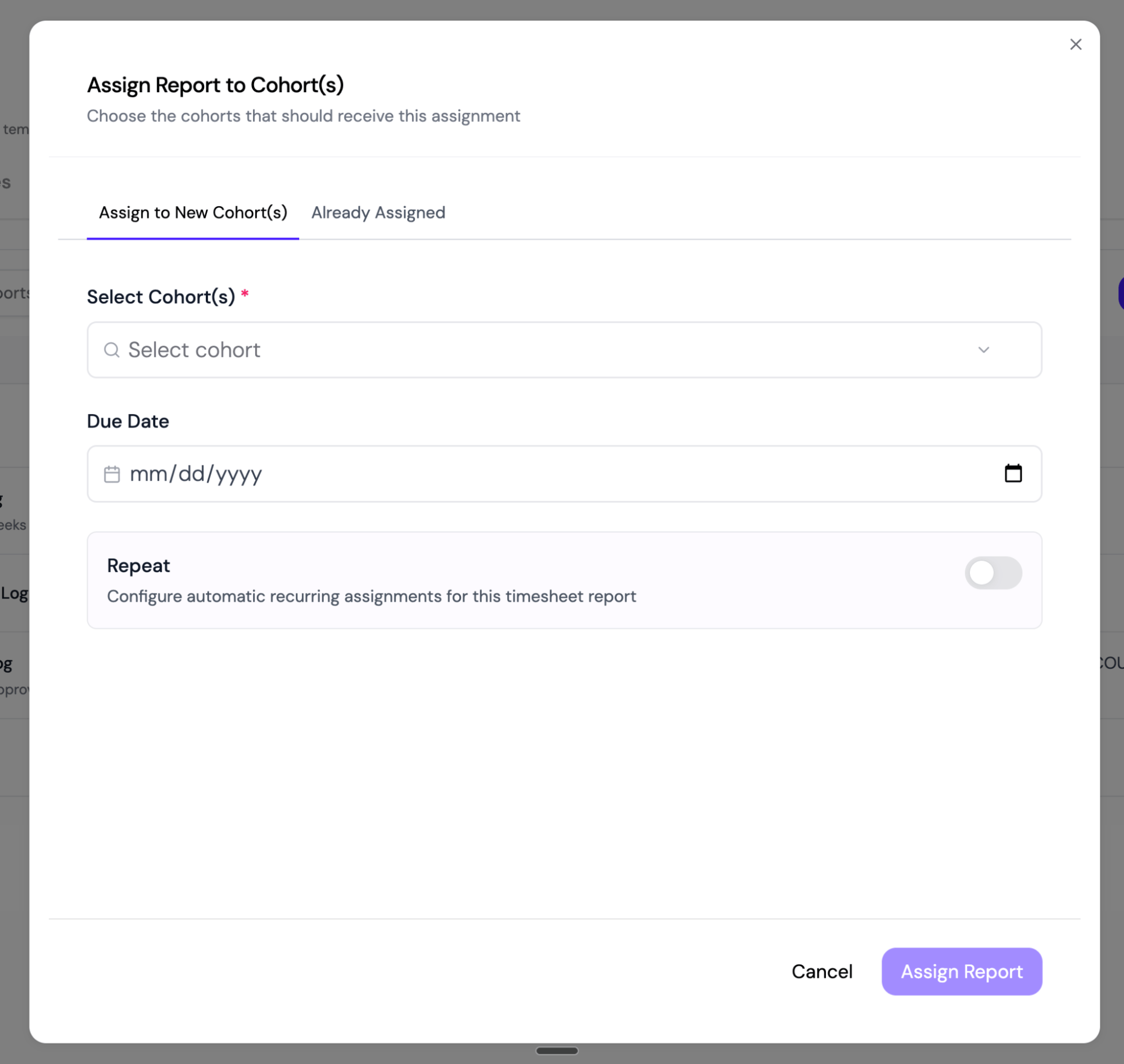
- Create — make a new assignment from this template
- Current — view existing assignments using this template
- Cohorts — assign to one or more cohorts (all students in those cohorts get it)
- Individuals — assign to specific people (ideal for targeted evaluations)
Advanced settings for repeating reports
When assigning a report, turn on Repeat, configure the schedule, and expand Advanced Settings below Repeat Until.
Advanced Settings in the Repeat section of the report assignment dialog.
- Allow submission before end of period — lets students submit 24 hours after the reporting period starts, before the period has ended. Hours added after a student signs are not included in that signed report.
- Disable due dates entirely — generates reports without a due date. These reports never show as overdue and do not send due-date reminders.
Forms vs. reports
Downloading completed forms
When a student, faculty member, or site supervisor has a saved or submitted form response, their task row includes a top-right Download PDF button. Use that button to open a printable PDF copy of the form. For users who ask how to print a form, the recommended path is Download PDF, then print the PDF from the browser or PDF viewer.Form creation options
Forms can be built two ways: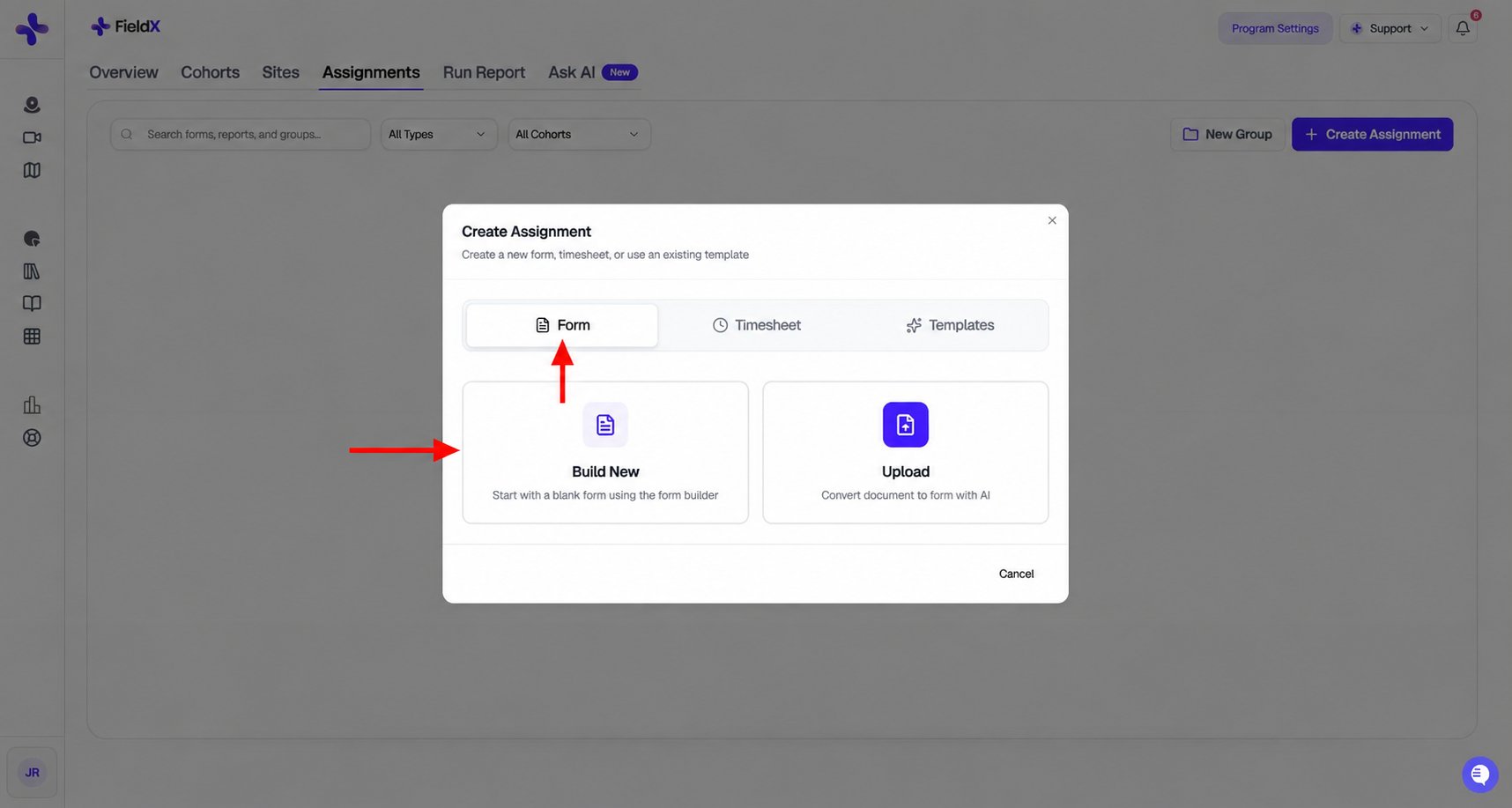
The Form tab offers Build New and Upload.
- Build New — drag-and-drop in the form builder
- AI import — upload a PDF or Word document and let AI convert it
Per-row actions
Each row in the table has actions for:- View — preview the form/report
- Assign — assign to cohorts or individuals
- Regenerate form — re-run AI parsing if the source doc has changed
- Add to group / Manage group
- Delete (single or bulk)
Editing an existing assignment
To change just the due date of an already-emitted assignment (or to adjust who’s on a multi-signer form), open the assignment row inline and click Edit. The dedicated edit page lets you change the due date and, for multi-person assignments tied to a cohort, exclude specific student/supervisor pairs.Editing a form template after it’s been assigned
Editing a form template in the form builder updates the template only — assignments that have already been sent out keep the version of the form the respondent originally saw. Two safeguards make this predictable.Adding a new role to a form that already has assignments
If you edit a form’s required roles — for example, changing a faculty-only evaluation into one that also needs a student signature — and the form already has open assignments, an Update existing assignments? modal appears when you click Save. The modal previews how many assignment instances are affected and gives you two choices:- Save template only — the template updates. Existing assignments keep the old role configuration, so anyone already partway through won’t suddenly see a new required signer. Every new assignment created from this form uses the updated roles.
- Save and update existing assignments — the template updates, and every live assignment for this form is backfilled with the new role. Any instance that was already marked complete under the old configuration is reopened to
Pendingso the new role can also complete it. Previously submitted responses are preserved, not deleted.
Form versioning for past responses
Every content-changing save of a form creates an immutable snapshot of the form’s questions. Each response is pinned to the version that was live when the respondent opened the fill page, so:- Adding a question to a form later never causes it to appear as blank on old responses.
- Renaming an option or reordering choices doesn’t retroactively change how a previously submitted response reads.
- The submission detail view, CSV export, and PDF export all render each response against its own version’s question list.
For details on building complex forms, see Building forms. For recurring assignments, see Setting up recurring tasks.