

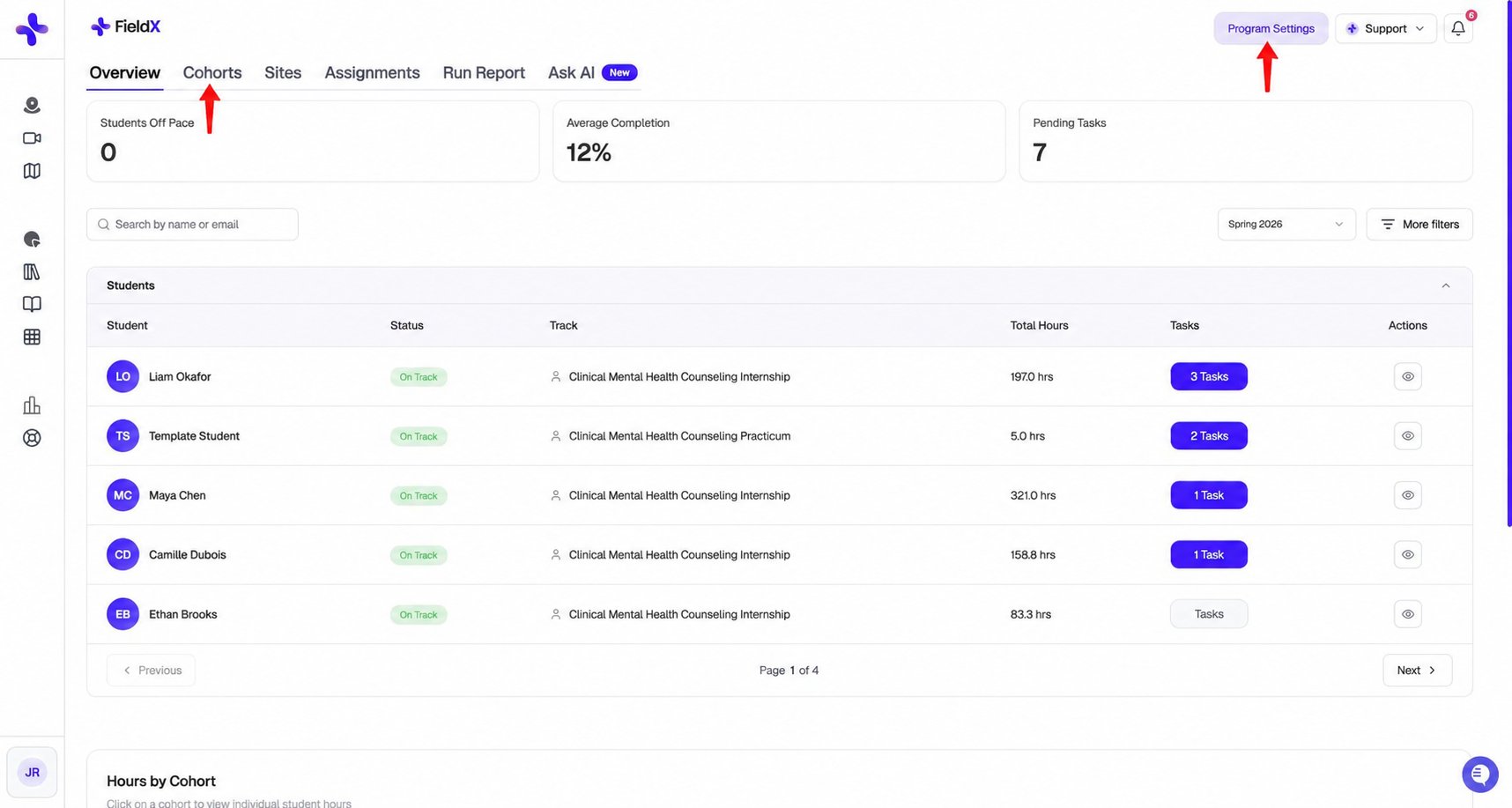
Use Cohorts to manage classes and Program Settings to configure your program.
Your six tabs
Your main tab bar has six destinations:If you or anyone on the platform needs quick assistance, click the blue circle in the bottom right. The support system will try to help first and escalate to a human if needed.
The Overview tab
Here’s what the Overview tab looks like once you have students: At the top you’ll see three KPI cards:- Students Off Pace — students whose hours progress is behind schedule. Click the help icon beside an off-pace student in the table to open a Why is X off pace? modal listing every timesheet report needing attention, who it’s waiting on, and a Remind button that emails the pending signer directly.
- Average Completion — average percentage of hours completed across your students
- Pending Tasks — number of action items waiting on you
- Cohort — filter by a class section your students belong to
- Placement Status — On Track, Off Pace, Completed, or Not in Term
- Application Status — App: Approved, App: Pending Approval, App: Started, App: Not Started, or App: Rejected
- Hours — bucketed by 0–20, 20–40, 40–60, 60–80, or 80+ hours logged
- Activity — students with no hours logged
Header actions
The FieldX header includes:- Program Settings — opens the program settings page where you configure terms, tracks, clearance, members, notifications, and more
- Support — opens help options
- Notifications — the bell shows recent notifications
Next steps
- Customization settings — set up academic terms, student tracks, hour requirements, and clearance
- Adding & managing faculty & students
- Set up cohorts