

Start a student preview
- Open Program Settings → Members → Students.
- Find the student and choose View as Student from the row’s actions.
- Confirm that the amber banner shows the intended student and Read-only.
- Navigate to the pages you want to inspect.
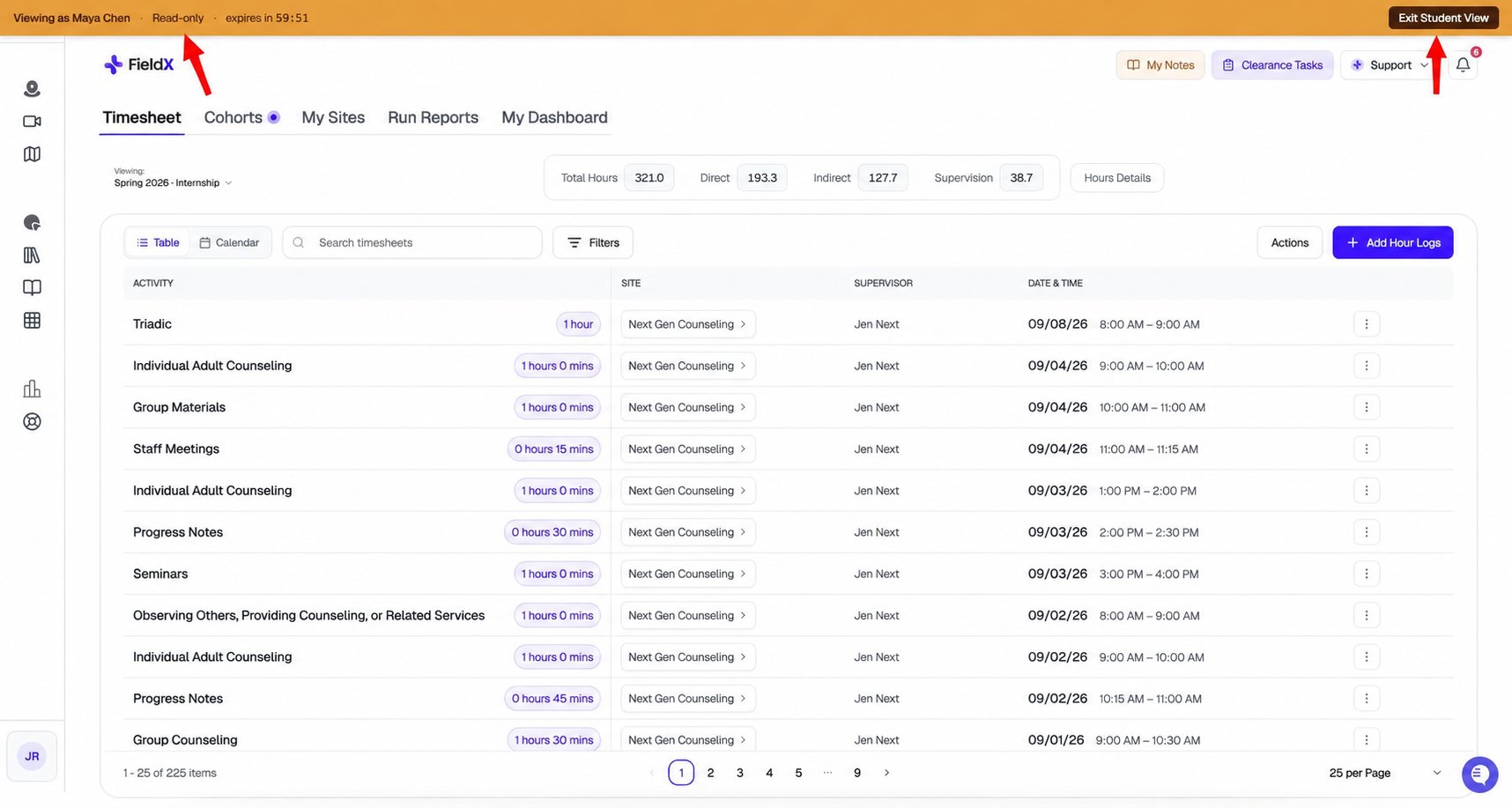
Check the Read-only banner while testing and use Exit Student View when finished.
What to check
- Clearance: Confirm which steps, agreements, and documents the student can see.
- Timesheet: Check the available activity types, cohorts, sites, and supervisors.
- Cohorts: Verify that the student sees the correct membership and upcoming assignments.
- Forms and reports: Open existing tasks to check their instructions and required signers.
Test changes with a test account
For a full submission or invitation test, use a designated test account and test data in the environment your program has approved for testing. Actions from a normal Program Admin account can change program and student data, and invitations or reminders can send email. A template cohort can help you prepare recurring schedules and forms for reuse. It is still part of your program; it is not an isolated sandbox. See Template cohorts.Finish the preview
Click Exit Student View in the amber banner to return to your Program Admin account. The session expires after one hour. Preview mode is shared by tabs in the same browser profile, so check the banner before returning to admin work.Faculty and site supervisor testing
Use View as Supervisor to preview an existing site supervisor’s dashboard. Faculty workflows require an appropriate faculty account enrolled in a cohort; there is no dedicated View as Faculty action. For actual supervisor onboarding, use a designated test supervisor address through the normal invitation flow outside read-only preview mode.To adjust academic terms, hour requirements, and clearance, see Customization Settings.