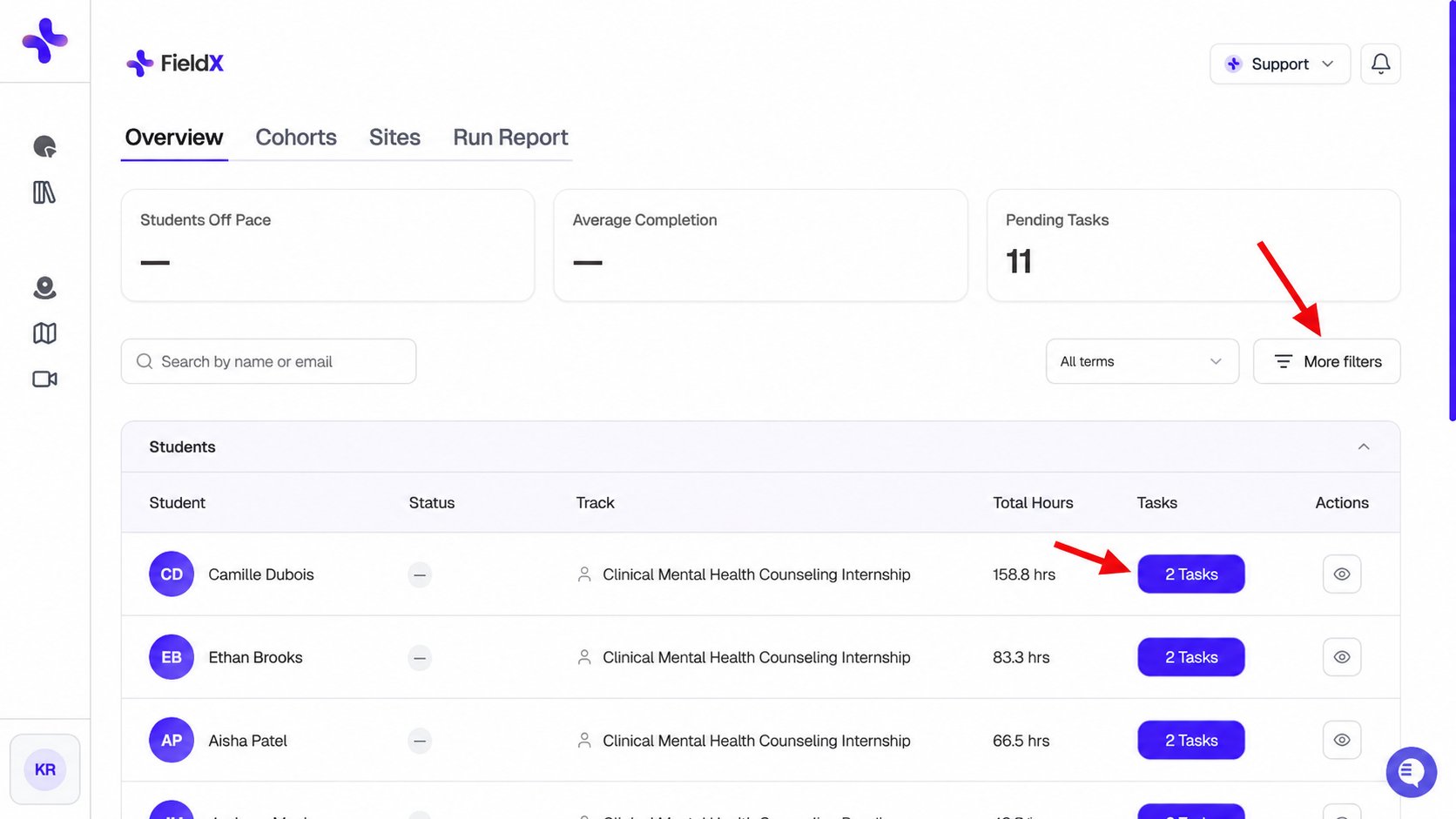
When you log into Field Experience, your Overview tab gives you an immediate snapshot of how your students are doing — without needing to open each student individually.

KPI cards

The three cards at the top of your Overview tab show: These numbers update in real time as students submit work and as you sign off.

Student table

Below the KPI cards, the student table lists every student you supervise. Students are sorted by most pending tasks first, so the students who need your attention appear at the top. Each row shows the student’s hours progress, application status, and how many tasks are waiting on them (or you). What you can do from the table:
  • Search — type a student name, track, or term to narrow the list
  • More filters — filter by track, placement status (On Track, Off Pace, Completed, Not in Term), application status (App: Approved, App: Pending Approval, App: Started, App: Not Started, App: Rejected), hours bucket, or activity level
  • Eye icon — opens a student’s full detail view, including their Overview, Documents, Insights, Timesheet, Sites, and reports
  • Task-count badge — click the number on a student’s row to jump directly to their pending items
If you supervise students at more than one site, all of them appear together in this table. Use the track or site filter to focus on one group at a time.

Tasks tab

For a focused view of everything waiting on your signature, switch to the Tasks tab. Items are organized into four sub-tabs: You can filter the Tasks tab by student name, track, or document type (Forms vs. Reports).
Reports and forms behave slightly differently. Reports open in a side panel inside the dashboard. Forms open in a new browser tab at /assigned-forms.

Sign & Approve is greyed out

This is the most common issue supervisors encounter. The Sign & Approve button is disabled when a report has zero approved hours attached to it.
Before you can sign a report, the student’s hours on that report must be approved. If Sign & Approve is greyed out, click View Logs on the report to see the hour entries. If the log is empty or all entries are pending, the student needs to submit hours — or previously approved hours may have been unlocked or deleted.
View Logs shows each hour entry on the report: date, type, site, duration, and any notes the student added. Entries longer than 1.5 hours are flagged in amber — these aren’t automatically rejected, but they may warrant a quick check with the student.

Denying a report

If a report needs to be sent back:
1

Click Deny on the report

This opens the comments section.
2

Add your reason in the Comments field

Be specific — the student will see this message. You can set visibility to Everyone or Hidden from students if your note is for program staff only.
3

Confirm the denial

The report moves to the Rejected tab and the student is notified.
Comments support threaded replies, so you and the student (or program coordinator) can continue the conversation in context.

Signing from email

You don’t need to log in every time a student submits something. When a student submits a report or form, you’ll receive an email notification from noreply@simcare.ai. You can review and sign directly from that email without opening the dashboard. A weekly digest is also sent every Saturday listing all outstanding signatures, so nothing slips through the cracks during a busy week.

My Site tab

The My Site tab shows the site(s) you’re affiliated with — including the site logo, address, and current student roster. From here you can upload or update the site logo, edit site details, or remove yourself from a site if needed.
If your My Site tab appears empty, it means no students have added you as their supervisor yet. Students select their supervisor during placement setup — you don’t need to take any action until they do.

My Profile tab

Your My Profile tab stores your CV, license type, supervision training status, and years of licensed practice. This information is required for program accreditation.
A profile completion prompt appears the first time you log in. You can dismiss it with “Not Now,” but the profile still needs to be completed before the program can finalize accreditation records. Complete it as soon as possible to avoid follow-up reminders.

Common issues

Sign & Approve is greyed out and I can’t sign the report. The report has no approved hours. Click View Logs to see whether any hour entries exist. If the log is empty, ask the student to submit their hours. If entries are there but still pending, they may need to be approved first. Once at least one hour entry is approved, the button will become active. I’m not receiving email notifications. Check your spam or junk folder. Emails come from noreply@simcare.ai — add that address to your contacts or safe-senders list to ensure future messages arrive in your inbox. I can see a student in the table but I can’t find them in the Tasks tab. Use the search bar on the Tasks tab and type the student’s name. If they still don’t appear, they may not have submitted any documents yet. Their row in the Overview table will show a zero task count. My Site tab is empty. No students have selected you as their supervisor yet. This is set by the student during their placement setup. Once a student adds you, the site and roster will appear automatically. The profile completion modal keeps appearing every time I log in. The modal will keep appearing until you complete and save all required fields (license type, supervision training, years of practice). Fill in all fields and click Save — it will not reappear after a successful save. I denied a report by mistake. Contact your program coordinator. Rejected reports can be reopened by a program admin so the student can resubmit without losing their previous work.