

Creating a new form
Navigate to Assignments → Create Assignment. On the Form tab, click Build New to open the builder.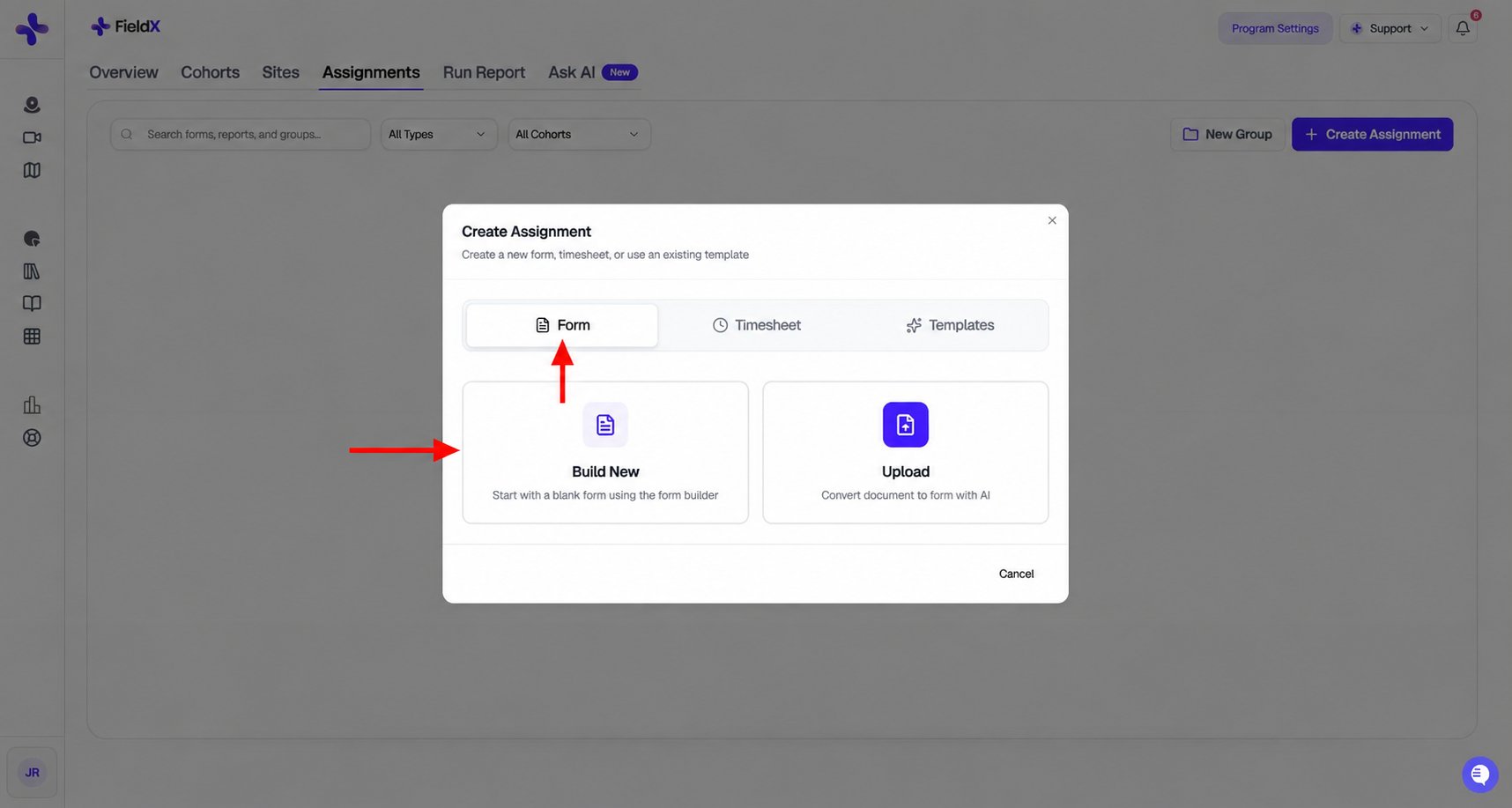
Choose Form, then Build New to start a blank form. Upload converts an existing document with AI.
The form builder
The builder has your form canvas on the left and a toolbox of field types on the right. Drag and drop elements to build your form.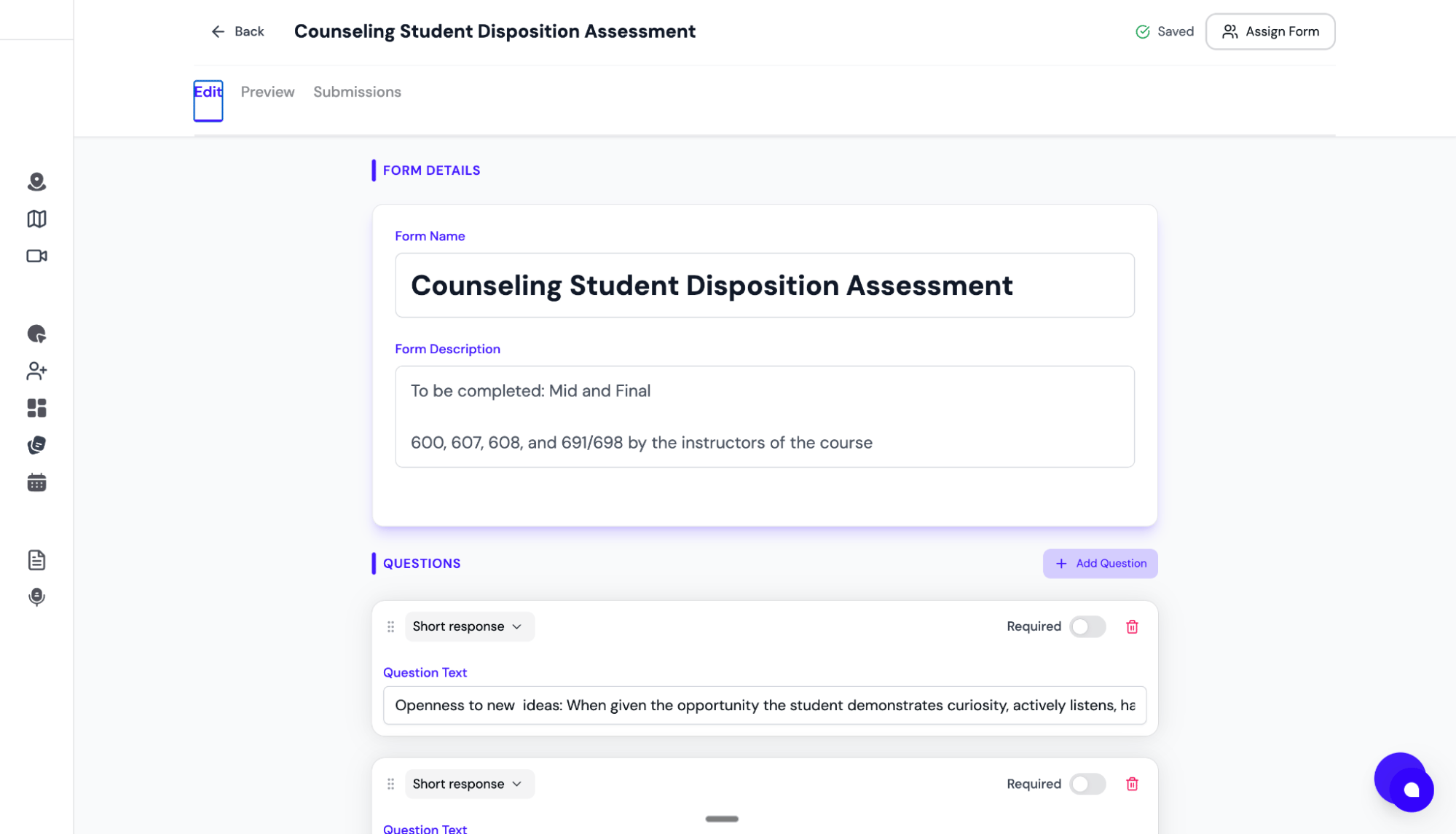
Available field types
Accumulate numbers
Use the Accumulate numbers field when you need a running total (or average, min, max, or count) of numeric answers a respondent has already given elsewhere on the form. Common examples include totaling weekly hours, averaging rating scores, or counting completed items. The field is read-only for the person completing the form — the value updates automatically as they type numbers into the source questions. To configure it:- Add one or more Text input questions earlier in the form to collect the numbers you want to aggregate.
- Add an Accumulate numbers field below them.
- In the field editor, select which source questions to include.
- Choose an aggregation: Sum, Average, Min, Max, or Count.
- Set the number of decimal places to display (0–6).
Only Text input questions that appear above the accumulate field can be used as sources. Blank or non-numeric answers are skipped rather than counted as zero, so the total reflects only real responses.
Field properties
Click any field to customize:- Mark as Required
- Add help text or instructions
- Set character limits
AI import
Instead of building from scratch, you can upload an existing PDF or Word document (your current Mid-Term Evaluation, for example) and AI will automatically convert it into a FieldX form. Once you save your form, it becomes a reusable template that can be assigned to any cohort or individual user.Once you’ve built your forms, learn how to assign them in Creating & Assigning Tasks.