

When to use it
- Confirming a supervisor sees the right students and cohorts before the semester starts
- Debugging why a supervisor reports missing tasks, sites, or hours to sign off on
- Previewing how a new evaluation form appears in the supervisor’s queue
- Onboarding new Program Admins by showing them what supervisors actually see
Starting a session
- Go to Program Settings → Members and open the Supervisors tab.
- Find the supervisor you want to view as.
- In the row actions, click View as Supervisor.
The amber banner
While impersonation is active, a sticky amber banner stays pinned to the top of every page. The banner shows:- The supervisor’s name
- The Read-only label
- A live countdown timer (default 1 hour)
- An Exit Supervisor View button — click to return to the Program Admin Overview
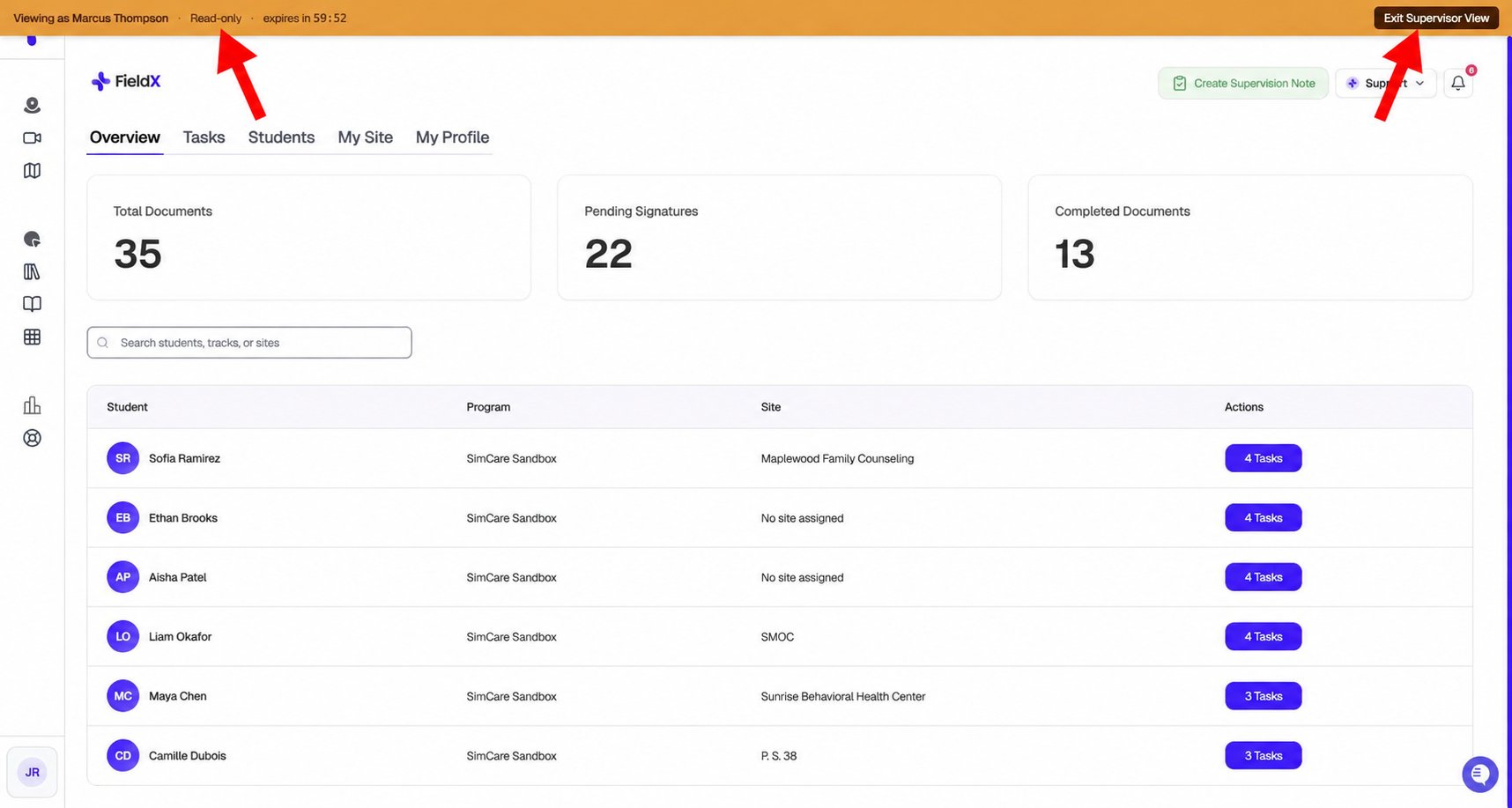
The supervisor preview shows a read-only banner and an Exit Supervisor View action.
What’s read-only
View as Supervisor is a strict read-only mode. You can navigate freely, but you cannot:- Sign off, approve, or deny hours or tasks
- Post comments on student submissions
- Save changes to the supervisor’s profile
- Modify sites, students, or any supervisor-owned data
Audit log
Every impersonation session is recorded in your Activity Log (Program Settings → Activity Log):- Who started the session
- Which supervisor they impersonated
- Session start time and the supervisor and program being viewed
- An end event when you exit the view
Session lifetime
- Expires after 1 hour — use the countdown in the banner to see the remaining time.
- Switching people — exit the current preview before starting a student or supervisor preview.
- Shared across browser tabs — preview mode uses your browser session. Check the amber banner in other SimCare tabs and exit preview before resuming admin work.
View as Supervisor vs. View as Student
Both flows use the same read-only, audit-logged pattern, but target different roles:
Exit your current preview before starting another student or supervisor view.