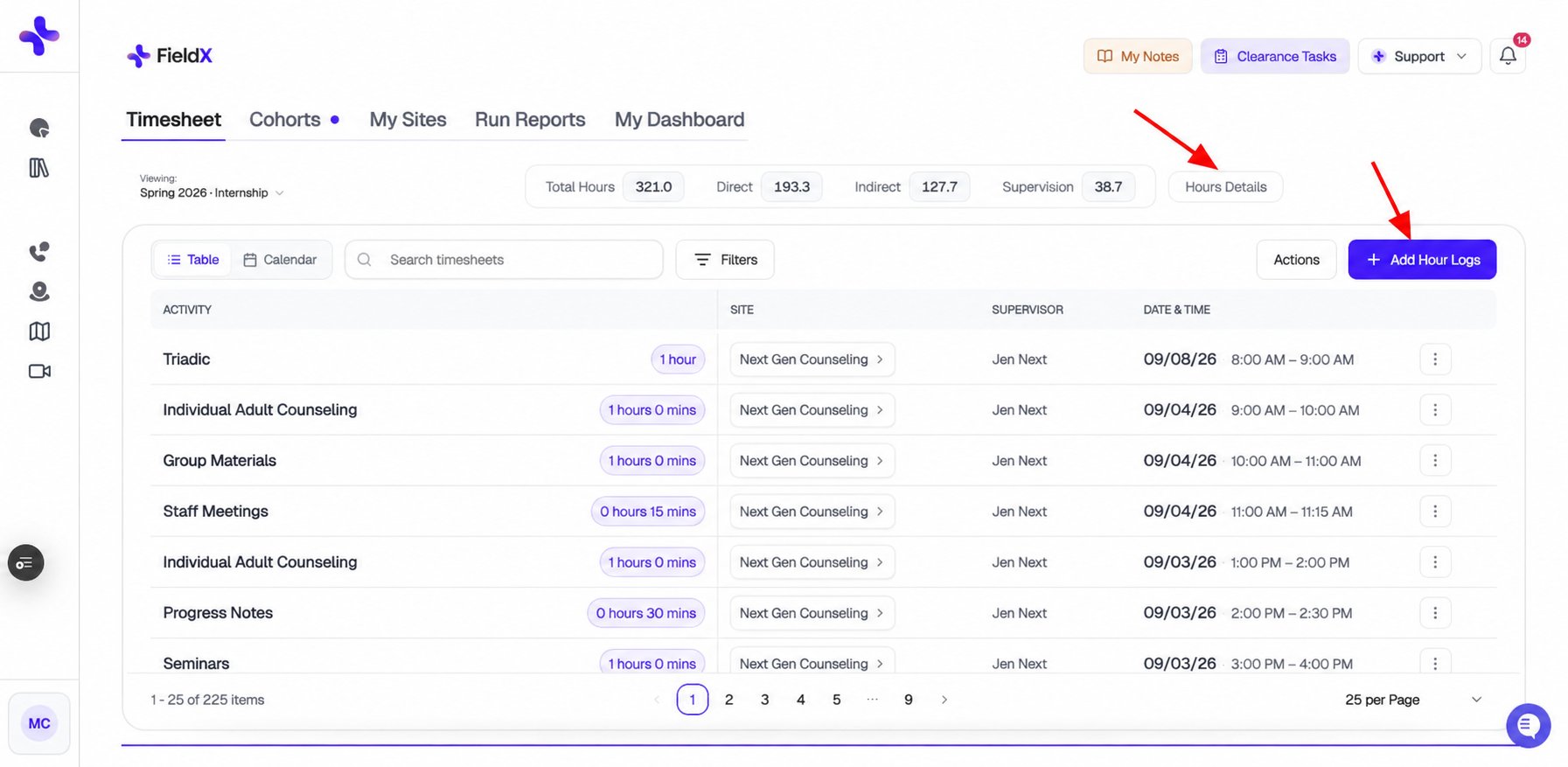
Once your clearance is approved, the Field Experience page becomes your main hub. You’ll see five tabs across the top:
Some tabs — particularly Cohorts — show a blocked overlay until your clearance is fully approved. If you see a lock screen, check your clearance status before troubleshooting anything else.

My Dashboard

My Dashboard is your home base for status and activity. It has two segments: Profile Details (default) — shows your clearance status via the Clearance Tasks card, any insurance documents you’ve uploaded, assigned forms awaiting action, and timesheet reports. This is the first place to look if something feels stuck or incomplete. Activity — shows a donut chart of your logged hours broken down by type (Direct, Indirect, Supervision), plus an AI-generated summary of your recent activity. The AI summary auto-generates once you have hours on record; click Refresh at any time to regenerate it. Use the period dropdown to switch between specific terms or view your all-time hours. You can also export your activity to CSV from this segment.

Hour types explained

Insurance uploads

You can upload or replace insurance documents yourself at any time from My Dashboard > Profile Details — no need to contact your coordinator.

Timesheet tab

The Timesheet tab is where you log hours and track everything you’ve submitted.
  • The default view shows the current term. Use the period dropdown to switch terms or view all time.
  • The hours summary bar at the top shows your approved vs. unapproved breakdown at a glance. Click it to open the full breakdown modal.
  • The first time you click Log Hours, you’ll be shown a one-time timesheet agreement. Accept it to proceed — it only appears once.
  • If an approved entry needs to be corrected, use the Unlock action on that row. If the entry is part of an active supervision report, refresh that report first before unlocking.
If your supervisor isn’t showing up in the supervisor dropdown when logging hours, go to Timesheet > Tools (the three-dot menu) > Add Supervisor and enter their name and email. They may not have joined the platform yet, or may need to be manually added.

Cohorts tab

The Cohorts tab shows your class assignments, pending tasks, forms, reports, and your learning contract (if your program uses one). The learning contract card appears above the cohort grid when applicable. This is also where you enroll in a cohort: click Enroll in cohort in the page header and enter the code your program coordinator provided.
If the Cohorts tab shows a blocked overlay or appears empty, your clearance has not been approved yet. There is nothing to configure here — go to My Dashboard > Profile Details > Clearance Tasks and complete any outstanding items.

Where to find pending tasks

The best single view of everything you still need to do is the Cohorts tab — its upcoming tasks panel surfaces all pending assigned forms and reports together, with urgency flags for items due within 3 days. Your My Dashboard cards (Assigned Forms, Timesheet Reports) show the same items split by category, which is useful if you want to focus on one type at a time. Forms open in a new browser tab at /assigned-forms. Reports open in a dashboard panel.
If you received an email about a form or report needing your attention, click the button in the email — it links directly to that item. In the app, find everything pending on the Cohorts tab.

My Sites tab

My Sites shows all of your placement sites. Established sites are active immediately. Sites that are still being reviewed show a Pending badge. To cancel a pending site request: find the site with the Pending badge, click it, then select Cancel request.

Run Reports tab

Run Reports lets you browse and generate report templates that are scoped to your own data. You cannot view or generate reports for other students from here.

To-Dos and Notes

Two lightweight tools are available throughout FieldX:
  • To-Dos — personal reminders, plus the ability to send reminders to others.
  • Notes — three types: Private (only visible to you), Public (faculty can review), and Supervision notes (formal documentation of supervision sessions).

Common issues