

Option A: From the dashboard
1
Log in to FieldX
Open Field Experience from the sidebar.
2
Find pending tasks
On your Overview page, click the task-count badge on any student row to jump to their pending items. Alternatively, go to the Cohorts tab, open a cohort, and use the My Tasks sub-tab to see all pending reports for that group.
3
Open the action item
Click the action button on any pending report. The report dialog opens with the included hours, comments, and signing controls.
4
Review and sign
Review the hours logged. Click Sign & Approve to sign in the DocuSeal e-signature flow.
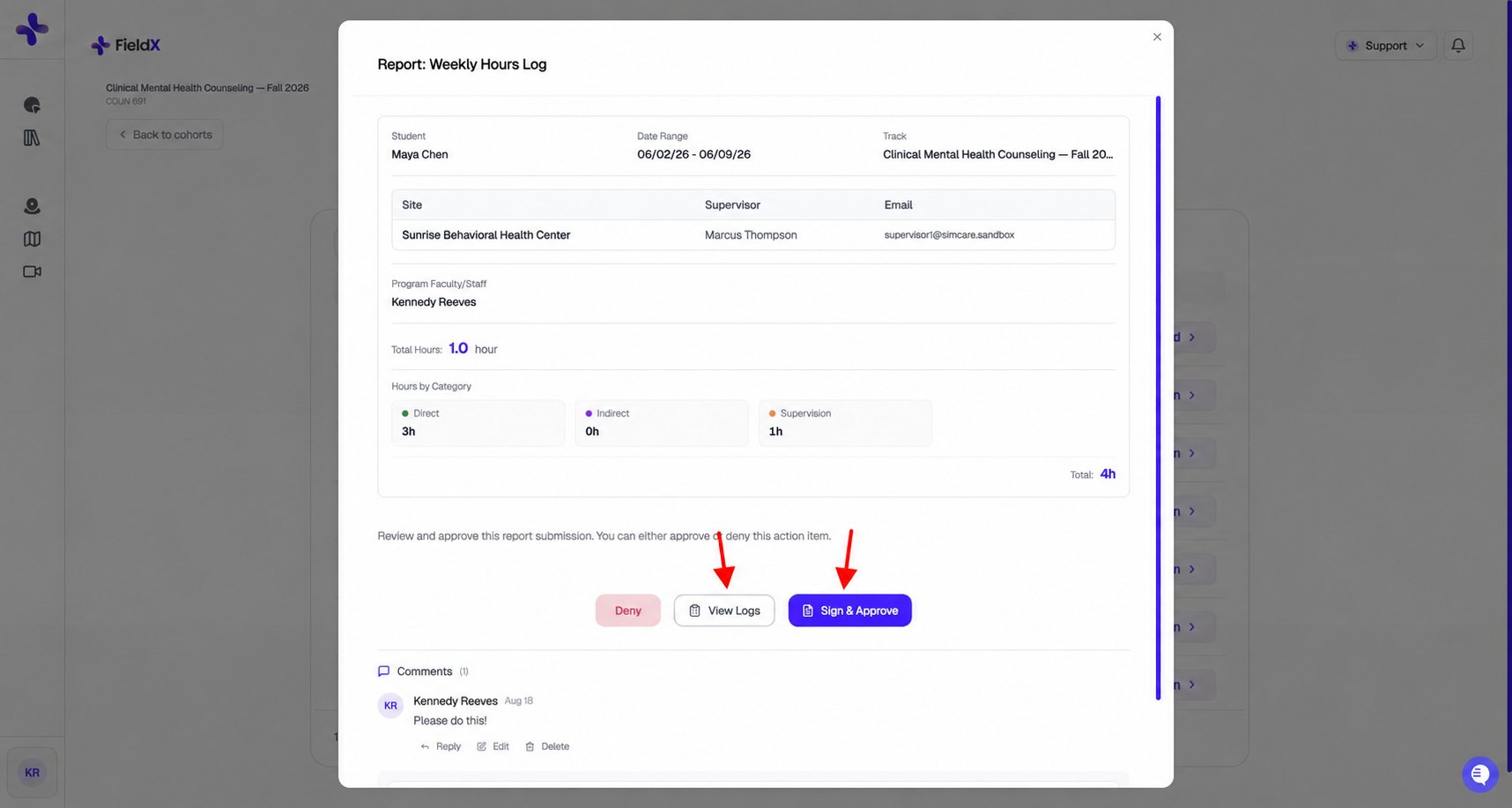
Review the individual entries with View Logs, then use Sign & Approve when you are ready to sign.
The signing flow is fully embedded — no separate window or extra steps. You can also click View Logs to see each hour entry on the report (date, type, site, duration, notes).
Option B: From an email
When a student submits a report, you receive an email notification fromhello@mail.simcare.ai. Open the signing link in the email to review and complete your signature. A direct signing link can open the signature flow without first visiting your dashboard.
Review the report content and follow the signature prompts. Check the completion message to confirm your part was saved.
Option C: Weekly digest
A weekly digest lists outstanding signatures waiting for you. This lets you catch up on all pending approvals in one go without monitoring the dashboard daily. If your program has the Daily Assignment Digest enabled, you’ll also get a morning email each weekday summarizing what your students completed yesterday.Signing as the faculty witness
Some formal reports (e.g., the Weekly Hours Log) require multi-party signatures: student, site supervisor, and you as the faculty witness. Follow the signature status shown on the report. The required signers and signing order depend on the report configuration; you may need to wait for an earlier signer before completing your part. Once everyone signs, the report moves to Completed and a signed PDF is available for download.Viewing your students’ submissions on a shared form
For forms with multiple signers (for example, an evaluation signed by the student, site supervisor, and you), you can review submissions from the students you signed for without leaving your task list. Where to find the button:- After you sign — the confirmation screen shows a View Student Submissions button.
- Revisiting a signed form — reopen the form in view-only mode; the button appears next to the form title.
- From your task list — the Action Items table shows a submissions icon on any completed shared form row.
The view is scoped to your students. You won’t see submissions from other faculty members’ students, and program-admin actions (reset, resend, delete, send back) are hidden — those remain with your program coordinator.
Downloading or printing a completed form
Assigned forms are different from hour reports: they open in/assigned-forms in a new browser tab. Once a form has a saved or submitted response, look for Download PDF on the form. Click Download PDF to open a printable PDF, then print from your browser or PDF viewer.
Sign & Approve is greyed out
The most common reason Sign & Approve is disabled is that the report shows zero hours for its date range. Programs can flag long entries in amber. The default threshold is 2 hours or more; your program can change or disable the notice. A flag asks you to review the duration and does not automatically reject the entry.Denying a report
If a report needs to be sent back:1
Add a comment
Explain what needs to change in Comments. Choose Everyone if the student should see the reason; use Hidden from students for an internal note.
2
Click Deny
Click Deny to open the confirmation dialog.
3
Confirm the denial
Click Deny in the dialog. The report moves to Rejected. Faculty or a Program Admin can arrange a resubmission if needed.