

How to sign a report
1
Open the Tasks tab
Click the Tasks tab on your supervisor dashboard. You’ll see all pending reports across every student you supervise. If you supervise students at multiple sites, reports from all sites appear here in one aggregated list.
2
Find the pending report
Pending reports appear on the Pending status tab. Use All Students or the search box to find a student or report.Use All Types to show reports or assigned forms.
3
Review the hours
Click the report row (or Get Started) to open the report panel. Click View Logs to see each individual timesheet entry — date, activity type, site, duration, and any notes the student added.Your program can flag long entries in amber. The default threshold is 2 hours or more; your program can change or disable it. Read the notice above the logs and confirm unexpected durations before signing.
4
Sign & Approve
Click Sign & Approve. An embedded DocuSeal e-signature window opens — complete your part of the signature flow. After you sign, the report can move to Completed for your role. Check the signature status in the panel: the finalized PDF becomes available after all required parties have signed.
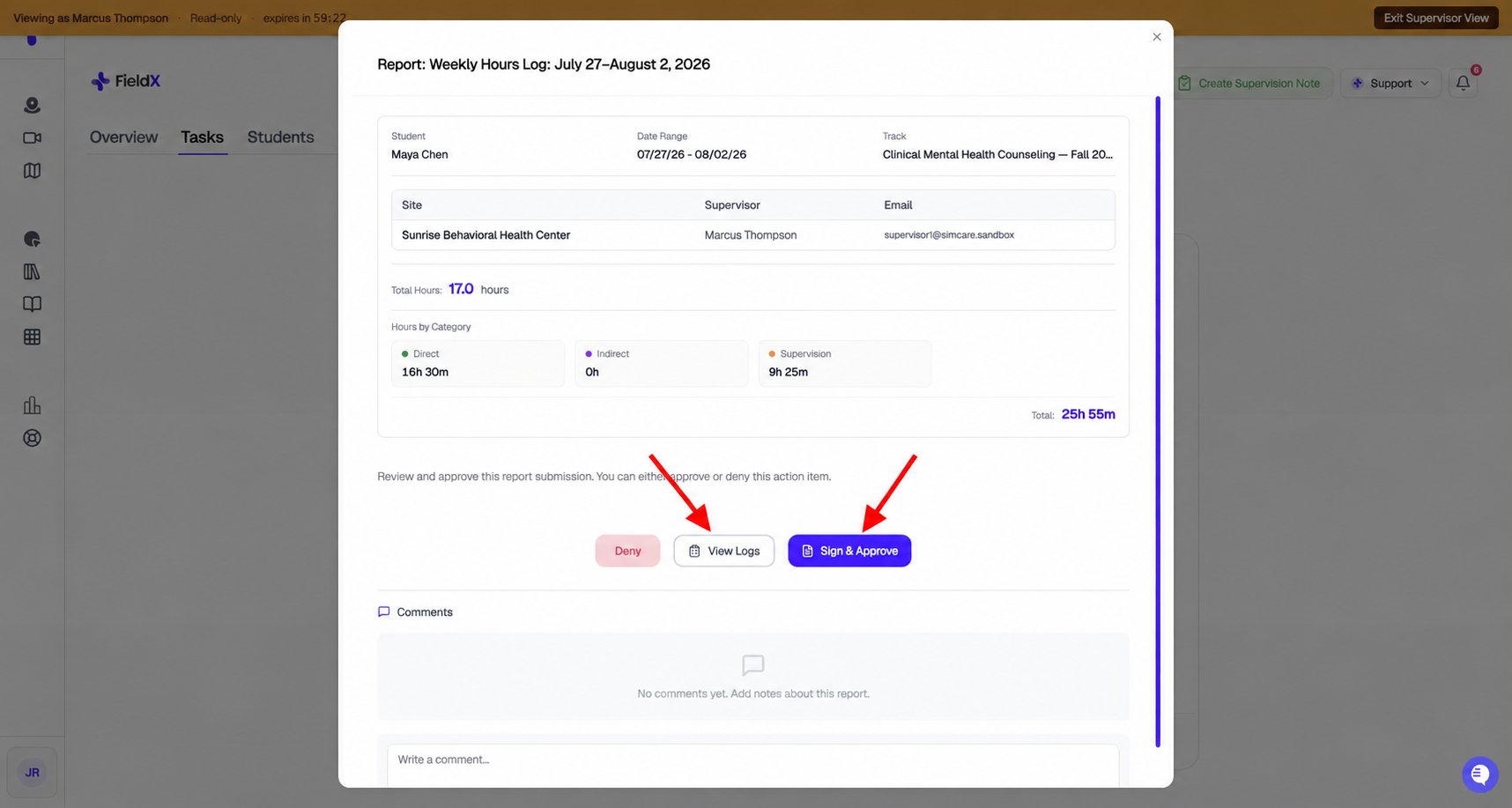
The report's View Logs and Sign & Approve controls. This example is shown in administrator read-only mode; sign reports from your own supervisor account.
Sign & Approve is disabled (greyed out) if a report has zero hours in its date range. Click View Logs to check the included entries. If the total is zero, ask the student to verify the report dates, site, supervisor, and their hour entries. Refresh after corrections.
If you need to deny a report
If the hours look incorrect or the report needs revision, click Deny in the report panel. Before confirming, add your reason in the Comments section at the bottom of the panel — this message is visible to the student and their faculty supervisor so they understand what needs to change. When you’re ready, click Deny in the confirmation dialog to confirm. A denied report moves to the Rejected tab. It is not deleted — faculty or a Program Admin can issue a resubmit flow if the student needs to correct and resubmit. You can still view the report read-only from the Rejected tab.Comment visibility
When leaving comments, you can choose between Everyone (visible to the student, faculty, and Program Admins) or Hidden from students (visible only to supervisors and faculty). Use hidden comments for internal notes that aren’t meant for the student.Status tab meanings
Downloading or printing a completed form
Assigned forms open differently than reports: clicking Fill Form opens the form in a new browser tab at/assigned-forms. Once the form has a saved or submitted response, look for Download PDF on the form. Click Download PDF to open a printable PDF, then print from your browser or PDF viewer.