

When to use it
- Walking through a student’s clearance issue without asking them to screen-share
- Confirming a recurring assignment is showing up on the right day
- Testing a new cohort, form, or report from the student’s perspective
- Onboarding new staff by showing them what students see
Starting a session
You can launch View as Student from several places:- Program Settings → Members → Students — View as Student on the student row
- Cohorts → cohort → Members — View as Student on the student row
- Student Details modal — the View as Student button at the top
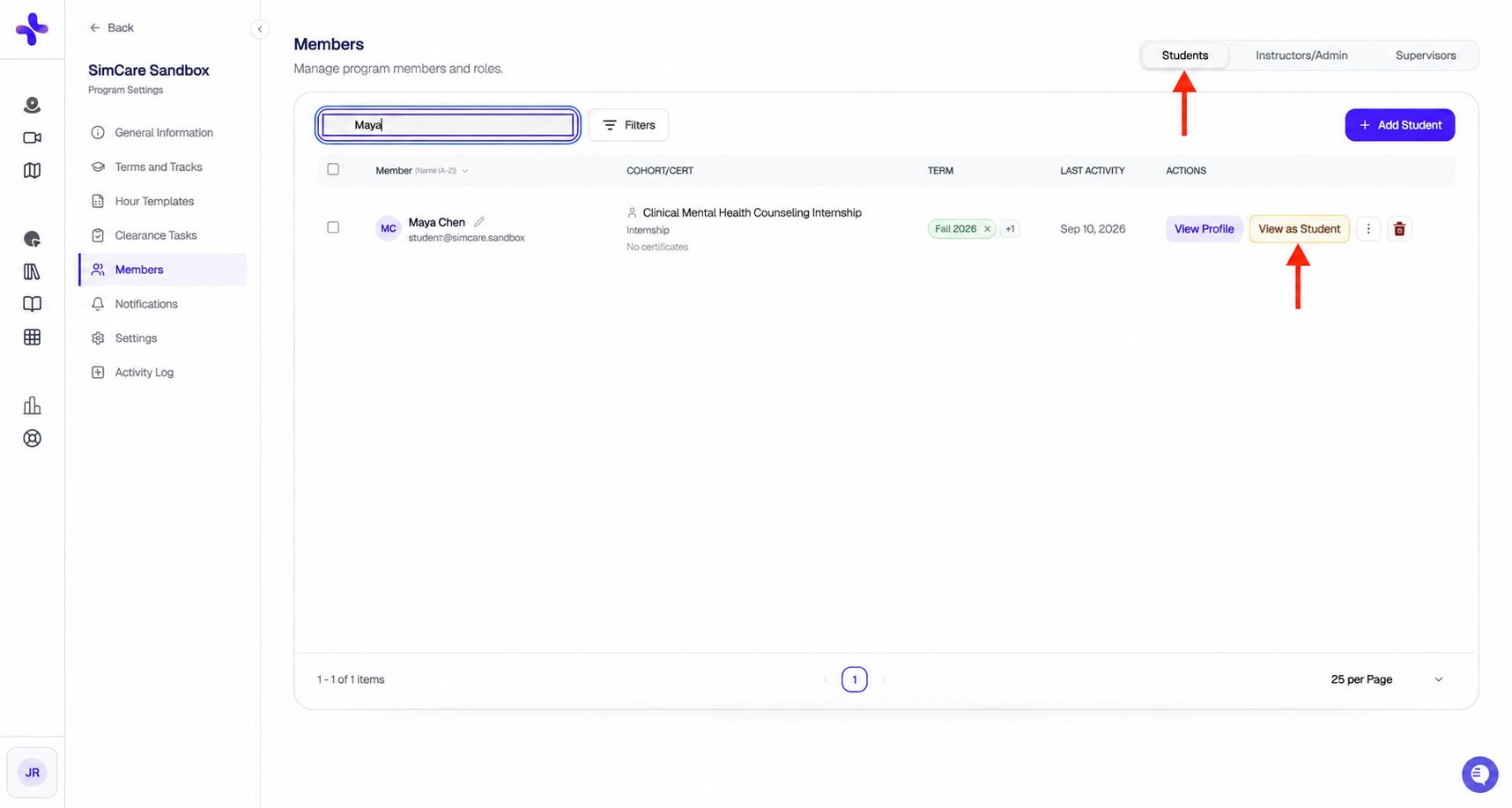
Open Members, select Students, and choose View as Student on the student row.
The amber banner
While impersonation is active, a sticky amber banner stays pinned to the top of every page. The banner shows:- The student’s name
- A live countdown timer (default 1 hour)
- An Exit Student View button — click to return to the Program Admin Overview
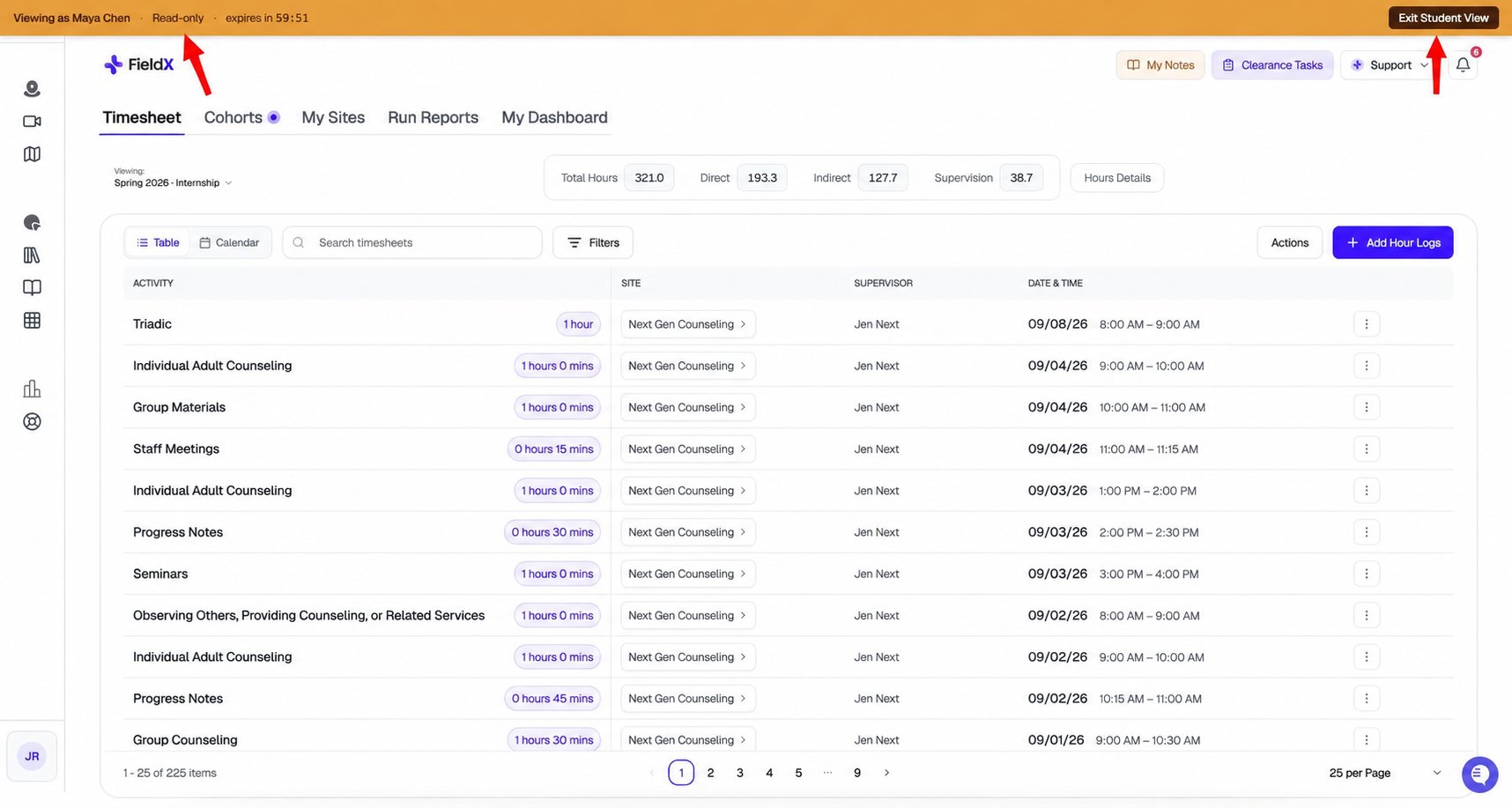
The amber banner identifies read-only preview mode. Exit Student View returns to the admin dashboard.
What’s read-only
View as Student is a strict read-only mode. You can navigate freely, but you cannot:- Submit a form on the student’s behalf
- Log hours
- Send a join request
- Approve, reject, or sign anything
- Modify the student’s profile, sites, or supervisors
Audit log
Every impersonation session is recorded in your Activity Log (Program Settings → Activity Log):- Who started the session
- Who they impersonated
- Session start time and the student and program being viewed
- An end event when you exit the view
Session lifetime
- Expires after 1 hour — use the countdown in the banner to see the remaining time.
- Switching students — exit the current preview before opening another student.
- Shared across browser tabs — preview mode uses your browser session. Check the amber banner in other SimCare tabs and exit preview before resuming admin work.