

KPI cards
At the top of the Overview tab, three summary cards give you a quick health check at a glance:
These numbers update in real time as students submit work and signatures are collected.
Student table
Below the KPI cards is a table listing the students connected to your reports and forms. The table sorts automatically — students with the most pending tasks appear at the top so your highest-priority work is always visible first. Each row shows:- Student name and program
- Site name
- N Tasks button — click it to jump directly to the Tasks tab pre-filtered for that student
Tasks tab: where you take action
The Tasks tab is where you sign reports and complete forms. It has four sub-tabs:
Use All Students and All Types to filter the task list, or search by task or student.
Viewing a student’s hour logs
Before signing a report, you can review the individual timesheet entries that make it up. This is especially important for catching data entry errors before they become part of the official record.1
Go to the Tasks tab
Click Tasks in the top navigation.
2
Open the report
Click any report in the Pending sub-tab. Reports open in a dialog. Forms open in a new browser tab.
3
Click View Logs
Inside the report panel, click View Logs. You will see each individual time entry with its date, activity type, site, duration, and any notes the student added.
4
Review flagged entries
Your program can flag long entries in amber. The default threshold is 2 hours or more, but your program can change or disable it. Read the notice above the logs and confirm unexpected durations with the student.
Denying a report
If something is incorrect and you cannot approve the report:1
Add a reason
Explain what needs to change in Comments. Choose Everyone if the student should see the reason.
2
Click Deny
Click Deny in the report panel to open the confirmation dialog.
3
Confirm
Click Deny in the dialog. The report moves to Rejected. Faculty or a Program Admin can arrange a resubmission.
Students tab: browsing a student’s full timesheet
The Students tab gives you a read-only view of every hour entry a student has logged with you — not just the entries attached to one report. Use it to answer questions like “how many hours has this student logged with me overall?” without opening individual reports.1
Open the Students tab
Click Students in the top navigation.
2
Pick a student
Use the student dropdown at the top right of the table. Only students you actively supervise appear in the list. The first student loads automatically.
3
Review their entries
Each row shows the activity, duration, site, supervisor, and date and time. Use the row’s available note action to read any notes the student added.
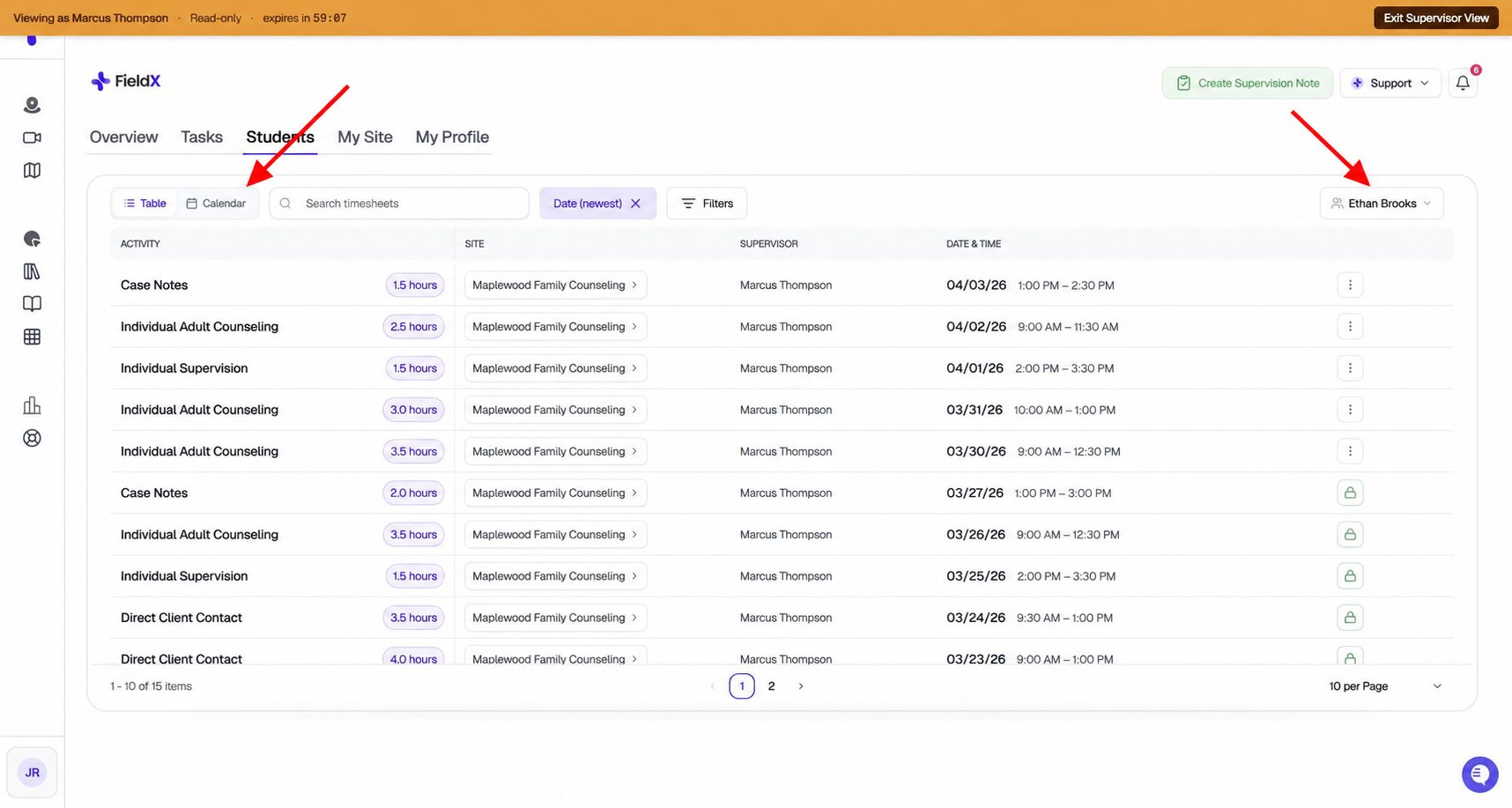
Choose a student, then switch to Calendar to review their entries by date. This example uses an administrator's read-only supervisor view.
- Table — a sortable, paginated list. Filter by activity type, site, track, date range, or approval status, or search across entries.
- Calendar — the same entries plotted on a month or week calendar, matching the calendar view students use on their own Timesheet tab.
The Students tab only shows hours the student logged with you. Entries the student logged under a different supervisor do not appear. The view is also read-only — you cannot add, edit, approve, or delete entries here. Approving hours still happens through report signing on the Tasks tab.
My Site tab
The My Site tab shows a card for each placement site you supervise. Each card displays:- Site name, address, and logo
- A roster of active students placed there
If your My Site tab shows “No sites yet,” it means no students have added you as their supervisor yet. A site appears here once at least one student selects you as their supervisor during their placement setup.
Email notifications and weekly digest
You do not need to log in to stay on top of your queue:- Email notification — when a student submits a report or form, you receive an email from
hello@mail.simcare.ai. You can sign the document directly from the email link without logging into the dashboard. - Weekly digest — a summary of outstanding signatures helps you plan your reviews. Use it as a weekly checklist.
Common issues
Sign & Approve is greyed out and I cannot click it. The report has zero hours in its date range. Click View Logs and ask the student to verify the dates, site, supervisor, and hour entries. Refresh after corrections; contact your Program Admin if the total still looks wrong. I am not receiving email notifications. Check your spam or junk folder. All emails come fromhello@mail.simcare.ai — add this address to your contacts or safe-senders list so future messages are not filtered.
I cannot find a specific student. Use the search box on the Overview tab or the Tasks tab. Type the student’s name, their program track, or the site name. If the student still does not appear, they may not have added you as their supervisor yet — ask them to confirm your name is listed on their placement.
My Site tab is empty. No students have selected you as their supervisor yet. Once a student adds you during their placement setup, your site will appear automatically.
I accidentally denied a report. Contact the student’s faculty supervisor or Program Admin to arrange a resubmission. You cannot undo a denial yourself from the dashboard.
A student’s task count says 0 but I know they submitted something. Try refreshing the page. If the task still does not appear, ask the student to confirm they clicked Submit and not just Save. Drafts saved by the student are not sent to you until they explicitly submit.