

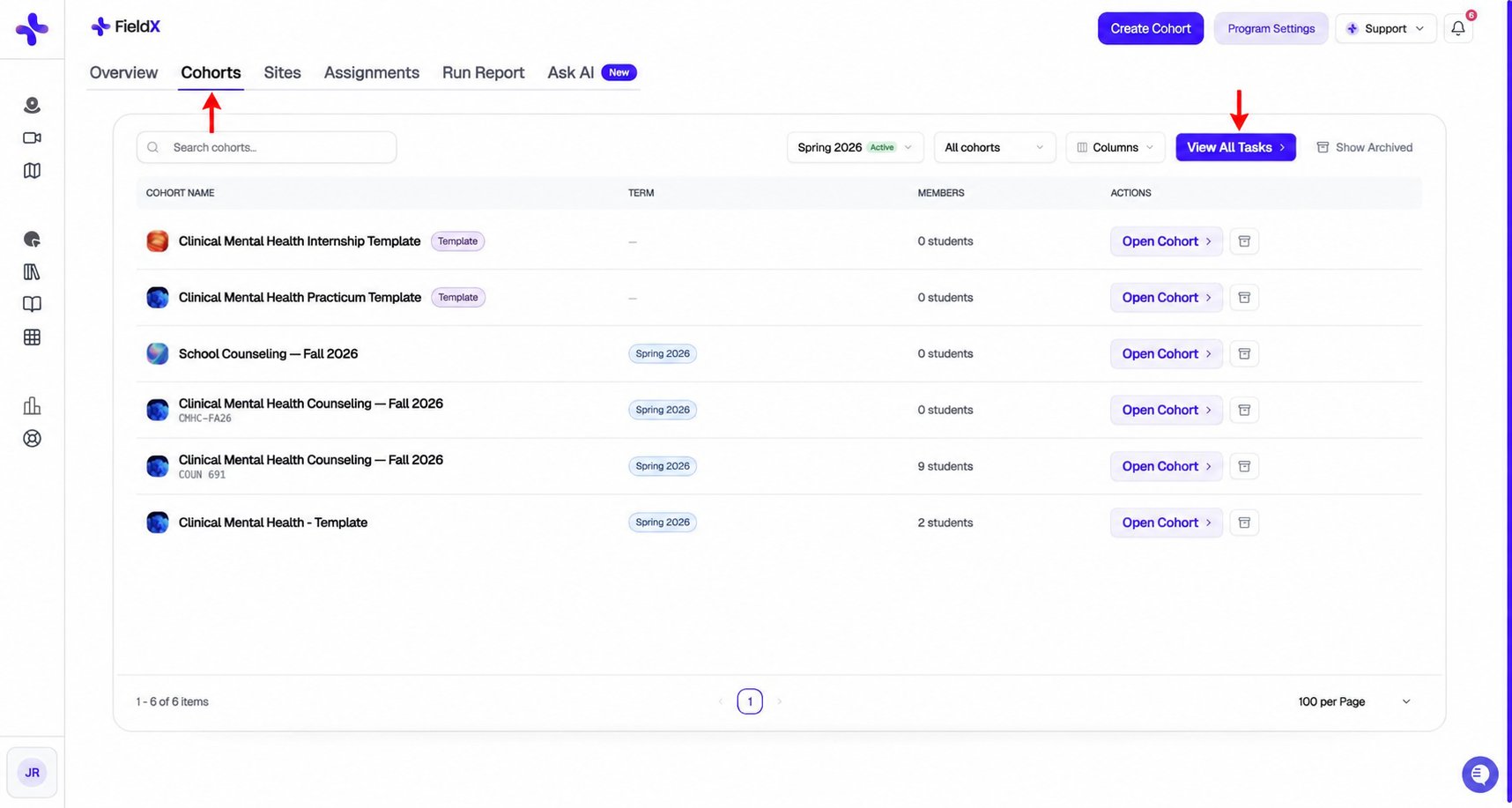
Open Cohorts to manage your classes or View All Tasks to review work across cohorts.
Creating a new cohort
Open the Cohorts tab and click Create Cohort.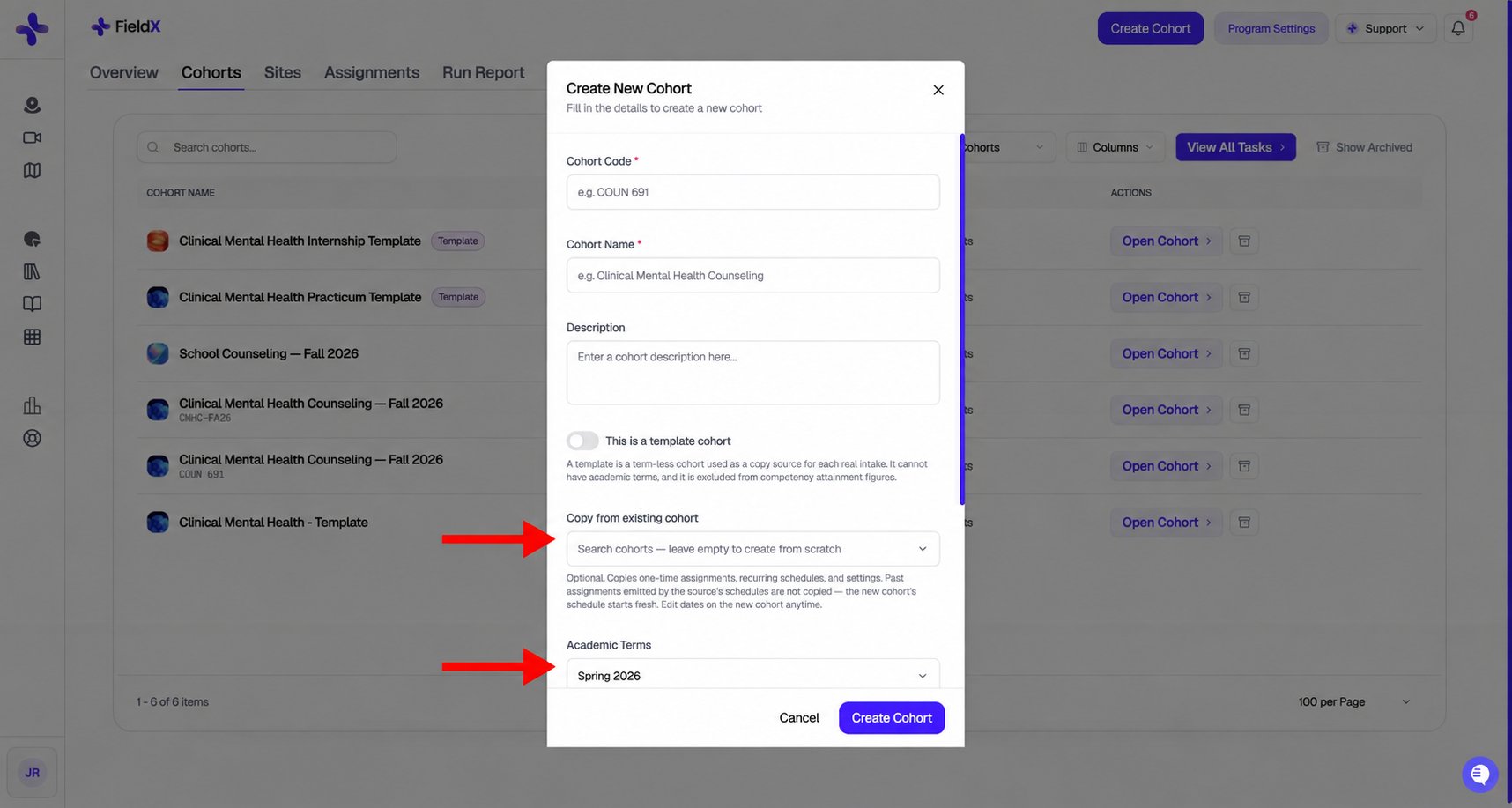
Use Copy from existing cohort to reuse assignments and schedules, then select Academic Terms.
Click Create Cohort to save.
Template cohorts
Toggle This is a template cohort in the create or edit modal to mark a cohort as a template. A template is a term-less cohort you build once and copy from for each real intake — assign your standard forms, recurring schedules, and report templates to it, then use Copy from existing cohort each term to stamp out the real cohort. Template cohorts follow a few rules:- No academic terms. Turning the toggle on clears any term selection, and terms cannot be attached later. The term is chosen when you create a real cohort from the template.
- Flagging an existing cohort requires detaching its terms first. If the cohort still has terms attached, the save is rejected and the error names the terms — remove them before flagging.
- Copies are normal cohorts. Copying from a template never carries the template flag over, so the new cohort behaves like any other.
- Excluded from competency attainment. A template is not a student population, so it never appears in competency attainment cohort pickers or figures.
- Always visible. The cohort grid’s term filter skips templates, so a term-less template never disappears from your management view.
Editing a cohort
Use Open Cohort to enter a cohort and Settings to update it. The cohort list also provides archive actions. In the cohort settings you can:- Upload a Cohort Logo (16:9, max 5MB; JPEG, PNG, WebP, or GIF) — appears in the cohort header for everyone
- Update name, code, description, terms, and signing faculty
Inside a cohort
Click Open Cohort on a row to open its dedicated dashboard.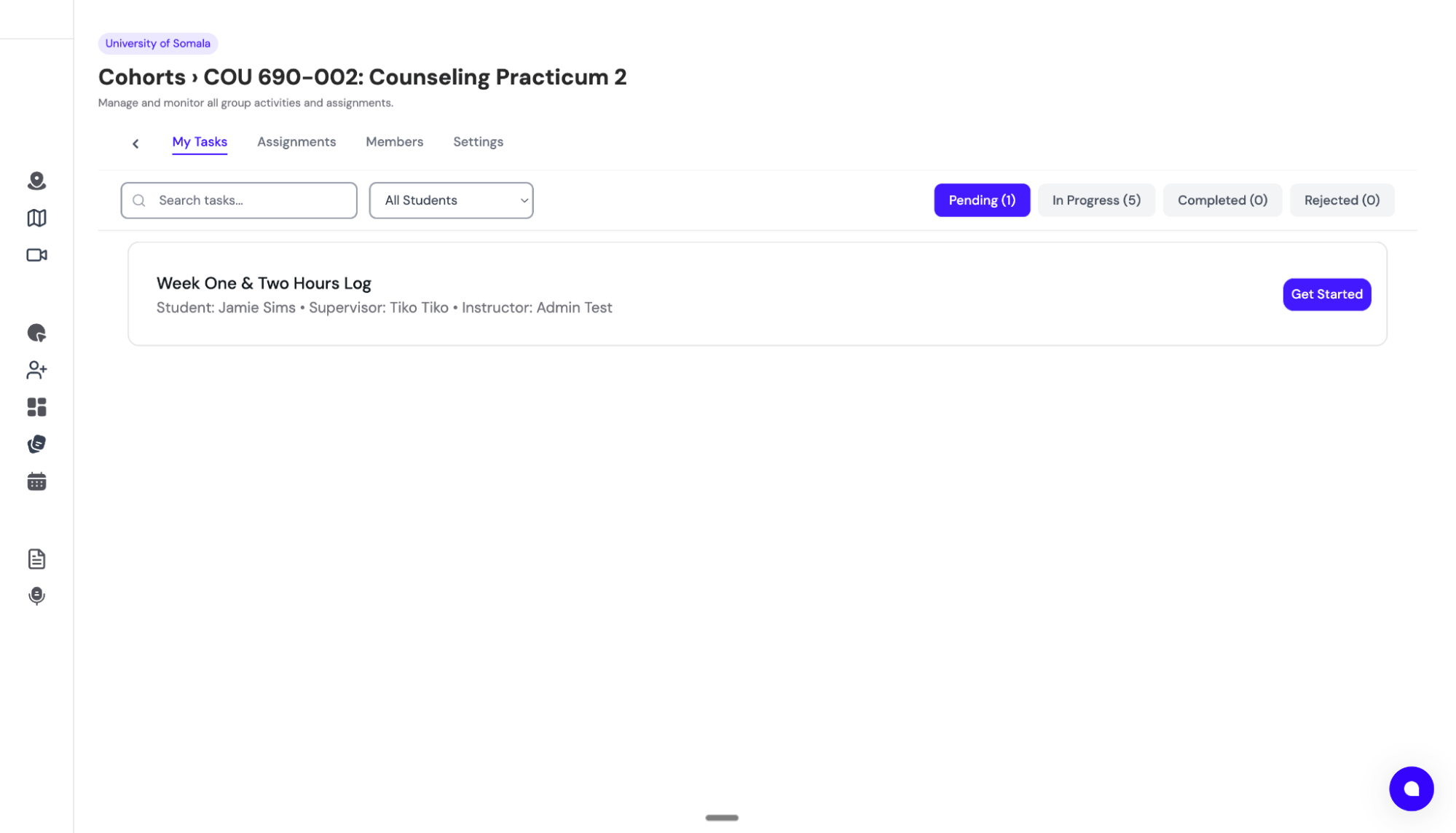
Click Back to cohorts in the header to return.
Members sub-tab
Two segments: Students / Instructors. The top-right + Add Student / + Add Instructor buttons open the Add Program Members to Cohort modal — which doubles as an Invite to Program flow if you need to add a brand-new email. Per-row actions include View as Student (impersonate read-only) and bulk Assign same faculty to all to set faculty for many students at once. You can also click Send Alert to push a one-off notification to a student.Assignments sub-tab
Two segments: Assignments (one-time) and Schedules (recurring). The + Create button opens the program-wide assignments builder. Stop a schedule any time — existing emitted assignments are preserved, but no new ones are generated.Settings sub-tab
The available segments are:- General Information — name, code, description, terms, default signing faculty, cohort logo
- Hour Requirements — per-track and per-certificate hour requirements with qualifying activity types
- Hours Report Template — preview the active DocuSeal hours-report template, or change it while the cohort is unstarted. See Changing the hours report template.
- Learning Contract (programs with Learning Contracts enabled) — pick which Learning Contract variant students in this cohort complete, or leave on Program default to use the standard contract. Variants are defined at the program level under Program Settings → Settings → Learning Contract Variants. See Learning Contract variants.
Changing the hours report template
You can change a cohort’s hours report template yourself, as long as no one has started logging hours. Open the cohort’s Settings sub-tab and select Hours Report Template. If the cohort is unstarted, a panel shows the current template with a note that it can still be changed:- Click Change template.
- Pick the new template from the list — active templates from your program, public templates, and Default — standard report.
- Click Continue, review the confirmation, then click Confirm change.
Choose Default — standard report only if your program does not use custom hour categories (e.g. direct, indirect, supervision).
Archiving a cohort
When a term ends, archive the cohort instead of deleting it:- From the Cohorts tab, find the cohort row and click its archive action
- Click Show Archived in the header to see archived cohorts; Hide Archived to hide them again
Next step: Once cohorts are set up, students complete clearance and you approve them. See Approving Students.