

Objective
This guide explains how to verify the FieldX Canvas integration and link a Canvas course to a FieldX cohort so users can launch SimCare and join the correct cohort. It also covers what content copies over when a cohort template is linked, and what to check after setup.Key steps
1. Verify the FieldX integration is available in Canvas 0:25- Open the Canvas course you want to configure.
- Confirm that a Launch SimCare button appears in the course sidebar.
- If the button is missing:
- Contact IT to enable the integration for the course.
- Confirm the FieldX integration has been completed.
- Use this button as a quick validation that the integration is active.
- Click Launch SimCare to log the user into SimCare.
- Note that this action:
- Does not enroll the user into a new course.
- Does not create a new cohort.
- Simply authenticates the user and sends them to the main SimCare page.
- Use this button for access, not enrollment.
- In the Canvas course, create or open a module.
- Select the + icon to add content.
- Choose External Tool.
- Look for one of these options:
- Launch SimCare
- SimCare Assignment Picker
- Select the appropriate tool to open the FieldX popup.
- Expand the popup if needed.
- Verify that you can see both tabs:
- Field Experience
- Case-Based Learning
- If the Field Experience tab is missing:
- Contact the FieldX support team.
- Request that the field experience environment be properly connected to Canvas.
- Do not continue until the correct tab is visible.
- Review the list of cohorts you have previously configured.
- Choose the cohort template you want students to use.
- Confirm that the selected cohort contains the expected items, such as:
- Forms
- Schedules
- Assignment templates
- Select the cohort carefully, since this template will be used to generate a new cohort copy.
- When a cohort template is linked:
- Forms copy over.
- Schedules copy over.
- One-time form and report assignments copy over.
- Report assignments already emitted by a recurring schedule do not copy over; the copied schedule starts fresh.
- Use this behavior to reduce manual setup for new terms.
- Plan to adjust dates and term settings after the cohort is created.
- Keep in mind that students will not see all future assignments immediately if they are generated by schedule.
- After selecting the cohort, click Link Selection.
- Then click Add Item.
- Confirm that the module item is created successfully.
- This item will now function as the entry point for users to join the linked cohort copy.
- Click the newly created link in Canvas.
- Confirm that a popup appears showing the generated cohort name.
- Verify that the cohort name matches the Canvas course name.
- Use this test to ensure the link is working before sharing the course with users.
- Open Field Experience from the link.
- Go to the Cohorts tab.
- Confirm that a new cohort has been created with the Canvas course name.
- Open the cohort and verify that:
- The form copied over.
- The schedule copied over.
- The term is set appropriately.
- Update the term or schedule dates if needed to match the active academic period.
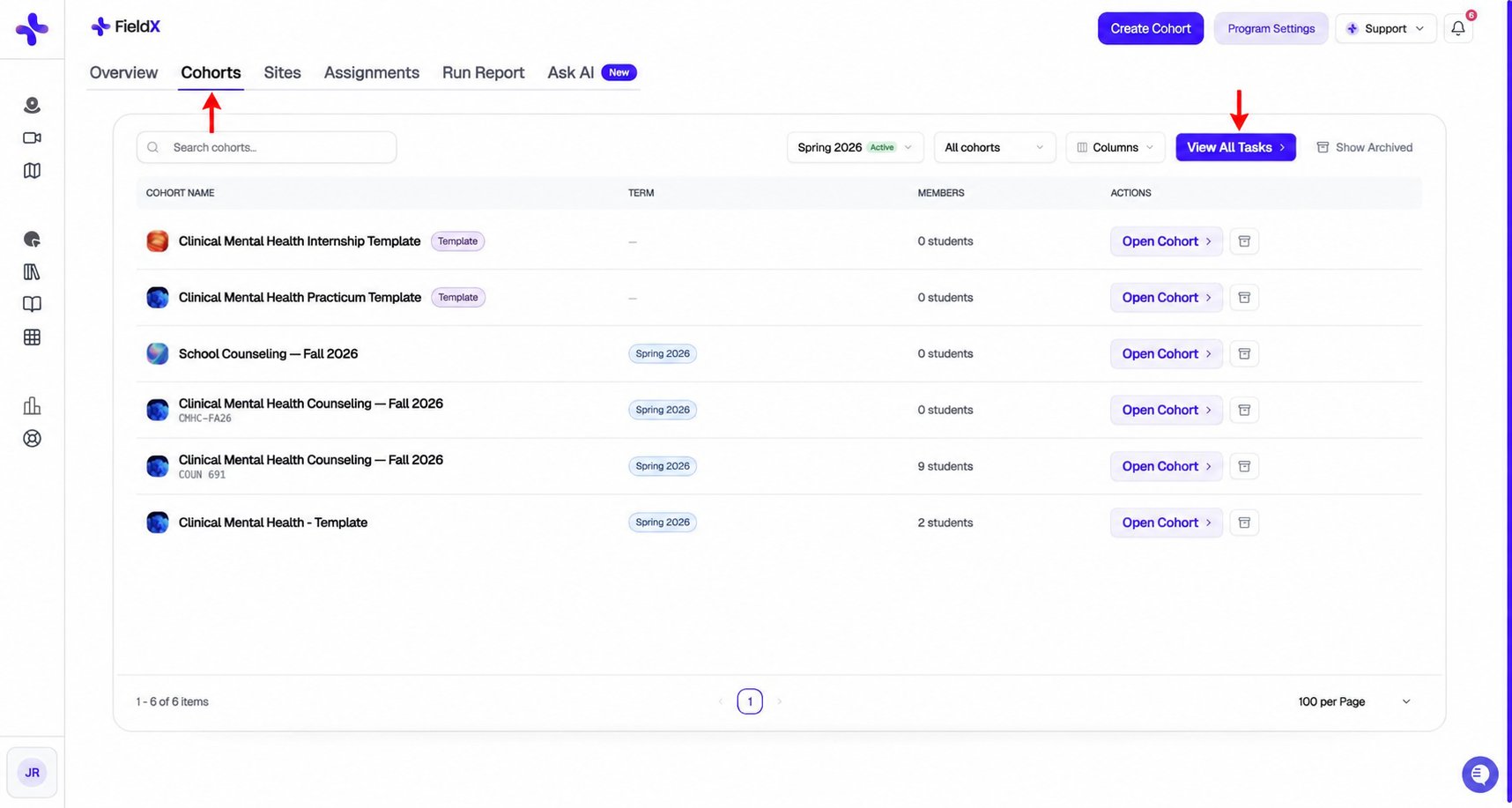
FieldX-side verification: open Cohorts to find the linked course. The screenshot shows an example program, not a Canvas launch.
- For a reusable master, mark the source cohort This is a template cohort in FieldX before linking it. Each Canvas course then receives its own cohort copy.
- An ordinary cohort can link directly to its original Canvas course; later course copies receive separate cohorts.
- When the Canvas course is copied into a new term, clicking the link creates a new cohort copy.
- The new cohort will be named after the Canvas course.
- Use this process to create a fresh cohort for each course instance without rebuilding everything manually.
- Confirm that users who click the Canvas link are enrolled into the corresponding FieldX cohort for that Canvas course.
- Verify that the correct cohort is being used for the current course section.
- If enrollment does not behave as expected, recheck the template selection and integration setup.