

Opening My Profile
Click the My Profile tab in your supervisor navigation. The card heading reads Professional Profile.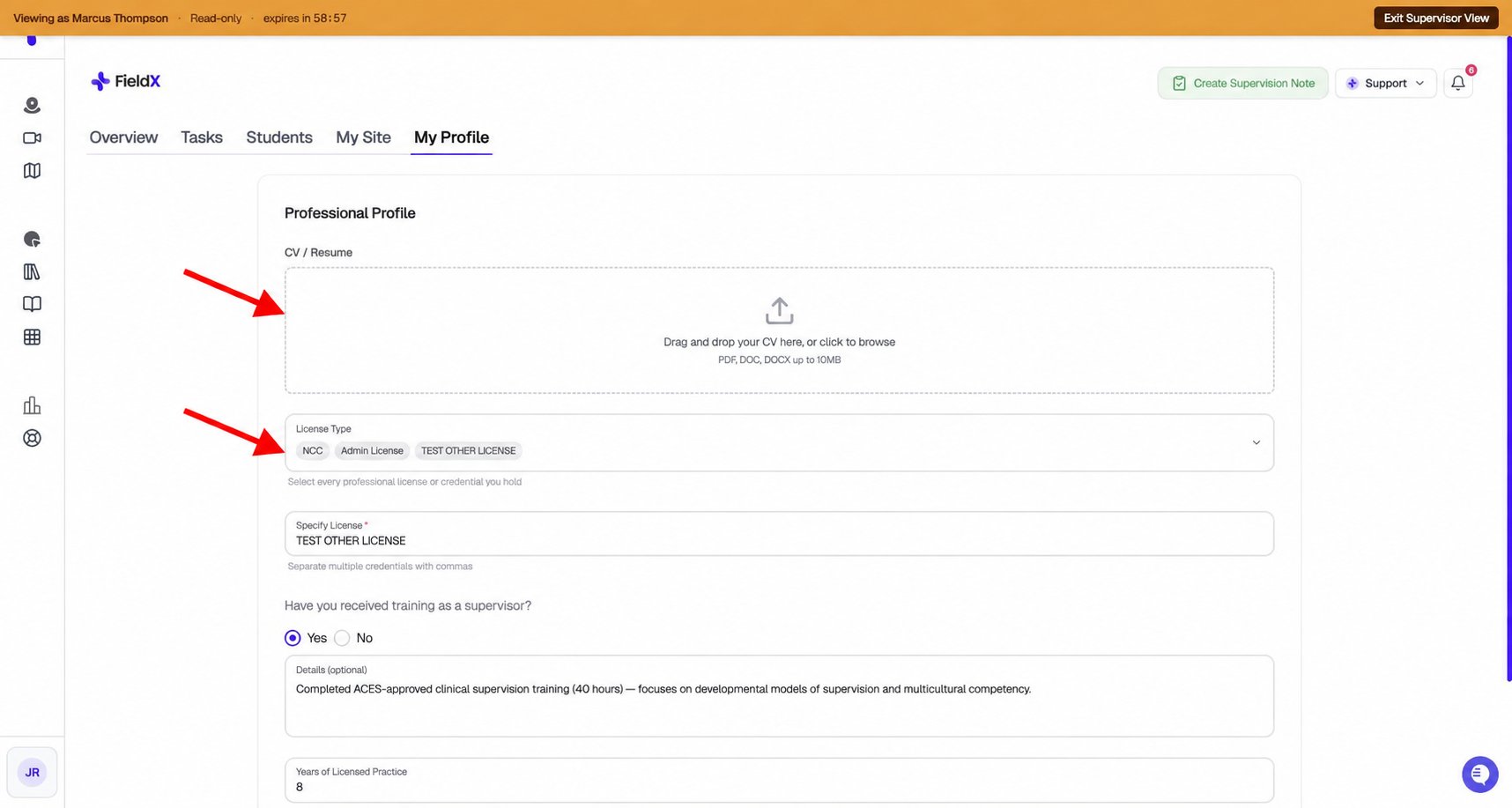
Upload a CV and select every applicable credential. This example is shown through an administrator's read-only view; edit your profile from your own account.
Profile fields
Add your professional information and complete the items required by your program:
Click Save Profile when done. The button briefly changes to Saved. You can save partial progress and return to complete outstanding requirements.
Program staff with profile access, including faculty and Program Admins, can review your CV and professional credentials. Your core credentials are shared profile information used across the programs you work with.
The profile prompt on first login
The first time you log in, a modal may appear prompting you to complete your profile. You can:- Click Go to My Profile to navigate there immediately
- Click Not Now to dismiss and complete it later
When your program requires profile completion
Some programs require supervisors to complete their profile before working in the portal. When that requirement applies to you, the supervisor portal locks down until you fill in what the program asked for. You will see:- A Complete Your Professional Profile modal that cannot be dismissed with Not Now. The header reads Required by [program name] (or Required by N programs if more than one program is waiting on you).
- A list of the programs holding you up and how many items each one is still waiting for (for example,
Anytown University — 3 outstanding). - Overview, Tasks, Students, and My Site disabled in the navigation. Only My Profile remains available.
Answers to program-specific questions are stored under the program that asked them and are available to its authorized staff. A program can retain those answers after you stop working with it. Your core credentials, such as your CV and licenses, are shared profile information.
Updating your profile
You can update your profile at any time — click My Profile, make changes, and save. There is no cooldown or approval required.Updating your name
Your supervisor legal/display name is part of your SimCare account, not the FieldX My Profile credential card. To update it, open Account Settings, stay on Profile, edit First Name and Last Name, then save. Use the name that should appear on FieldX records and match your professional license. If you cannot access Account Settings or the name does not update after saving, contact hello@simcare.ai or use the support chat.Common issues
The profile prompt keeps appearing after I saved.If the prompt names a program, check its outstanding requirements, including any program-specific questions. Saving partial information does not clear a required item that is still blank. I can’t upload my CV — the file won’t accept.
Accepted formats are PDF, DOC, and DOCX. Files larger than 10 MB will be rejected. Try compressing your PDF or saving as a smaller format. I don’t see a My Profile tab. My Profile is a supervisor-only tab. If you don’t see it, confirm you’re logged in as a Site Supervisor (not a student or faculty account). Contact hello@simcare.ai if your role seems incorrect. The Overview, Tasks, Students, and My Site tabs are grayed out. Your program requires profile completion before you can use the rest of the portal. Open My Profile, complete the items listed in the blocking modal, and save. The tabs unlock as soon as the outstanding items clear.