

Opening it
Click My Dashboard in your Field Experience tab bar (it’s the last tab). Unlike the other student tabs, My Dashboard is available even before clearance is approved — it shows you what’s still pending.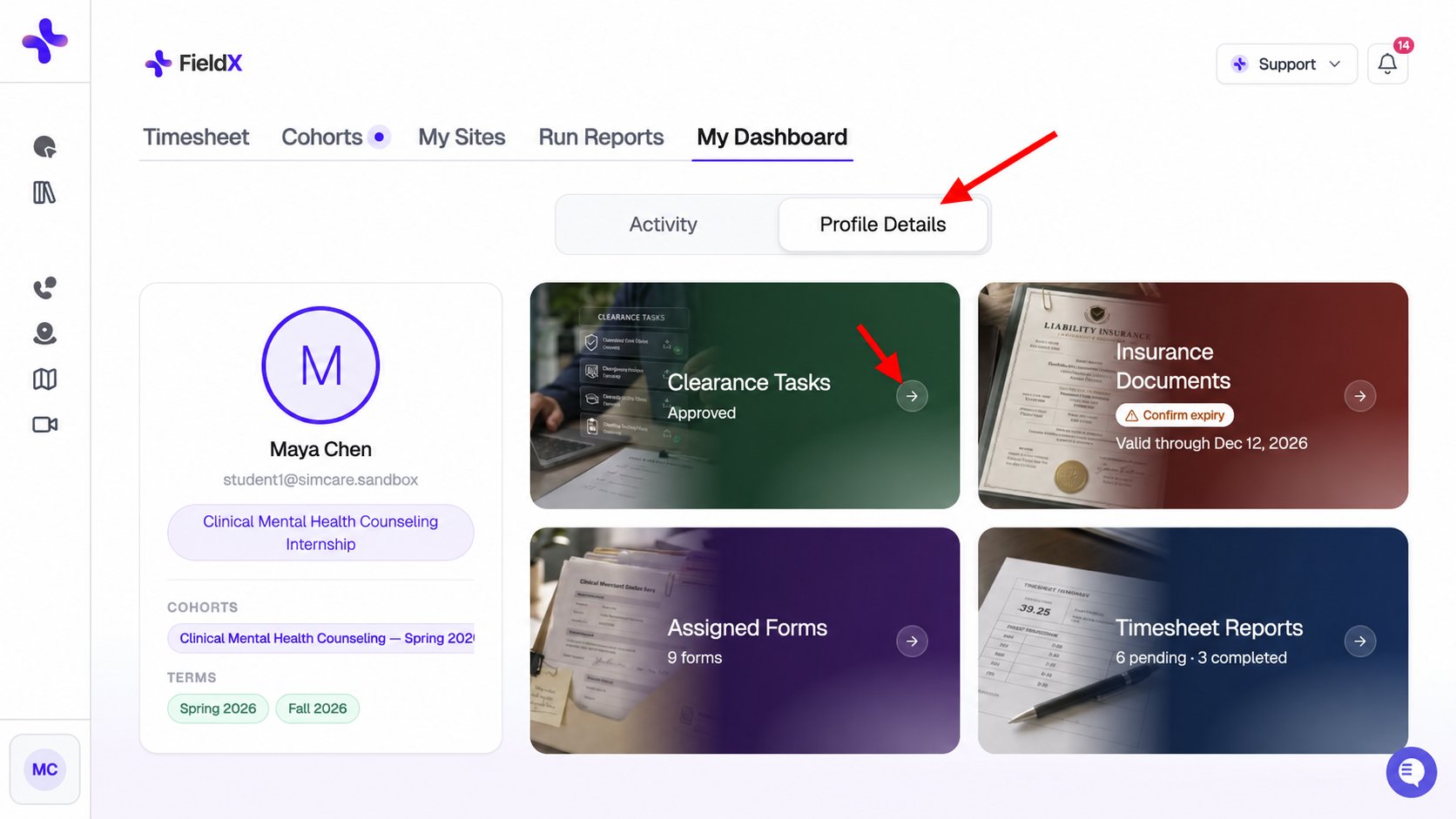
My Dashboard, showing Clearance Tasks, Insurance Documents, Assigned Forms, and Timesheet Reports.
The two segments
My Dashboard has two segments you can switch between at the top:- Profile Details (default) — clearance, insurance, assigned forms, timesheet reports
- Activity — hours analytics, donut chart, AI activity summary
Profile Details
This is the first place to look if something feels stuck or incomplete.
Select a card to open its details. Assigned Forms and Timesheet Reports can show a cohort picker before the task list. The Insurance Documents card appears only when insurance is part of your program’s requirements.
Activity
Select Activity to view your Hours Snapshot and AI Summary side by side.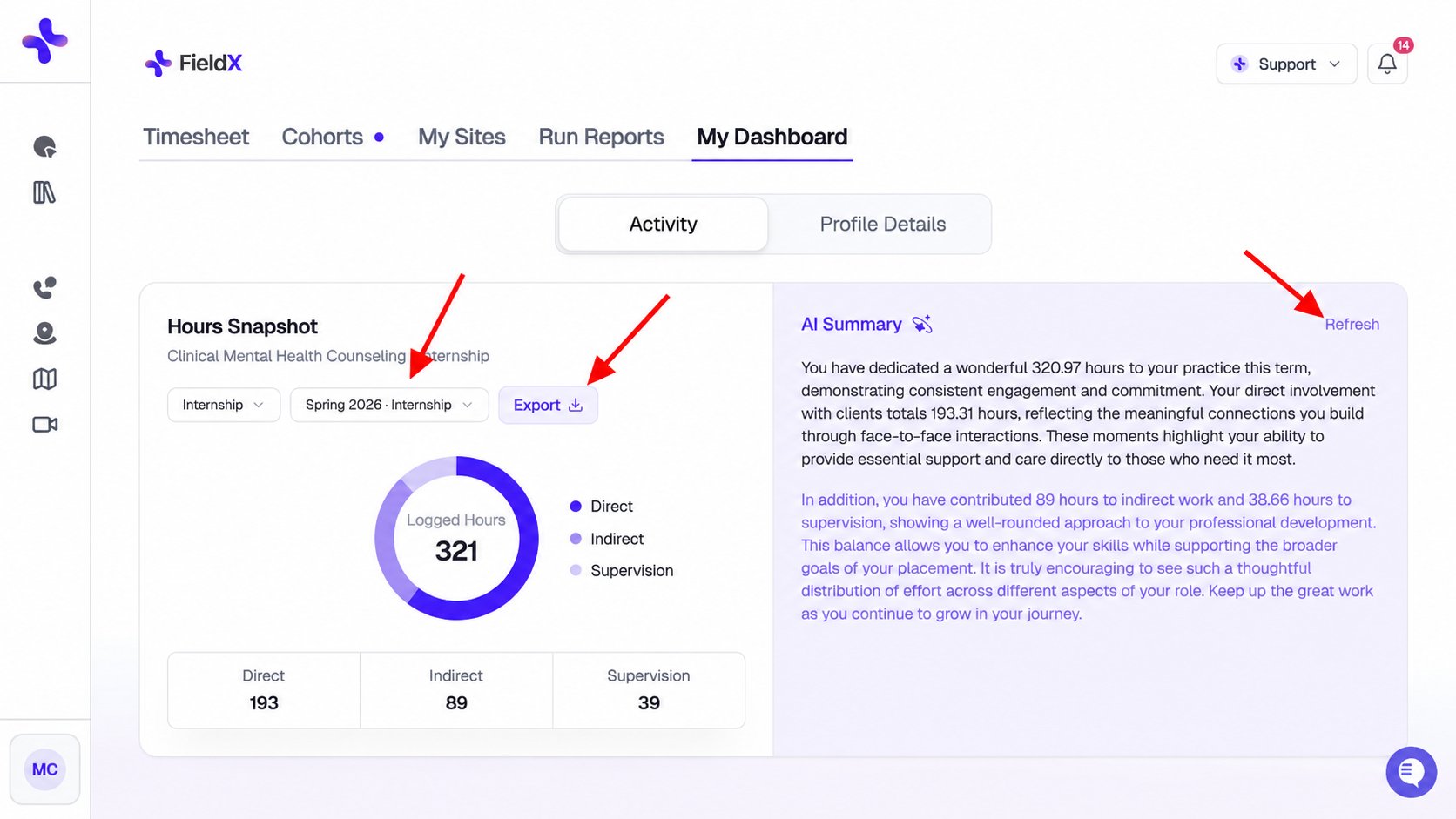
Choose the level and term, export the snapshot, or refresh your AI Summary.
Hours snapshot (donut chart)
A donut chart shows logged hours broken down into Direct, Indirect, and Supervision, with totals below. Your program’s rules determine which supervision hours count toward requirements.Level and term selectors
Select the placement level and term you want to review. Depending on your placement history and program, you may also see all-time or combined scope options. Switching scope updates both the snapshot and its AI summary.CSV export
Click Export to download a CSV of the selected snapshot: category totals, counted supervision, required hours, and scope details. For a row-by-row list of hour entries, run Hours Log from Run Reports.AI activity summary
A natural-language summary of your recent activity — useful for supervision check-ins, end-of-term reflection, or just stepping back and seeing where your time has gone. The summary generates when you open Activity with logged hours in the selected scope.- Click Refresh at any time to regenerate it
- The summary changes when you switch term scopes — so each term gets its own reflection
What’s not here
A few things you might expect on a dashboard live elsewhere in FieldX:- Log hours — Timesheet tab
- Enroll in a cohort — Cohorts tab → Enroll in Cohort button
- Pending forms / reports — Cohorts tab (or the Profile Details cards on My Dashboard)
- Add a site — My Sites tab
- My Notes — header button on the Timesheet tab
If My Dashboard shows clearance as still pending and you’re sure you submitted, check My Sites and the email you used to sign up — a missing site or supervisor can hold up approval.