

Resetting a forgotten password
1
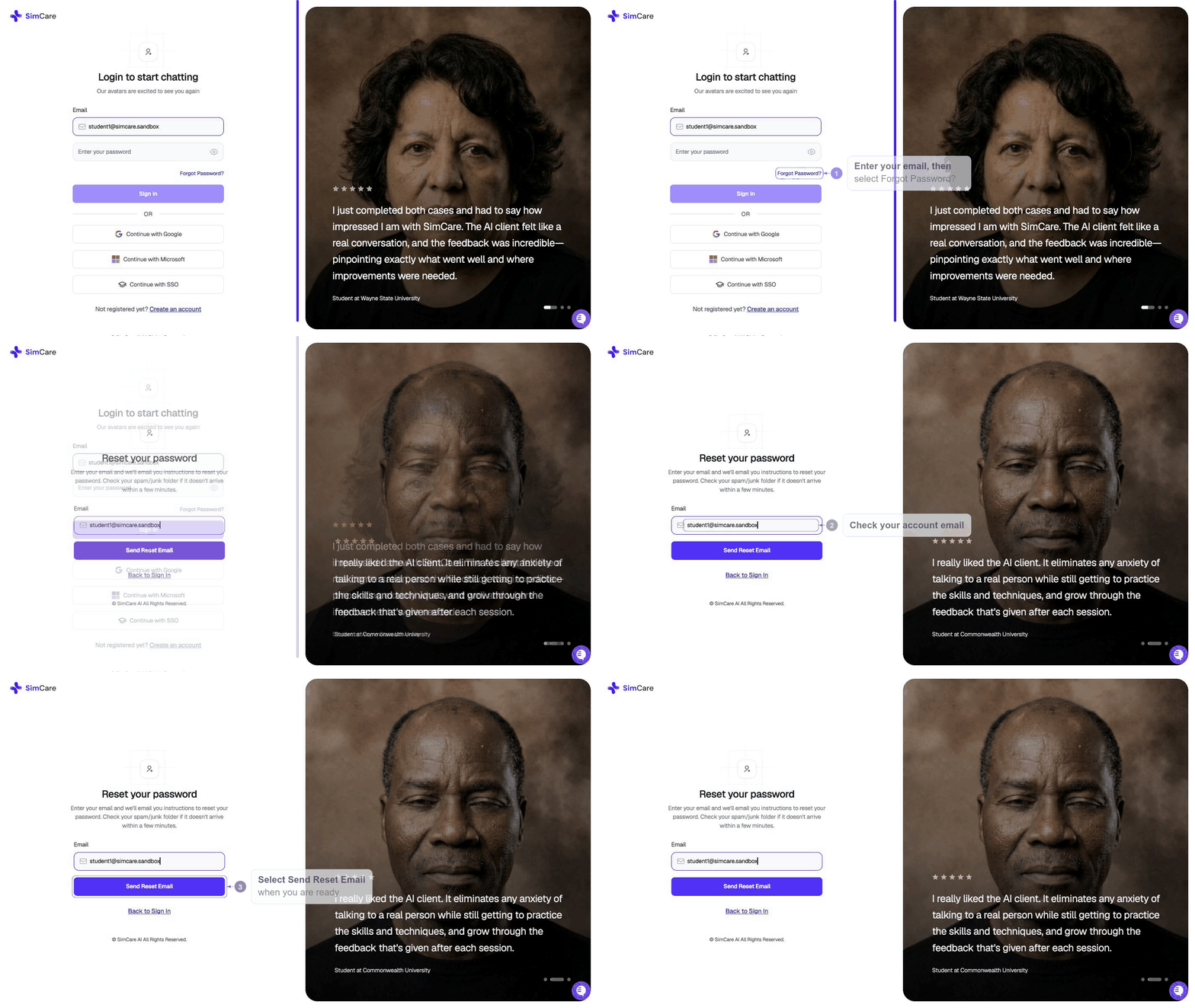
Go to the login page
Navigate to app.simcare.ai and open the sign-in page.
2
Click 'Forgot Password?'
Enter your email, then click the Forgot Password? link that appears below the password field.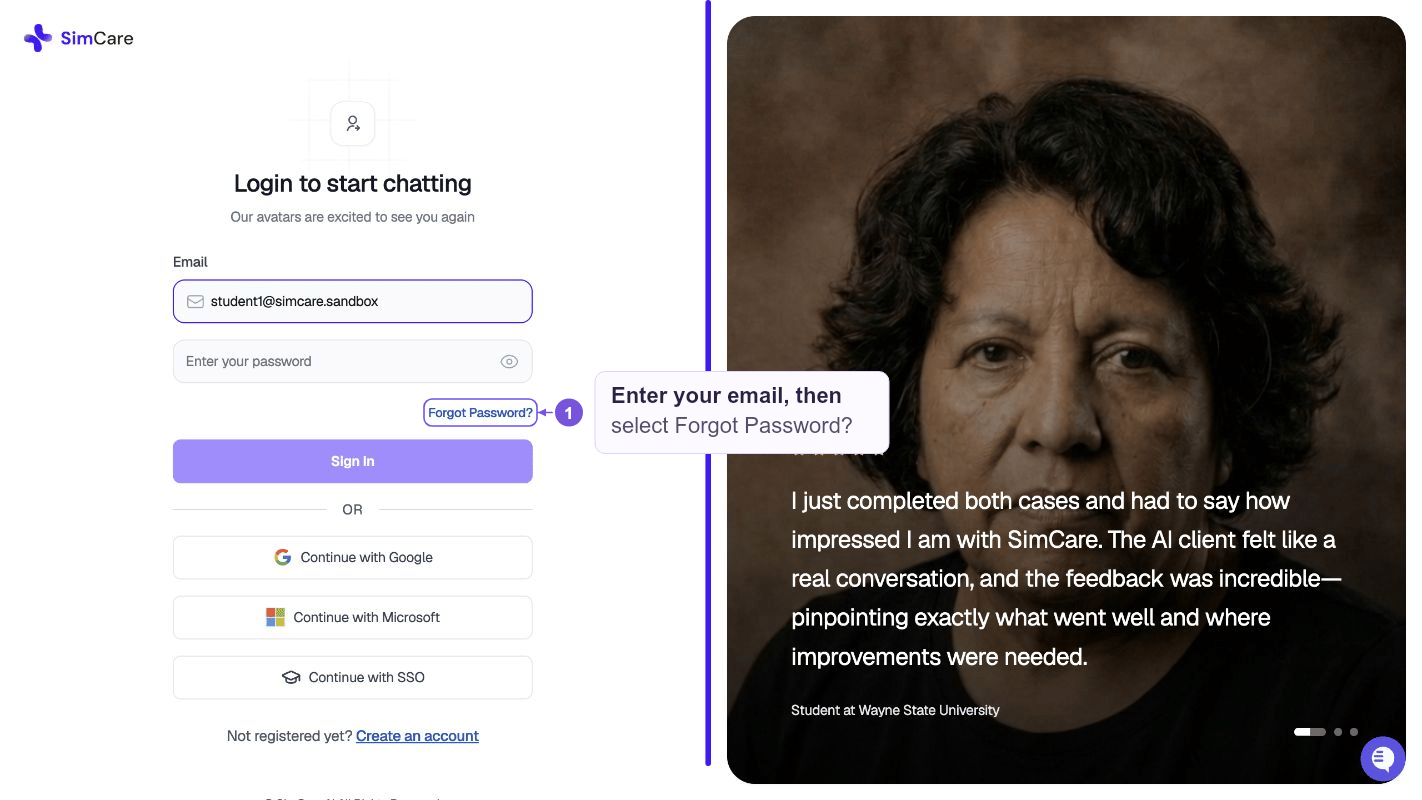
3
Confirm your email
On the Reset Password 🔐 screen, confirm the email address associated with your SimCare account and click Reset Password.The button changes to Sending… while the email is sent, then Email Sent! when it’s on its way.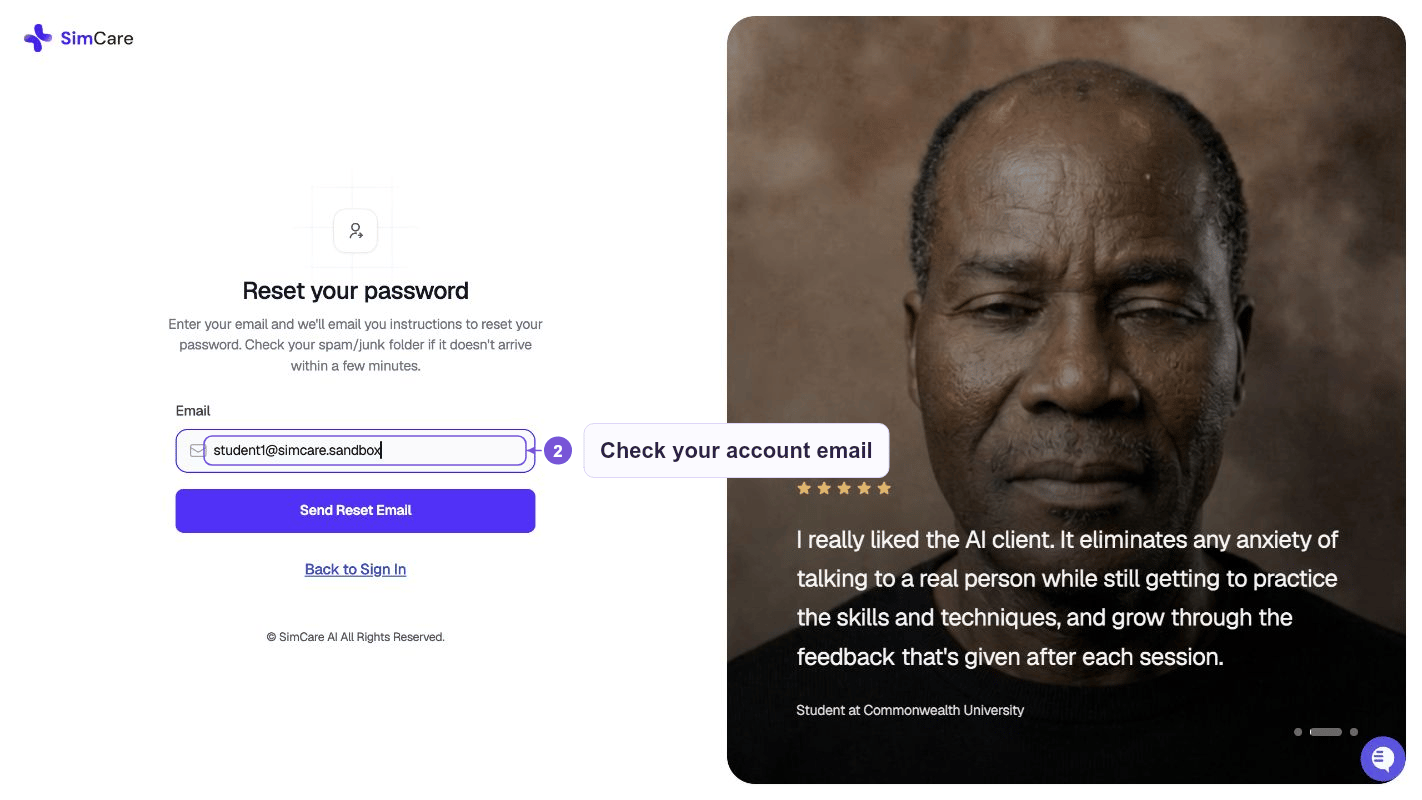
4
Check your email
Look for an email with a reset link, sent from
noreply@simcare.ai. If you don’t see it within a few minutes, check your spam folder.5
Click the reset link
Open the email and click the link. SimCare verifies the link — you’ll briefly see Verifying your reset link… while this happens.
6
Create a new password
On the Reset Your Password 🔐 screen, enter your new password and confirm it. Each field has a visibility toggle so you can double-check what you typed.Click Reset Password. You’ll see Password Reset Successful! 🎉 when it’s done, and you’ll be signed in automatically.
Changing your password when logged in
- Go to app.simcare.ai/account (or click your profile icon, top right, and open Account settings)
- Find the password section
- Enter your current password and your new password twice
- Click Save Changes
Changing the email on your account
To keep your account secure, changing the email address on your profile requires you to verify the new address before it takes effect.1
Open Account settings
Go to app.simcare.ai/account, or click your profile icon (top right) and open Account settings.
2
Edit your email
Update the Email field in the Profile section and click Save changes. Your old email stays active — the new address only shows up as a pending change.
3
Enter the 6-digit code
SimCare sends a verification code to the new address. Open that inbox, copy the 6-digit code, and paste it into the confirmation prompt on app.simcare.ai/account.
4
Confirm the change
Once the code is accepted, the new address becomes your login email. If the code doesn’t arrive, click Resend code — a short cooldown applies between resends.
If you never verified your original email (for example, you were provisioned by an admin before verification was required), you’ll see a banner on app.simcare.ai/account inviting you to verify it. The flow is identical — a code is sent to your current address and you enter it to confirm ownership.
Signing in with Google, Microsoft, or SSO
If you created your account using Continue with Google, Continue with Microsoft, or your school’s SSO, you don’t have a SimCare password — your credentials are managed by your provider.- Make sure you’re signed into the correct account in your browser
- Use the corresponding sign-in button on the SimCare login page
This account signs in with Microsoft. Please go back to the sign-in page and use the “Continue with Microsoft” button — there’s no password to reset.No reset email is sent, because there’s no password on the account. Return to the sign-in page and select the matching provider button.
Troubleshooting
Didn’t receive the reset email- Wait 5–10 minutes — emails can be delayed
- Check your spam/junk folder
- Make sure you used the exact email you registered with (a common issue is using a personal email instead of a school email)
- Add
noreply@simcare.aito your contacts and request another link
- Check your inbox for an old SimCare registration confirmation email
- Contact your program administrator — they can look up your account
- Email hello@simcare.ai with your name and institution
Still need help? Email hello@simcare.ai with your name, email address, and institution and we’ll get you sorted.