

/classes?tab=courses.
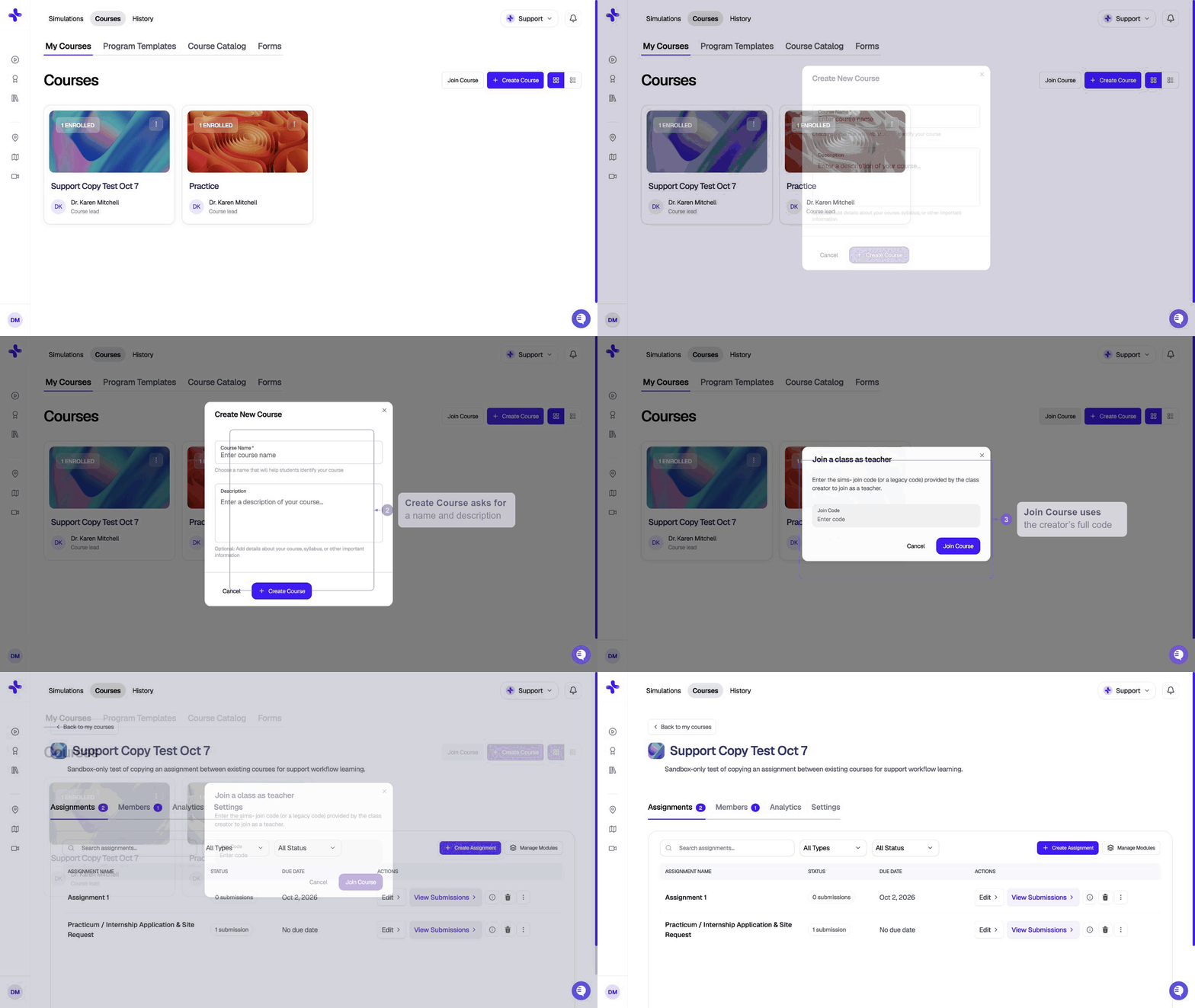
Each card shows the course name, an enrollment count, and a menu for edit / duplicate / Canvas export.
Create a course
1
Click Create Course
The button is in the top right, next to Join Course.
2
Name the course
Enter a Course Name (required) and an optional description, then submit. The new course appears in your grid immediately.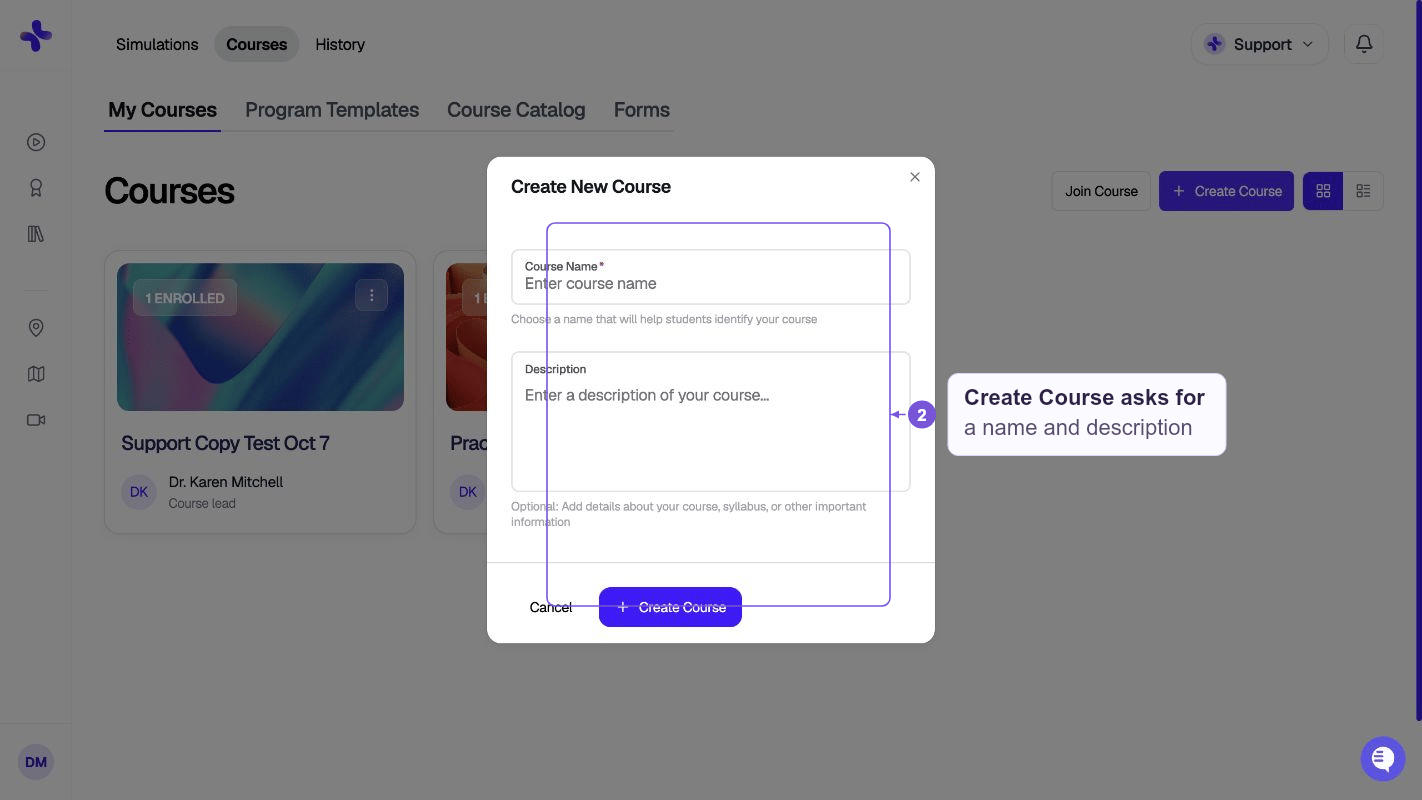
3
Open the course
Click the card to go inside the class. From there you can add assignments, invite students, and connect an LMS. See Creating assignments.
Join a course as a co-instructor
Use this when another instructor already owns the class and has given you a join code.1
Click Join Course
Top right of My Courses.
2
Enter the join code
The Join a class as teacher dialog asks for the code from the class creator. Paste it and click Join Course.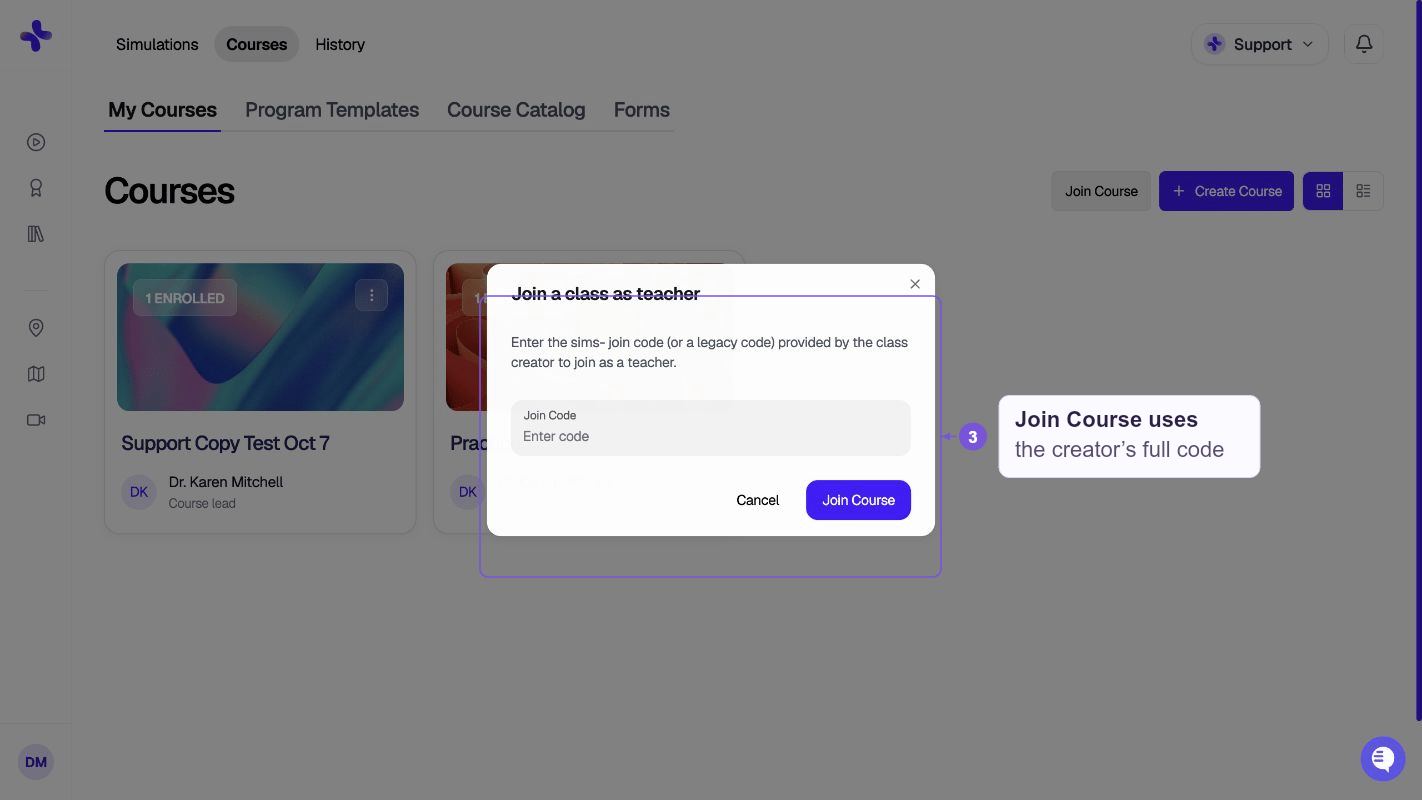
Course card actions
Open the ⋯ menu on a card (top right of the image) to:
Click the card itself (not the menu) to open the class. Inside you have four tabs:
Members
Open a class → Members. Search by name or email. Each row has View Activity, a delete (remove) control, and ⋯ to Make Teacher or Make Student.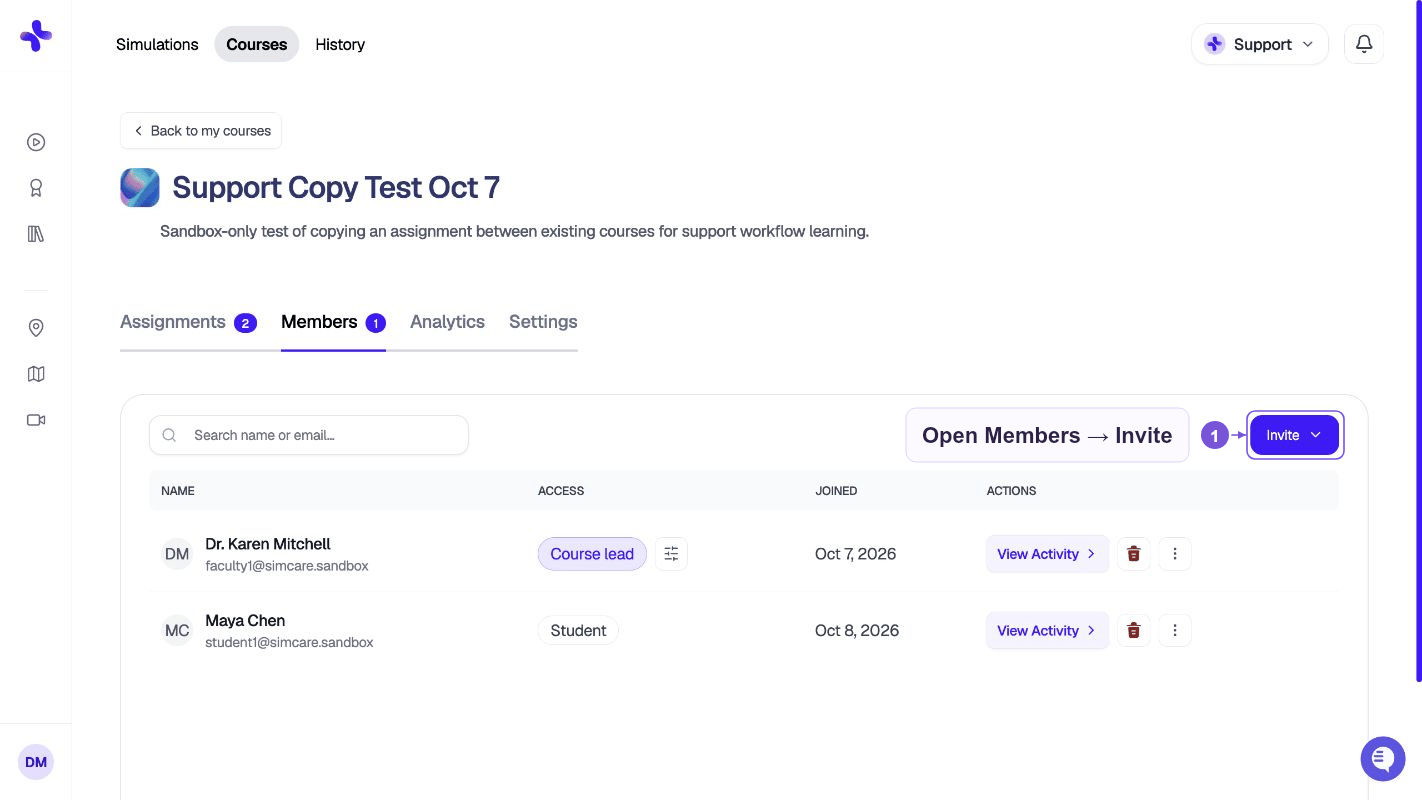
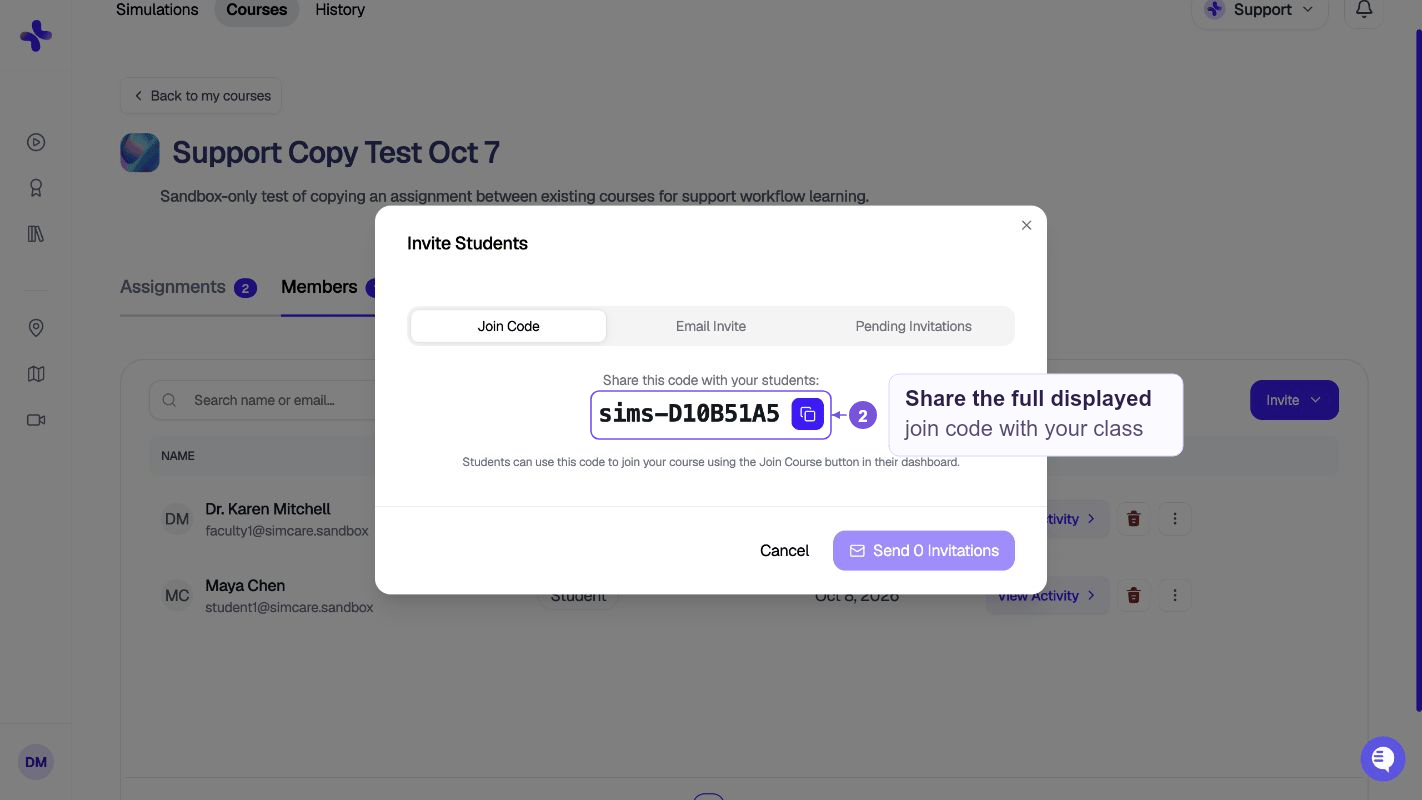
Add students
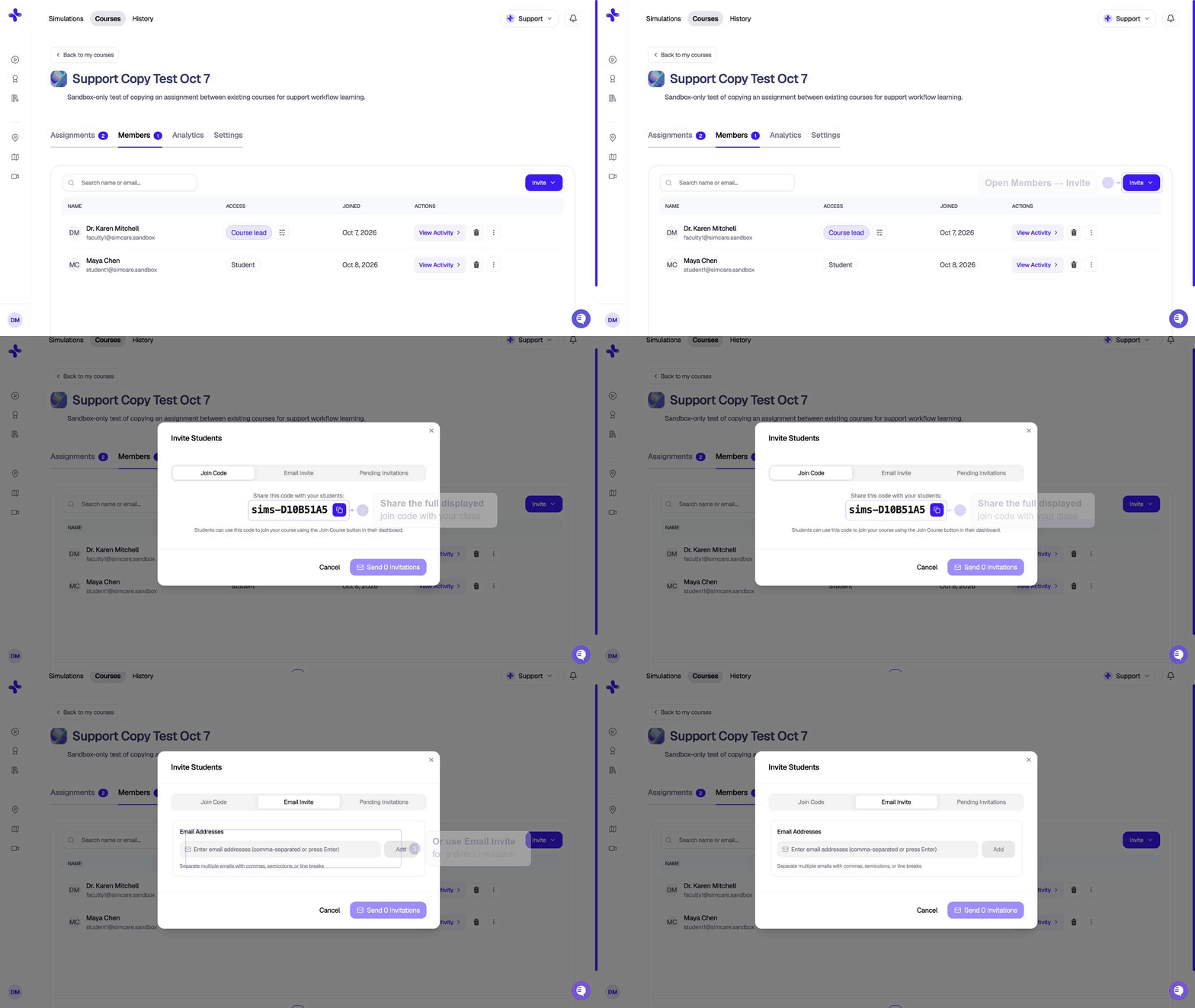
Use the displayed code rather than deriving one from the class ID. Students and co-instructors enroll from different buttons.
Existing students can also open Courses → My Courses → Pending and click Join on an invitation.
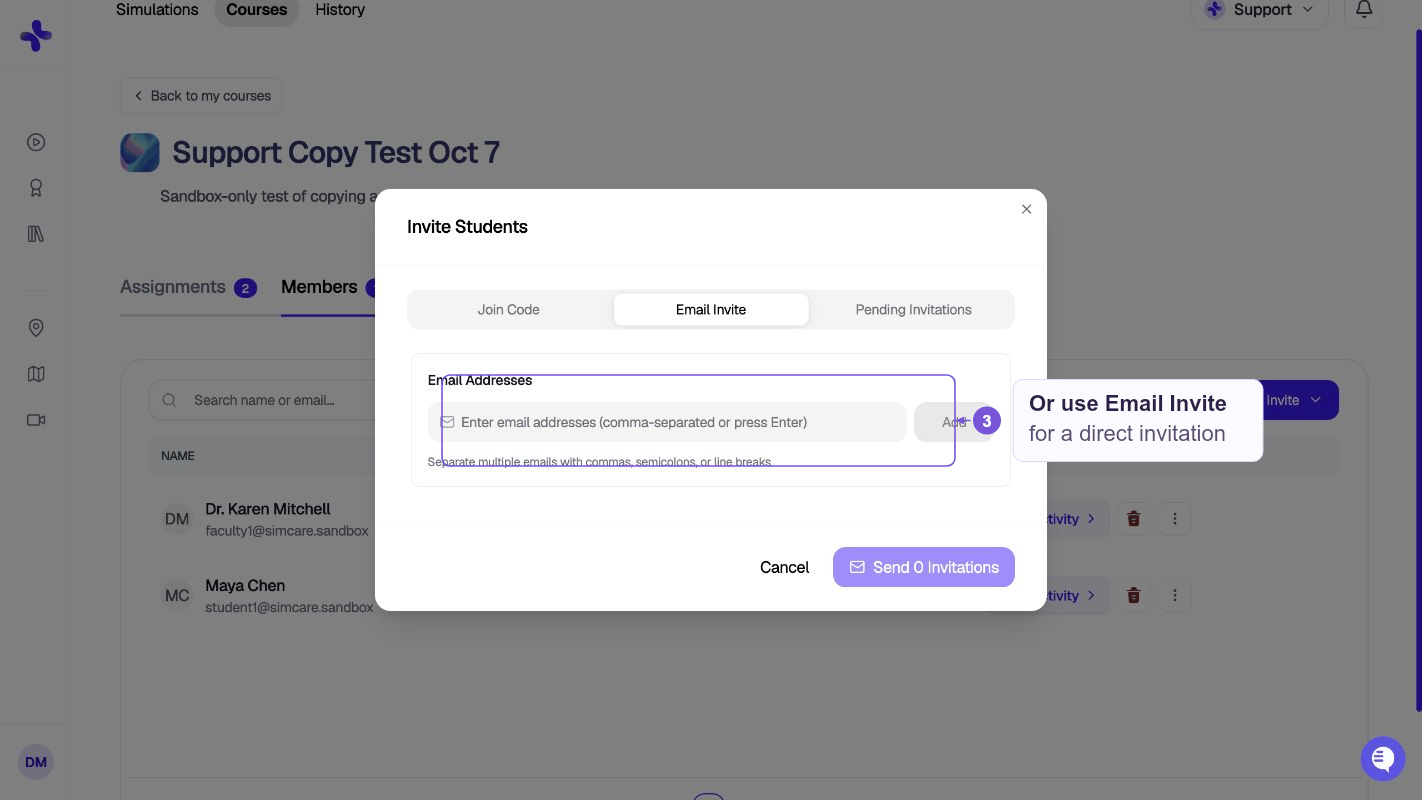
Add a co-instructor
Click Invite → Add Teacher to copy the teacher join code, or have them click Join Course on their own My Courses tab (steps above).LMS roster
If the class is connected to Canvas (or another LTI LMS), Sync Roster appears next to Invite. Use it to pull the connected course’s enrollment into SimCare. Students are also added the first time they launch a SimCare link from the LMS.Remove someone
Click the trash control on their row. They lose access to the class. Their submissions stay in the record.Settings
Open a class → Settings. These are defaults for new case assignments — you can still override most of them on an individual assignment.
Click Save Settings after you change anything.