

Builder access is not limited to the instructor/admin labels—some student accounts can also open the dashboard. Follow the access messages shown for your account; dashboard access alone does not confirm activation, sharing, or instructor assignment permissions.
Finding the builder
From Simulations, click Create Custom Client. You’ll land on the Client Builder dashboard. Can’t open the builder? Confirm you are signed into the intended account. If you see an access or upgrade message, ask your program administrator or SimCare support to check your access.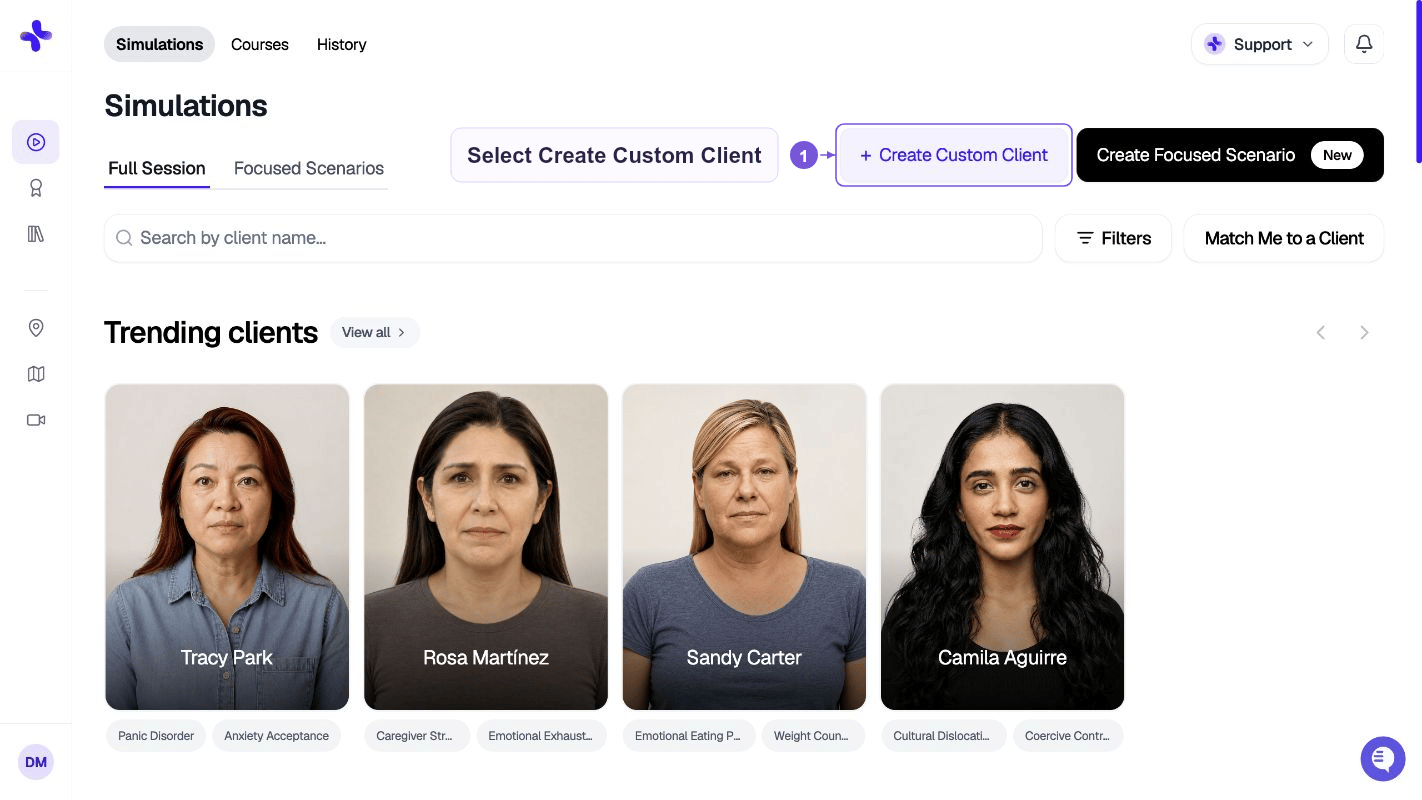
Dashboard overview
The dashboard shows every case you’ve built or are in the middle of building.- Search — find a case by name
- Tabs:
All Cases,Individual,Group - Build New Case button (top right) — opens a dropdown to start a new case
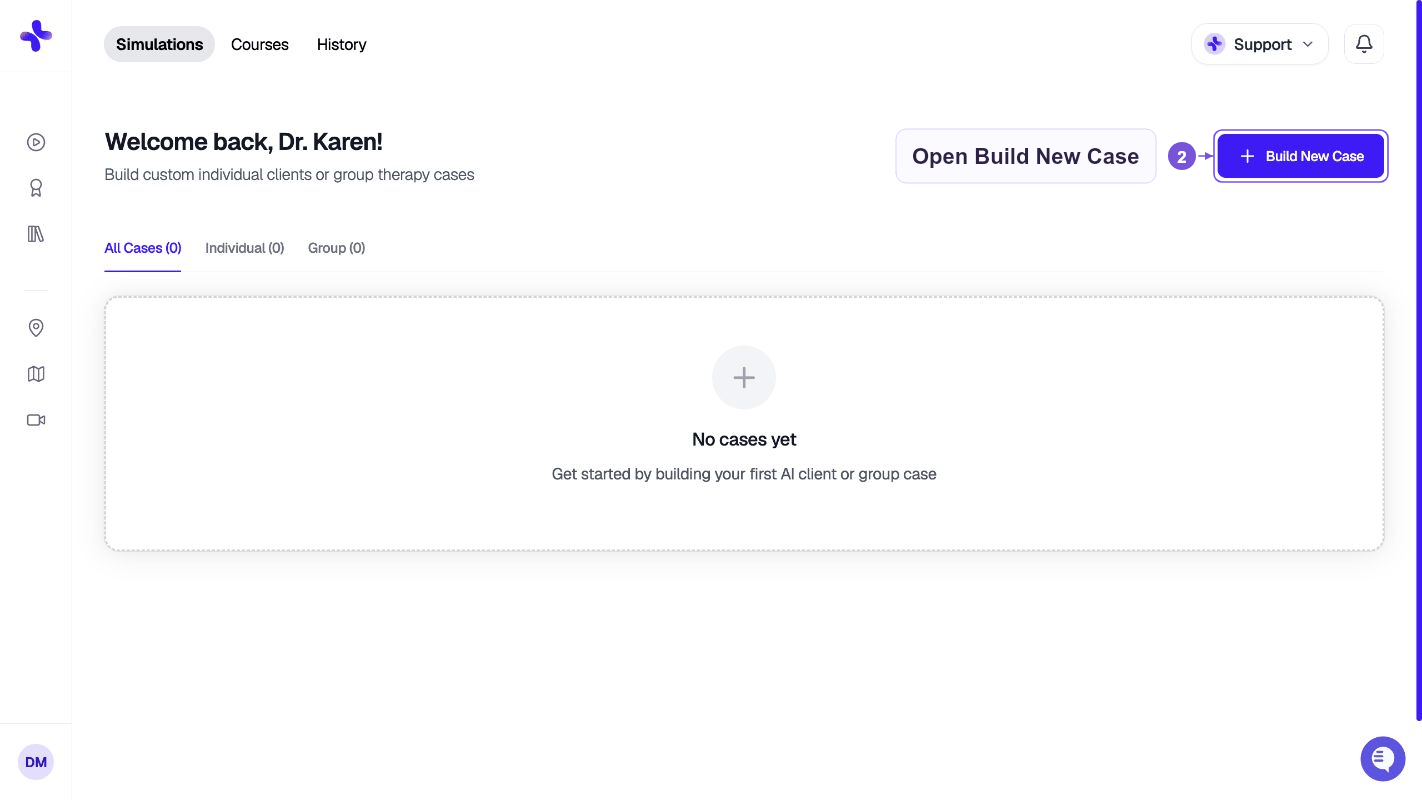
Building a new case
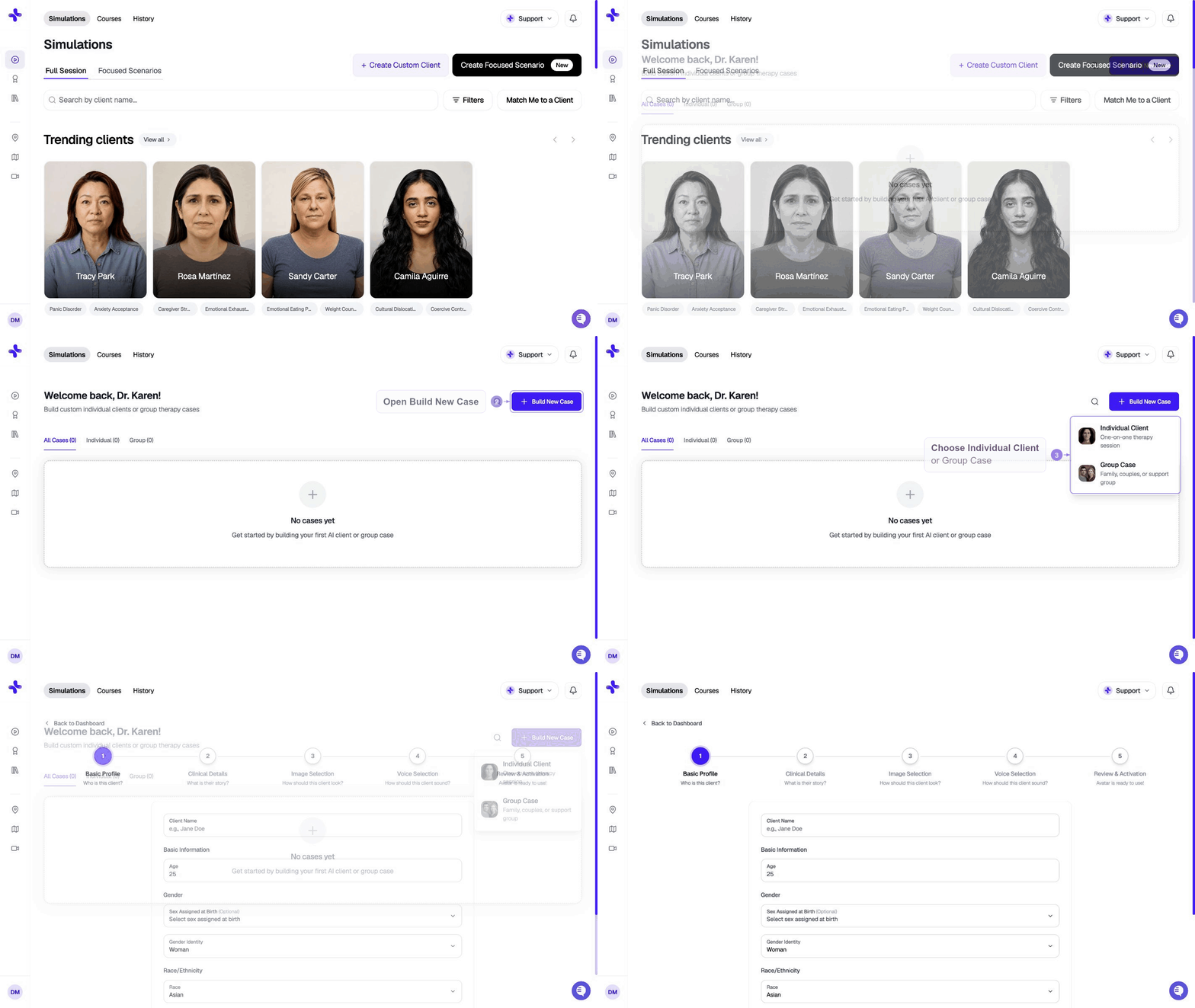
- Individual Client — one-on-one therapy session
- Group Case — family, couples, or support group with multiple speakers
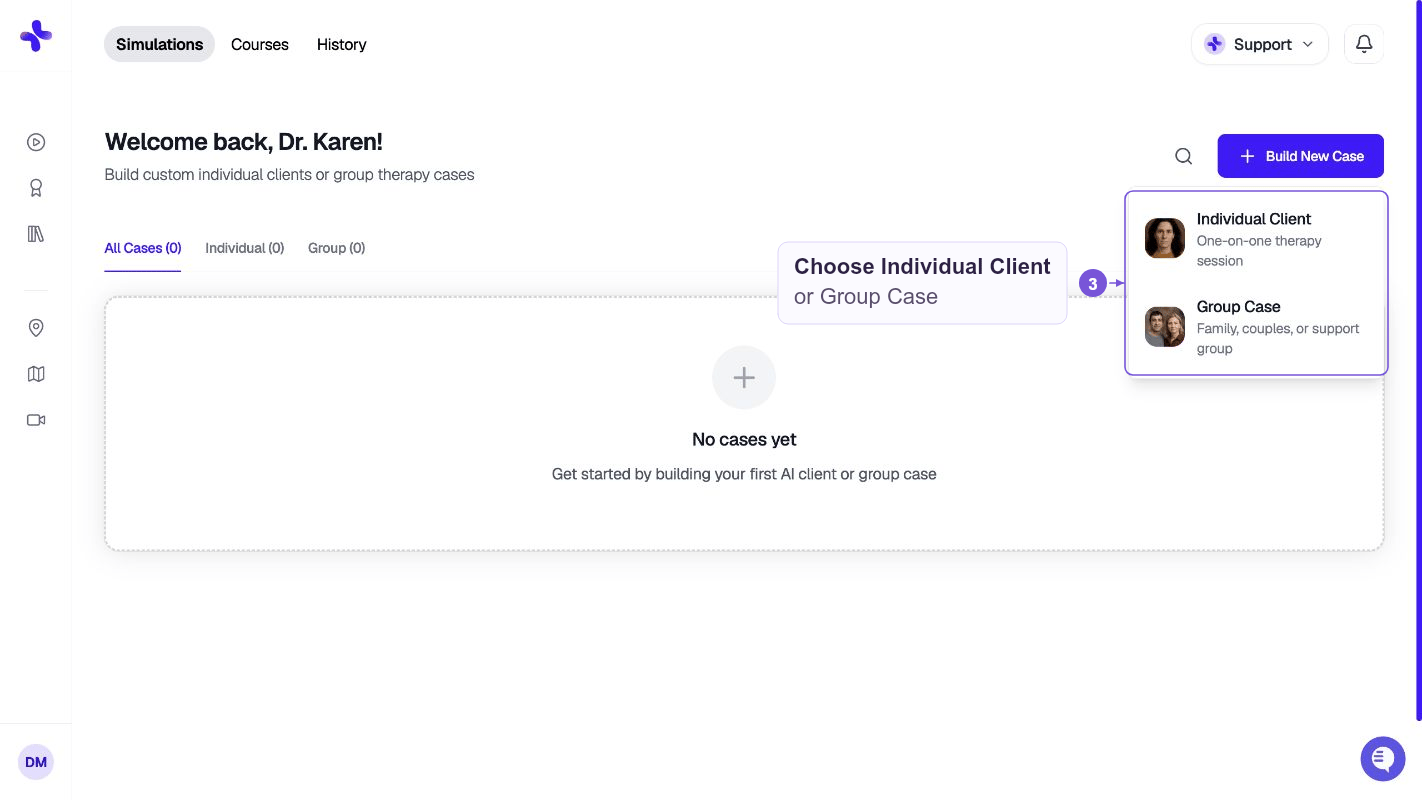
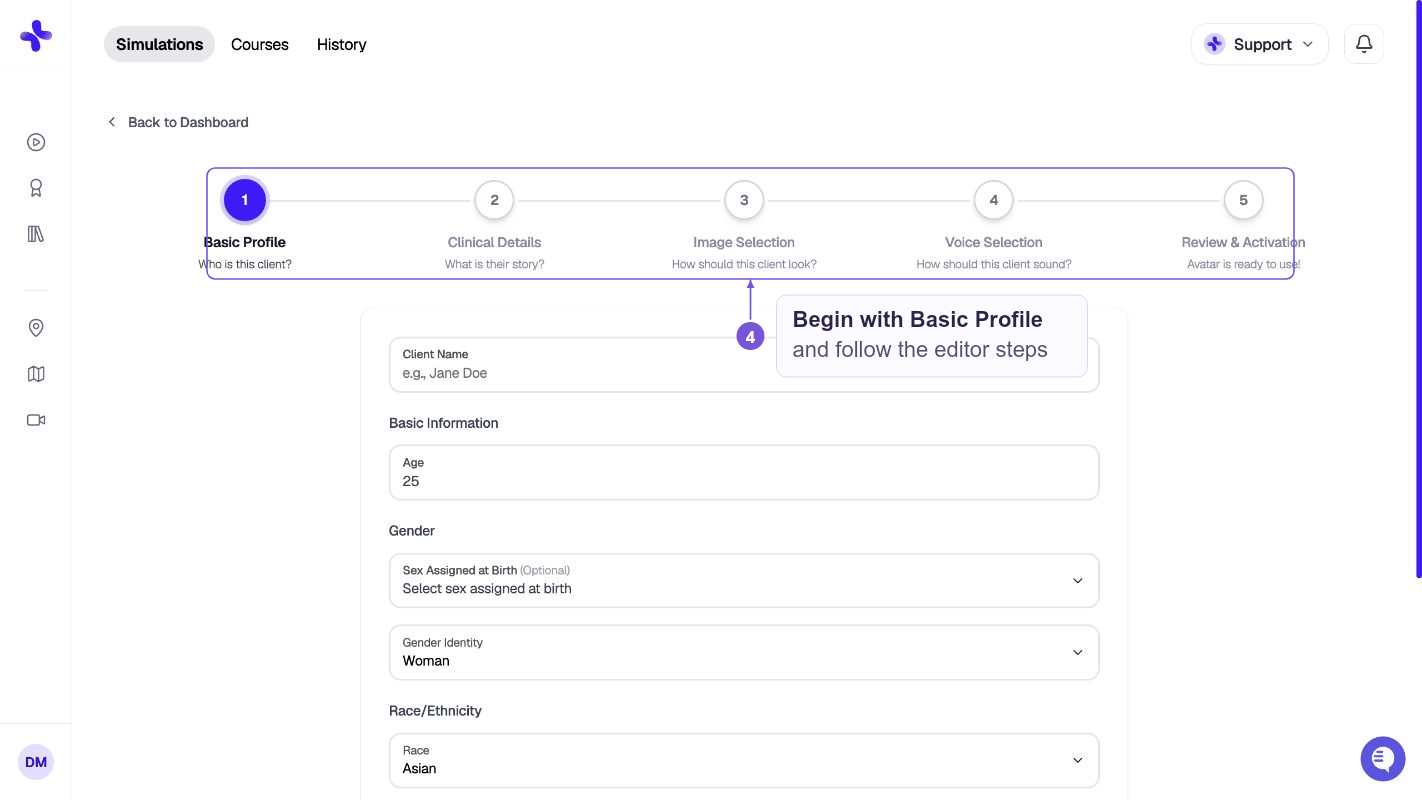
What you’ll provide
For both types of cases you’ll define:
Group cases add fields for each speaker (name, role in the group, dynamic with other members).
After publishing
Once the AI finishes generating, the client moves from draft to active and appears in your case library. You can:- Use it directly from your dashboard
- Assign it to a class — see Creating assignments
- Edit it any time (changes regenerate the affected variants)
Troubleshooting generation failures
If a part of your case (prompt, voice, or image) fails to generate, the card shows a red error state with guidance:- Try regenerating again — most failures are transient
- Check your case details are complete — missing or contradictory fields confuse the AI
- Contact support if the issue persists — reach us at hello@simcare.ai