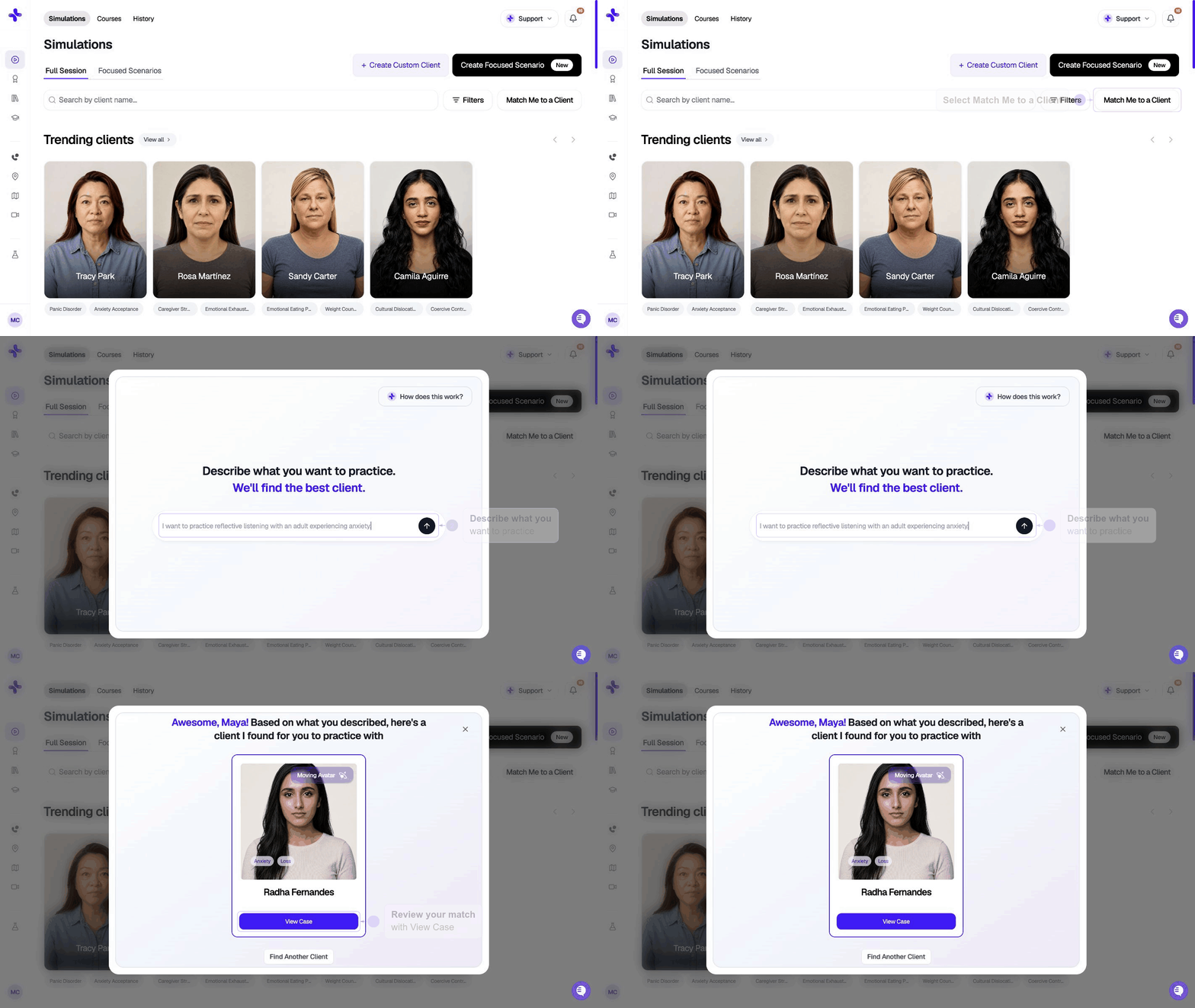
Find Clients with AI matches a short description to an existing AI client in your school’s library. Use it when you know the presenting issue or skill, but not which client to assign. Open Simulations, then click Match Me to a Client beside the search and filter controls. On a narrow screen, open Menu to find Simulations.

How a search works

1

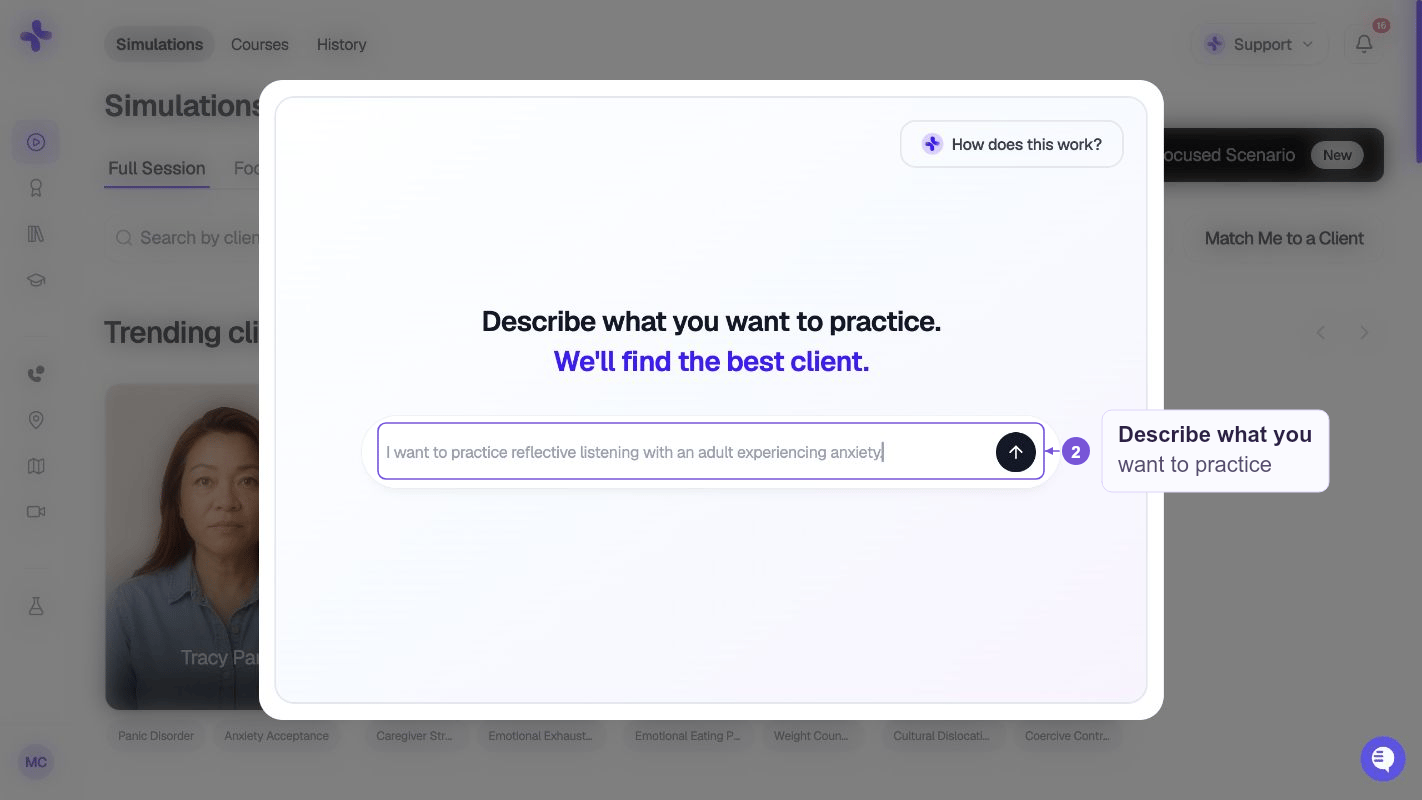
Describe what you need

Type in the search field. You can mention symptoms, conditions, demographics, or a skill (for example, “adolescent with panic attacks” or “motivational interviewing”). Use Help? if you need guidance.
2

Submit the search

Click Submit. SimCare searches the clients available to your school and returns the best match.
3

Review the client

You’ll see a card for the matched client. Click View Case to open Case customization, or Find Another Client to search again.
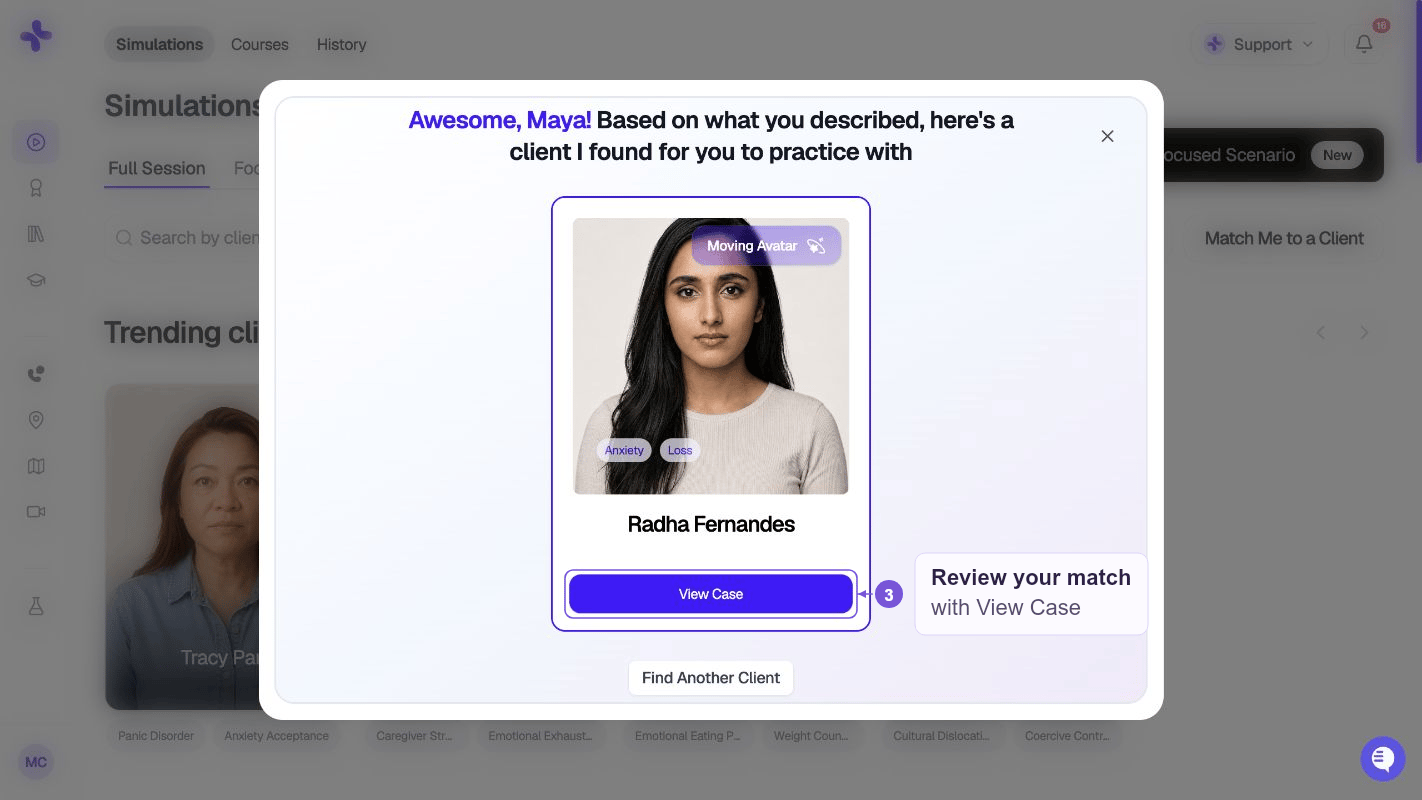
The tool finds an existing client; it does not build a brand-new one. To author a custom client, use the Client builder.

Assign the client to a course

To assign the matched client, note its name, then open CoursesMy Courses → your class → AssignmentsCreate AssignmentCase. Select that client in the Avatar step and configure the assignment. See Creating assignments.

If search doesn’t work

No cases available. Your school’s library is empty or you don’t have access to any clients. Ask your program admin to add or share cases. Unable to load cases. Refresh and try again. If it persists, contact hello@simcare.ai. The match isn’t right. Click Find Another Client and try a more specific description (age, diagnosis, setting, or the skill you want graded).