

This covers the Canvas-connected workflow. If your course isn’t connected to Canvas, see Creating assignments instead.
Getting started & logging in
You do not need to create a separate account on SimCare.1
Navigate to your Canvas course
Open the Canvas course you want to connect.
2
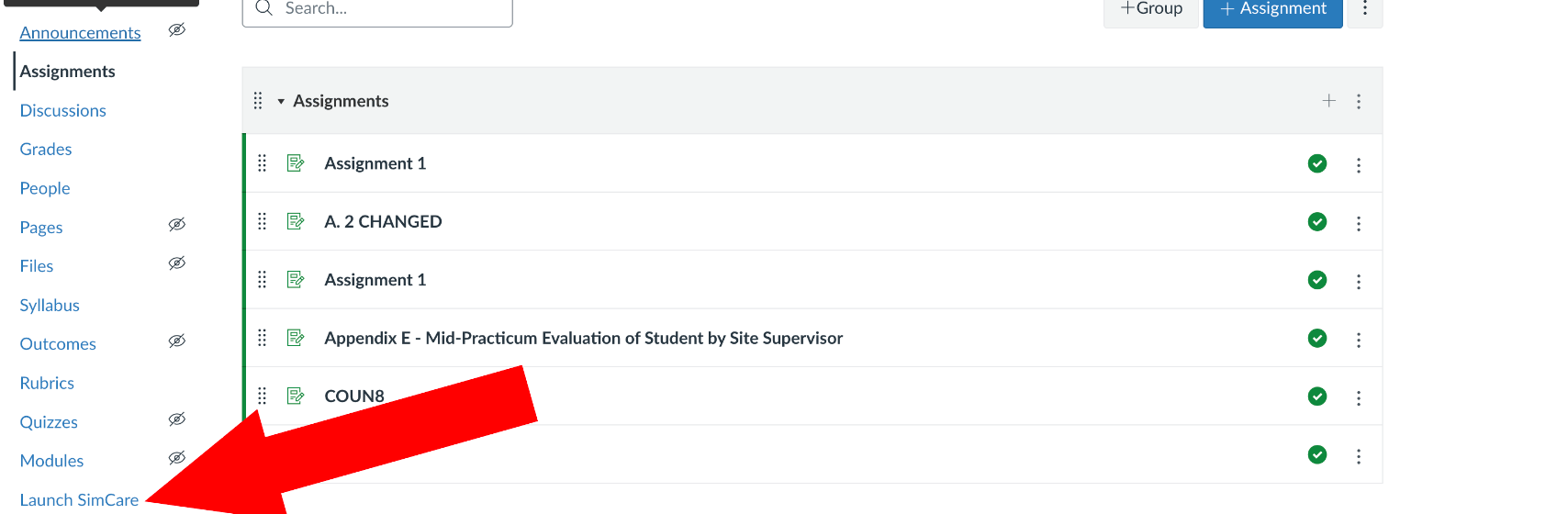
Click "Launch SimCare"
Click the SimCare or Launch SimCare link in your Course Navigation menu (usually on the left side).
1
You're in
This automatically logs you into your SimCare account with Teacher permissions. No separate sign-up required.
Creating & linking assignments
The assignment itself is still built in SimCare first (see Creating assignments for the full builder walkthrough). Once it exists, link it to a Canvas assignment:1
Create a new Assignment in Canvas
From your Canvas course, create a new Assignment.
2
Set the submission type
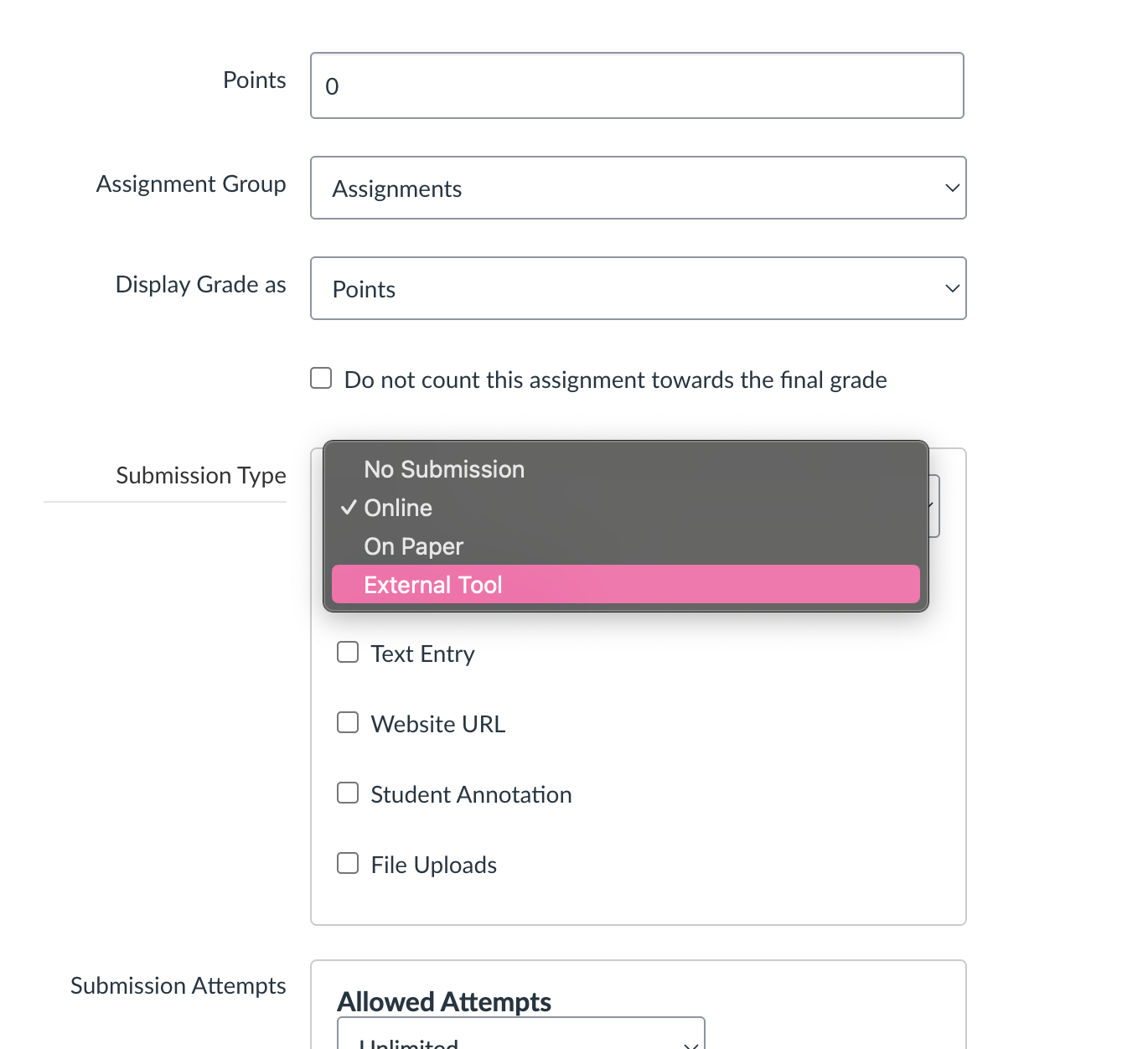
Scroll to Submission Type and select External Tool from the dropdown.
1
Find SimCare
Click Find, then select SimCare from the list (it’s listed as “Launch SimCare” or something similar).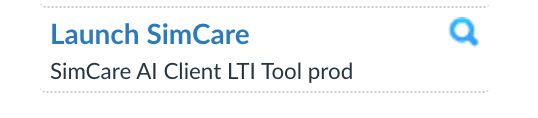
2
Pick your assignment
The Assignment Picker opens, showing every SimCare assignment associated with your account, grouped by course. Select the one you want to link.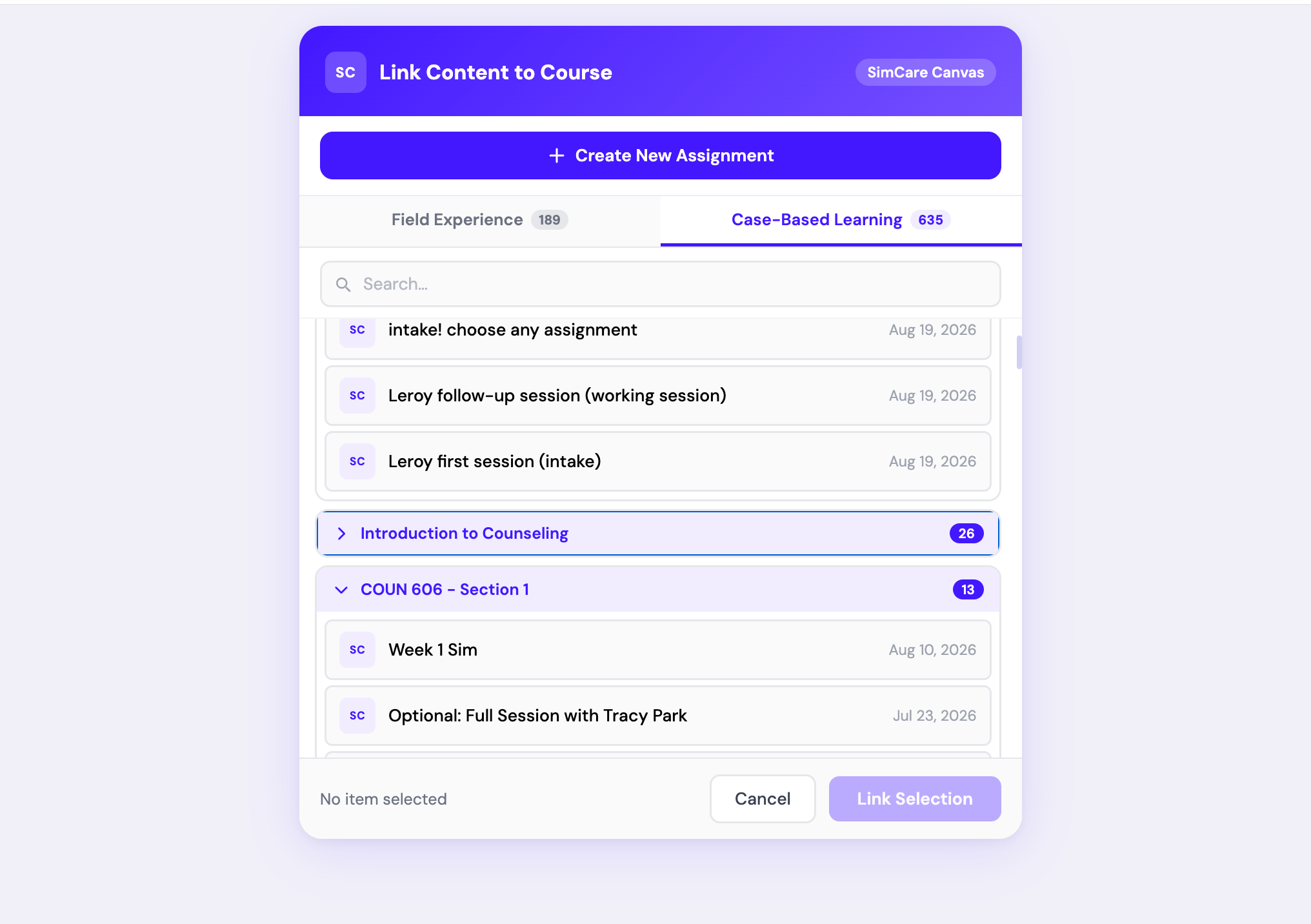
3
Save and publish
Click Save and Publish on the Canvas assignment. Students will now launch this specific SimCare case from the Canvas assignment link.
Linking Field Experience forms
You can also link a Field Experience form to a Canvas assignment. Students then open and fill out the form straight from Canvas.Forms only appear in the picker when two things are true:
- Your Canvas connection is linked to your Field Experience program. Contact tiko@simcare.ai to set this up.
- You’re an admin, teacher, or program director in that program.
1
Build the form in SimCare
Create the form in Field Experience first. The picker lists forms created by members of your program.
2
Create an External Tool assignment in Canvas
Create a new Canvas Assignment, set Submission Type to External Tool, click Find, and select SimCare. These are the same steps you use for a case.
3
Pick your form
In the picker, open the Field Experience tab and choose a form under Individual Forms. Forms that need more than one signer, such as a student and a supervisor, show a Multi-person tag.
4
Save and publish
Click Save and Publish on the Canvas assignment.
What happens when someone opens the link
- The first launch sets up the course. SimCare creates a cohort for your Canvas course and assigns the form to it. If you copy the course to a new term, the new course gets its own cohort the first time someone opens the link.
- Students go straight to their form. Each student is added to the cohort automatically and lands on their own copy of the form.
- Instructors land on the cohort. You see the cohort’s faculty view, where you can follow student progress.
Forms are not graded in Canvas. Unlike cases, a linked form doesn’t create a gradebook column or send a score to SpeedGrader. Review and sign forms in SimCare.
Copying courses (Blueprint / Course Copy)
If you’re rolling over a course from a previous semester or using a Blueprint shell, SimCare makes it easy to set up your new section.1
Perform the copy
Run the Canvas Course Copy or Blueprint sync as usual.
2
Initialize the new course
Once the copy is complete, open the new course and click any SimCare assignment link yourself.Why this matters: this tells SimCare the new course is ready. It automatically creates the new course shell on SimCare’s platform, copies your assignments over, and sets you as the primary instructor, before students begin working.