

In-session controls
During an active simulation, the control bar at the bottom of the session window includes:
Both can be toggled on and off at any point during the session without interrupting the conversation.
Captions
Click the captions icon to display a live transcript of the conversation overlaid on the video window. Text appears as each person speaks and fades after a few seconds. Useful in noisy environments or if you want to confirm what the client said.Text mode
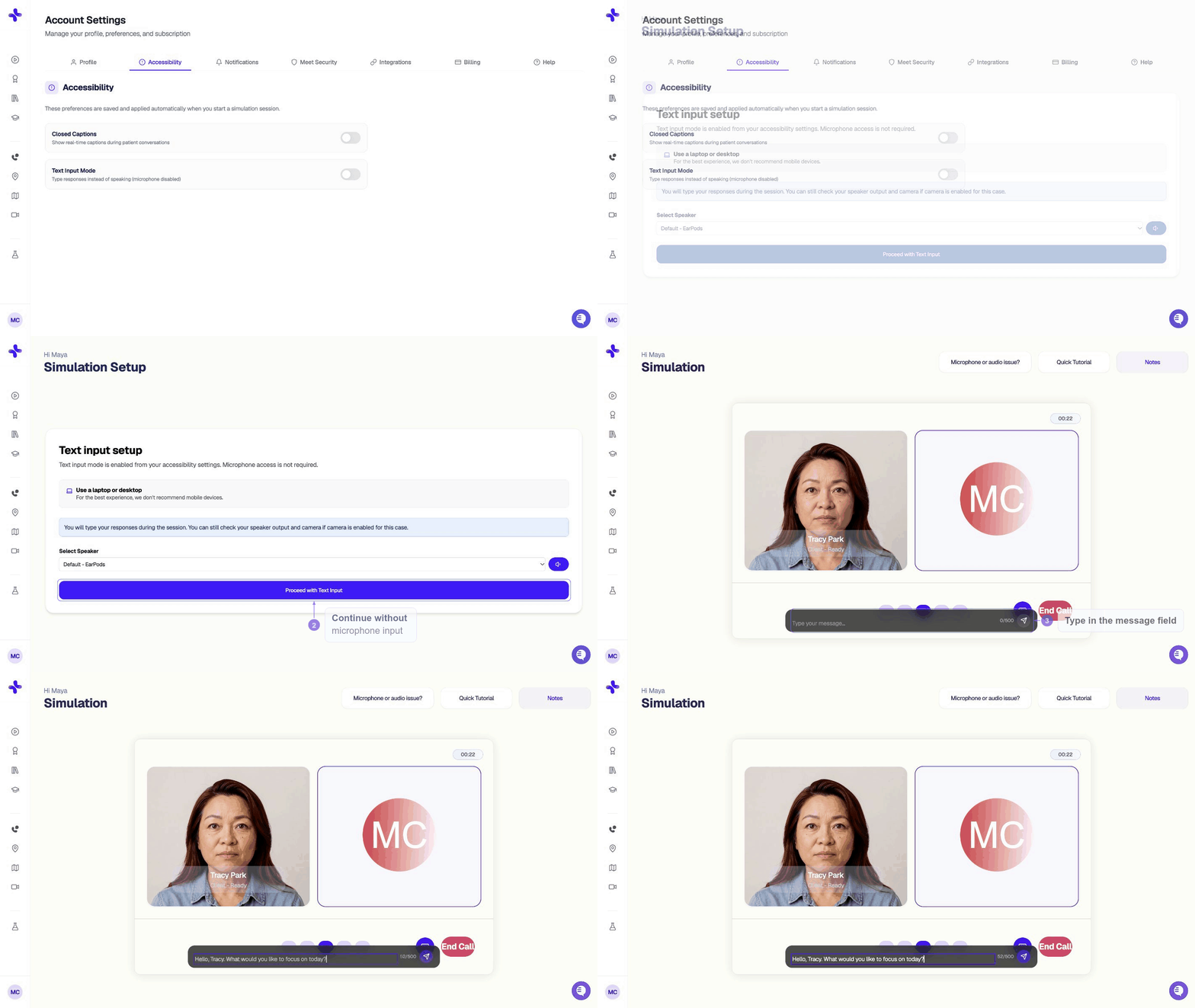
Click the keyboard icon to type your responses instead of speaking. A text input appears at the bottom — type your message and press Send or hit Enter. The client responds as if you spoke normally.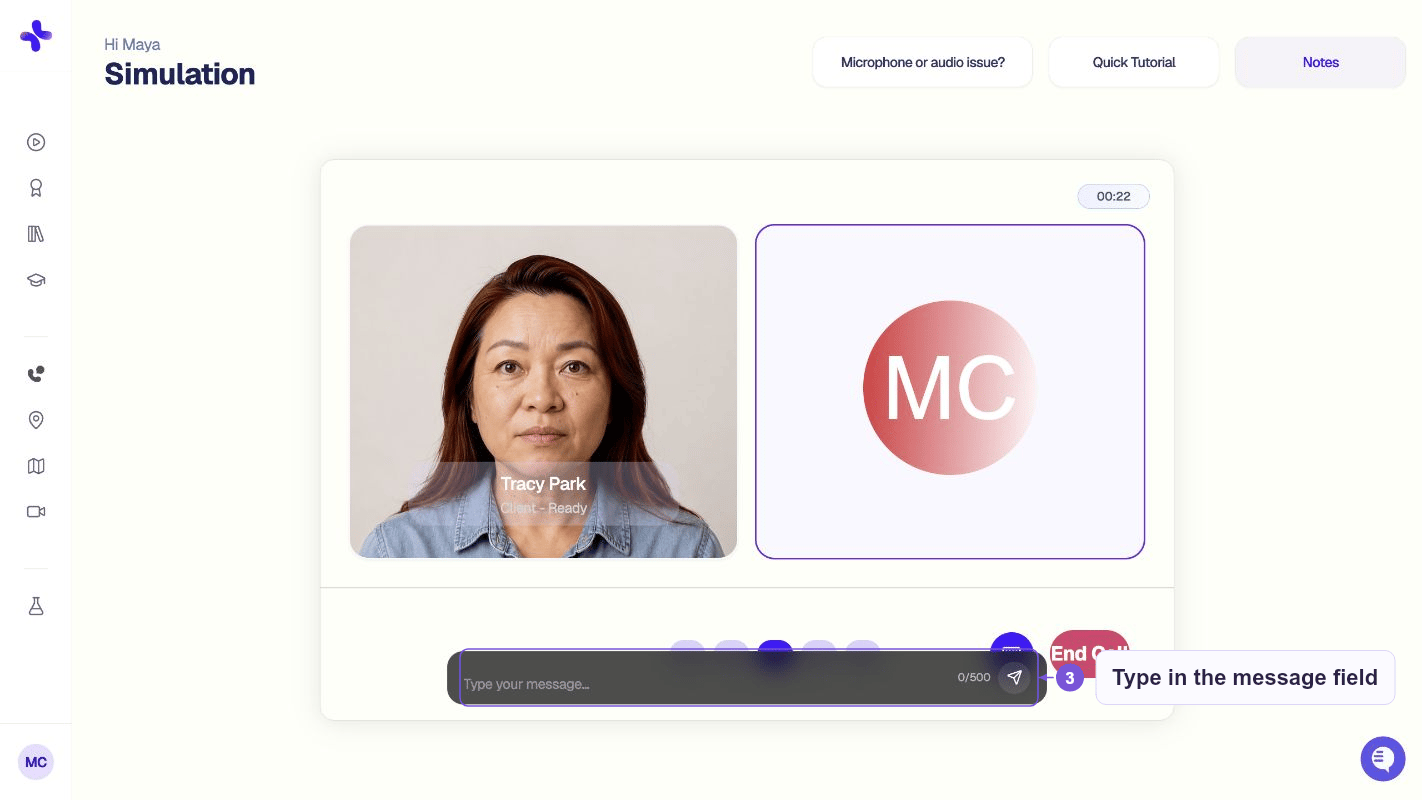
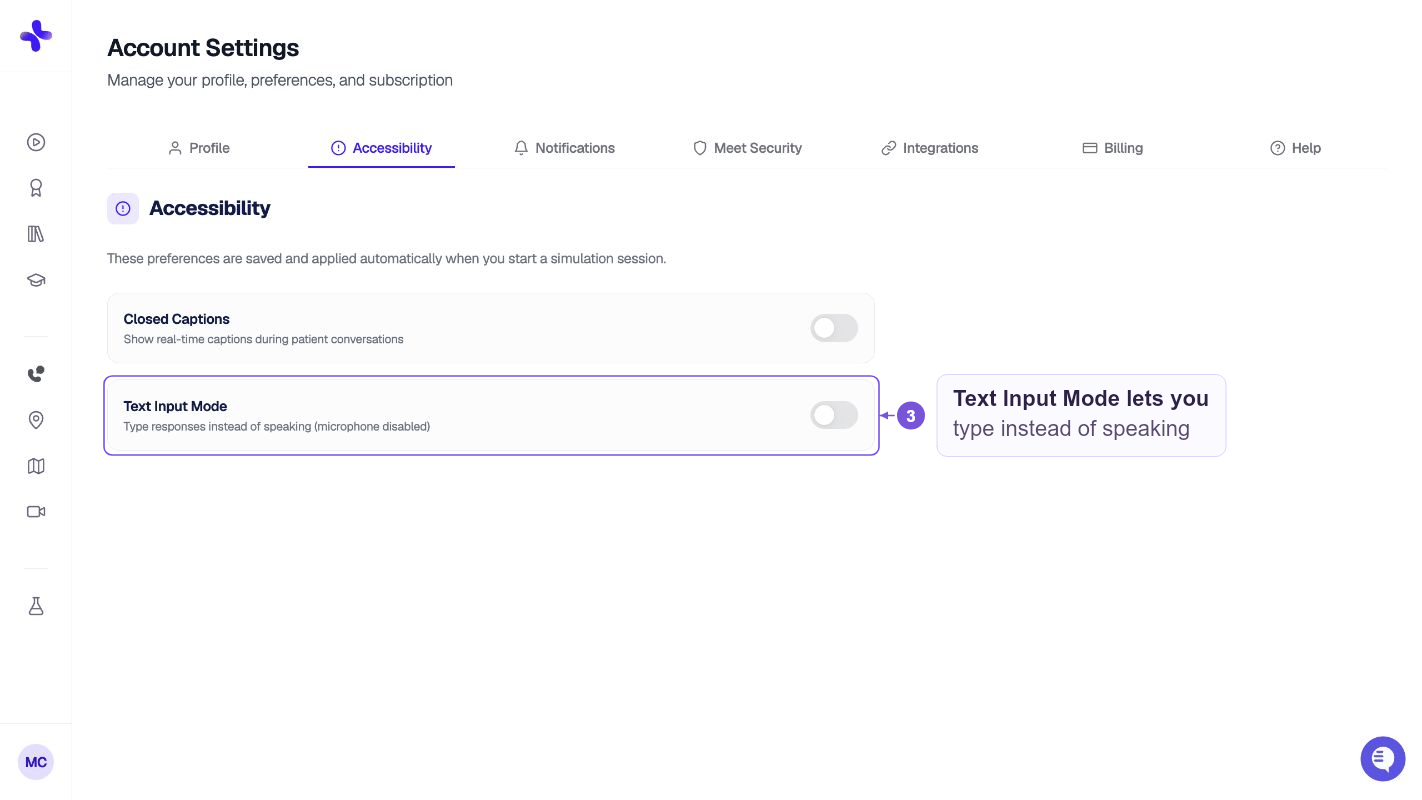
Setting defaults in Account Settings
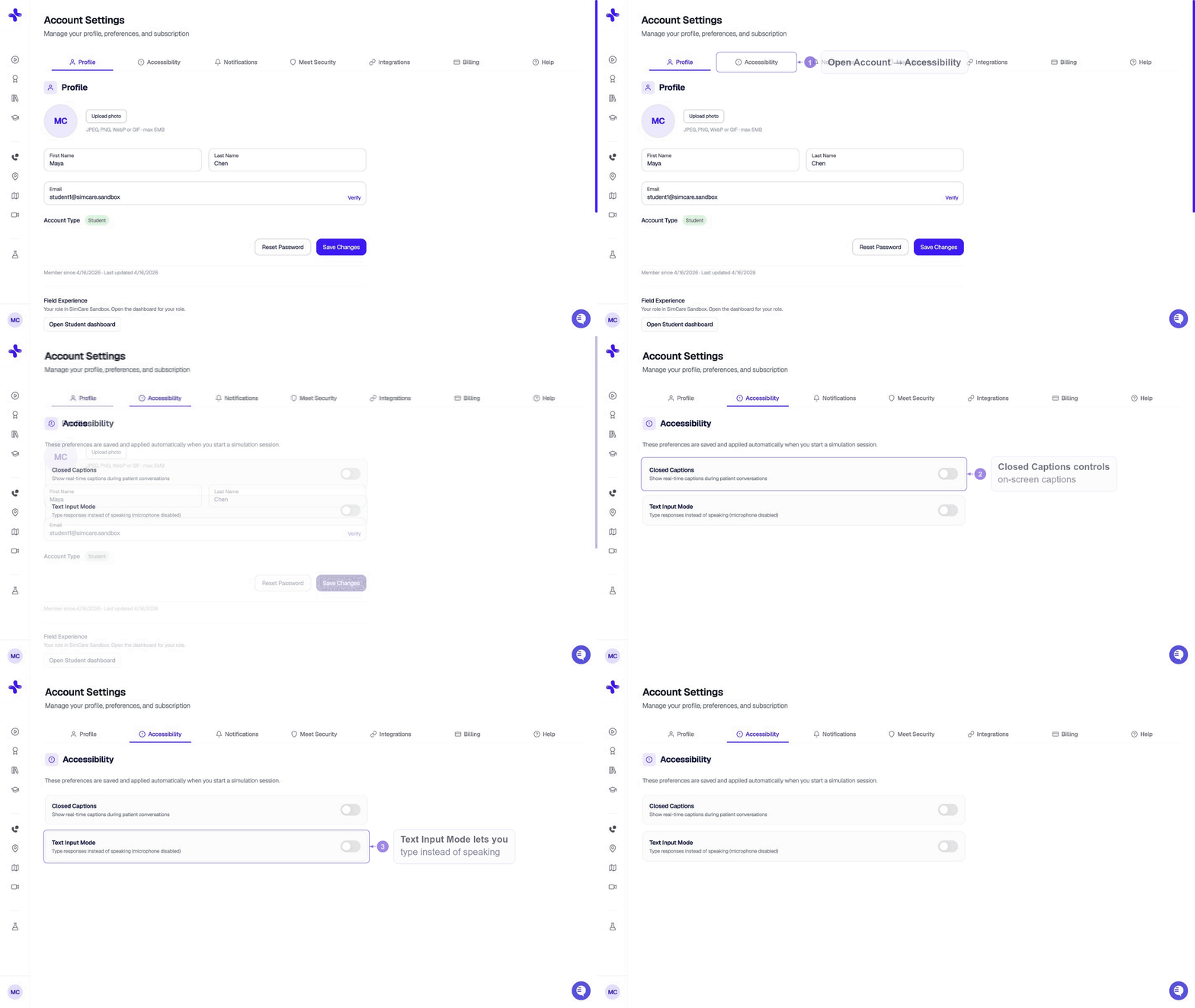
- Open your profile menu, or Menu on a narrow screen
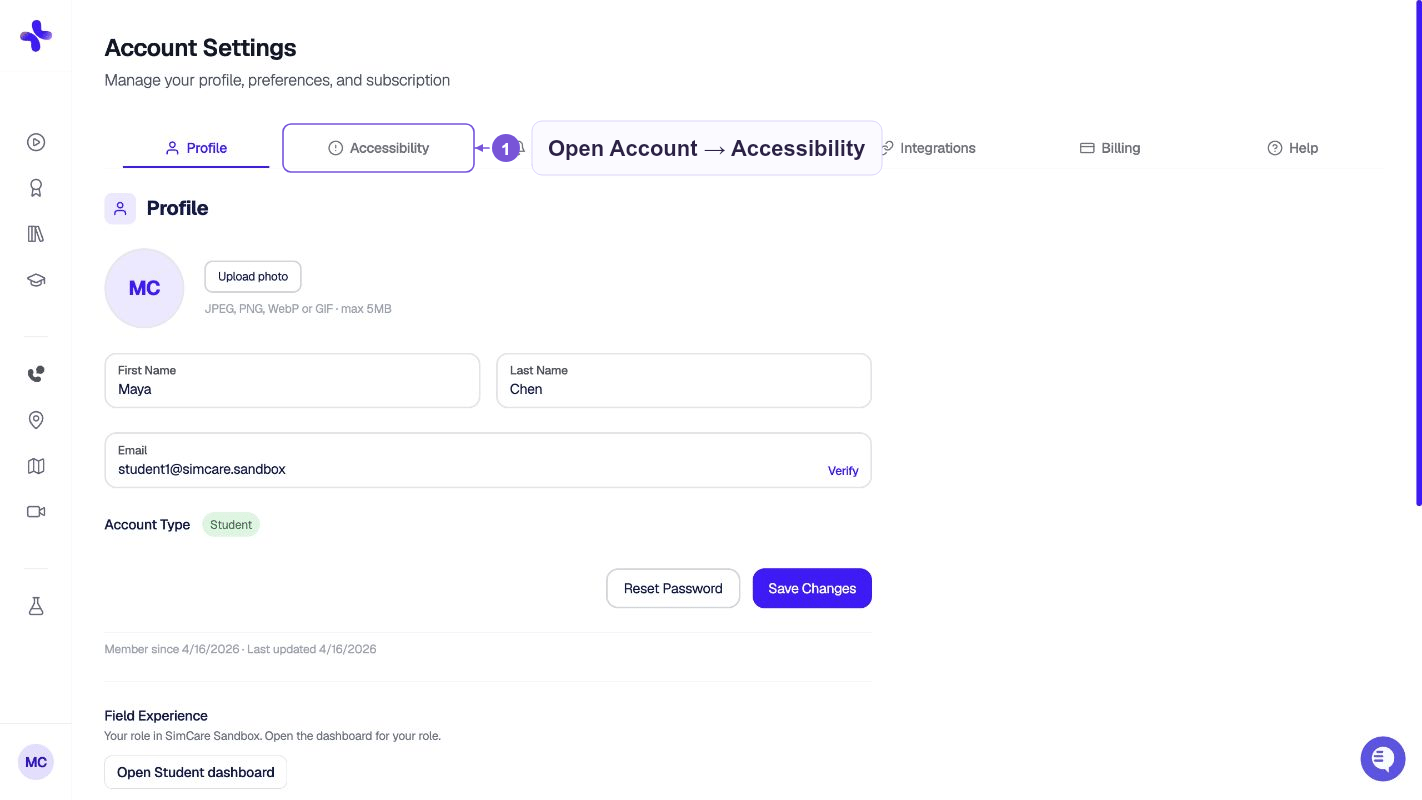
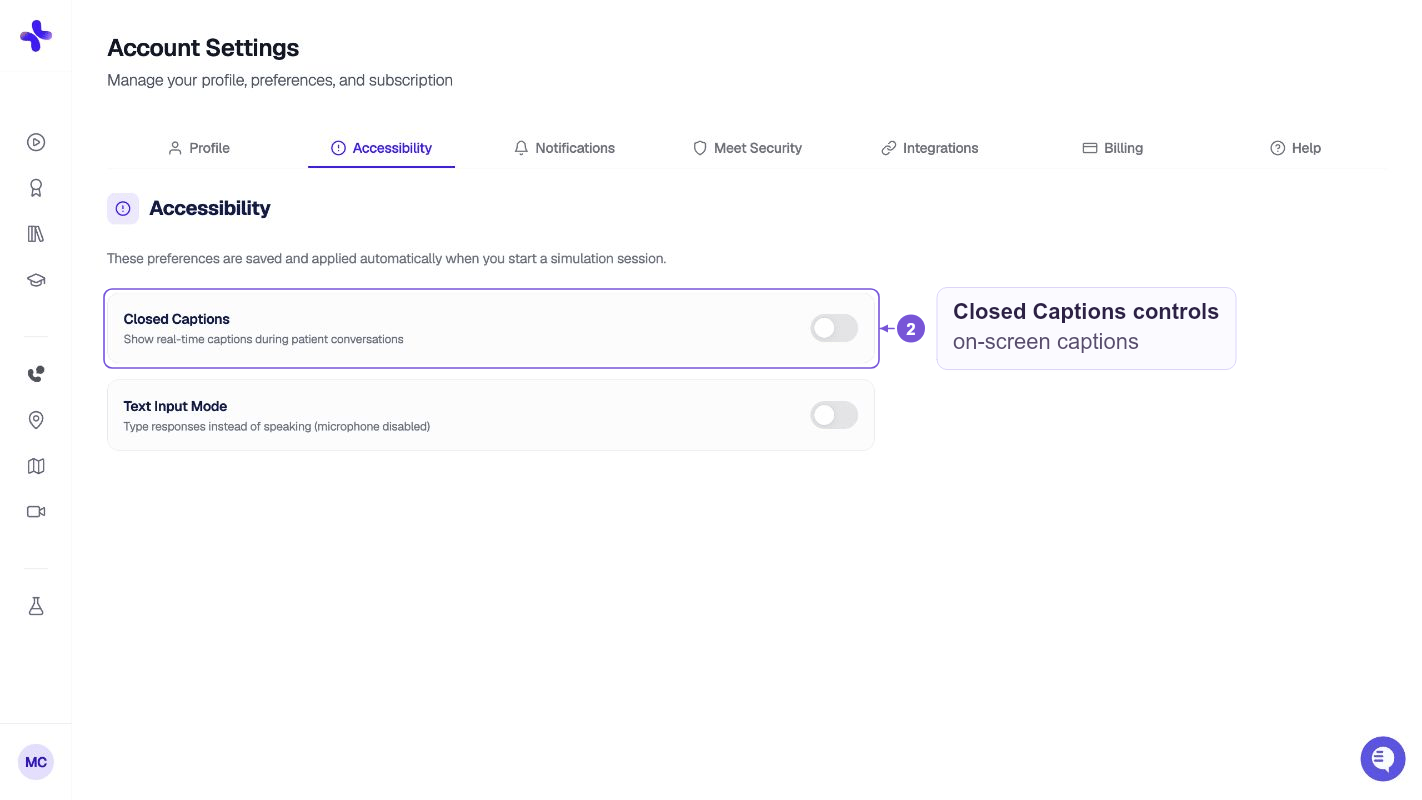
- Go to Account Settings → Accessibility
- Toggle Closed Captions and/or Text Input Mode
- Your preference saves automatically
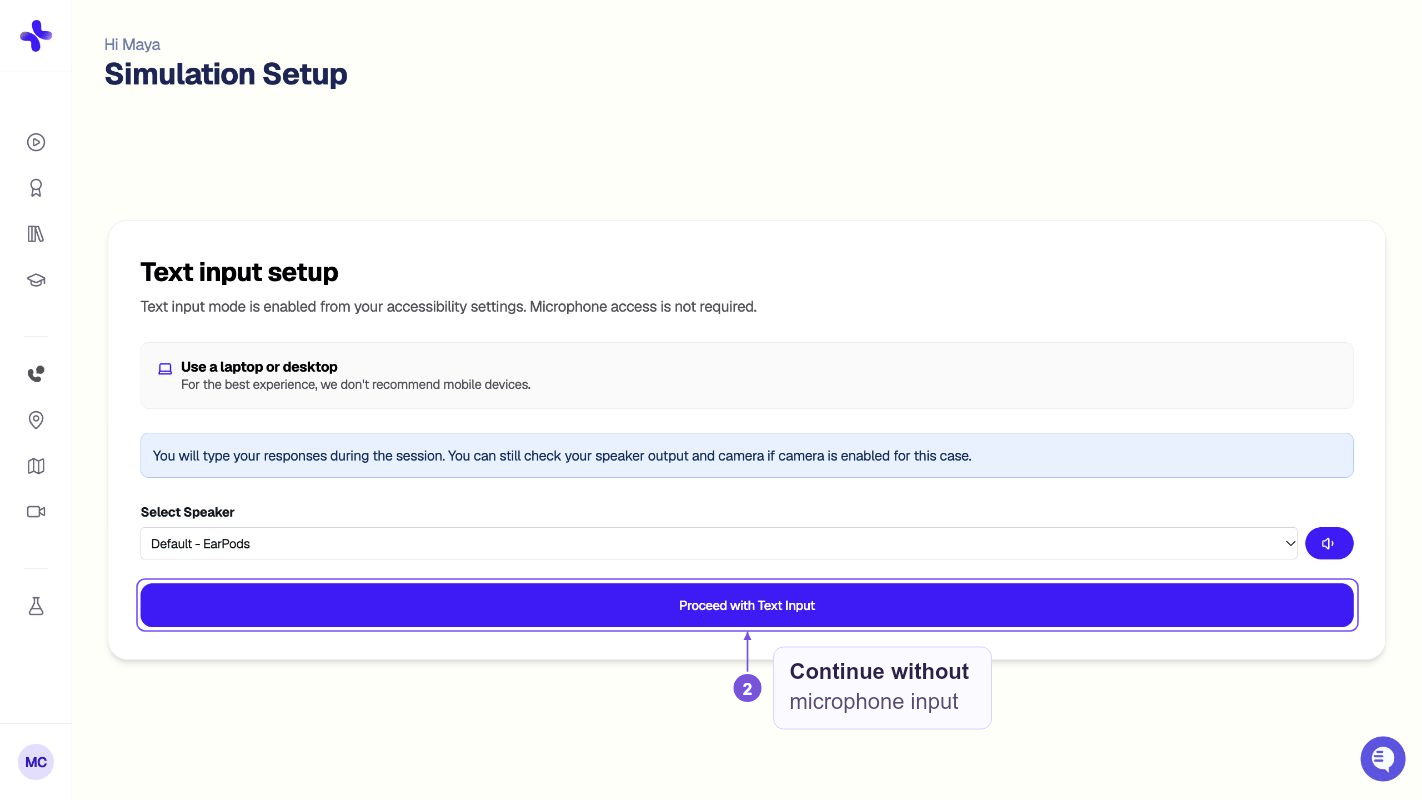
Starting without microphone access
Common issues
Captions aren’t appearing even though I turned them on.Captions rely on the same speech recognition that processes your voice. If your mic permissions aren’t granted or there’s a browser issue, captions may not render. Check your browser permissions and refresh. Text mode disappeared mid-session.
This can happen if the page reloads. Click the keyboard icon in the control bar to re-enable it. I enabled defaults in Settings but they’re not applying.
Make sure you’re logged into the same account. If you log out and log back in, your settings should persist. Contact hello@simcare.ai if the issue continues.