

1. Open SimCare from Blackboard using the Launch link 0:13
- In a Blackboard course, go to Add Content and open the Content Market.
- Select the SimCare option called Launch SimCare.
- This creates a simple link that lets instructors or students open SimCare in a new tab and be automatically logged in.
- After adding it, refresh the course page to see the new launch link.
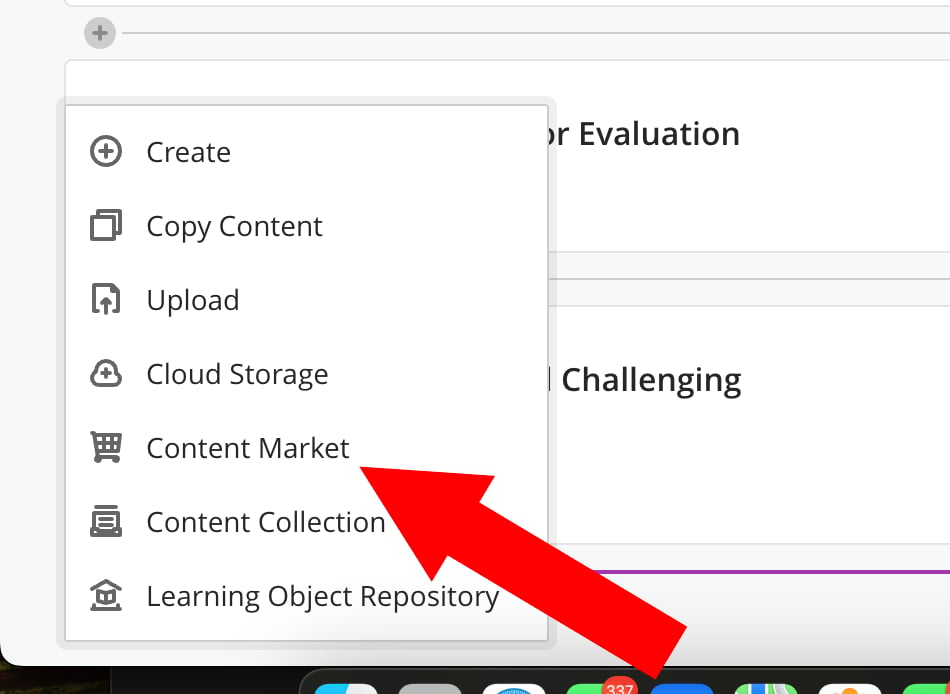
- Go back to the Content Market and choose SimCare Assignment Picker.
- This shows assignments tied to your program, including ones created by instructors, course builders, subject matter experts, or others in the program.
- Select the assignment you want to use, such as Assignment 3.
- Refresh the Blackboard page to confirm the assignment has been added.
- Click the added assignment link in Blackboard.
- It opens in a new tab and launches in test mode for the instructor.
- For this example, the assignment is a case study that asks the user to choose a client.
- This lets instructors verify the assignment flow before students use it.
- On the student side of the same Blackboard course, the student sees both:
- the Launch SimCare link
- the assignment link
- Clicking Launch SimCare logs the student into SimCare in a new tab.
- Clicking the assignment opens the actual assignment so the student can begin work.
- The student must complete at least four back-and-forth exchanges with the client for the case to count.
- In the demo, the student talks with Emma several times.
- Once the conversation is sufficiently complete, the student can end the case.
- Ending the call marks the assignment as completed and starts feedback generation.
- After the student ends the conversation, SimCare begins generating feedback.
- That feedback is sent back to the instructor side for review and grading.
- The transcript notes that the grading details are handled in SimCare, not directly in Blackboard for this demo.
- On the SimCare instructor side, a new class appears with the same name as the Blackboard course.
- The assignment copied from the master course is linked to the Blackboard course launch.
- The instructor can also see the student who completed the assignment, such as John Doe.
- From View Submissions, the instructor can open Grade a Case to review the work.
- The video does not cover the full grade passback process.
- The intended flow is:
- instructor enters a grade in SimCare
- instructor clicks Publish Grade
- grade passback sends the score back to Blackboard
- The team is still investigating:
- the zeroing issue
- the full Blackboard Ultra grade passback workflow