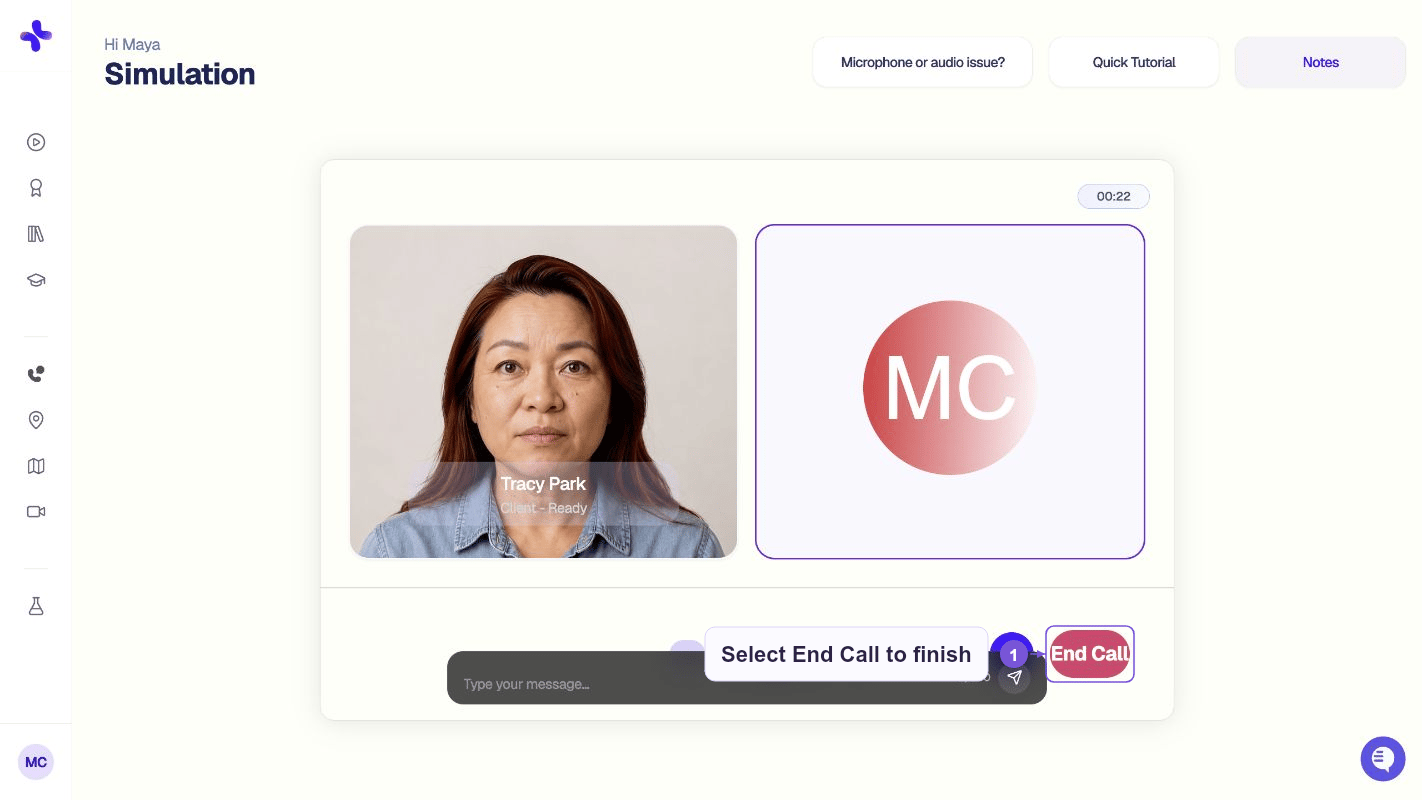
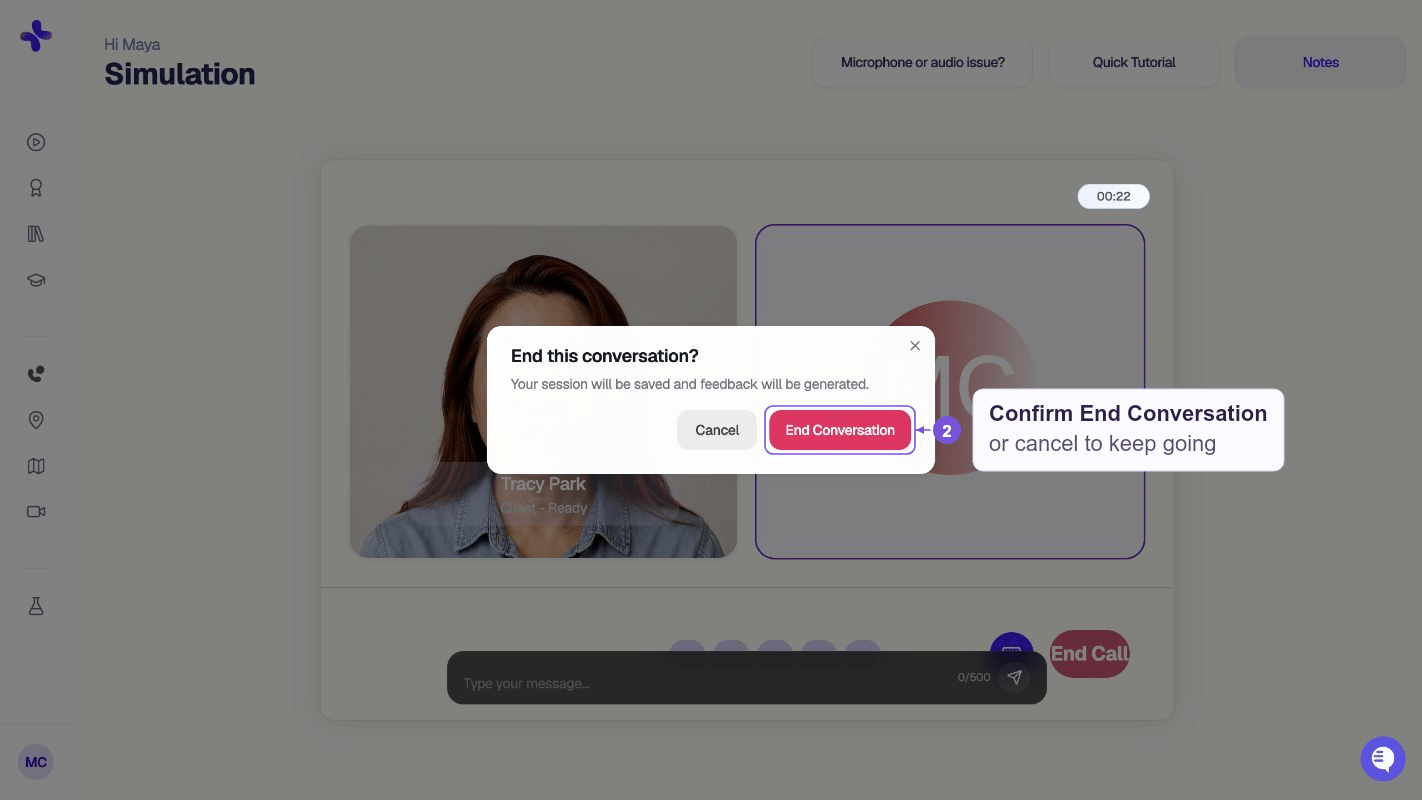
Confirm before ending
- Title: End this conversation?
- Body: Your session will be saved and feedback will be generated.
What happens next
After you confirm, one of three things happens depending on how your instructor set up the assignment:1. Straight to feedback (default)
You’re sent to a loading screen while SimCare processes the conversation. A progress bar and status messages (e.g., “Generating feedback for your instructor…”) update as the AI works. Once it finishes — typically under a minute — you’ll see your full feedback report.2. Post-session assessments first
If your instructor enabled post-session work, you’ll be asked to complete one or more written tasks before viewing feedback:- Problem Statement
- Differential Diagnosis
- Risk Assessment
- Safety Planning
- Treatment Planning
- SOAP Note
- Reflection
- Self-Annotated Transcript or a custom task, if assigned
Complete each assigned assessment and click Submit. Feedback availability still depends on your instructor’s release settings.
3. Paired clinical-trial case
For some research-enabled cases, a Post-Simulation Choice modal appears asking if you’d like to complete a paired follow-up case before viewing feedback. This is optional.Short sessions
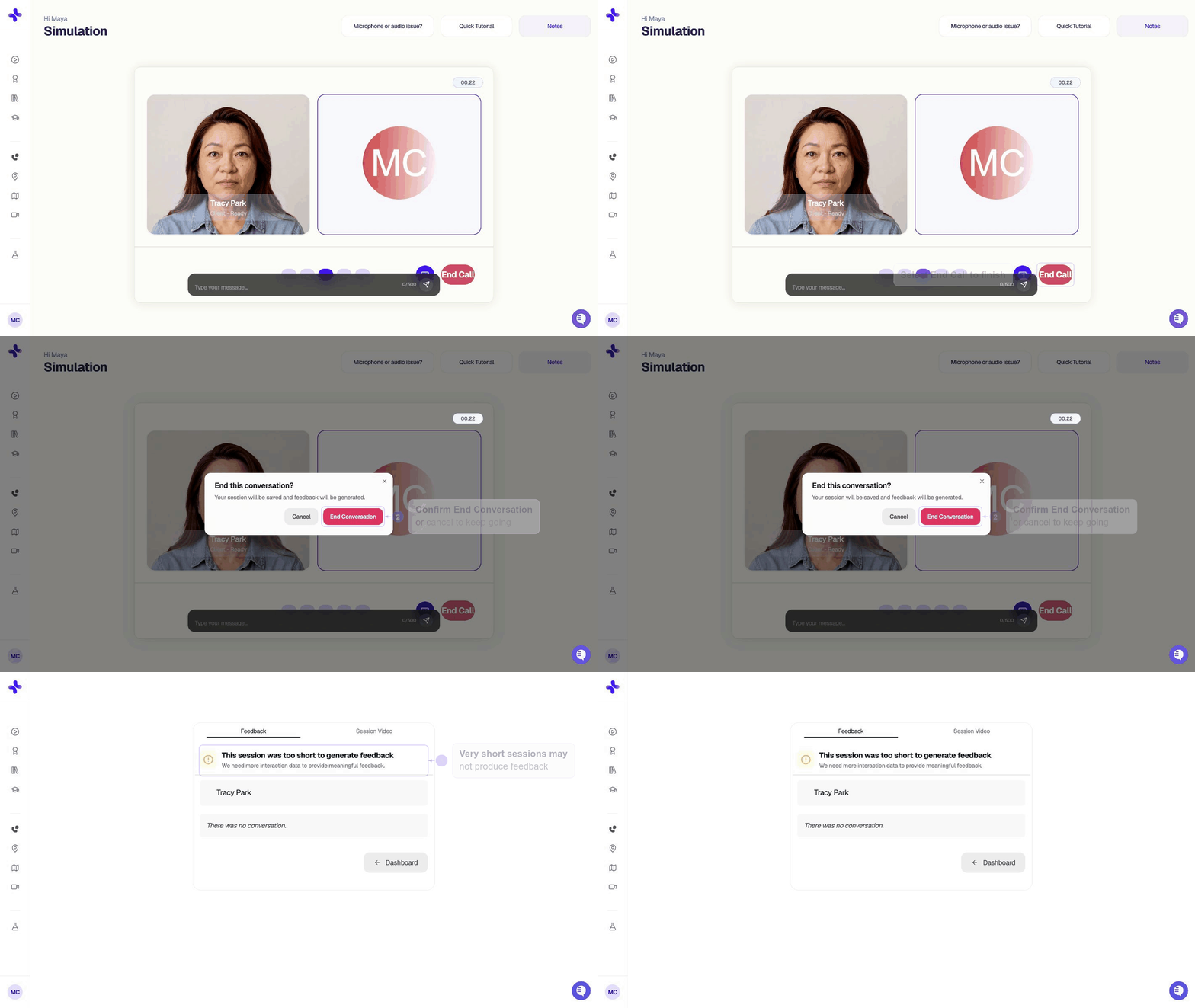
If there is not enough interaction to evaluate, you may see “This session was too short to generate feedback” instead of a full report. The page explains that more interaction data is needed and shows a conversation preview. Click Dashboard to return to Simulations.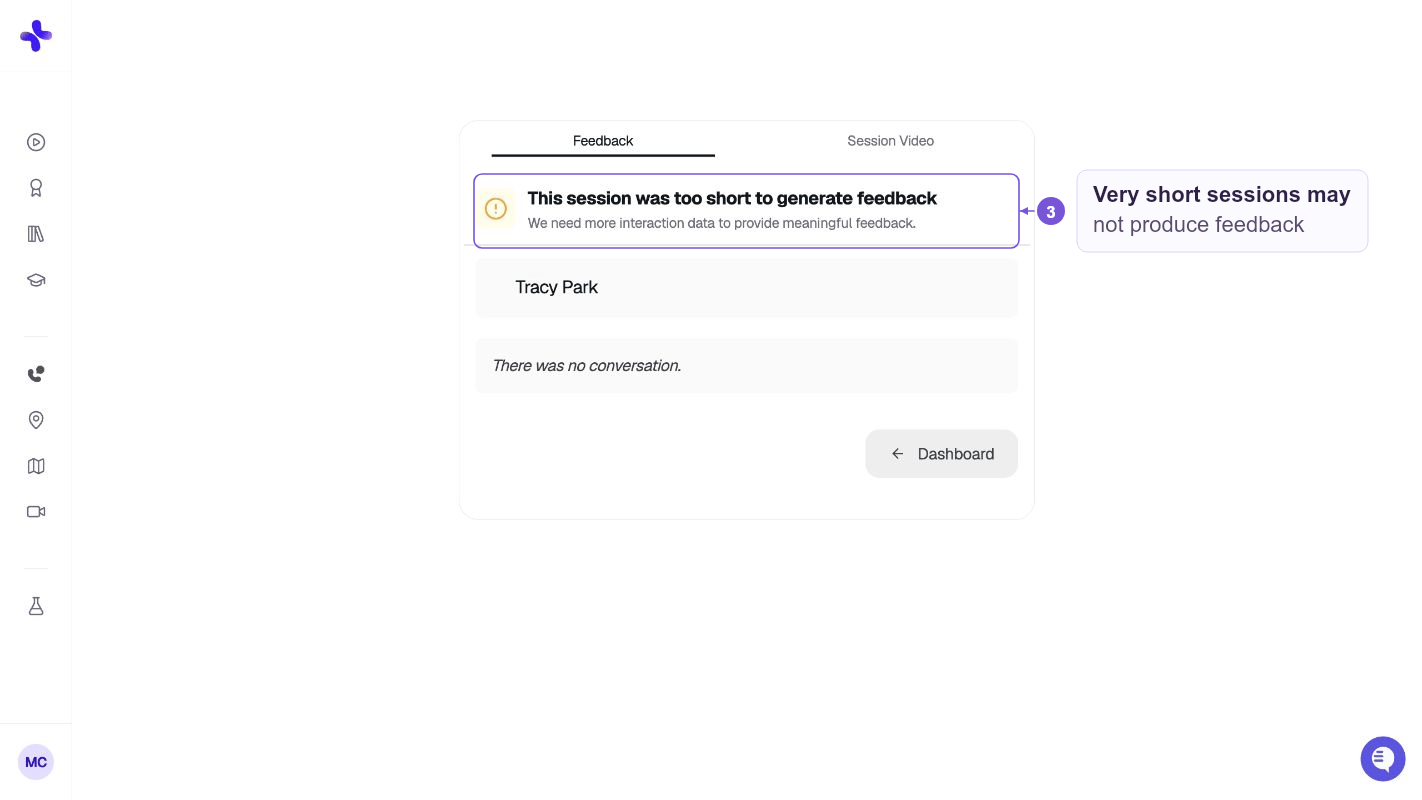
Hidden feedback
If your instructor set this assignment to hide feedback from students, you’ll see a confirmation screen instead of the feedback report. The AI feedback is still generated and visible to your instructor — they’ll release it when they’re ready.Saved automatically
Your session — including transcript, audio, and video (if your camera was on) — is saved automatically. You can return to feedback any time from your assignment dashboard or session library.Find a session in History
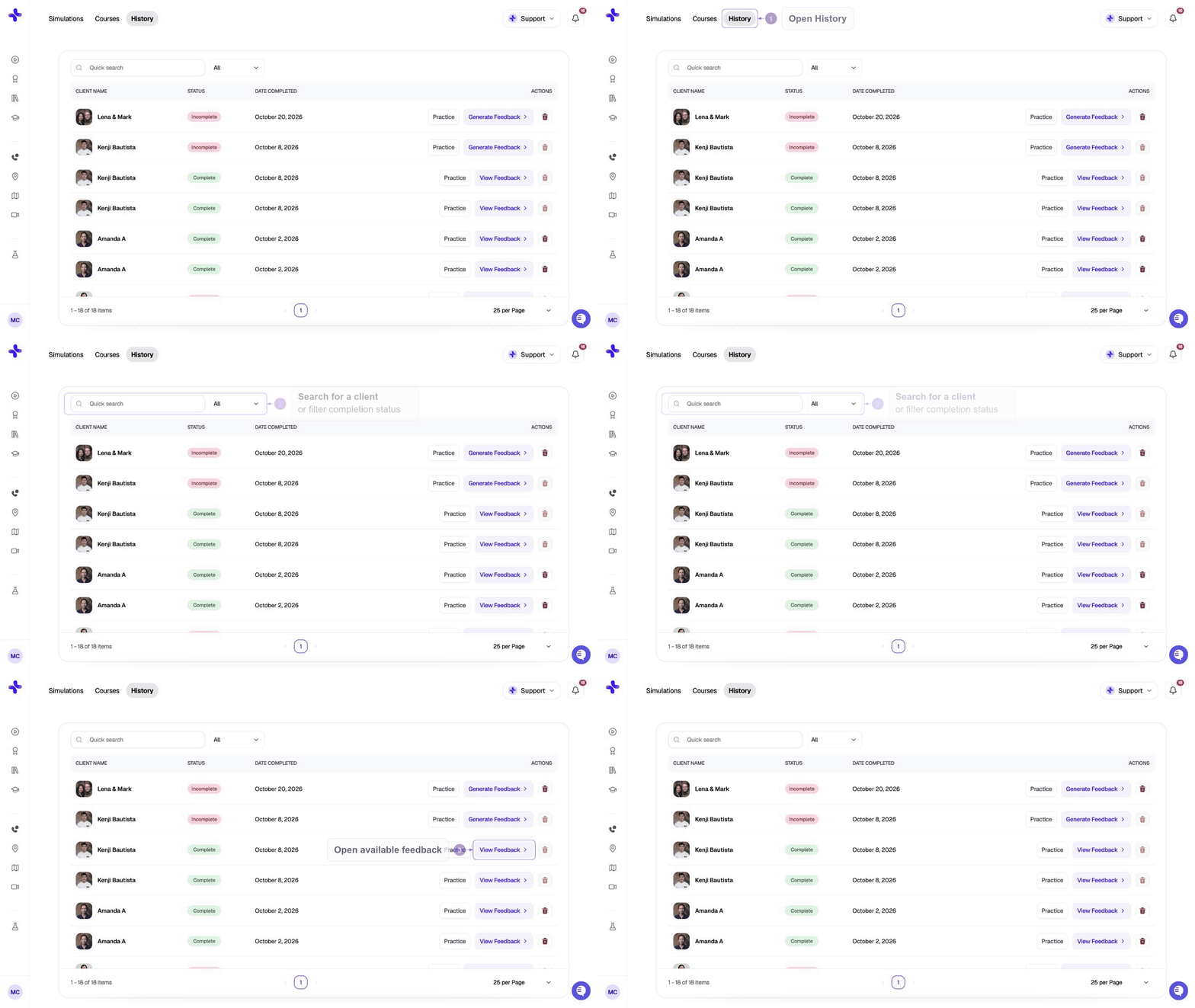
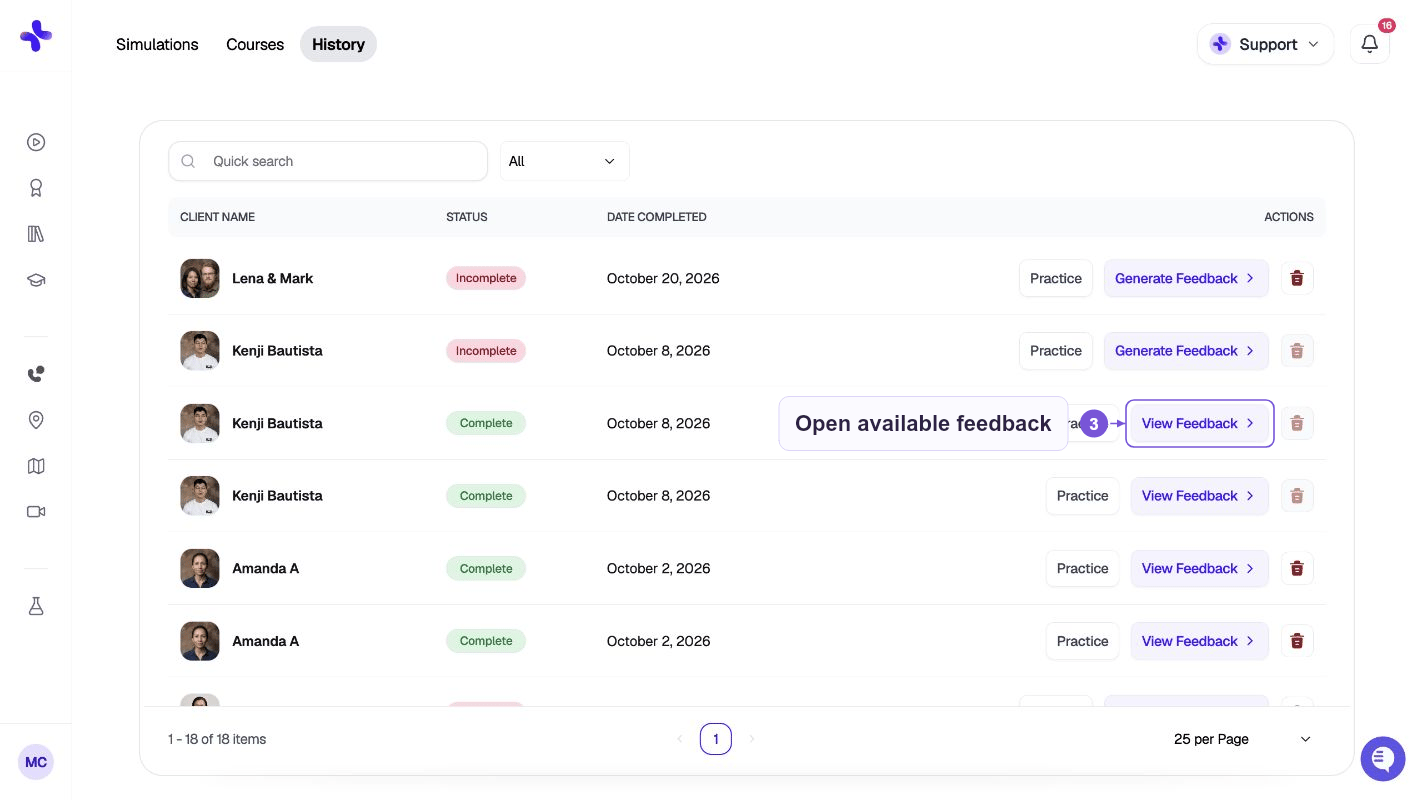
- Use Quick search to locate a client.
- Use the completion-status filter to switch between All, Complete, and Incomplete.
- Check the client name, status, and date to find the session you want.
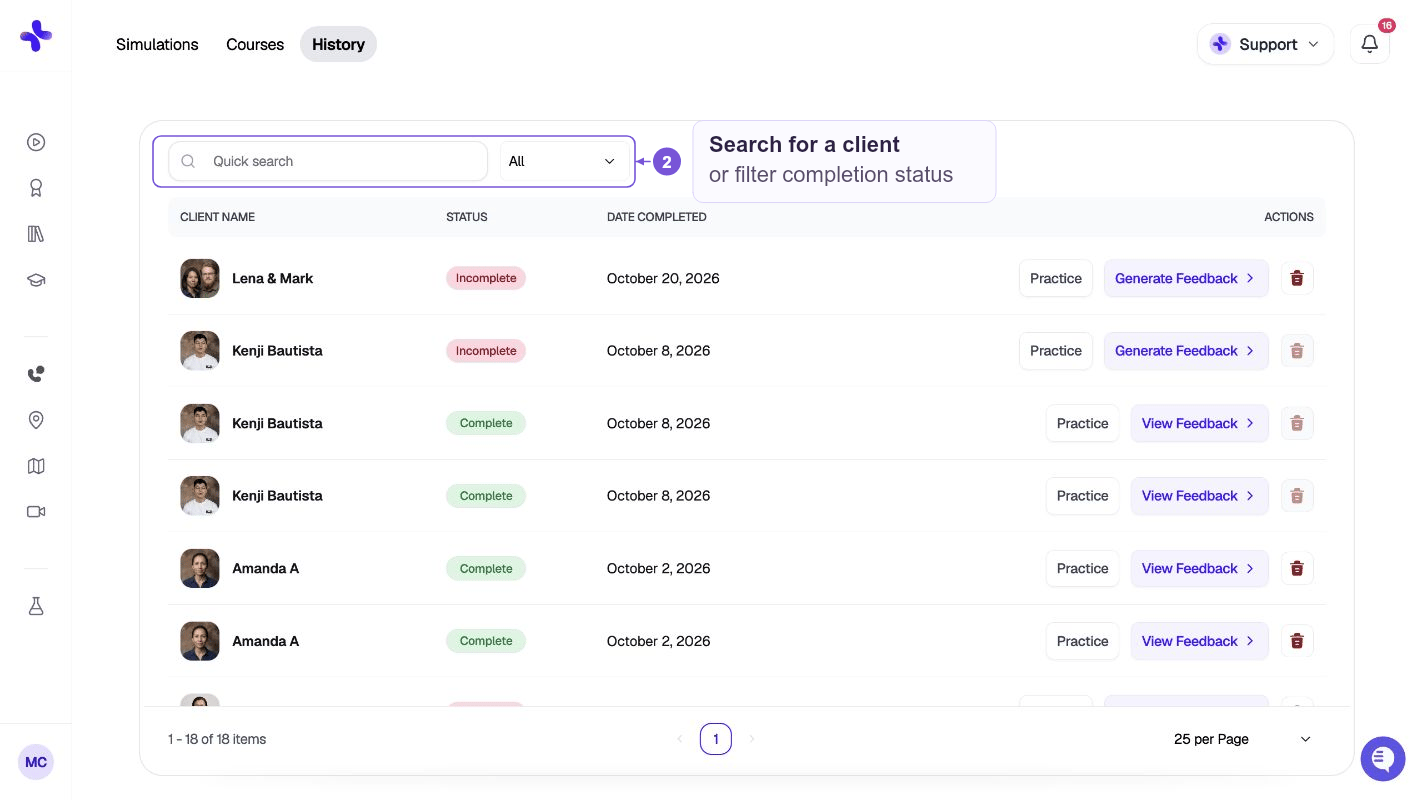
Session actions
The actions available depend on the session: