

How it works
A peer review assignment always points at an existing case assignment — the “target.” Students who have submitted the target case are the pool of reviewees.- Reviewers open the assignment and either see a pre-assigned classmate (if you paired them) or pick a classmate’s session from the graded pool.
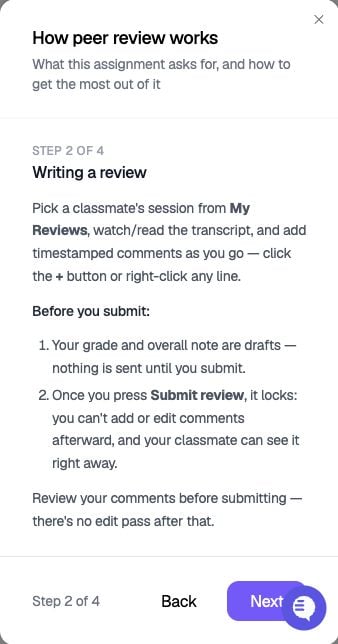
- The reviewer watches the recording, comments on the transcript, and — if you enabled grading — enters a numeric grade and written feedback.
- Comments are visible to the reviewed student as soon as the reviewer submits — there is no separate release step.
- You can optionally grade the reviewer’s effort separately in the teacher view.
Peer review does not use AI feedback. Reviewers see only the raw video, transcript, and their classmates’ comments — not SimCare’s AI evaluations of the session.
Creating a peer review assignment
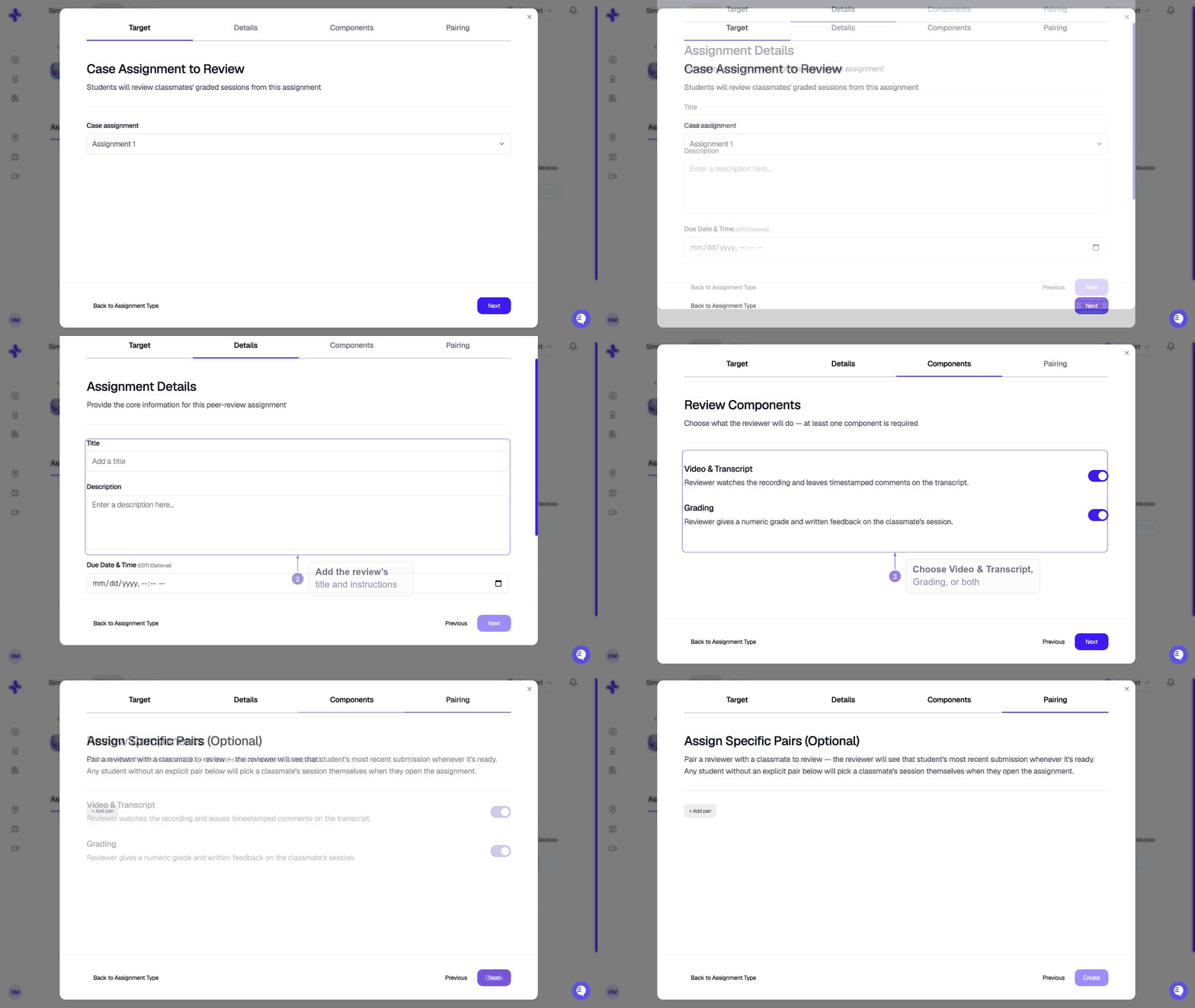
1
Target
Pick the case assignment that reviewers will review. Only case assignments already in this class can be targets — create the case assignment first if it doesn’t exist yet.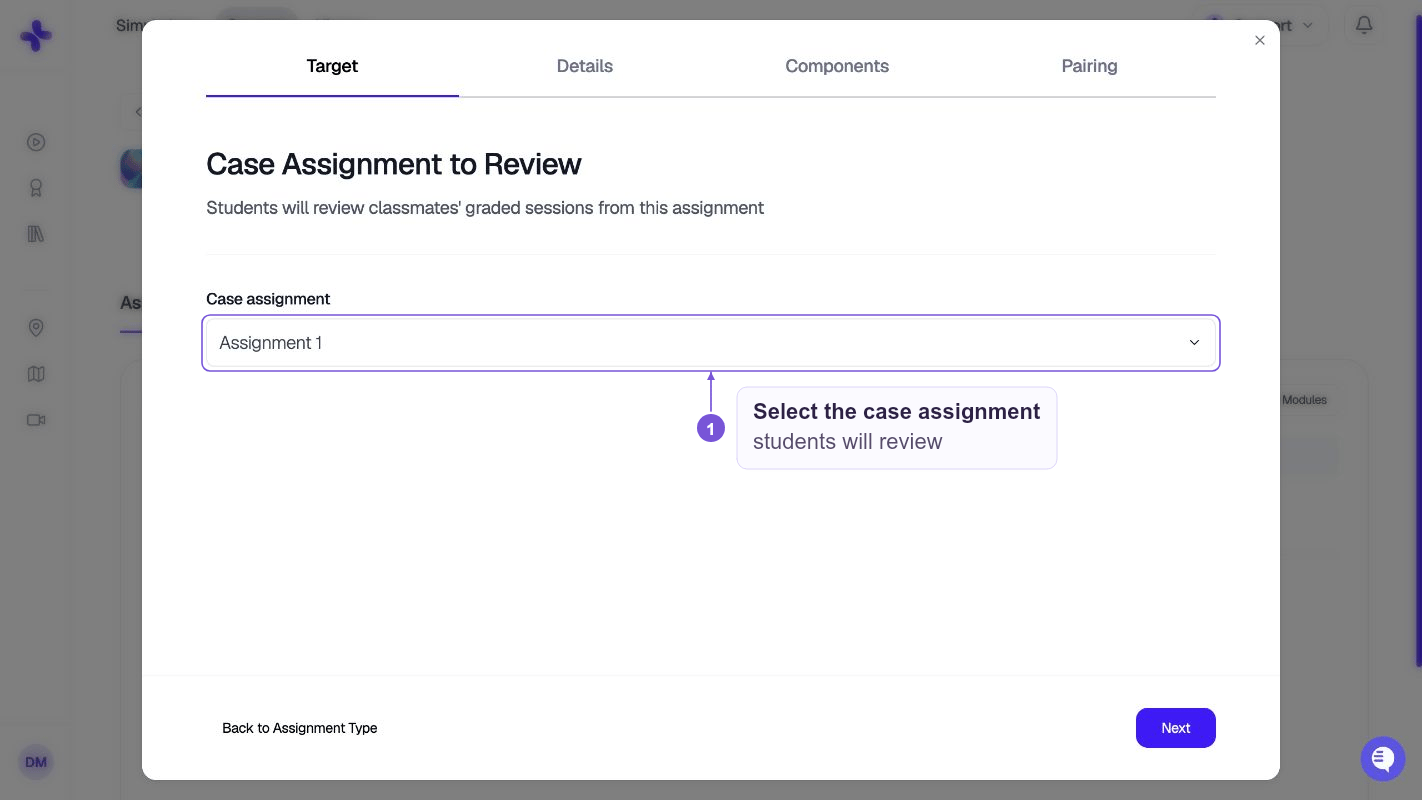
2
Details
Set the title, description, optional due date, and whether to publish immediately. Same fields as a case assignment.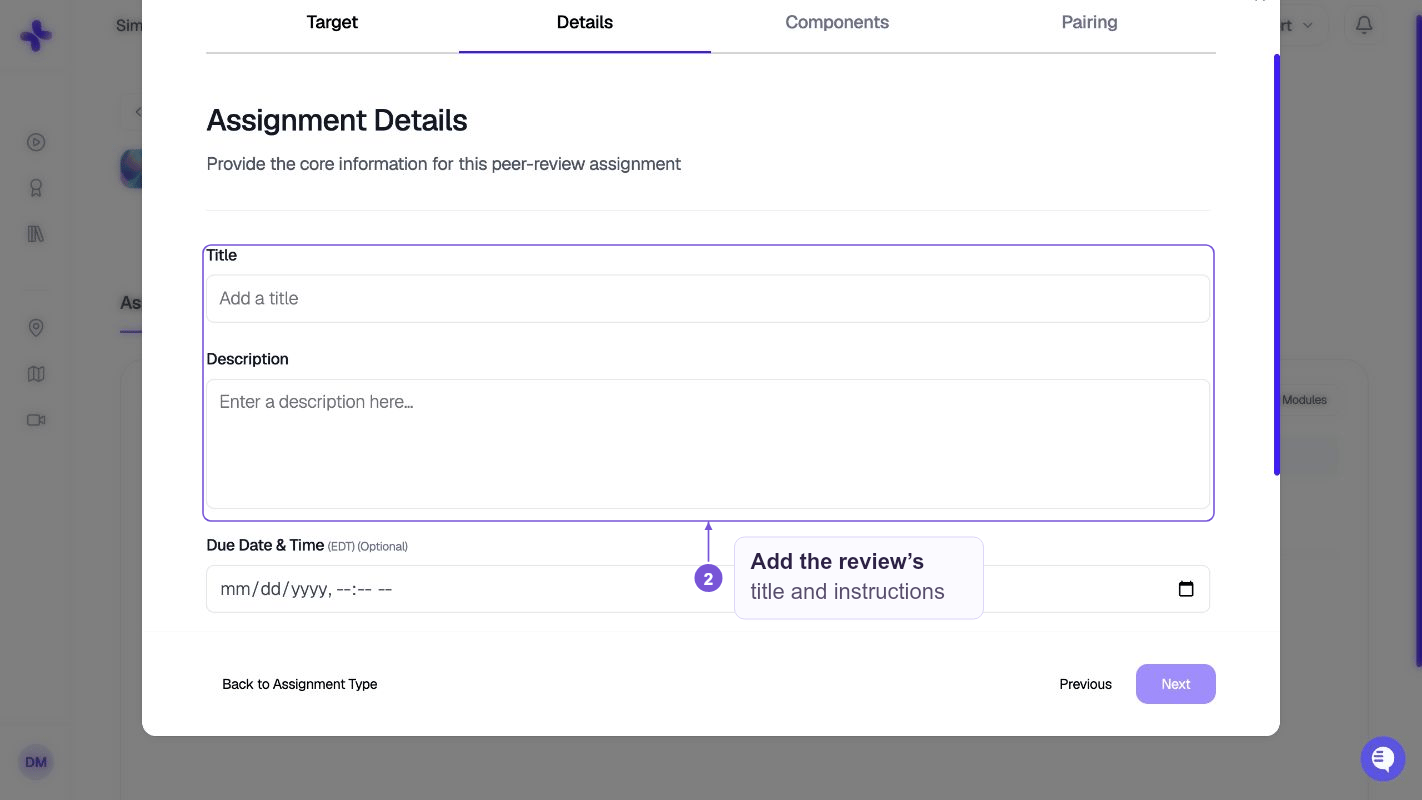
3
Components
Choose what the reviewer does. At least one is required: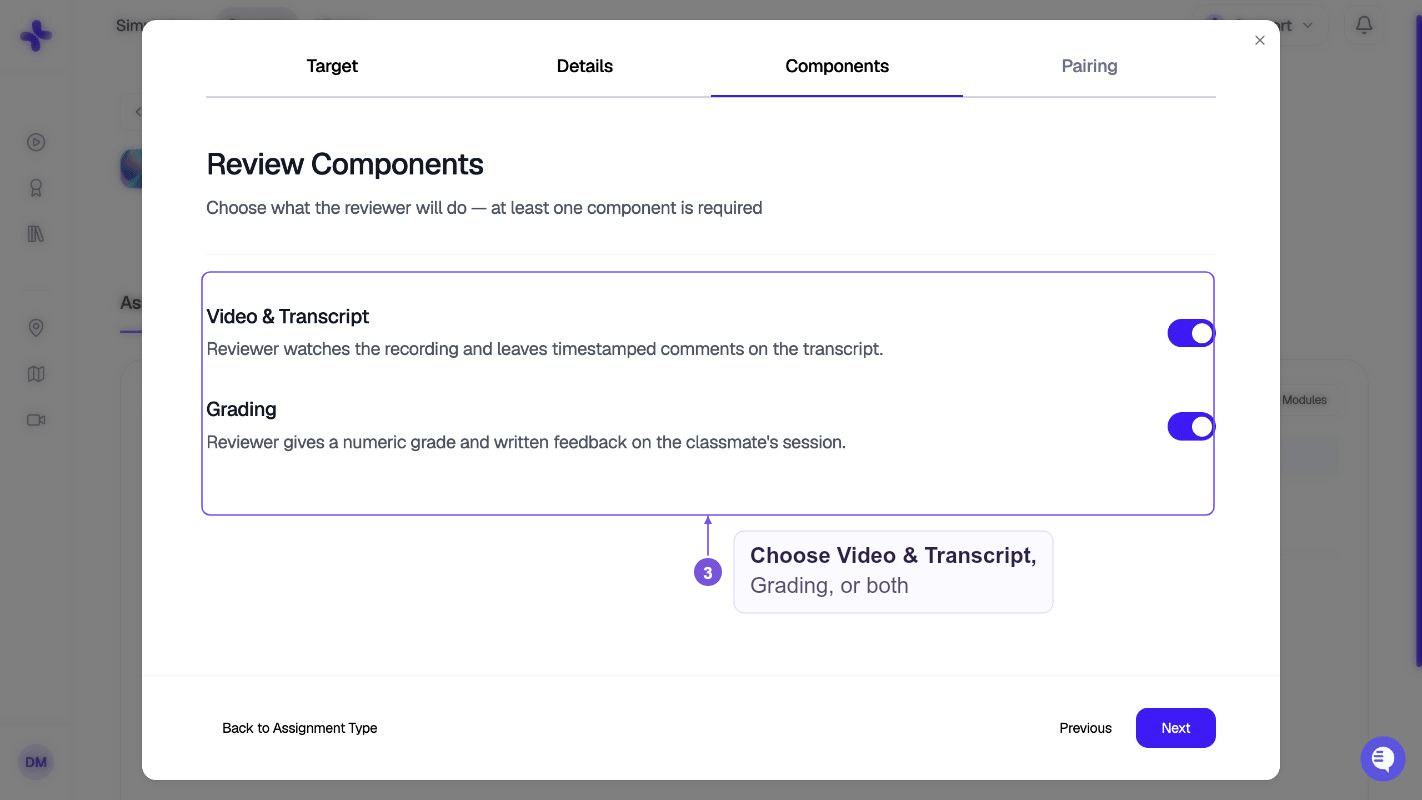
Enable both for a full review, or just one to keep the scope tight (for example, comments-only for a low-stakes practice pass).
4
Pairing
Optionally assign explicit reviewer → reviewee pairs. Anyone left unpaired self-selects a classmate’s session from the graded pool when they open the assignment.Pairing targets a student, not a specific attempt — the reviewer will always see that student’s most recent submitted attempt. If the paired reviewee hasn’t submitted yet, the reviewer sees a “not submitted yet” state until they do.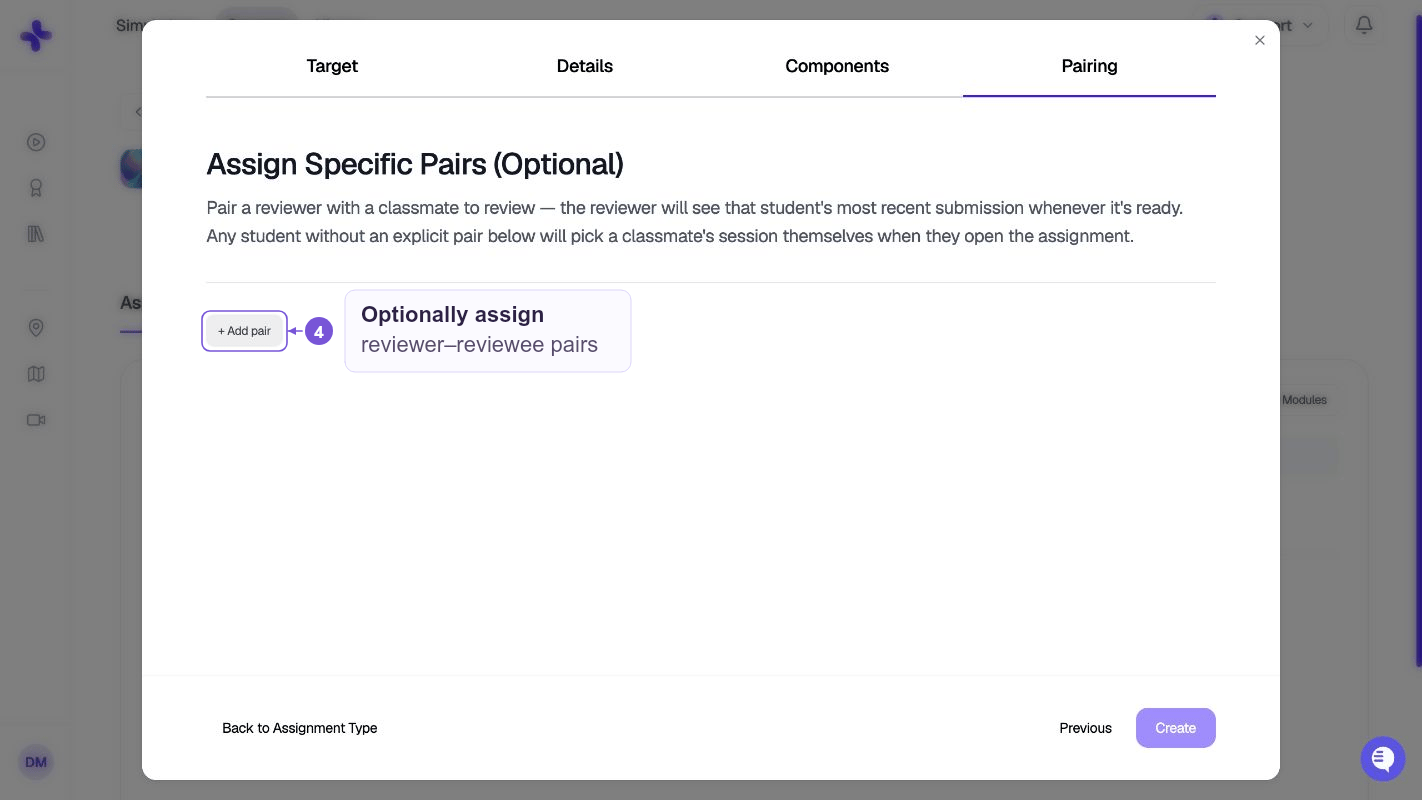
Student experience
From My Learning, find the peer review assignment under Upcoming. Choose View Details to check the target case under Reviewing, then Start Assignment.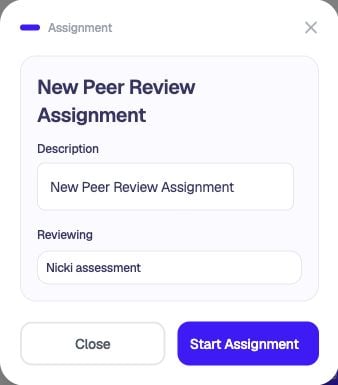
- If you paired them, the assignment opens straight into the review screen for their assigned classmate’s session.
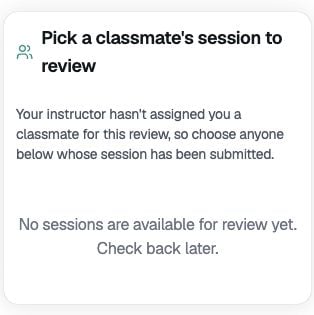
- If they’re unpaired, they choose from classmates who have submitted the target case. If the list says No sessions are available for review yet, check back after a classmate submits.
Reviewing peer work as an instructor
Open the peer review assignment from the class Assignments tab. The teacher view is organized by reviewer, not by reviewee:- Left rail — every reviewer, with the classmates they reviewed nested underneath.
- Main area — the selected review, showing the reviewee’s transcript with the reviewer’s comments and grade in read-only mode.
- Optional review grade — give the reviewer a numeric grade and written feedback on how well they reviewed. This is separate from the grade the reviewer gave the reviewee’s session.
Where peer feedback appears for the reviewed student
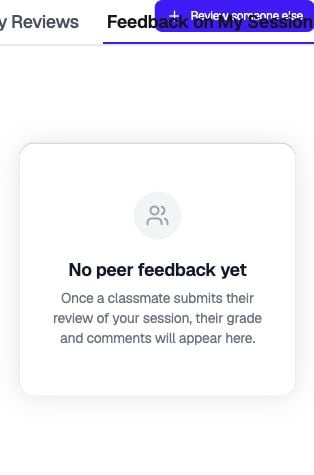
The student being reviewed sees peer comments on their case review, alongside AI and instructor feedback. Peer comments are tagged with the reviewer’s name and a Peer badge, and are timestamped to the moment in the session they’re anchored to.Limits
- The target must be a case assignment — you can’t peer review a quiz, document, or another peer review.
- Existing pairs can’t be edited from the builder after creation. Add new pairs to layer on top; leave a student unpaired to let them self-select.
- Peer review is not yet available in the Course Builder for course-level templates — create peer review assignments directly on the class.