

Unmute yourself (voice input)
Before anything else, make sure your mic is unmuted. The client can’t hear you until you do.Voice input has no submit buttonJust talk naturally. SimCare listens and knows when you’re done speaking.
In-session controls
The bottom of the session window has three groups of controls:Captions
Click the captions icon to toggle live on-screen captions of what you and the client say. This is useful for noisy environments or accessibility. Toggle it off the same way.Text mode
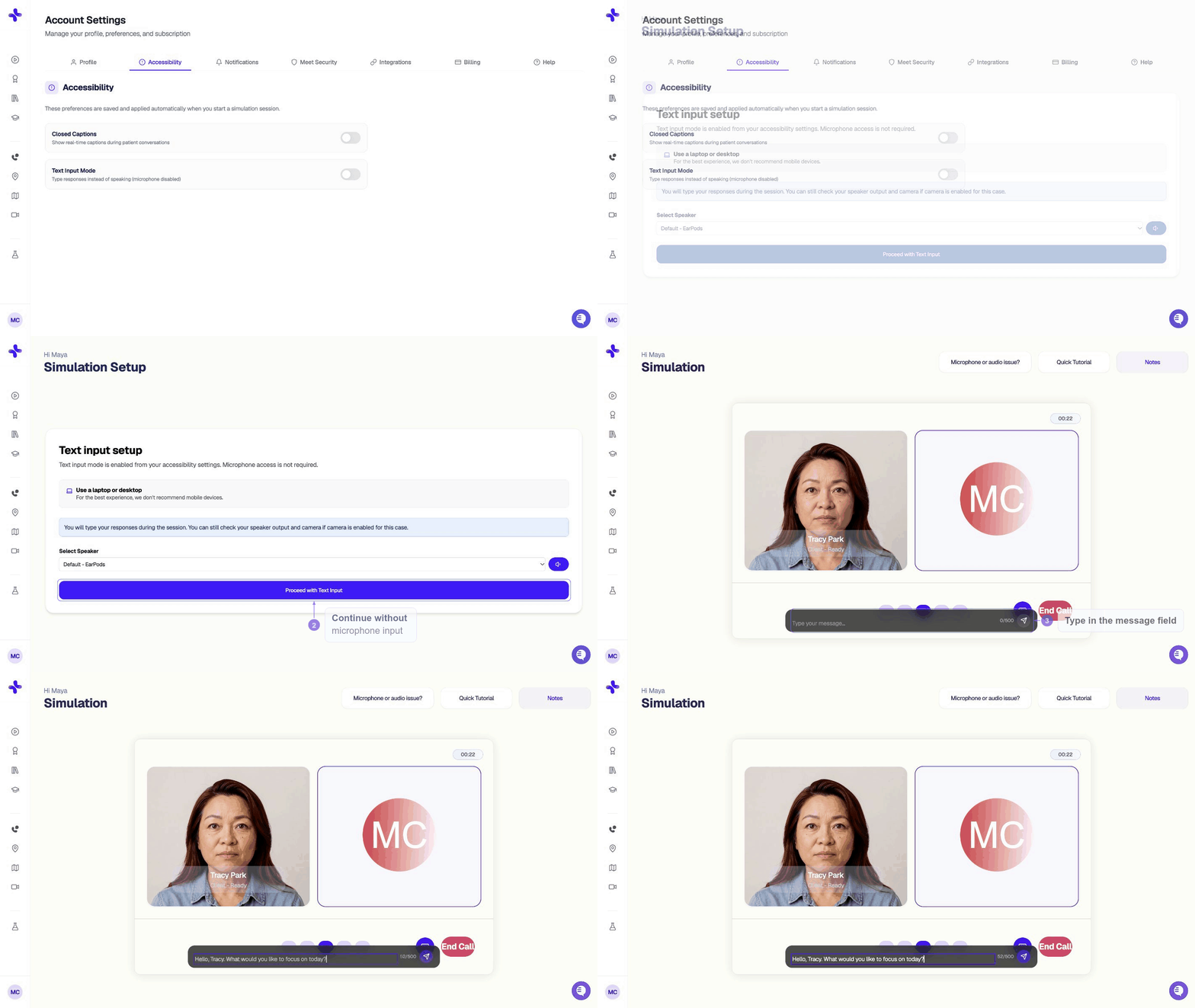
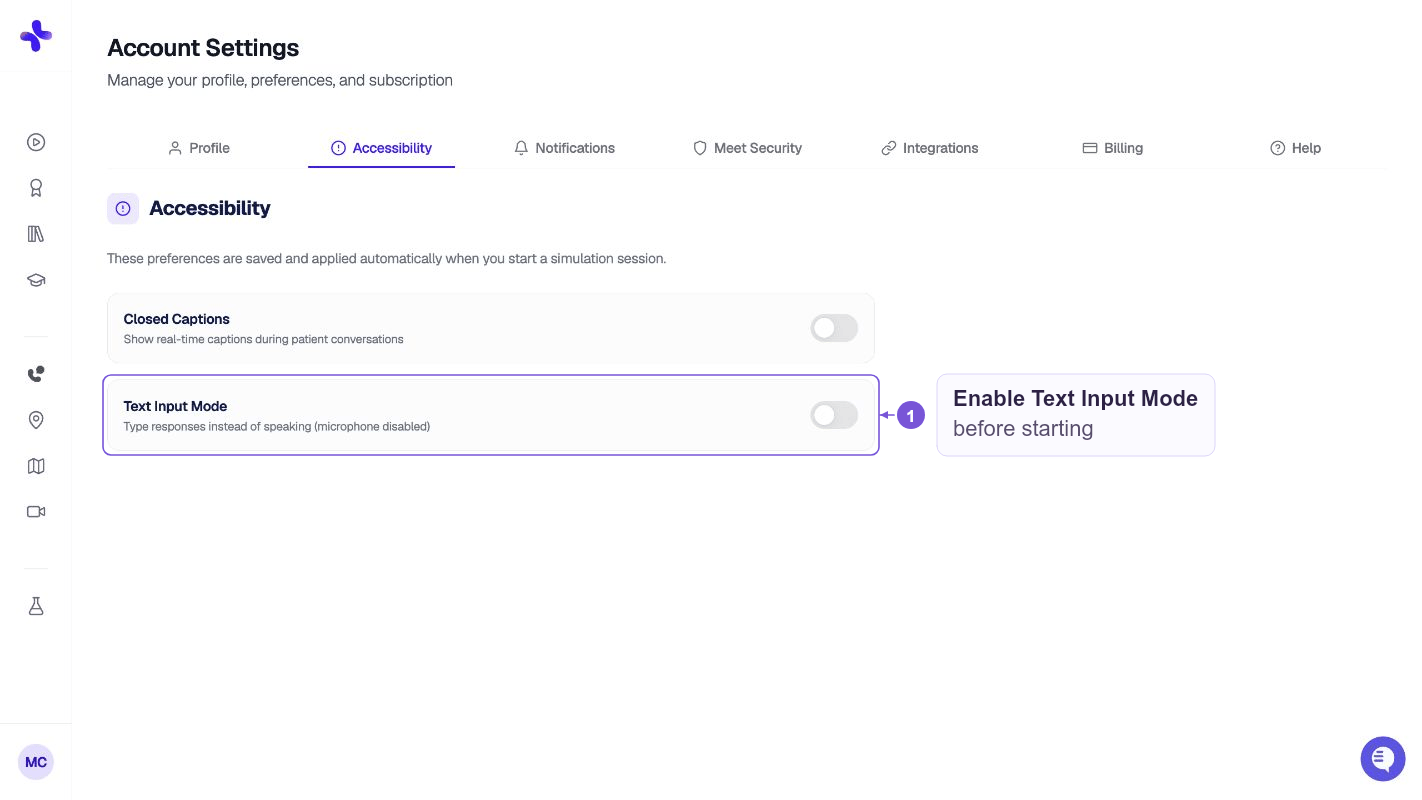
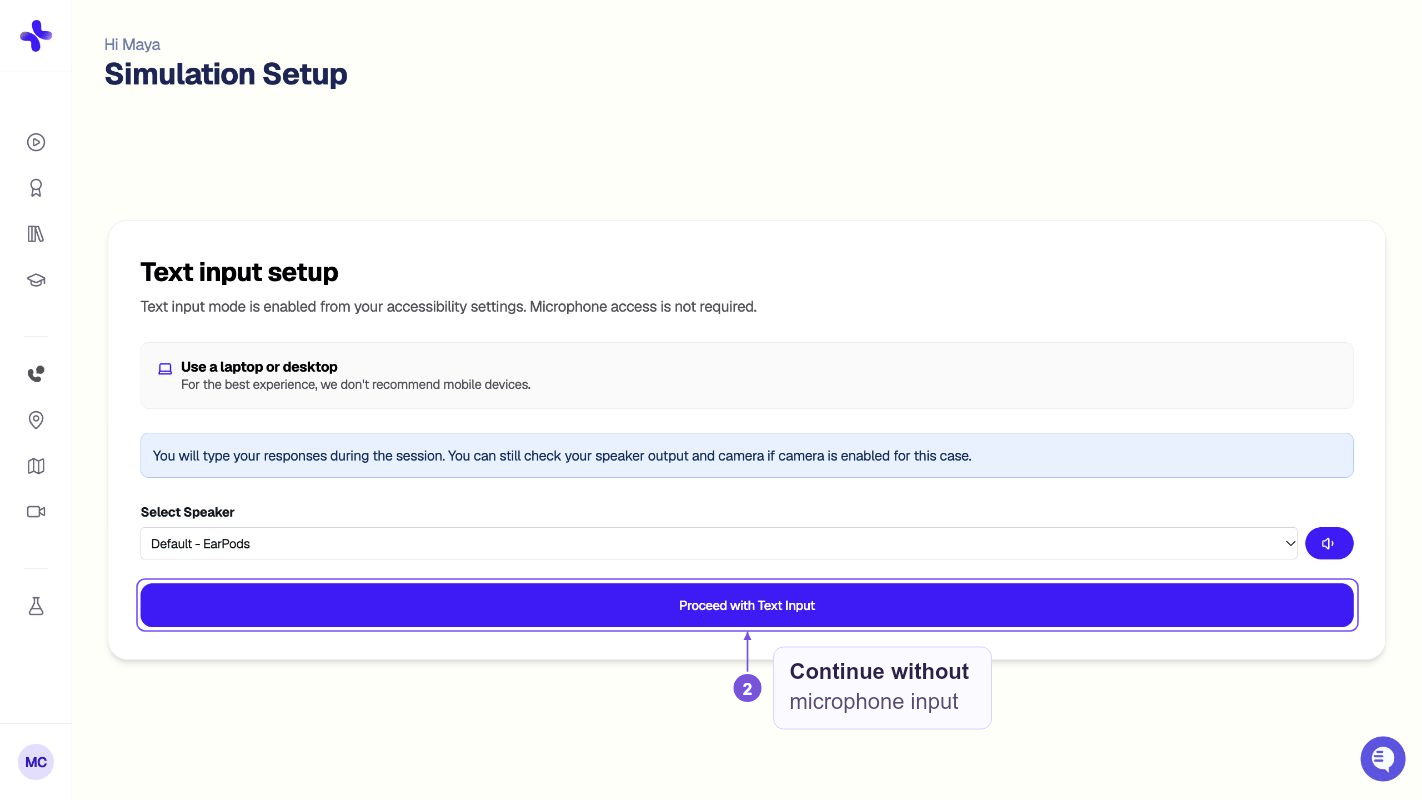
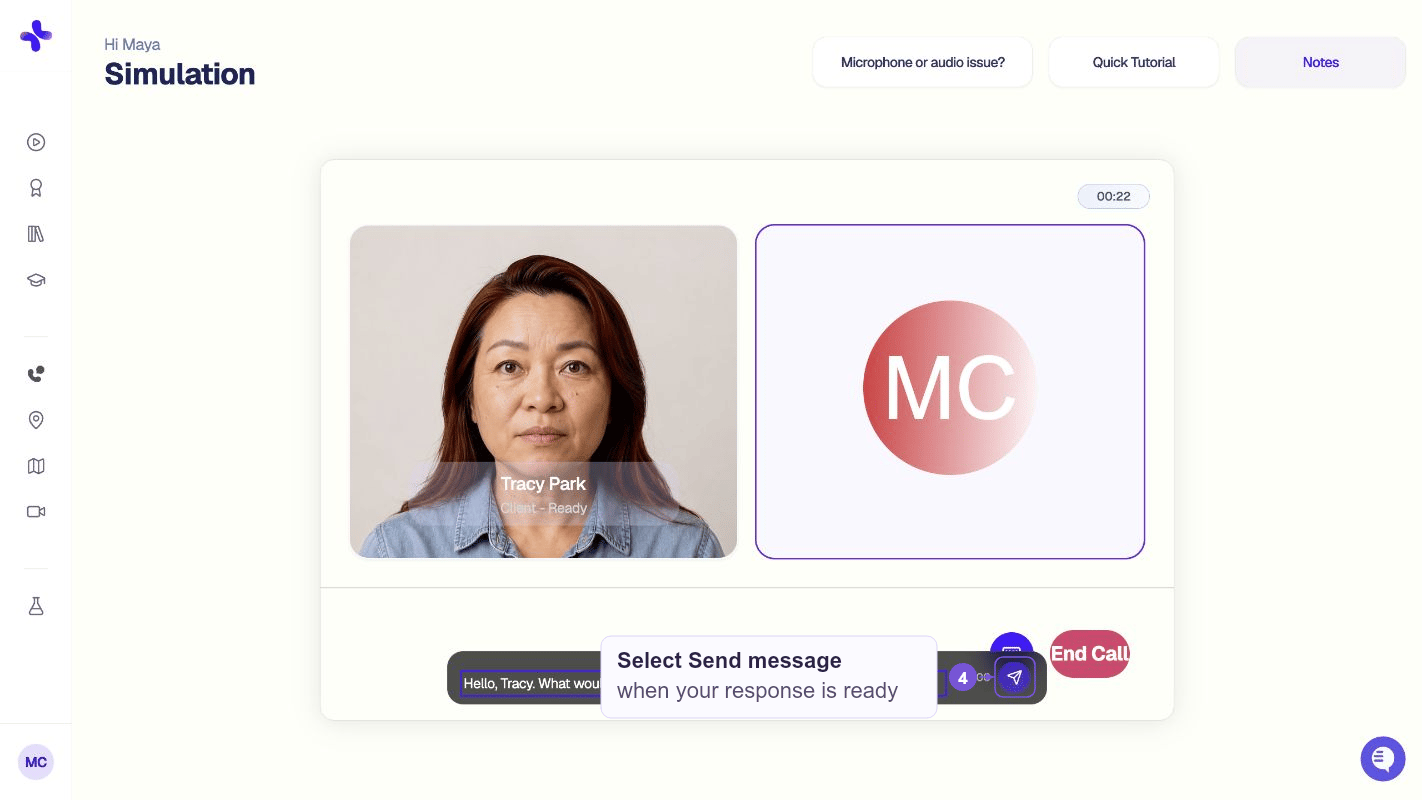
You can enable captions and text mode by default from your Accessibility preferences in your account settings.
Building rapport
The better you connect, the more the client opens up. To get the best results:- Ask real questions rather than following a script
- Show empathy in your voice and word choice
- Respond naturally, just like you would in a real session
- Interrupt naturally — you can speak over the client like in a real conversation
Non-verbal cues matter
If your camera is on, SimCare tracks your non-verbal behavior just as a real client would perceive it:- Eye contact — are you looking at the patient?
- Facial engagement — are you nodding or reacting?
- Distractions — are you looking away or multitasking?
Tone & voice
Your tone matters immensely.- Sounding bored or flat may cause the client to shut down
- Warmth and energy encourage more depth and cooperation
Group cases
Some cases include more than one client (family, couples, support groups). In group cases you may see multiple avatars on screen. The conversation flows in one of two modes:- Orchestrated — the AI decides who speaks next based on what you said
- Competitive — multiple clients may want to respond; press Tab after you speak to hand off the turn
Watch the relationship evolve
Sessions aren’t static. As you build trust, the client may:- Open up more about sensitive topics
- Reveal new insights
- Change how they respond to your questions