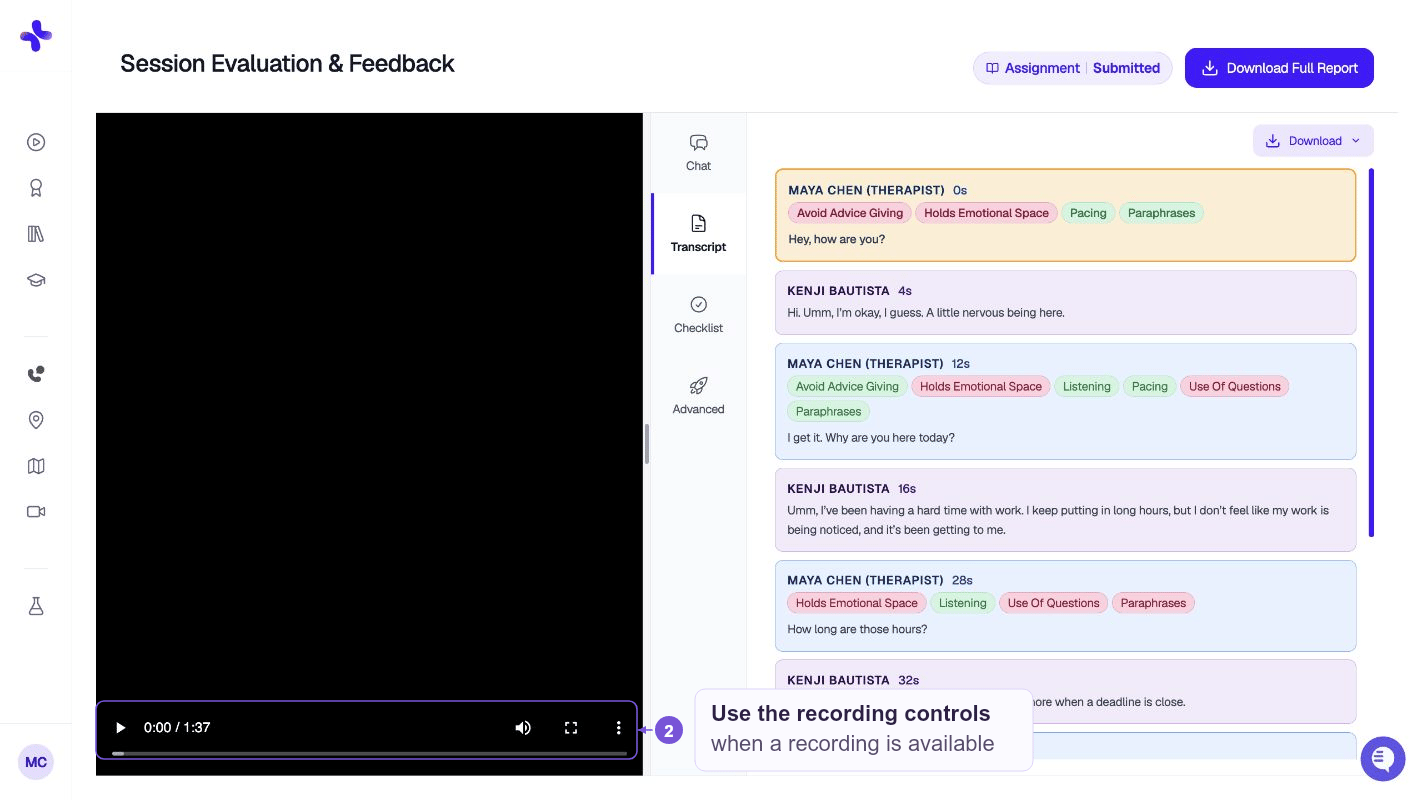
The Case Review page
- An AI disclaimer button — opens a short explanation of how the AI generates feedback and why some output may need a human check
- A Download Full Report button — exports a PDF of every feedback section
- An assignment chip (if this case was part of an assignment) showing your submission status
How the AI analyzes your session
Multi-layer analysis
The AI examines your session through multiple lenses:- Transcription — speech is converted to text with high accuracy
- Linguistic analysis — examines word choice, question types, and communication patterns
- Skills recognition — identifies specific clinical techniques
- Contextual understanding — considers the scenario and patient responses
- Theoretical framework mapping — aligns your approach with clinical models
Evidence-based criteria
The AI’s evaluation is based on:- Published research on effective clinical communication
- Professional competency standards
- Expert clinician input
- Validated assessment frameworks
Feedback sections
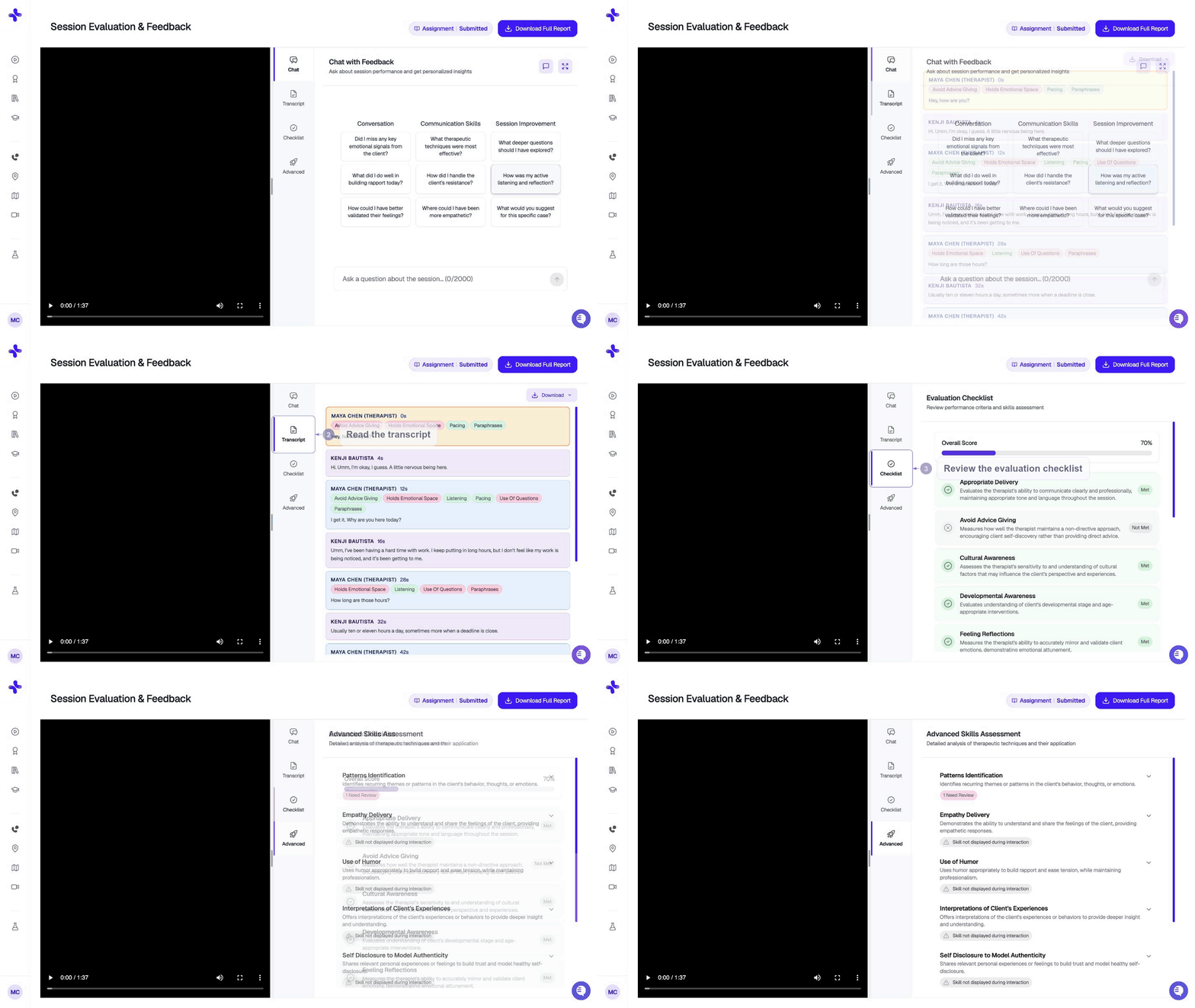
The Case Review is organized into a stepper of feedback sections. Which sections appear depends on the assignment your instructor set up. Available sections can include the following; this is not a required sequence or a guarantee that every section appears:1. Chat with Feedback
A built-in tutor you can chat with about anything in your feedback. Ask follow-up questions, dig deeper into a specific moment, or ask the AI to explain a concept. Learn more →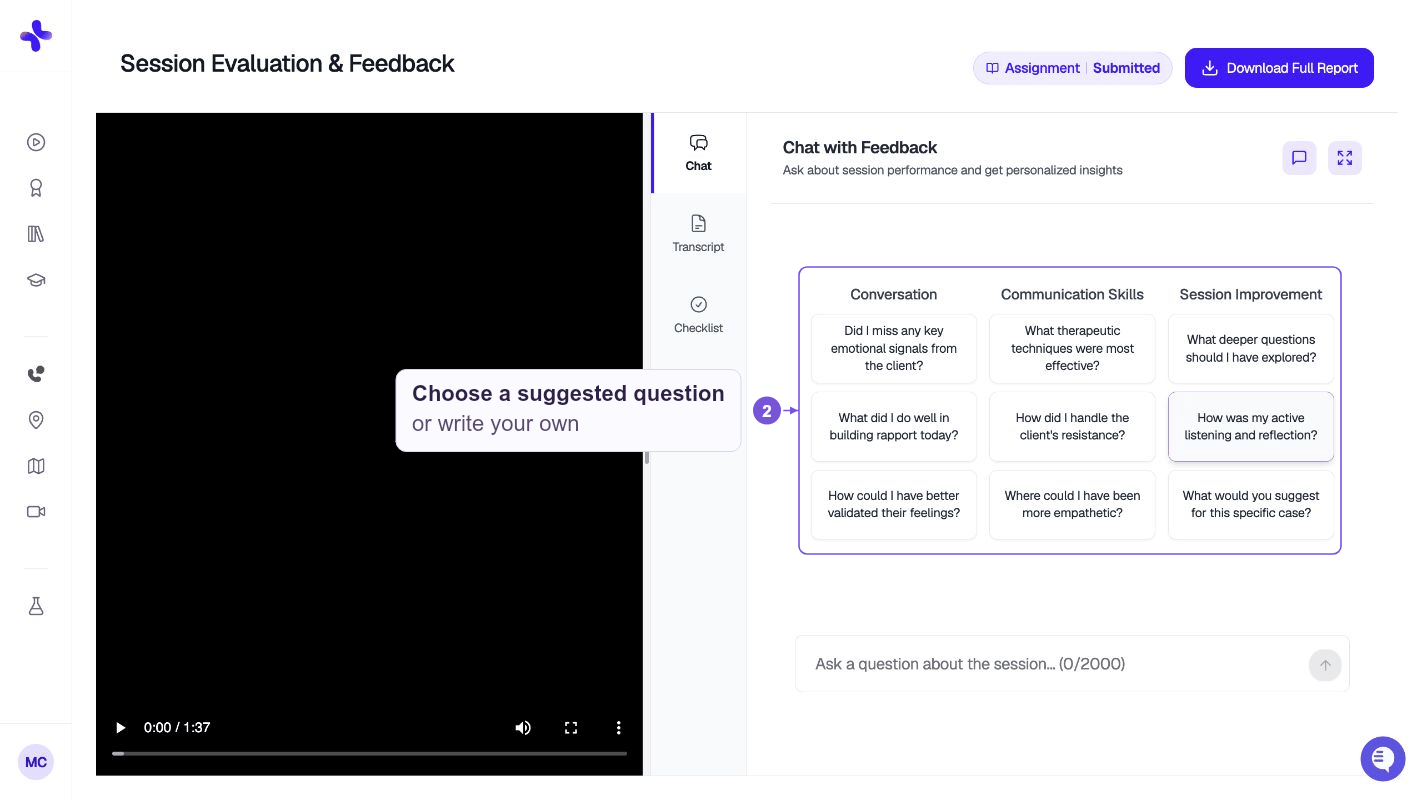
2. Annotated Transcript
Line-by-line analysis with color-coded highlights and inline comments. For students, the transcript is synced to the session recording — click any line to jump to that moment. Learn more →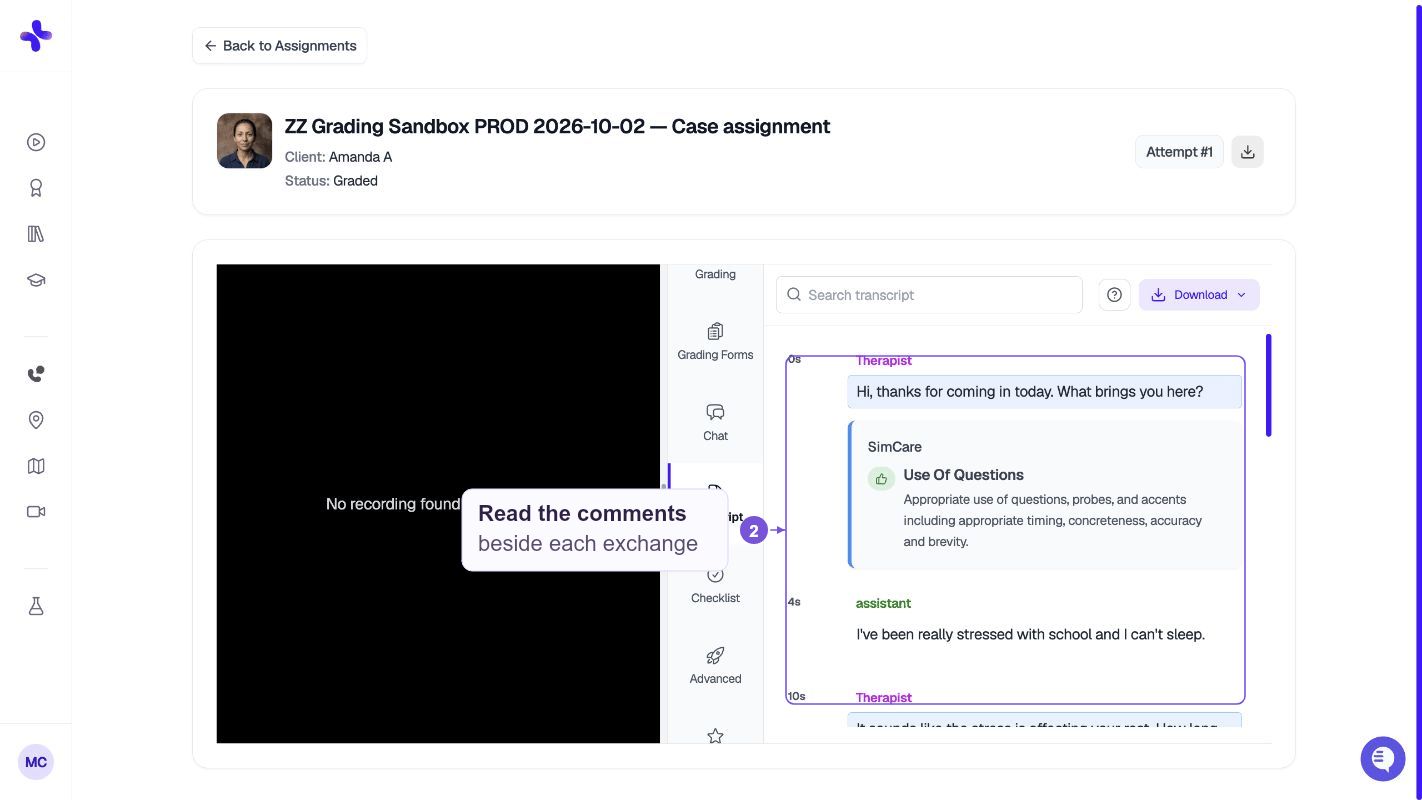
3. Evaluation Checklist (Basic Skills)
A checklist of foundational counseling skills the AI looked for in your session — each scored with concrete examples from your transcript.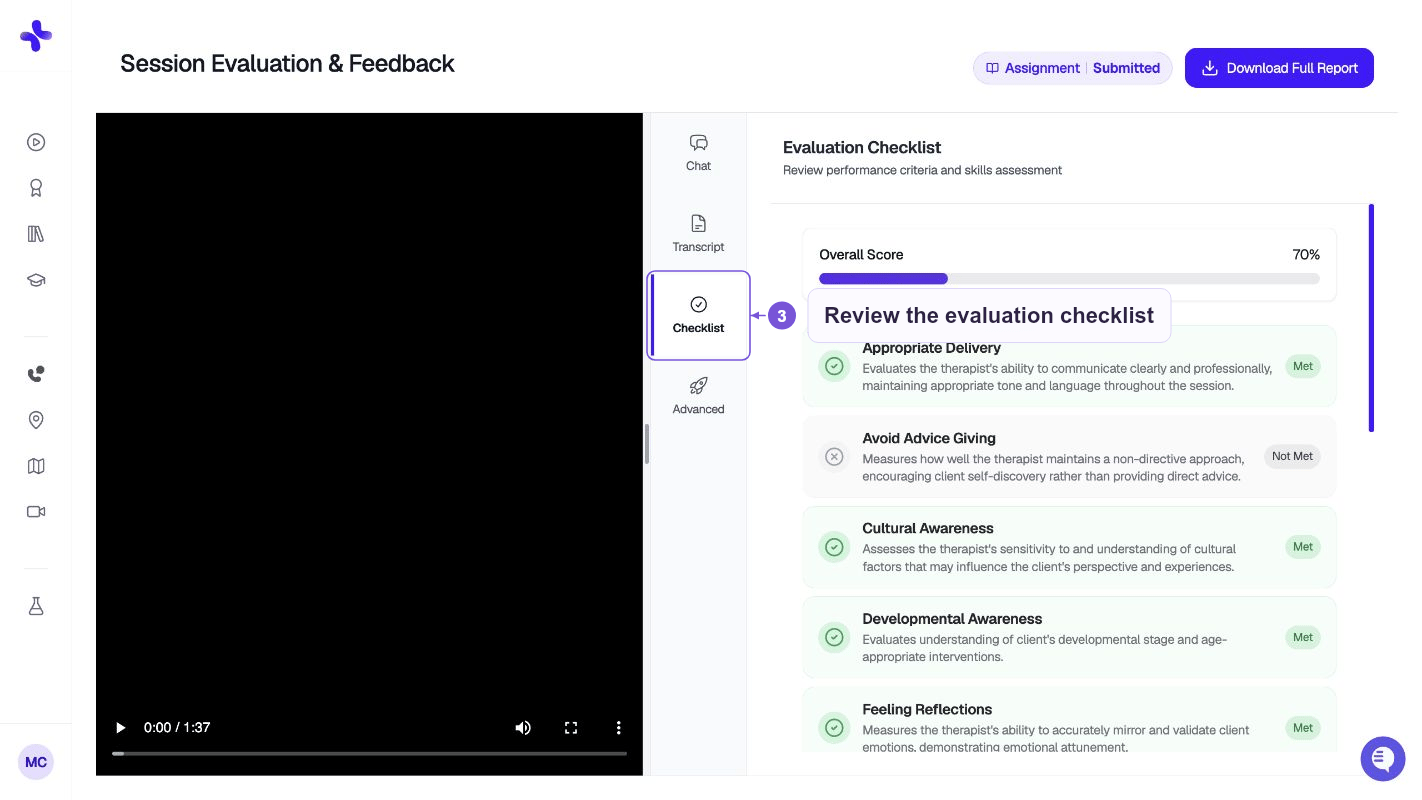
4. Advanced Skills
A breakdown of more nuanced techniques (motivational interviewing, reflective listening, etc.) with frequency, quality, and transcript examples. Learn more →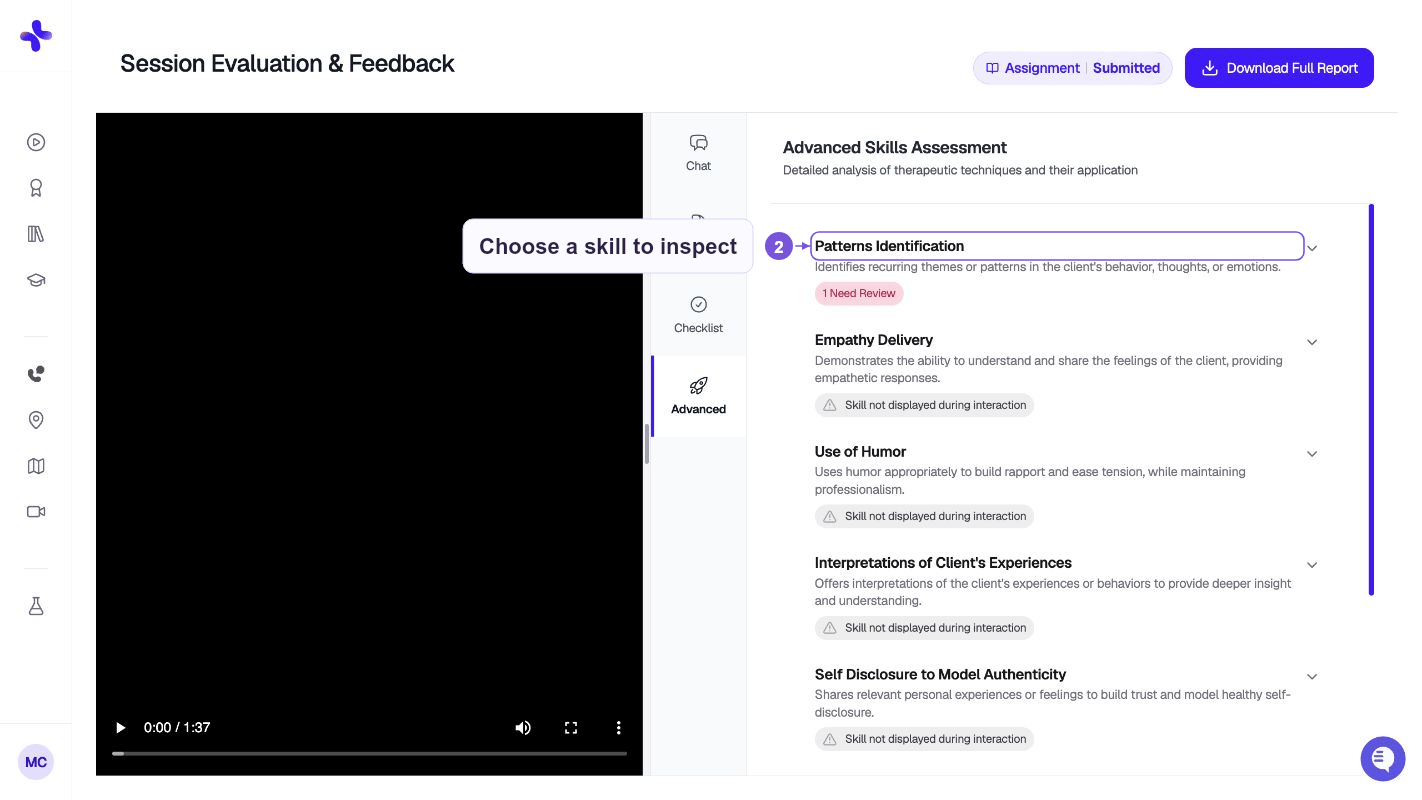
5. High-Level Feedback
The overall executive summary — total score, four competency category scores, and an at-a-glance narrative of how the session went. Learn more →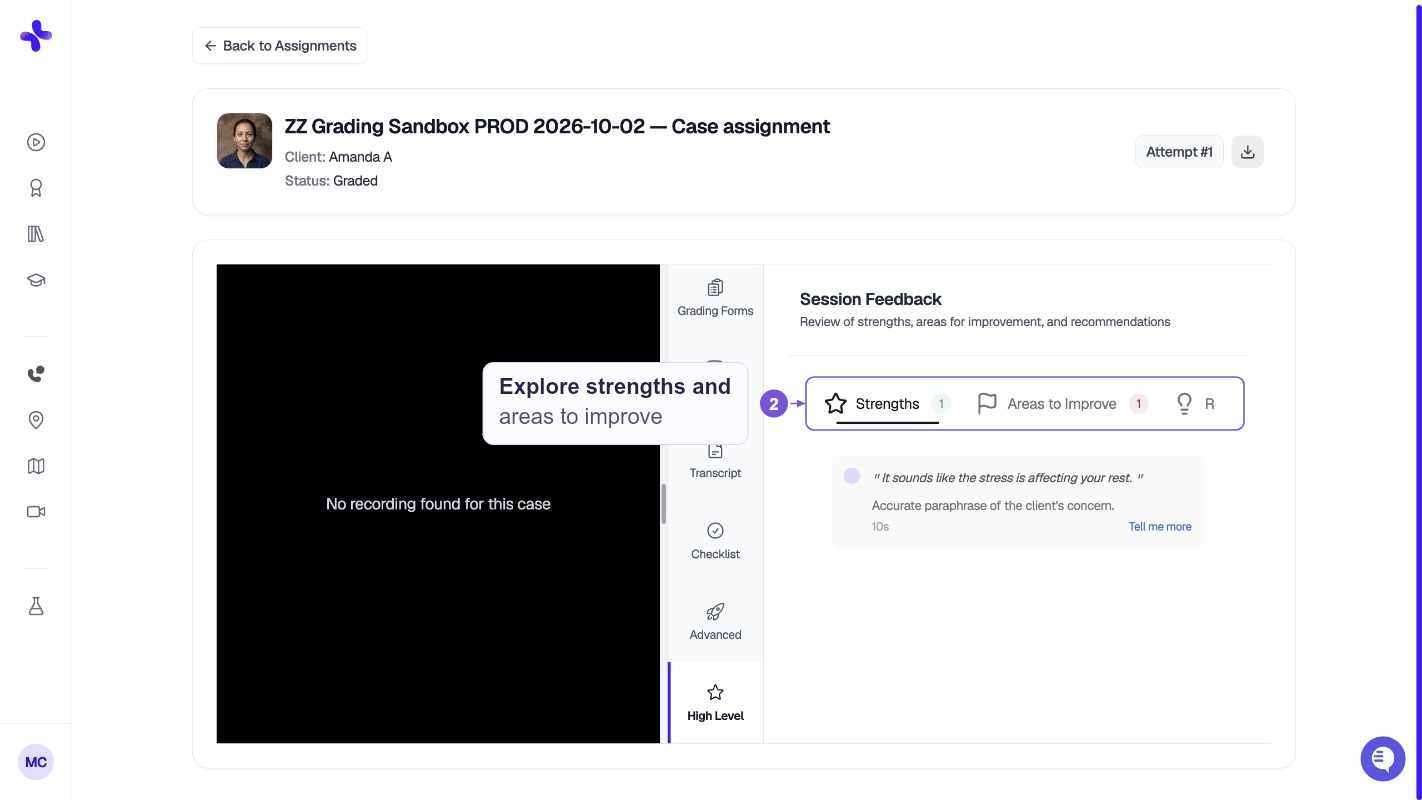
6. Theory Analysis
Maps your approach against the theoretical framework chosen for the assignment (e.g., CBT, MI, Person-Centered). Learn more →7. Post-session assessments
If your instructor required them, you’ll also see written sections you submitted at the end:- Problem Statement
- Diagnosis
- Safety Plan
- Risk Assessment
- Treatment Plan
- SOAP Note
- Reflection
Specialized feedback formats
Different programs use different feedback formats. Your instructor chooses one when setting up the assignment. Some cases also carry a default microskill rubric. When your instructor didn’t pick a rubric, or when you practice a case outside an assignment, sessions on those cases use the Microskills format automatically.
If your session was very short, you may see a “Too Short” notice instead — restart the case and aim for a longer conversation.
Tell me more
Most feedback items have a Tell me more button. Click it to ask the AI to expand on a specific point — useful when you want a deeper explanation of why something was flagged, or what an alternative phrasing could look like.Rating and flagging feedback
After you finish reviewing, a Session Feedback modal asks you to rate the session (1–5 stars) and tell us whether the AI feedback felt accurate. Your responses help improve the model. If a specific item looks wrong, click Report inaccuracy on the item to flag it — your instructor and SimCare will see your note.Recording playback
A session recording is saved automatically. For LiveKit cases you’ll see a unified video/audio player; for group cases there’s a dedicated group recording player. The annotated transcript scrolls along with playback. Learn more →