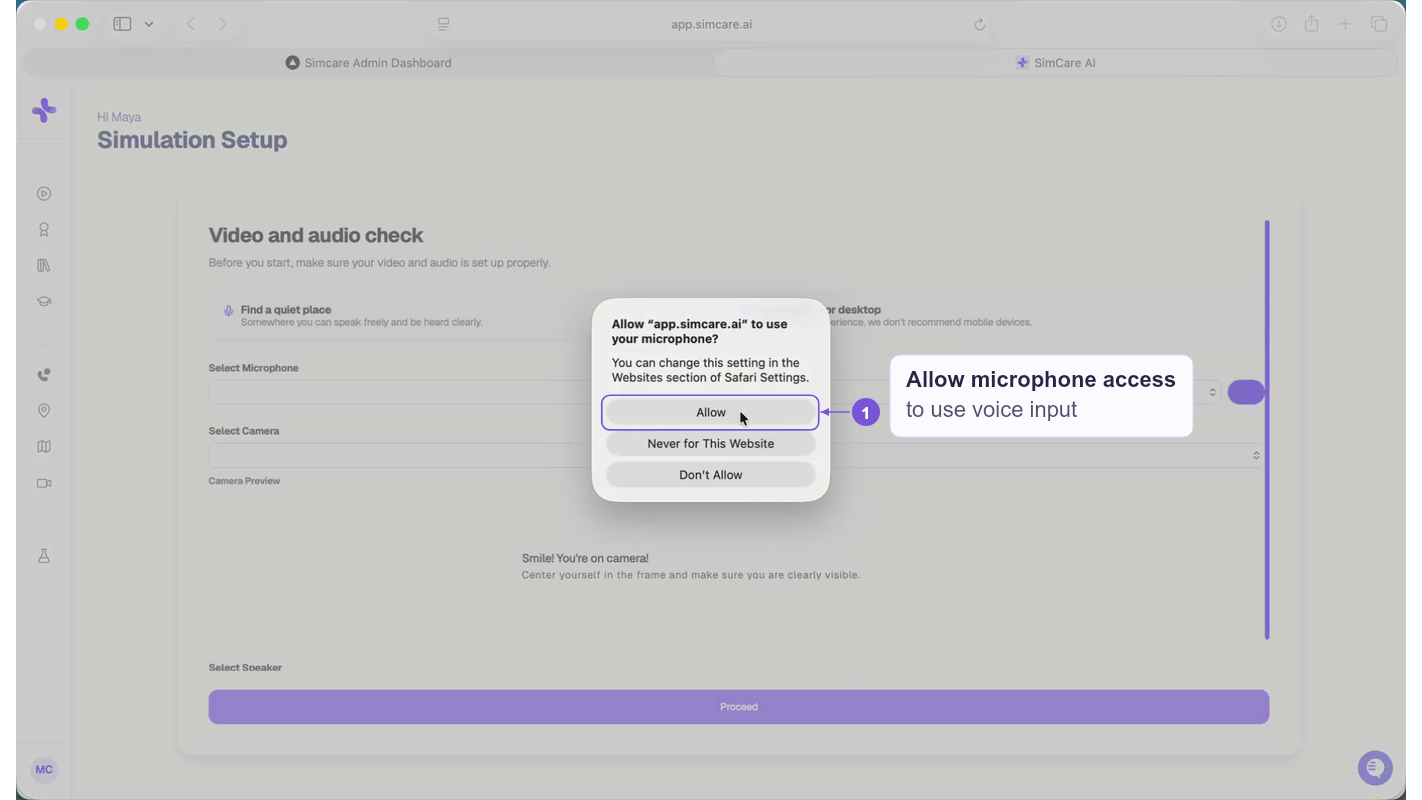
The most common cause of microphone problems on a first-time session is accidentally blocking browser permissions.When Chrome or Edge first asks for microphone access, if you clicked “Block” by mistake:
Click the lock icon in your browser address bar (top left)
Set microphone access to Allow
Set camera access to Allow (if applicable)
After updating permissions, go back to the Simulations page and start the session again.
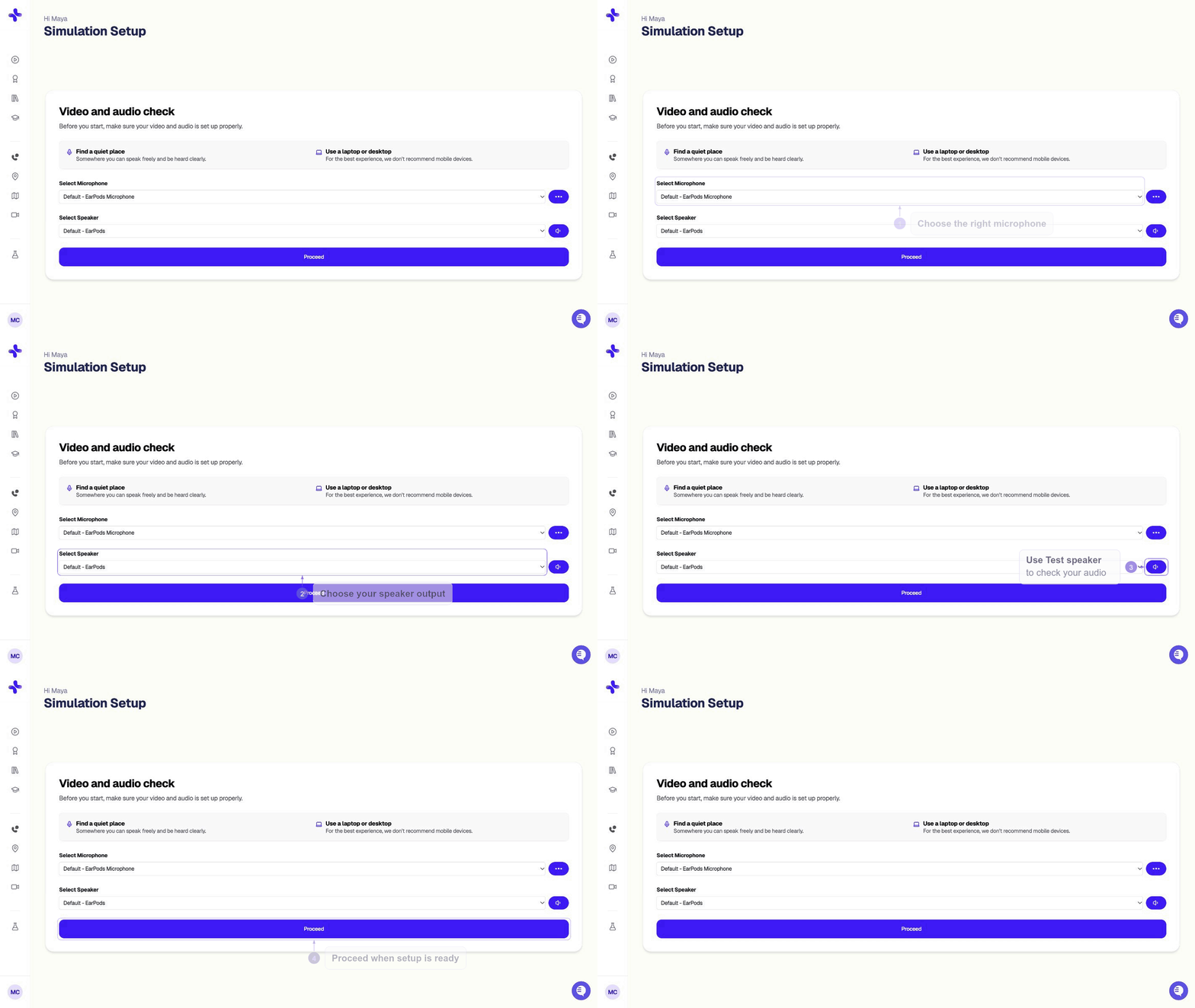
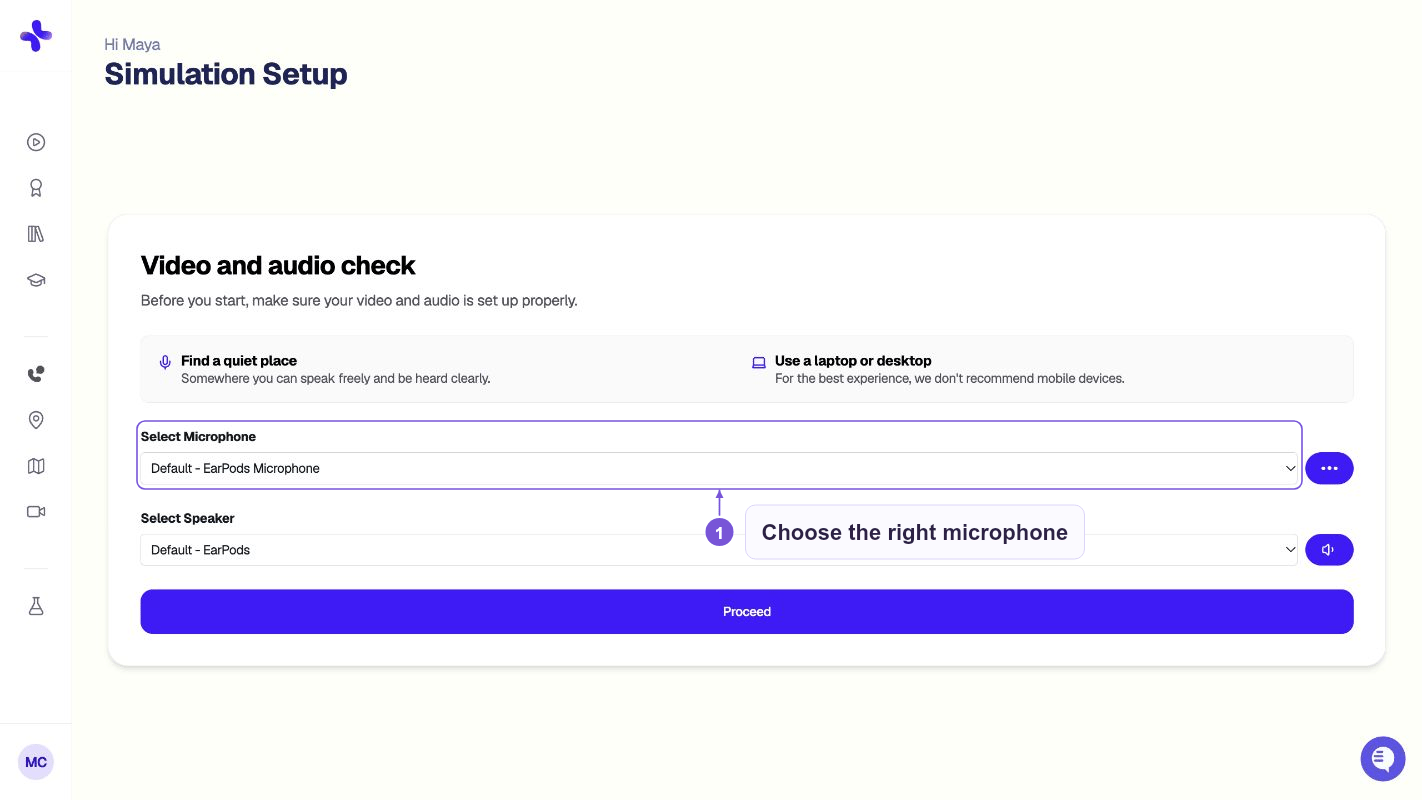
Step 3: Check your mic settings on the setup screen
When you reach the session setup screen, you’ll see an audio check. Speak into your mic and watch the input meter — if it moves when you speak, your mic is working. If it doesn’t move at all, your browser may still not have access.
Supported browsers: Chrome and Microsoft Edge only. Safari and mobile browsers are not supported. If you’re on an unsupported browser, switch to Chrome first before troubleshooting anything else.