

Finding the catalog
As an instructor, the catalog is a tab on Courses:1
Open Courses
In the top navigation, click Courses. See Navigating your classes if you’re new to this page.
2
Click Course Catalog
The Course Catalog tab is next to My Courses (
/classes?tab=catalog)./course-catalog directly. The catalog is available to signed-in instructors, admins, and learners — free-tier accounts are redirected to upgrade.
Browsing
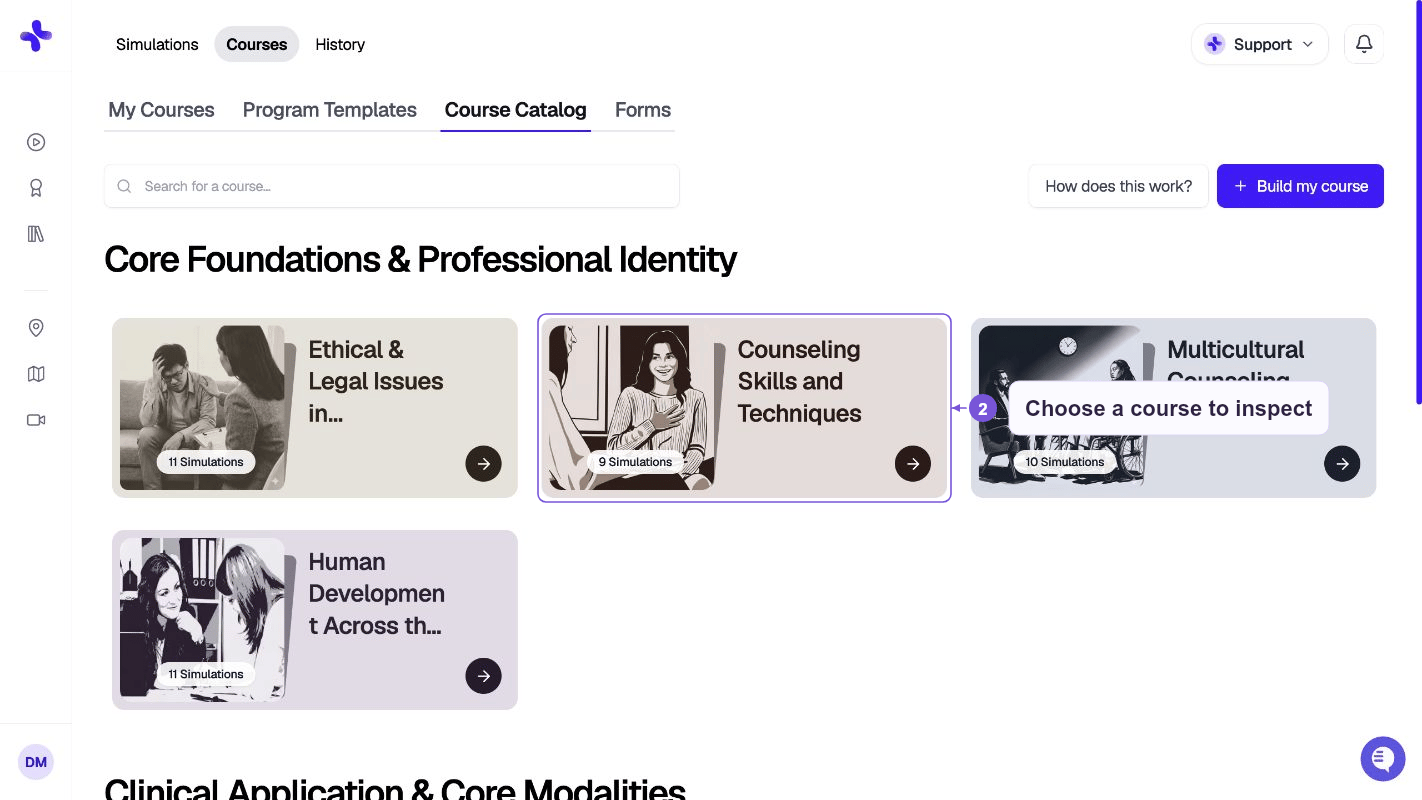
The catalog has a single search bar and a grouped list of course cards:- Search — type any topic, presenting issue, or course name
- Courses are grouped by category or by school (depending on your account)
- Each card shows the course title and a quick description
Course detail page
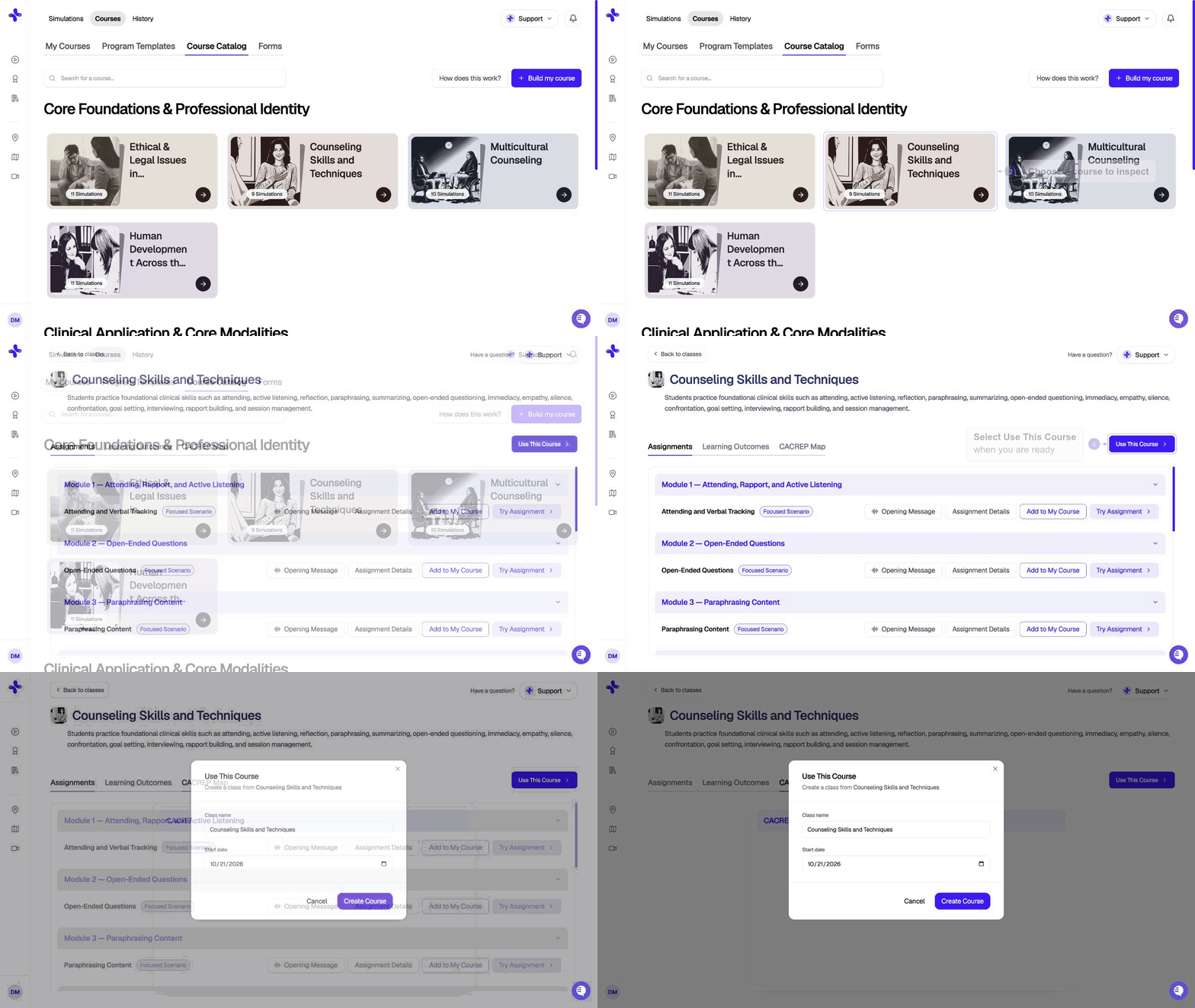
- Read the full course description and learning goals
- See the list of included assignments (cases, quizzes, and document readings)
- Preview each assignment’s details modal
- Preview the welcome message learners will see
Using a course (instructors & admins)
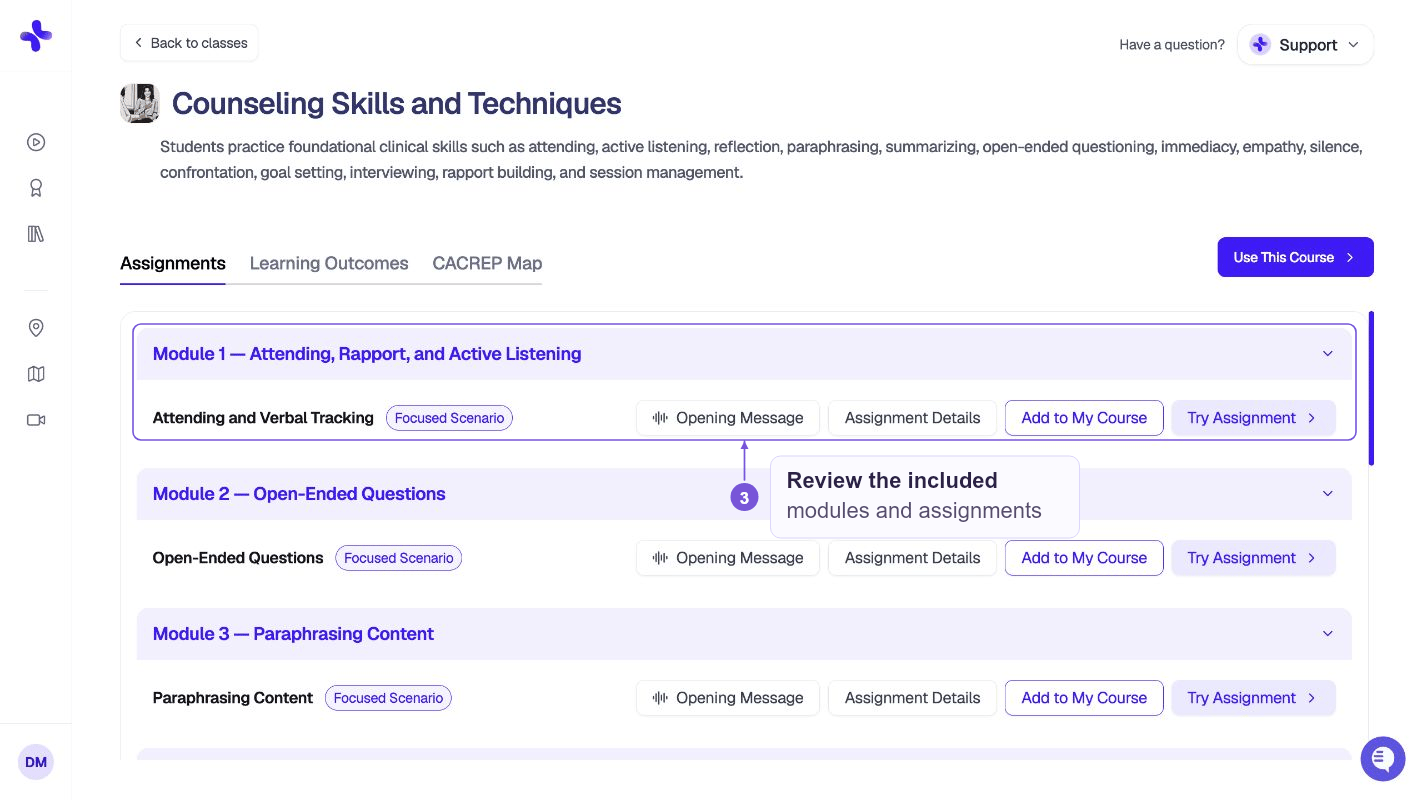
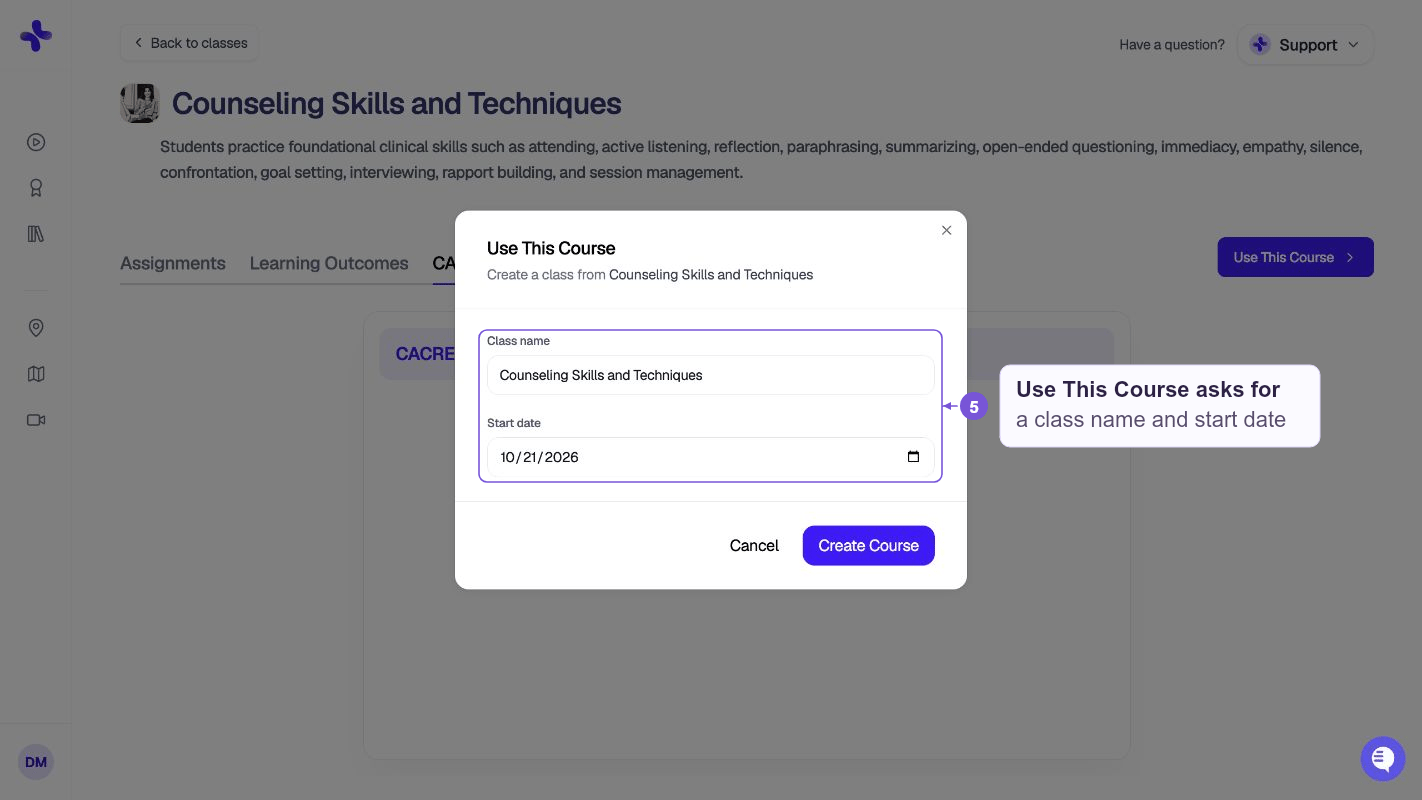
When you’re ready to use a course in your own class, click Use this course. SimCare clones the entire course into your program as a new class, including:- All cases with their settings
- Any quizzes and document readings
- The opening welcome message
- The recommended sequencing
Adding a single assignment to an existing course
If you only want one case, quiz, or reading from a catalog course, you don’t have to clone the whole thing. Each assignment row on the course detail page has an Add to My Course button (instructors and admins only). To pull an individual assignment into a course you already teach:- Open the course detail page in the catalog.
- Find the assignment row you want and click Add to My Course.
- In the dialog, pick the target course from your existing My Courses list.
- Confirm or adjust the due date (defaults to 7 days from today).
- Click Add to create the assignment in that course.
Self-enrolling (learners)
If you’re using SimCare as a self-paced learner (without an instructor-assigned class):- Open the catalog and pick a course
- Click Use this course to enroll yourself
- Assignments appear on your My Learning dashboard
- Work through them on your own schedule — no due dates unless the catalog course set them