

Open the review page
From Past sessions or Shared with you, click ⋮, then Details. Select Transcript in the session’s side panel to review the transcript and time-stamped comments beside the recording.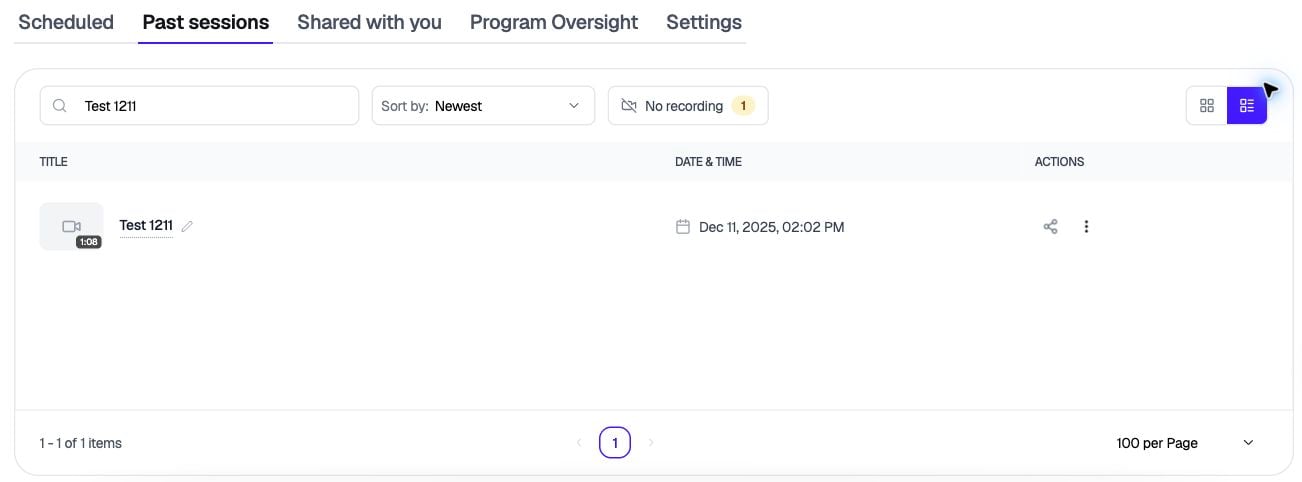
Find the session, then open its three-dot menu and choose Details.
You can only open sessions you own, sessions shared with you, sessions you were in the room for, and recordings you’ve been given access to. Anything else looks the same as a session that doesn’t exist.
Read the transcript
Click any transcript line to jump the video to that moment. Use the search box above the transcript to show only lines that match. Hidden lines keep their comments. If transcription was turned off for the meeting, you’ll see the video with a list of comments in time order instead.Leave comments
Add a comment on a transcript line or at the current moment in the video. Click a comment to jump to 3 seconds before it. You can edit or delete your own comments, and you can reply to other people’s.
Press Enter to post a comment and Shift + Enter for a new line. You can turn the shortcuts off in the help panel.