

What you see
The tab lists one row per student with their name and email, how many recordings they have, total length, size, when they last recorded, and an Access status.Does a student need to approve?
That’s a program setting, under Program Management, then Student Visibility, then Student recordings. You can also find it in Meet’s Settings tab.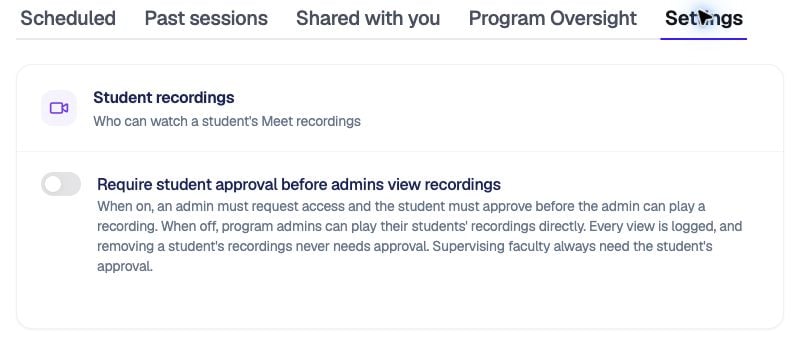
The Student recordings setting controls whether admins must request approval.
- Approval required (on): you see counts but can’t play a recording until the student approves.
- Approval not required (off): you can play your program’s students’ recordings directly, and every view is logged.
Request access
- Find the student and click Request access.
- The student gets an email with a link. They must sign in as themselves to answer, so forwarding it grants nothing.
- When they approve, the row shows Granted. The approval also covers recordings they make later and doesn’t expire.
Remove a student’s recordings
- Click Remove on the student’s row.
- Choose Archive or Delete permanently.
- Check the list of recordings that will be removed, then type the confirmation word.
Both options remove the recordings from every place in SimCare, including the student’s own Past sessions. Permanent deletion is recorded in the audit log. If a video file can’t be deleted right away, it’s retried until it’s gone, and the page tells you how many are still pending.
Only program admins can remove recordings. Supervising faculty can’t.