> ## Documentation Index
> Fetch the complete documentation index at: https://app.simcare.ai/docs/llms.txt
> Use this file to discover all available pages before exploring further.
# Creating your account
> To start using SimCare, you'll need to create an account.
To start using SimCare, you'll need to create an account.
## Step-by-step guide
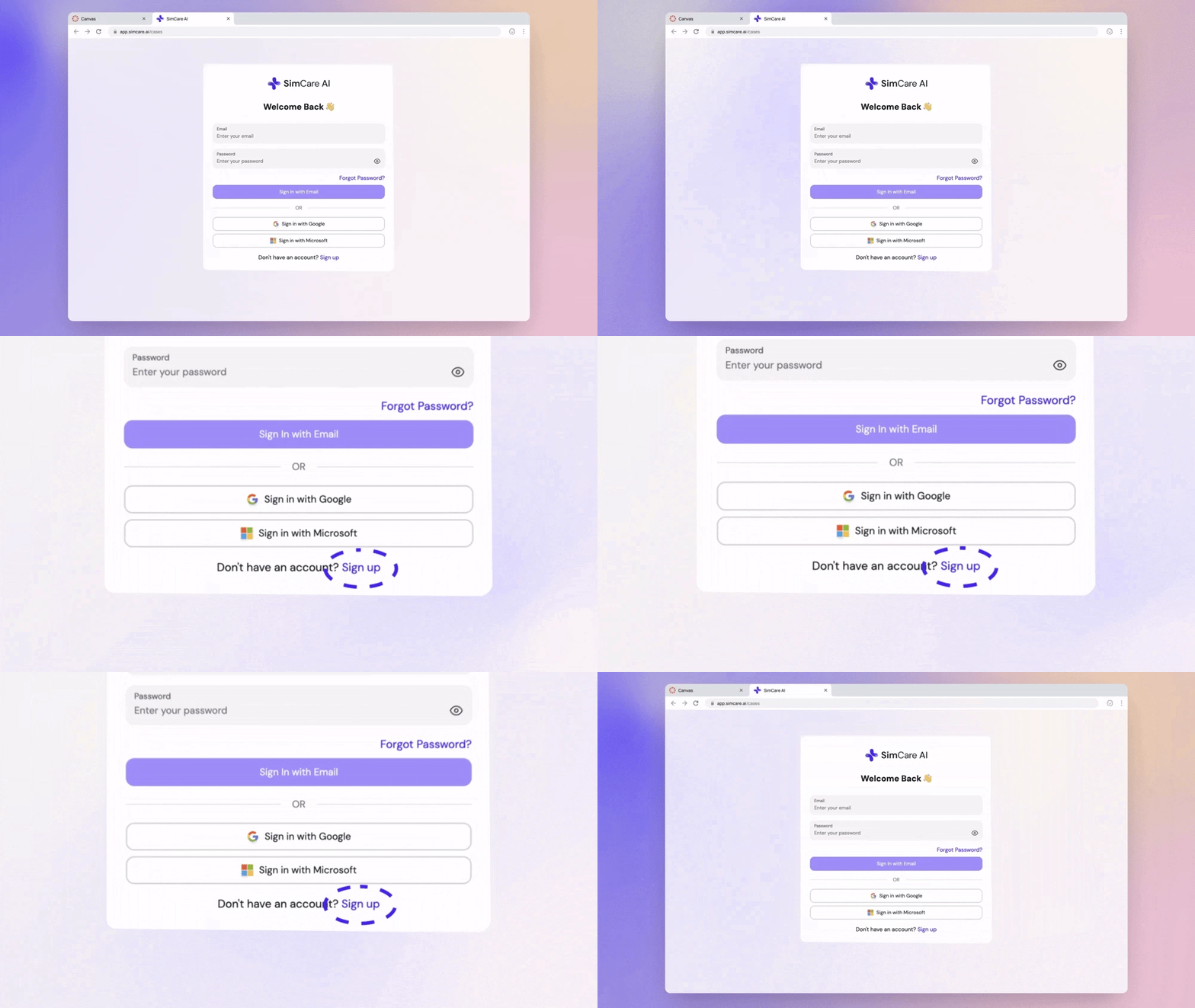
Visit [app.simcare.ai](https://app.simcare.ai) in your browser.
Click **Sign up** at the bottom of the login card.
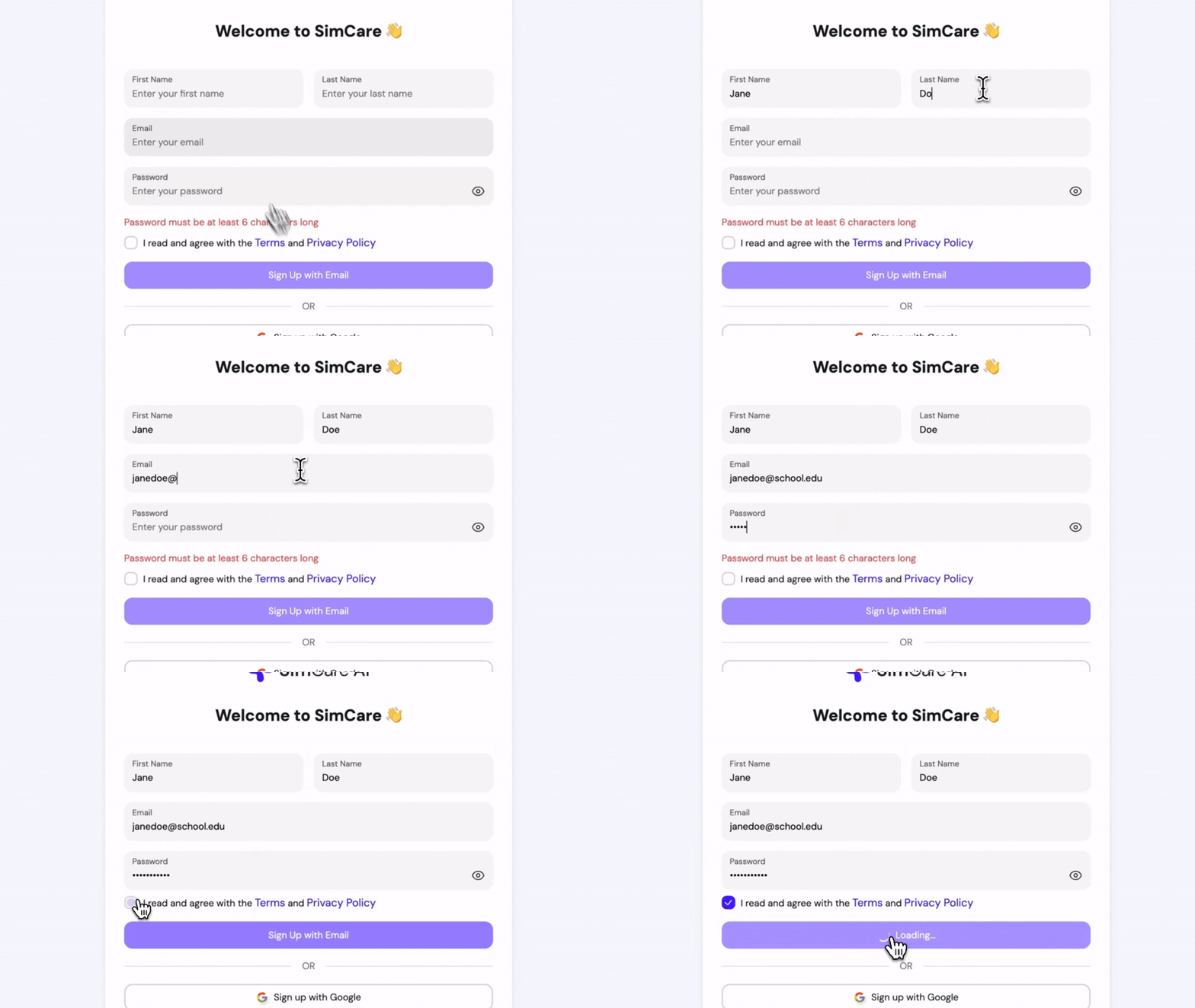
Fill in the required fields:
* First name
* Last name
* School email
* Password (at least 6 characters)
Or sign up with:
* **Continue with Google**
* **Continue with Microsoft**
* **Continue with SSO** (if your school uses single sign-on — type your school email and the SSO option appears)
Check the box to agree to the terms and conditions.
Click **Create your SimCare AI account** to finish.
If your school uses FieldX, you'll be asked to verify your email before your account is created — see [Verifying your school email](#verifying-your-school-email) below.
## Verifying your school email
If you sign up with an email whose domain belongs to a FieldX program (for example, your `.edu` school address), SimCare sends a 6-digit verification code to that inbox before creating your account. This confirms you own the address before you're auto-enrolled in your program.
Fill out the sign-up form as usual. Instead of landing straight in the app, you'll see a **Check your email** screen with a masked version of the address the code was sent to.
Look for a message from `noreply@simcare.ai` containing your 6-digit code. If you don't see it within a minute, check your spam folder.
Type the 6 digits into the code field. Your account is created and you're signed in as soon as the code is accepted.
If the code doesn't arrive, click **Resend code**. There's a short cooldown (about a minute) between resends.
Codes expire after a few minutes and lock after several wrong attempts. If your code expires, restart sign-up and a fresh code will be sent.
Signups with personal email addresses (Gmail, Outlook, etc.) that don't match a FieldX program domain skip this step and land in the app immediately.
## Signing in with SSO
If your institution uses Google Workspace, Microsoft 365, or a campus SSO provider, you don't need a password — your school manages your login.
* Type your school email on the sign-in page
* If your domain is recognized as SSO-only, the form replaces the password fields with a single **Continue with {Provider} SSO** button
* Click it and you'll be redirected to your school's login
If you try to use a password on an SSO-only account, you'll see a hint suggesting you sign in with SSO instead. Password resets are also blocked silently for SSO accounts — your password is managed by your school.
## Magic-link sign-in
You can also sign in without a password using a **magic link**: enter your email, click **Send magic link**, and check your inbox. The link signs you in with a single click and works on any device.
## Joining a class
If your instructor sent you a class invitation link, click it to go straight to the **Join class** page. You'll either sign in with an existing account (and be added automatically) or create a new account that gets attached to the class on the way in.
## Two-factor authentication
After you sign in, you can enable two-factor authentication from **Account settings**:
* **Email verification code** — a 6-digit code is emailed each time your session expires (sessions last 24 hours). Recommended baseline.
* **Authenticator app** — use Google Authenticator, Authy, or any TOTP app to verify instantly. More secure than email.
You can also revoke all active sessions from the same screen if you suspect your account has been accessed without your permission.
## Signing in from a Canvas iframe
If you launched SimCare from inside a Canvas (or other LMS) assignment, you may see a banner asking you to **Open in a new tab**. Click the button — sign-in cannot be completed inside an embedded window. Once you've logged in there, return to your LMS and relaunch the assignment.