> ## Documentation Index
> Fetch the complete documentation index at: https://app.simcare.ai/docs/llms.txt
> Use this file to discover all available pages before exploring further.
# Canvas LTI integration
> How to connect SimCare to a Canvas course, link assignments, sync rosters, and grade from SpeedGrader.
The SimCare LTI integration connects your Canvas course with SimCare AI. It handles automatic account creation for you and your students, syncs your class roster, and lets you grade SimCare simulations directly inside Canvas SpeedGrader.
This covers the Canvas-connected workflow. If your course isn't connected to Canvas, see [Creating assignments](/docs/simulations/creating-assignments) instead.
## Getting started & logging in
You do not need to create a separate account on SimCare.
Open the Canvas course you want to connect.
Click the **SimCare** or **Launch SimCare** link in your Course Navigation menu (usually on the left side).
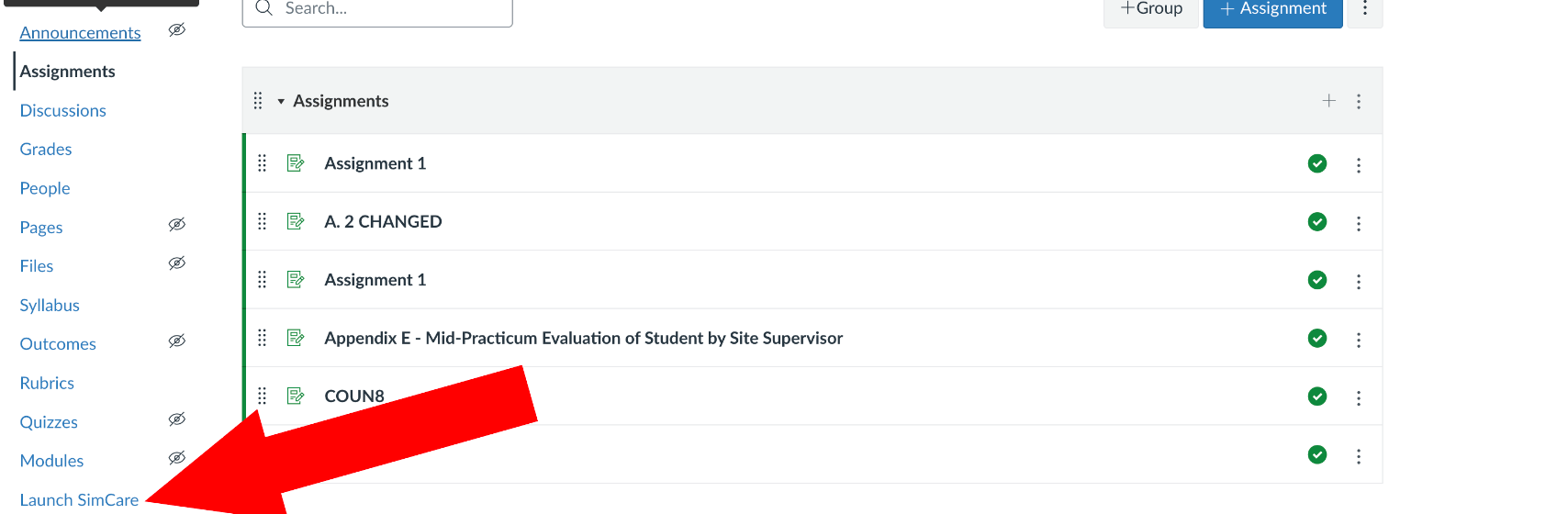 This automatically logs you into your SimCare account with **Teacher** permissions. No separate sign-up required.
## Creating & linking assignments
The assignment itself is still built in SimCare first (see [Creating assignments](/docs/simulations/creating-assignments) for the full builder walkthrough). Once it exists, link it to a Canvas assignment:
From your Canvas course, create a new **Assignment**.
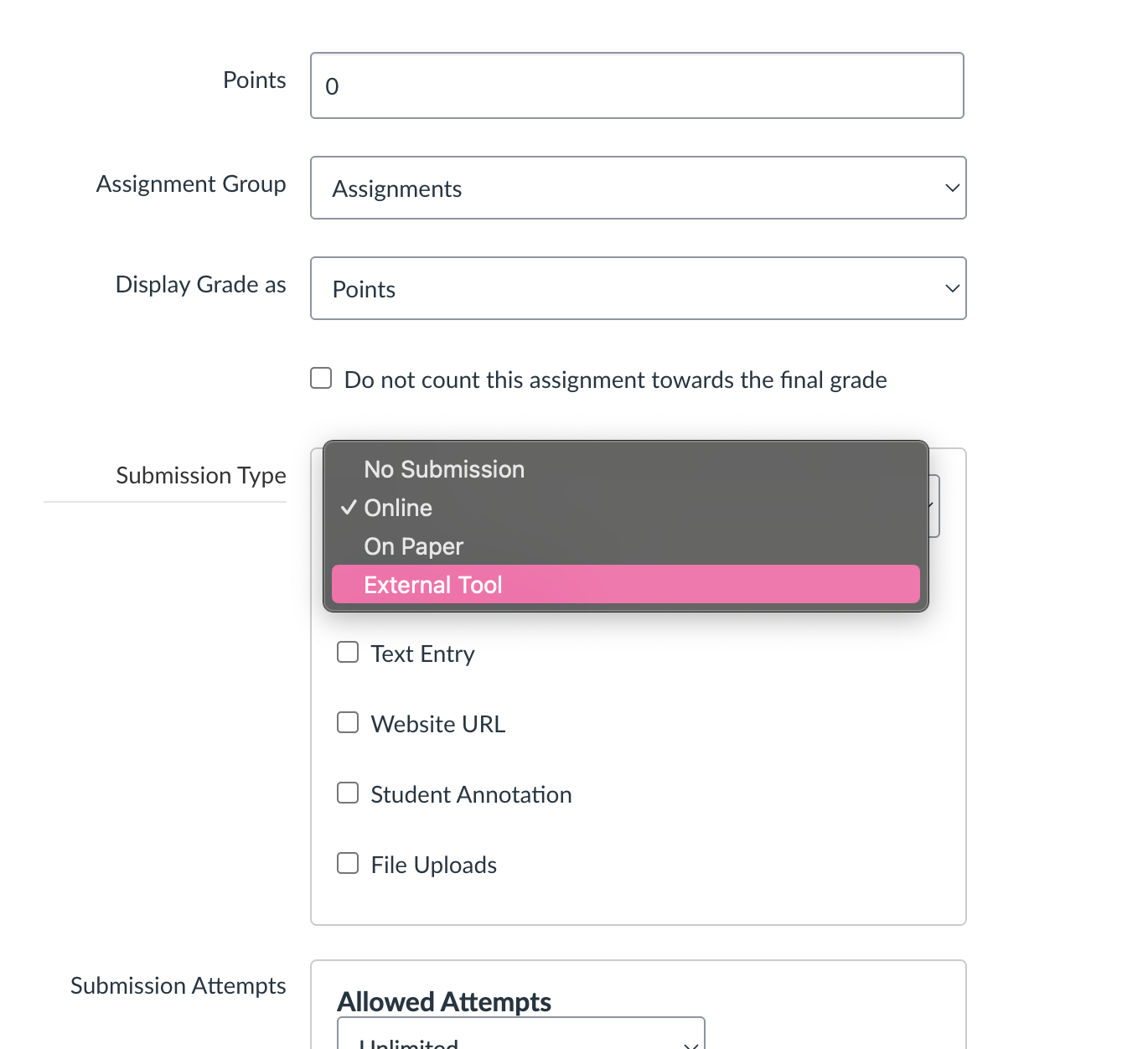
Scroll to **Submission Type** and select **External Tool** from the dropdown.
This automatically logs you into your SimCare account with **Teacher** permissions. No separate sign-up required.
## Creating & linking assignments
The assignment itself is still built in SimCare first (see [Creating assignments](/docs/simulations/creating-assignments) for the full builder walkthrough). Once it exists, link it to a Canvas assignment:
From your Canvas course, create a new **Assignment**.
Scroll to **Submission Type** and select **External Tool** from the dropdown.
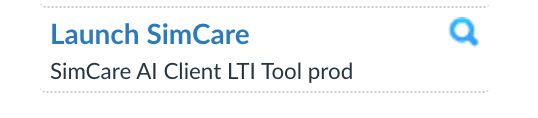
 Click **Find**, then select **SimCare** from the list (it's listed as "Launch SimCare" or something similar).
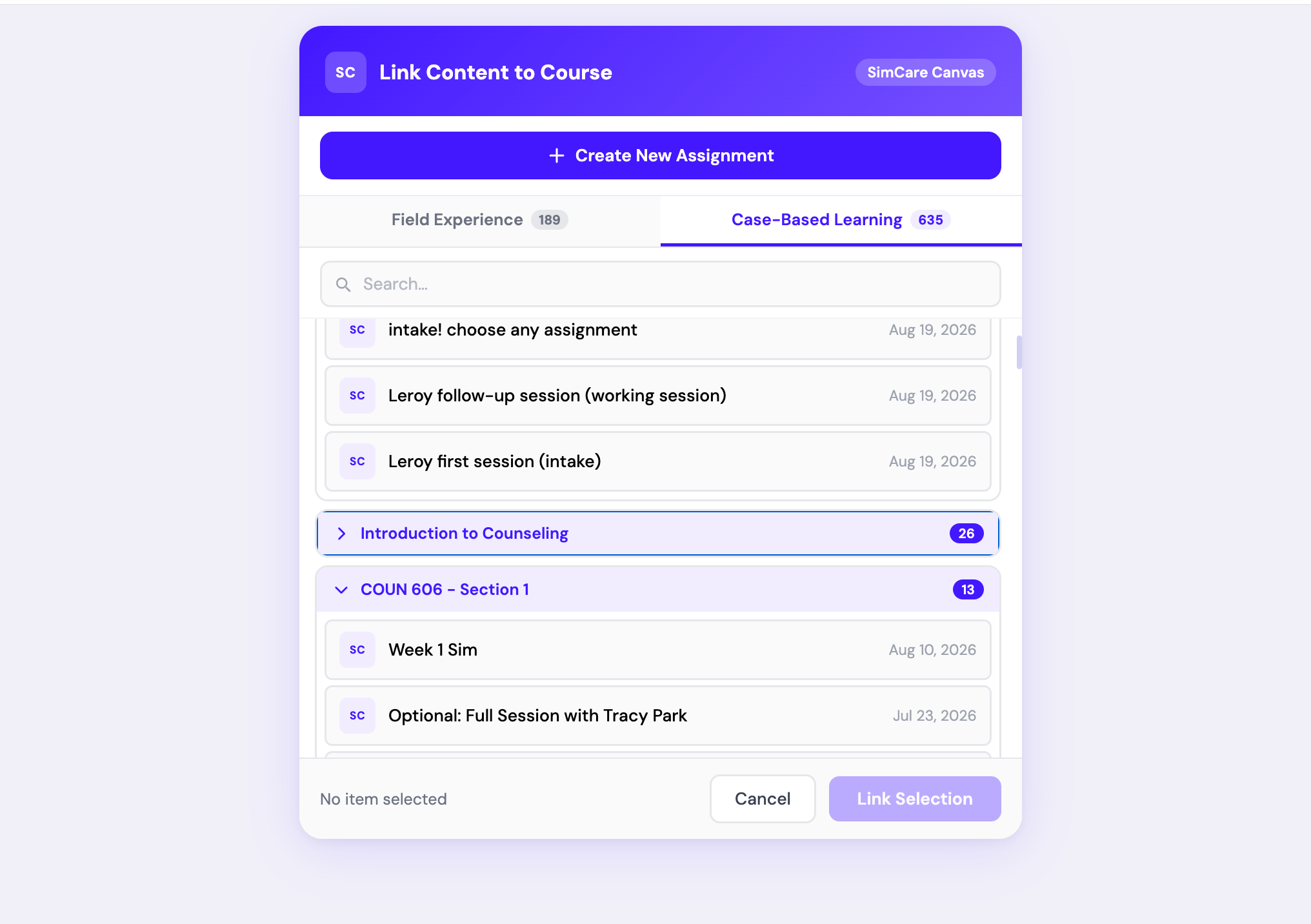
 The **Assignment Picker** opens, showing every SimCare assignment associated with your account, grouped by course. Select the one you want to link.
 Click **Save and Publish** on the Canvas assignment. Students will now launch this specific SimCare case from the Canvas assignment link.
## Copying courses (Blueprint / Course Copy)
If you're rolling over a course from a previous semester or using a Blueprint shell, SimCare makes it easy to set up your new section.
Run the Canvas Course Copy or Blueprint sync as usual.
Once the copy is complete, open the new course and click any SimCare assignment link yourself.
**Why this matters:** this tells SimCare the new course is ready. It automatically creates the new course shell on SimCare's platform, copies your assignments over, and sets you as the primary instructor, before students begin working.
## Need help?
For questions about setting up your course, contact [**tiko@simcare.ai**](mailto:tiko@simcare.ai).
Click **Save and Publish** on the Canvas assignment. Students will now launch this specific SimCare case from the Canvas assignment link.
## Copying courses (Blueprint / Course Copy)
If you're rolling over a course from a previous semester or using a Blueprint shell, SimCare makes it easy to set up your new section.
Run the Canvas Course Copy or Blueprint sync as usual.
Once the copy is complete, open the new course and click any SimCare assignment link yourself.
**Why this matters:** this tells SimCare the new course is ready. It automatically creates the new course shell on SimCare's platform, copies your assignments over, and sets you as the primary instructor, before students begin working.
## Need help?
For questions about setting up your course, contact [**tiko@simcare.ai**](mailto:tiko@simcare.ai).