> ## Documentation Index
> Fetch the complete documentation index at: https://app.simcare.ai/docs/llms.txt
> Use this file to discover all available pages before exploring further.
# Step 4: Create & assign tasks
> Build forms and report templates, organize them into groups, and assign them to cohorts as one-time or recurring tasks.
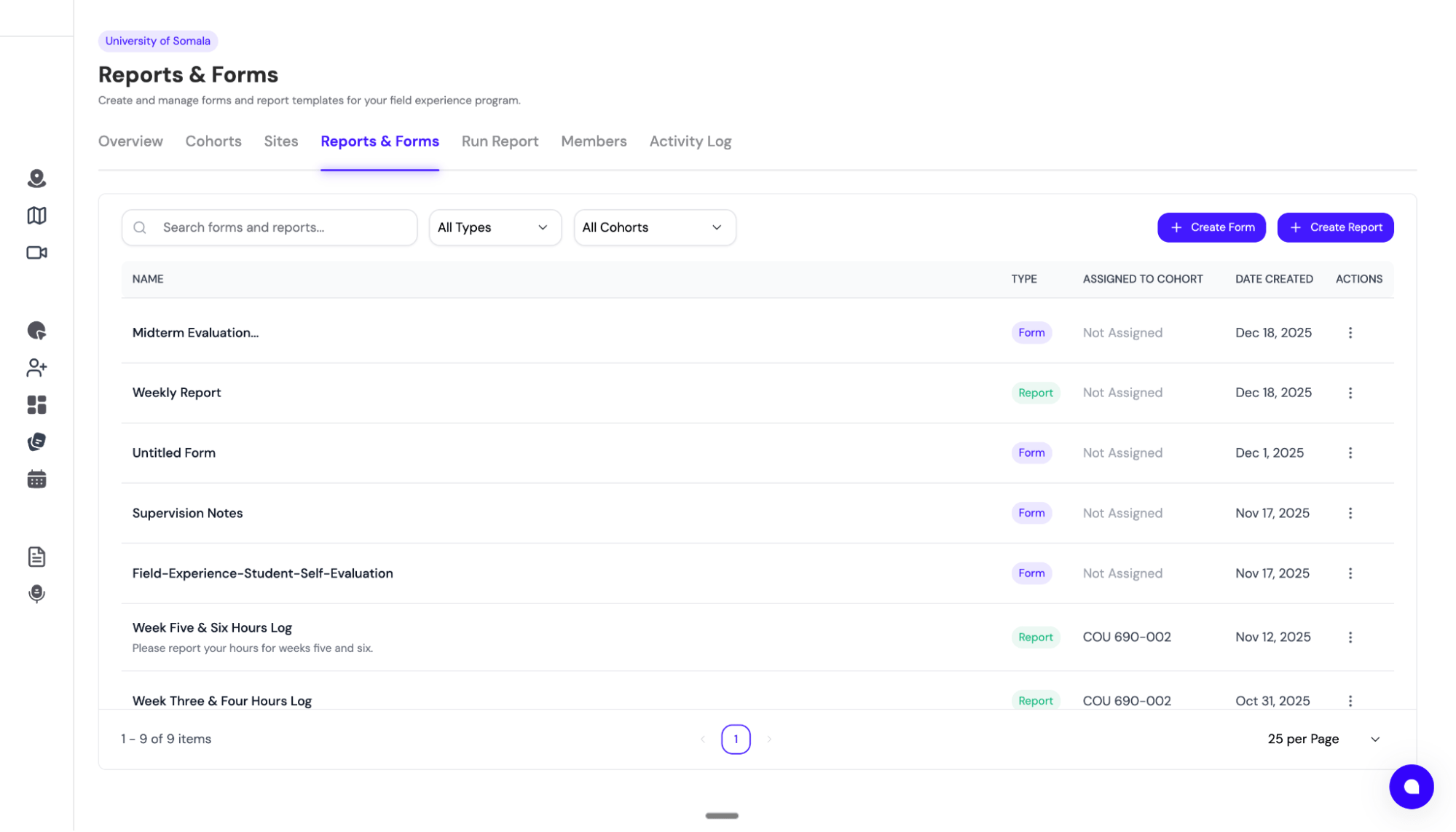
All paperwork in FieldX — forms, evaluations, hour-log reports, agreements — lives in the **Assignments** tab on your main dashboard. This is the program-wide template library; once created, anything here can be assigned to any cohort or individual.
 ## The Assignments tab
The tab has two primary actions in the top right:
* **New Group** — create a folder to bundle related forms together (e.g., "Mid-term evaluations")
* **Create Assignment** — open the assignment builder
Filter the table by **Type** (`All Types | Group | Form | Report`), creator, and cohort. With groups in use the table columns are `Name | Type | Created By | Assigned to Cohort | Actions`; without groups it's `Name | Type | Created By | Contents / Cohorts | Actions`.
## The Assignments tab
The tab has two primary actions in the top right:
* **New Group** — create a folder to bundle related forms together (e.g., "Mid-term evaluations")
* **Create Assignment** — open the assignment builder
Filter the table by **Type** (`All Types | Group | Form | Report`), creator, and cohort. With groups in use the table columns are `Name | Type | Created By | Assigned to Cohort | Actions`; without groups it's `Name | Type | Created By | Contents / Cohorts | Actions`.
 ## Creating an assignment
Click **Create Assignment** to open the assignment builder. It has three tabs:
### Form
Two ways to build a form:
* **Build New** — start with a blank canvas and drag-and-drop fields in the [form builder](/docs/fieldx/building-forms)
* **Upload** — *Convert document to form with AI*. Upload an existing PDF or Word doc (e.g., your current Mid-Term Evaluation) and SimCare parses it into a FieldX form, with a live progress indicator while it runs
### Timesheet (Report)
A **Report** in FieldX is the schedule for logging hours — when hours are submitted and who needs to sign them.
## Creating an assignment
Click **Create Assignment** to open the assignment builder. It has three tabs:
### Form
Two ways to build a form:
* **Build New** — start with a blank canvas and drag-and-drop fields in the [form builder](/docs/fieldx/building-forms)
* **Upload** — *Convert document to form with AI*. Upload an existing PDF or Word doc (e.g., your current Mid-Term Evaluation) and SimCare parses it into a FieldX form, with a live progress indicator while it runs
### Timesheet (Report)
A **Report** in FieldX is the schedule for logging hours — when hours are submitted and who needs to sign them.
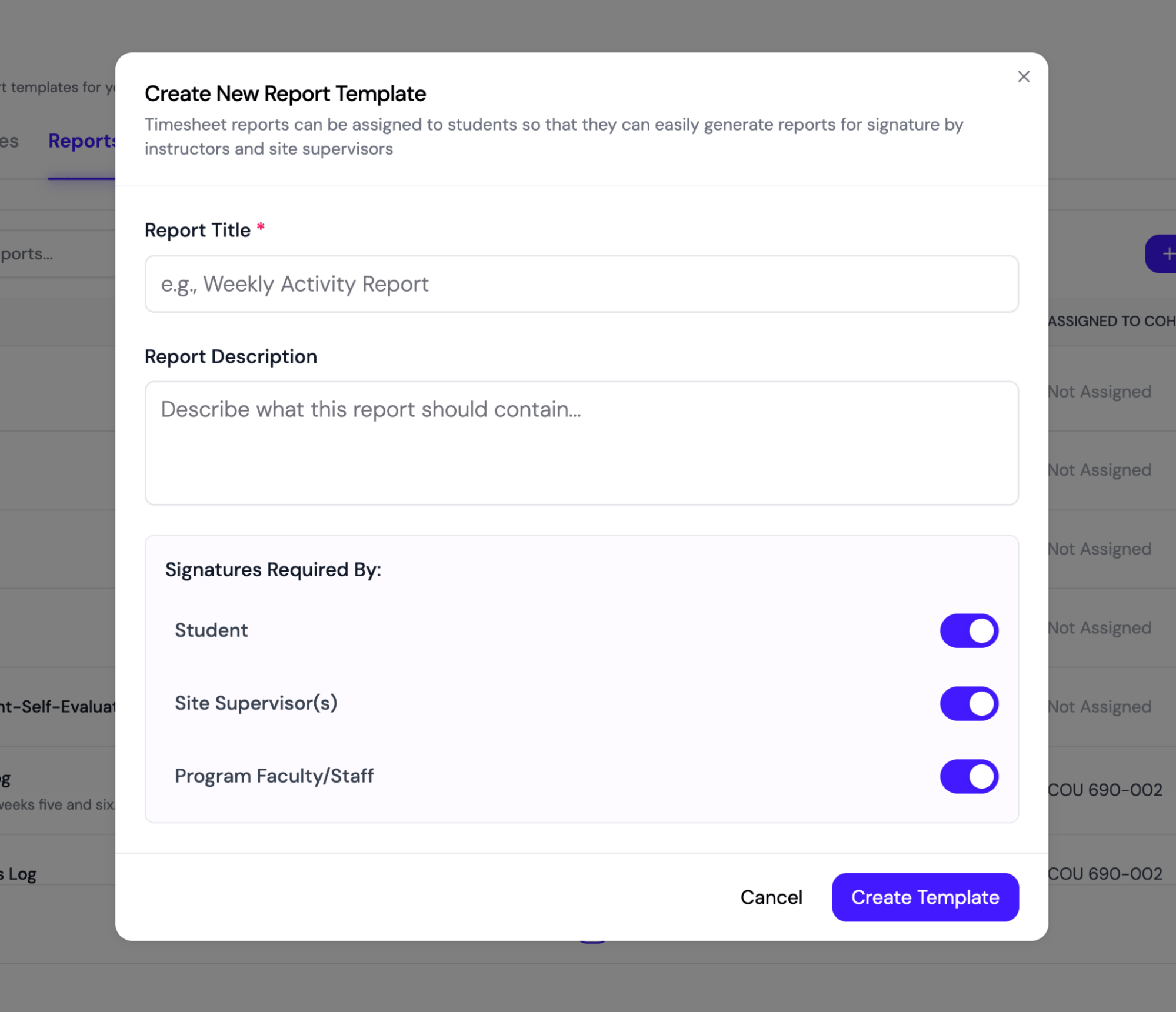 Configure:
| Setting | Description |
| --------------------------------- | ------------------------------------------------------ |
| **Title & description** | Clear name like "Weekly Hour Log" or "Month 1 Summary" |
| **Student signature required** | Switch — whether the student signs |
| **Supervisor signature required** | Switch — whether the site supervisor signs |
| **Faculty signature required** | Switch — whether the faculty supervisor signs |
You don't have to require a student signature — some programs only collect supervisor approval.
### Templates
A grid of built-in templates (`BUILTIN_TEMPLATES`) you can use as a starting point — each has a **Use template** action.
## Assigning a form or report
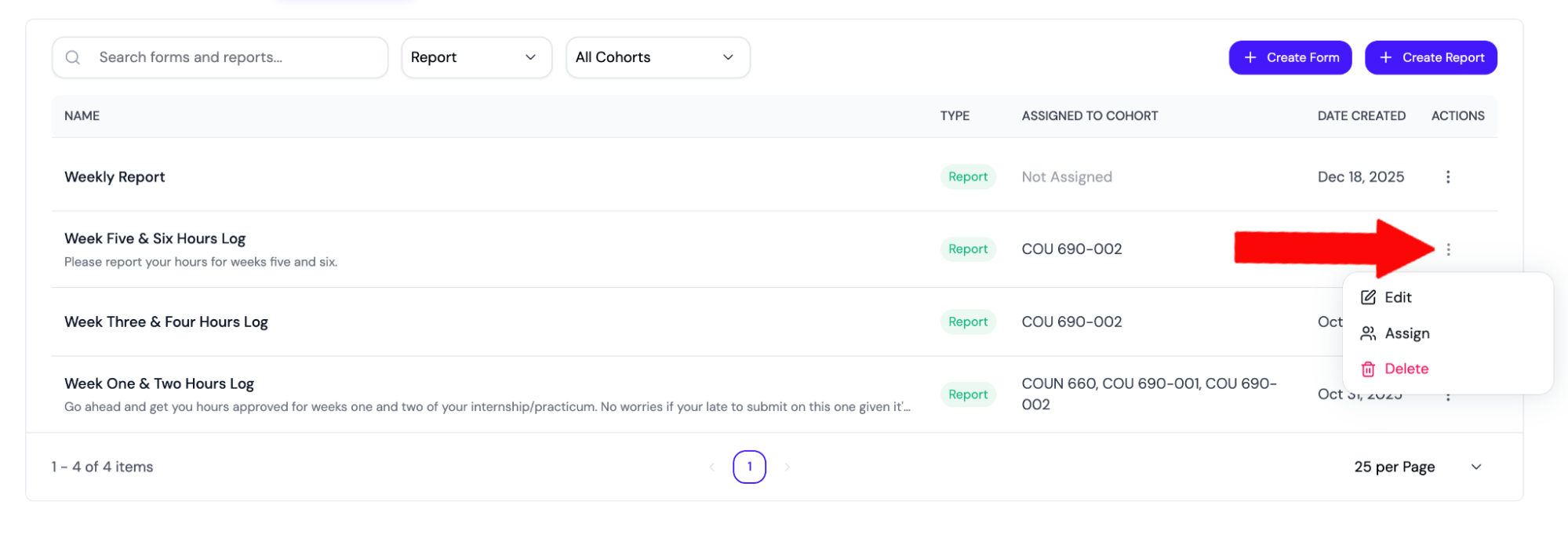
Click the actions menu (⋯) on any row and choose **Assign**.
Configure:
| Setting | Description |
| --------------------------------- | ------------------------------------------------------ |
| **Title & description** | Clear name like "Weekly Hour Log" or "Month 1 Summary" |
| **Student signature required** | Switch — whether the student signs |
| **Supervisor signature required** | Switch — whether the site supervisor signs |
| **Faculty signature required** | Switch — whether the faculty supervisor signs |
You don't have to require a student signature — some programs only collect supervisor approval.
### Templates
A grid of built-in templates (`BUILTIN_TEMPLATES`) you can use as a starting point — each has a **Use template** action.
## Assigning a form or report
Click the actions menu (⋯) on any row and choose **Assign**.
 The **Assign** modal has two tabs:
* **Create** — make a new assignment from this template
* **Current** — view existing assignments using this template
In the Create tab, pick the assignment target:
* **Cohorts** — assign to one or more cohorts (all students in those cohorts get it)
* **Individuals** — assign to specific people (ideal for targeted evaluations)
The **Assign** modal has two tabs:
* **Create** — make a new assignment from this template
* **Current** — view existing assignments using this template
In the Create tab, pick the assignment target:
* **Cohorts** — assign to one or more cohorts (all students in those cohorts get it)
* **Individuals** — assign to specific people (ideal for targeted evaluations)
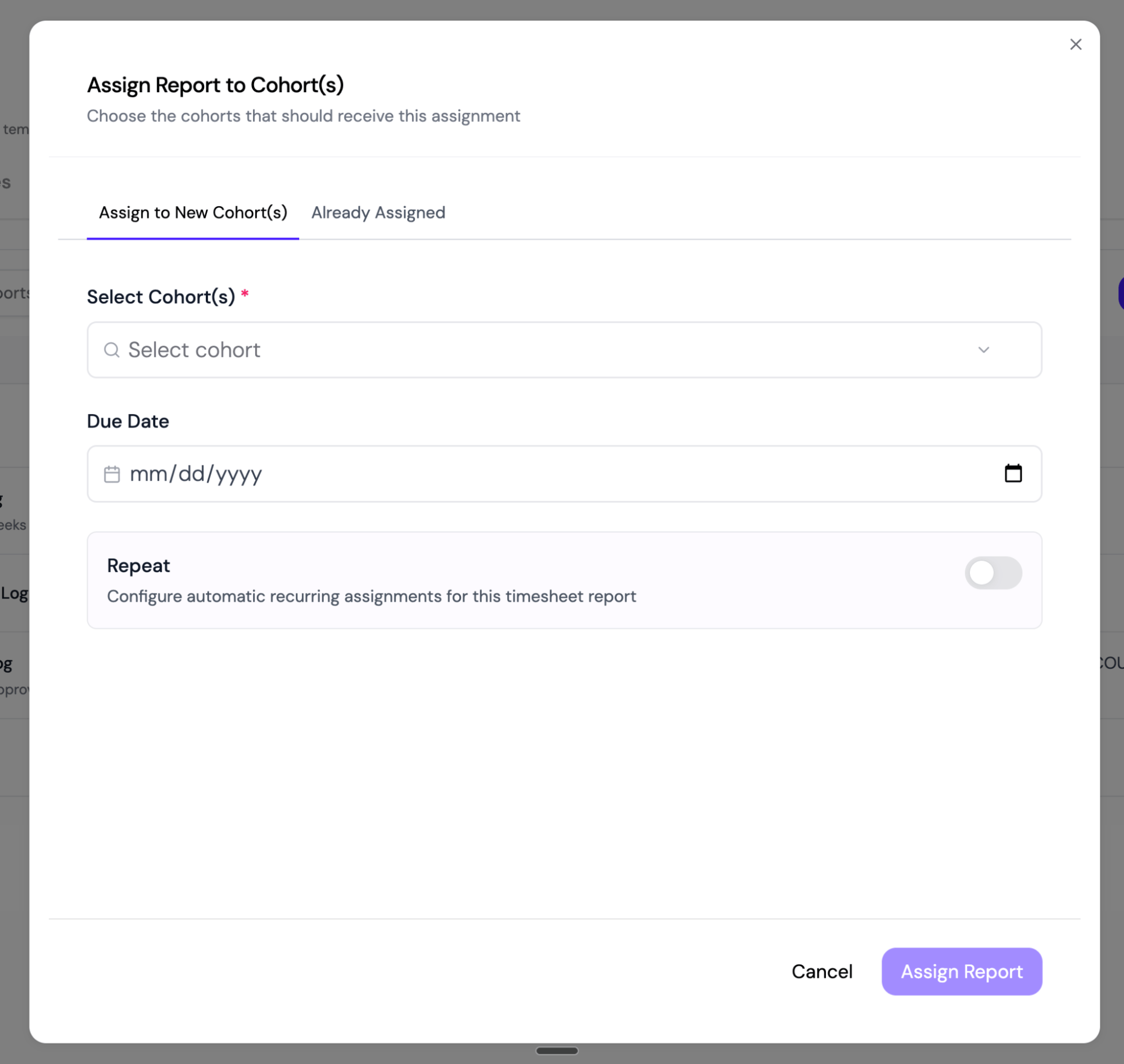 Then set a due date and (optionally) make it recurring. See [Setting up recurring tasks](/docs/fieldx/setting-up-recurring-tasks) for the full schedule options.
If a student has a conflicting assignment (e.g., same form already assigned), the modal surfaces a conflict dialog so you can resolve it.
## Forms vs. reports
| Type | Use for |
| ----------- | -------------------------------------------------------------------------------------------------------- |
| **Forms** | Evaluations, surveys, agreements, custom questionnaires — Google-Forms-like with HIPAA-compliant storage |
| **Reports** | Hour logs and supervision sign-off forms — multi-signer DocuSeal workflow |
## Downloading completed forms
When a student, faculty member, or site supervisor has a saved or submitted form response, their task row includes a top-right **Download PDF** button. Use that button to open a printable PDF copy of the form. For users who ask how to print a form, the recommended path is **Download PDF**, then print the PDF from the browser or PDF viewer.
## Form creation options
Forms can be built two ways:
Then set a due date and (optionally) make it recurring. See [Setting up recurring tasks](/docs/fieldx/setting-up-recurring-tasks) for the full schedule options.
If a student has a conflicting assignment (e.g., same form already assigned), the modal surfaces a conflict dialog so you can resolve it.
## Forms vs. reports
| Type | Use for |
| ----------- | -------------------------------------------------------------------------------------------------------- |
| **Forms** | Evaluations, surveys, agreements, custom questionnaires — Google-Forms-like with HIPAA-compliant storage |
| **Reports** | Hour logs and supervision sign-off forms — multi-signer DocuSeal workflow |
## Downloading completed forms
When a student, faculty member, or site supervisor has a saved or submitted form response, their task row includes a top-right **Download PDF** button. Use that button to open a printable PDF copy of the form. For users who ask how to print a form, the recommended path is **Download PDF**, then print the PDF from the browser or PDF viewer.
## Form creation options
Forms can be built two ways:
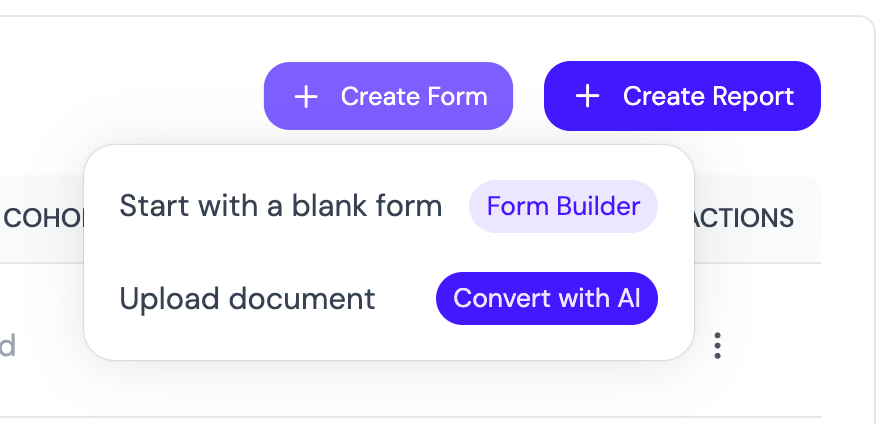 * **Build New** — drag-and-drop in the form builder
* **AI import** — upload a PDF or Word document and let AI convert it
You can also bundle multiple forms and reports into a **Group** (using the **New Group** button) and assign the whole group at once.
## Per-row actions
Each row in the table has actions for:
* **View** — preview the form/report
* **Assign** — assign to cohorts or individuals
* **Regenerate form** — re-run AI parsing if the source doc has changed
* **Add to group** / **Manage group**
* **Delete** (single or bulk)
## Editing an existing assignment
To change just the due date of an already-emitted assignment (or to adjust who's on a multi-signer form), open the assignment row inline and click **Edit**. The dedicated edit page lets you change the due date and, for multi-person assignments tied to a cohort, exclude specific student/supervisor pairs.
## Editing a form template after it's been assigned
Editing a form template in the form builder updates the template only — assignments that have already been sent out keep the version of the form the respondent originally saw. Two safeguards make this predictable.
### Adding a new role to a form that already has assignments
If you edit a form's **required roles** — for example, changing a faculty-only evaluation into one that also needs a student signature — and the form already has open assignments, an **Update existing assignments?** modal appears when you click Save.
The modal previews how many assignment instances are affected and gives you two choices:
* **Save template only** — the template updates. Existing assignments keep the old role configuration, so anyone already partway through won't suddenly see a new required signer. Every *new* assignment created from this form uses the updated roles.
* **Save and update existing assignments** — the template updates, and every live assignment for this form is backfilled with the new role. Any instance that was already marked complete under the old configuration is reopened to `Pending` so the new role can also complete it. Previously submitted responses are preserved, not deleted.
No notification emails are sent when you update existing assignments — send a reminder from the cohort's **Send Alert** action once you've reviewed who's affected.
Reopening a submitted instance means it counts as incomplete again until the newly required role finishes their part. Make sure your students and supervisors expect the update before choosing **Save and update existing assignments**.
### Form versioning for past responses
Every content-changing save of a form creates an immutable snapshot of the form's questions. Each response is pinned to the version that was live when the respondent opened the fill page, so:
* Adding a question to a form later never causes it to appear as blank on old responses.
* Renaming an option or reordering choices doesn't retroactively change how a previously submitted response reads.
* The submission detail view, CSV export, and PDF export all render each response against its own version's question list.
You don't need to configure anything — this happens automatically for every form save. Coordinators viewing a mixed set of responses in the **Submissions** tab will see the union of questions across every version present in that assignment, so nothing gets hidden.
For details on building complex forms, see [Building forms](/docs/fieldx/building-forms). For recurring assignments, see [Setting up recurring tasks](/docs/fieldx/setting-up-recurring-tasks).
* **Build New** — drag-and-drop in the form builder
* **AI import** — upload a PDF or Word document and let AI convert it
You can also bundle multiple forms and reports into a **Group** (using the **New Group** button) and assign the whole group at once.
## Per-row actions
Each row in the table has actions for:
* **View** — preview the form/report
* **Assign** — assign to cohorts or individuals
* **Regenerate form** — re-run AI parsing if the source doc has changed
* **Add to group** / **Manage group**
* **Delete** (single or bulk)
## Editing an existing assignment
To change just the due date of an already-emitted assignment (or to adjust who's on a multi-signer form), open the assignment row inline and click **Edit**. The dedicated edit page lets you change the due date and, for multi-person assignments tied to a cohort, exclude specific student/supervisor pairs.
## Editing a form template after it's been assigned
Editing a form template in the form builder updates the template only — assignments that have already been sent out keep the version of the form the respondent originally saw. Two safeguards make this predictable.
### Adding a new role to a form that already has assignments
If you edit a form's **required roles** — for example, changing a faculty-only evaluation into one that also needs a student signature — and the form already has open assignments, an **Update existing assignments?** modal appears when you click Save.
The modal previews how many assignment instances are affected and gives you two choices:
* **Save template only** — the template updates. Existing assignments keep the old role configuration, so anyone already partway through won't suddenly see a new required signer. Every *new* assignment created from this form uses the updated roles.
* **Save and update existing assignments** — the template updates, and every live assignment for this form is backfilled with the new role. Any instance that was already marked complete under the old configuration is reopened to `Pending` so the new role can also complete it. Previously submitted responses are preserved, not deleted.
No notification emails are sent when you update existing assignments — send a reminder from the cohort's **Send Alert** action once you've reviewed who's affected.
Reopening a submitted instance means it counts as incomplete again until the newly required role finishes their part. Make sure your students and supervisors expect the update before choosing **Save and update existing assignments**.
### Form versioning for past responses
Every content-changing save of a form creates an immutable snapshot of the form's questions. Each response is pinned to the version that was live when the respondent opened the fill page, so:
* Adding a question to a form later never causes it to appear as blank on old responses.
* Renaming an option or reordering choices doesn't retroactively change how a previously submitted response reads.
* The submission detail view, CSV export, and PDF export all render each response against its own version's question list.
You don't need to configure anything — this happens automatically for every form save. Coordinators viewing a mixed set of responses in the **Submissions** tab will see the union of questions across every version present in that assignment, so nothing gets hidden.
For details on building complex forms, see [Building forms](/docs/fieldx/building-forms). For recurring assignments, see [Setting up recurring tasks](/docs/fieldx/setting-up-recurring-tasks).