> ## Documentation Index
> Fetch the complete documentation index at: https://app.simcare.ai/docs/llms.txt
> Use this file to discover all available pages before exploring further.
# Step 3: Set up cohorts
> Create cohorts to organize students into class sections — and copy a previous cohort to launch the next semester quickly.
Cohorts are the primary way to organize students into groups — class sections, academic tracks, or placement groups. Each cohort has its own assignments, member roster, and faculty oversight.
 ## Creating a new cohort
Open the **Cohorts** tab and click **Create Cohort**.
## Creating a new cohort
Open the **Cohorts** tab and click **Create Cohort**.
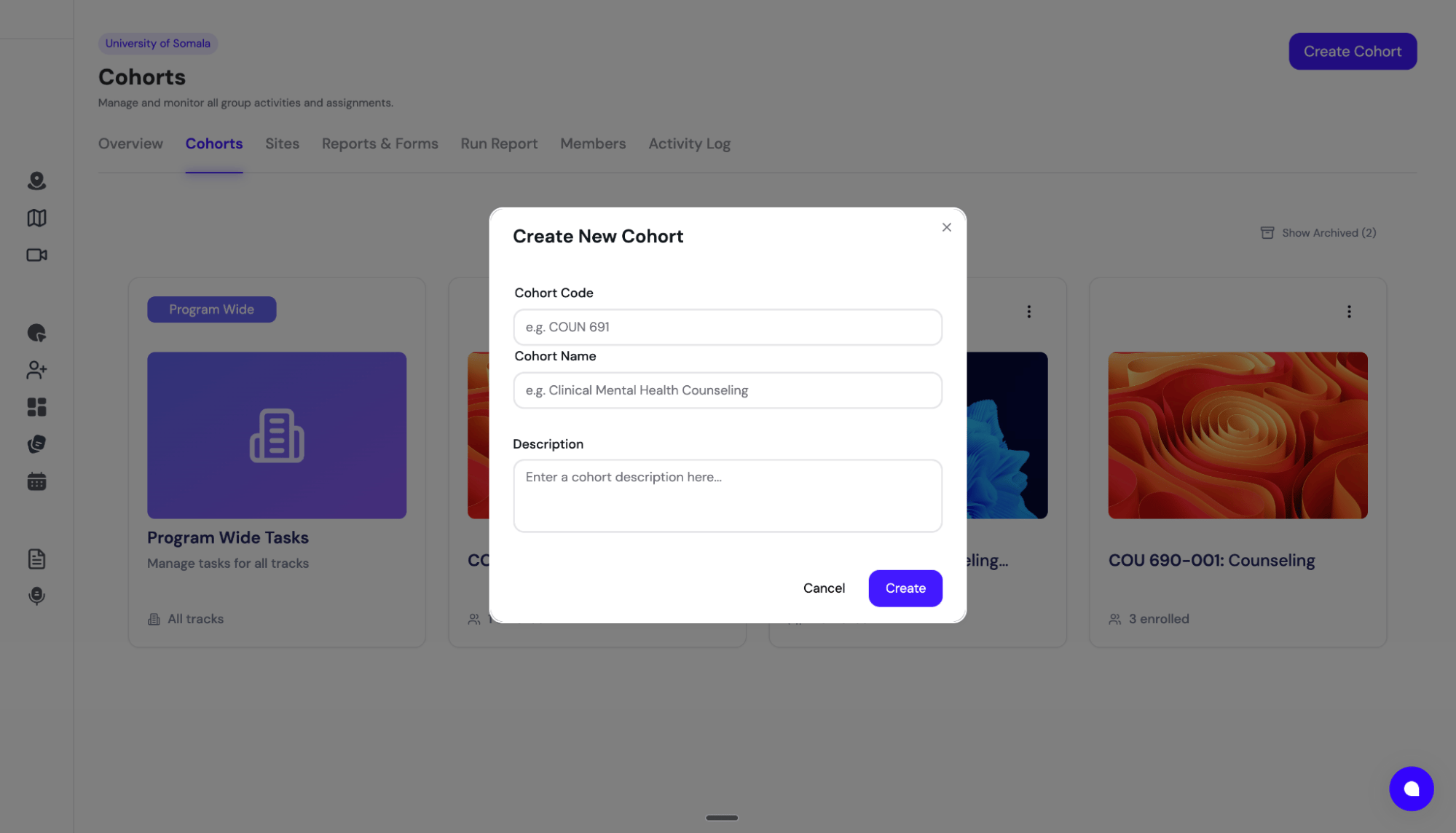 The create modal asks for:
| Field | Notes |
| ------------------------------------------ | --------------------------------------------------------------------------------------------------------------------------------------------------------------------------------------------------------------------------------------------------- |
| **Track Code** *(required)* | Short identifier, e.g. `COU-501-A` |
| **Track Name** *(required)* | Descriptive name |
| **Description** | Optional context |
| **Copy from existing cohort** | Clone one-time assignments, recurring schedules, and settings from another cohort |
| **First assignment date** *(when copying)* | Shifts all source assignment dates by the same offset |
| **Academic Terms** | Multi-select — student placements are auto-created using this term |
| **Default Signing Faculty** | Default supervisor name used for report signatures |
| **Hours Report Template** | Pre-selected with your program's newest template. Choose **Default — standard report** only if your program does not use custom hour categories (e.g. direct, indirect, supervision). **This cannot be changed once students begin logging hours.** |
Click **Create Cohort** to save.
The **Copy from existing cohort** + **First assignment date** combo is the fastest way to spin up a new semester — see [Step 5: Next semester setup](/docs/fieldx/step-5-next-semester-setup).
## Editing a cohort
Per-row actions (when you hover any cohort card) include edit, archive, unarchive, permanent delete, and generate join code. In edit mode you can also:
* Upload a **Cohort Logo** (16:9, max 5MB; JPEG, PNG, WebP, or GIF) — appears in the cohort header for everyone
* Update name, code, description, terms, and signing faculty
## Inside a cohort
Click a cohort card to open its dedicated dashboard.
The create modal asks for:
| Field | Notes |
| ------------------------------------------ | --------------------------------------------------------------------------------------------------------------------------------------------------------------------------------------------------------------------------------------------------- |
| **Track Code** *(required)* | Short identifier, e.g. `COU-501-A` |
| **Track Name** *(required)* | Descriptive name |
| **Description** | Optional context |
| **Copy from existing cohort** | Clone one-time assignments, recurring schedules, and settings from another cohort |
| **First assignment date** *(when copying)* | Shifts all source assignment dates by the same offset |
| **Academic Terms** | Multi-select — student placements are auto-created using this term |
| **Default Signing Faculty** | Default supervisor name used for report signatures |
| **Hours Report Template** | Pre-selected with your program's newest template. Choose **Default — standard report** only if your program does not use custom hour categories (e.g. direct, indirect, supervision). **This cannot be changed once students begin logging hours.** |
Click **Create Cohort** to save.
The **Copy from existing cohort** + **First assignment date** combo is the fastest way to spin up a new semester — see [Step 5: Next semester setup](/docs/fieldx/step-5-next-semester-setup).
## Editing a cohort
Per-row actions (when you hover any cohort card) include edit, archive, unarchive, permanent delete, and generate join code. In edit mode you can also:
* Upload a **Cohort Logo** (16:9, max 5MB; JPEG, PNG, WebP, or GIF) — appears in the cohort header for everyone
* Update name, code, description, terms, and signing faculty
## Inside a cohort
Click a cohort card to open its dedicated dashboard.
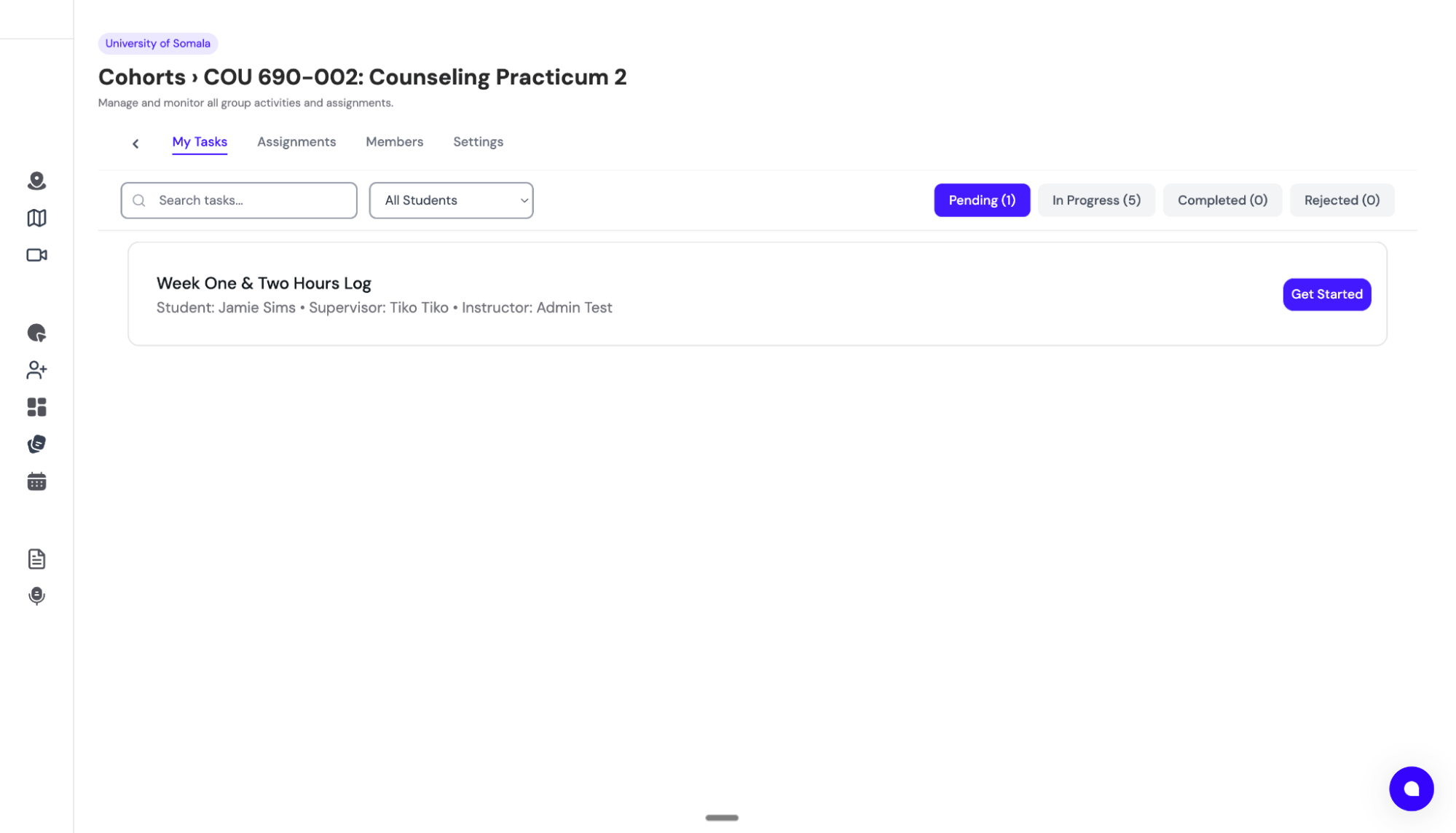 You'll see four centered sub-tabs:
| Sub-tab | What's here |
| --------------- | ---------------------------------------------------------------------------------------------------------- |
| **My Tasks** | Tasks and oversight specific to this cohort, filtered by `Pending`, `In Progress`, `Completed`, `Rejected` |
| **Assignments** | One-time assignments and recurring schedules — create, stop, edit due dates |
| **Members** | Students and instructors in the cohort — bulk-assign faculty, generate join code, send alerts |
| **Settings** | General settings, hour requirements, and the hours report template |
Click **Back to cohorts** in the header to return.
### Members sub-tab
Two segments: **Students** / **Instructors**. The top-right **+ Add Student** / **+ Add Instructor** buttons open the **Add Program Members to Cohort** modal — which doubles as an **Invite to Program** flow if you need to add a brand-new email.
Per-row actions include **View as Student** (impersonate read-only) and bulk **Assign same faculty to all** to set faculty for many students at once.
You can also click **Send Alert** to push a one-off notification to a student.
### Assignments sub-tab
Two segments: **Assignments** (one-time) and **Schedules** (recurring). The **+ Create** button opens the program-wide assignments builder. Stop a schedule any time — existing emitted assignments are preserved, but no new ones are generated.
### Settings sub-tab
The available segments are:
* **General Information** — name, code, description, terms, default signing faculty, cohort logo
* **Hour Requirements** — per-track and per-certificate hour requirements with qualifying activity types
* **Hours Report Template** — preview the active DocuSeal hours-report template, or use the default
* **Learning Contract** *(programs with Learning Contracts enabled)* — pick which Learning Contract variant students in this cohort complete, or leave on **Program default** to use the standard contract. Variants are defined at the program level under **My Program → Settings → Learning Contract Variants**. See [Learning Contract variants](/docs/fieldx/step-0-2-customization-settings#learning-contract-variants).
## Archiving a cohort
When a term ends, archive the cohort instead of deleting it:
1. From the **Cohorts** tab, hover the cohort and click the archive action
2. Click **Show Archived** in the header to see archived cohorts; **Hide Archived** to hide them again
Archiving hides the cohort from your active dashboard but preserves all student data, hours, and signed forms. You can **Unarchive** any time. Permanent delete is also available but rarely needed.
Next step: Once cohorts are set up, students complete clearance and you approve them. See [Step 3.1: Approving students](/docs/fieldx/step-3-1-approving-students).
You'll see four centered sub-tabs:
| Sub-tab | What's here |
| --------------- | ---------------------------------------------------------------------------------------------------------- |
| **My Tasks** | Tasks and oversight specific to this cohort, filtered by `Pending`, `In Progress`, `Completed`, `Rejected` |
| **Assignments** | One-time assignments and recurring schedules — create, stop, edit due dates |
| **Members** | Students and instructors in the cohort — bulk-assign faculty, generate join code, send alerts |
| **Settings** | General settings, hour requirements, and the hours report template |
Click **Back to cohorts** in the header to return.
### Members sub-tab
Two segments: **Students** / **Instructors**. The top-right **+ Add Student** / **+ Add Instructor** buttons open the **Add Program Members to Cohort** modal — which doubles as an **Invite to Program** flow if you need to add a brand-new email.
Per-row actions include **View as Student** (impersonate read-only) and bulk **Assign same faculty to all** to set faculty for many students at once.
You can also click **Send Alert** to push a one-off notification to a student.
### Assignments sub-tab
Two segments: **Assignments** (one-time) and **Schedules** (recurring). The **+ Create** button opens the program-wide assignments builder. Stop a schedule any time — existing emitted assignments are preserved, but no new ones are generated.
### Settings sub-tab
The available segments are:
* **General Information** — name, code, description, terms, default signing faculty, cohort logo
* **Hour Requirements** — per-track and per-certificate hour requirements with qualifying activity types
* **Hours Report Template** — preview the active DocuSeal hours-report template, or use the default
* **Learning Contract** *(programs with Learning Contracts enabled)* — pick which Learning Contract variant students in this cohort complete, or leave on **Program default** to use the standard contract. Variants are defined at the program level under **My Program → Settings → Learning Contract Variants**. See [Learning Contract variants](/docs/fieldx/step-0-2-customization-settings#learning-contract-variants).
## Archiving a cohort
When a term ends, archive the cohort instead of deleting it:
1. From the **Cohorts** tab, hover the cohort and click the archive action
2. Click **Show Archived** in the header to see archived cohorts; **Hide Archived** to hide them again
Archiving hides the cohort from your active dashboard but preserves all student data, hours, and signed forms. You can **Unarchive** any time. Permanent delete is also available but rarely needed.
Next step: Once cohorts are set up, students complete clearance and you approve them. See [Step 3.1: Approving students](/docs/fieldx/step-3-1-approving-students).