> ## Documentation Index
> Fetch the complete documentation index at: https://app.simcare.ai/docs/llms.txt
> Use this file to discover all available pages before exploring further.
# Step 2: Managing established sites
> Manage approved placement sites, review pending requests, and track affiliation agreements.
Established sites are placements you've pre-approved so students can start logging hours without coordinator review. Sites are managed in the **Sites** tab on your main dashboard.
 ## The three site sub-tabs
| Sub-tab | What's here |
| ----------------------------- | ----------------------------------------------------------------------------- |
| **Student Sites** | Every site your students are currently placed at and actively logging hours |
| **Established Program Sites** | All sites approved for your program |
| **Pending** | Sites students submitted that are awaiting your approval (yellow count badge) |
## The three site sub-tabs
| Sub-tab | What's here |
| ----------------------------- | ----------------------------------------------------------------------------- |
| **Student Sites** | Every site your students are currently placed at and actively logging hours |
| **Established Program Sites** | All sites approved for your program |
| **Pending** | Sites students submitted that are awaiting your approval (yellow count badge) |
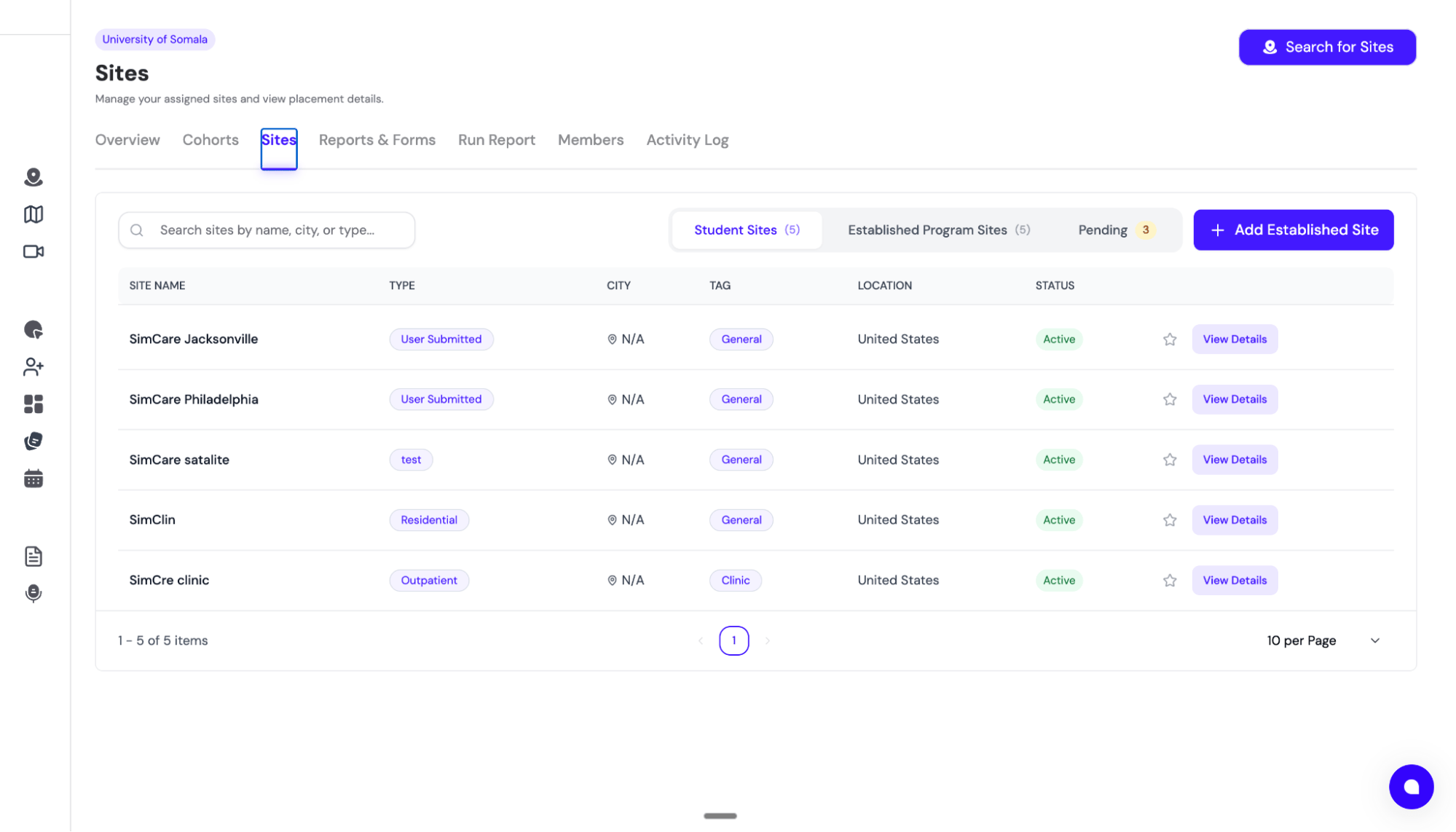 Each sub-tab has filters for tags, site types, and status. Program sites automatically chip as **Active**, **Expiring Soon** (≤30 days), or **Expired** based on their affiliation agreement.
## Approving new site requests
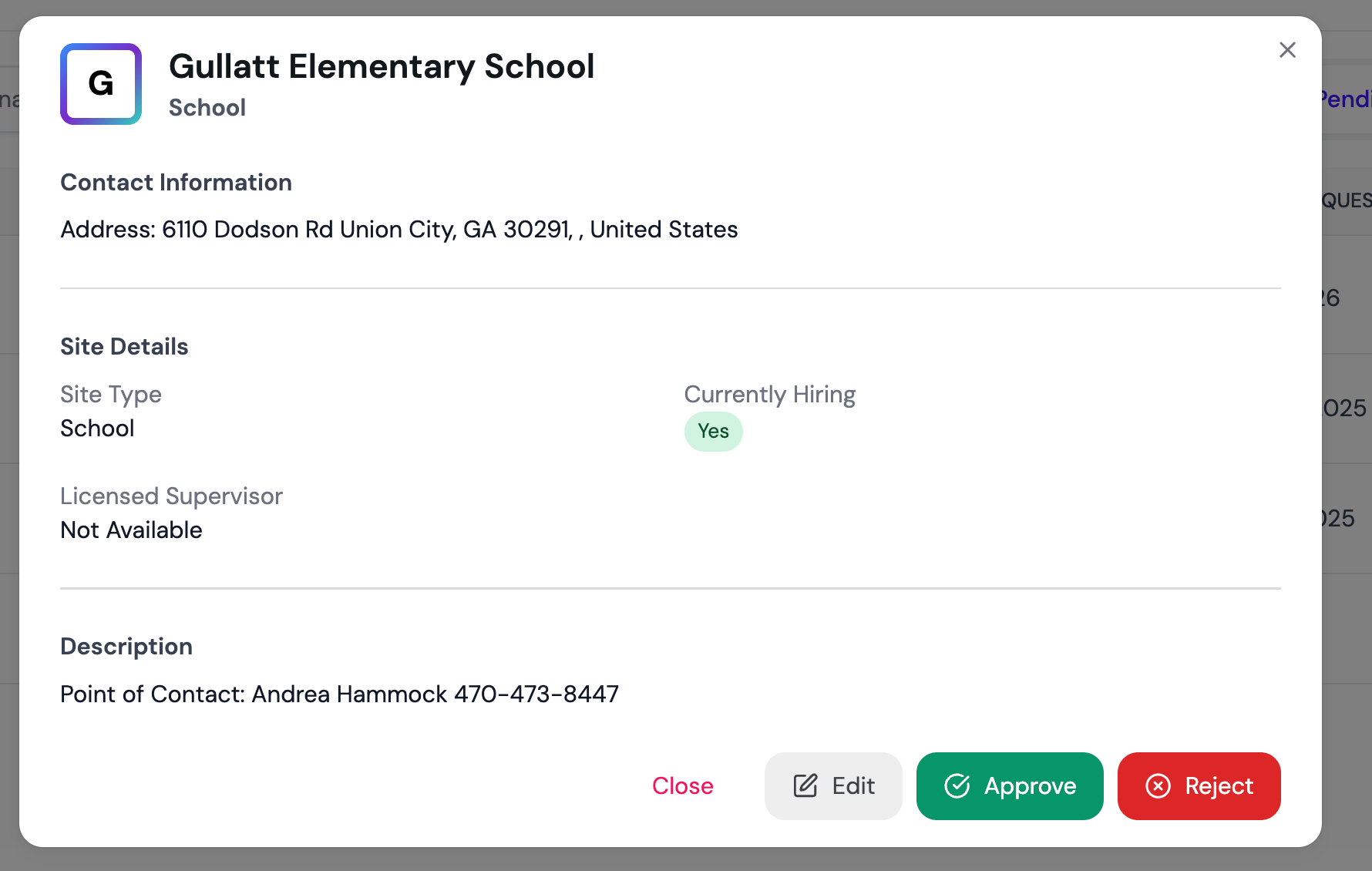
Click any row in the **Pending** sub-tab to open the **Site Details** modal. You can:
* **Approve** — adds the site to your Established list
* **Reject** — rejects the request with a note for the student
* **Edit** — adjust the site details before approving
Each sub-tab has filters for tags, site types, and status. Program sites automatically chip as **Active**, **Expiring Soon** (≤30 days), or **Expired** based on their affiliation agreement.
## Approving new site requests
Click any row in the **Pending** sub-tab to open the **Site Details** modal. You can:
* **Approve** — adds the site to your Established list
* **Reject** — rejects the request with a note for the student
* **Edit** — adjust the site details before approving
 If you want students who request an established site to be approved instantly, toggle **Auto-Approve Site Requests** on in **My Program → Settings**.
## Adding established sites yourself
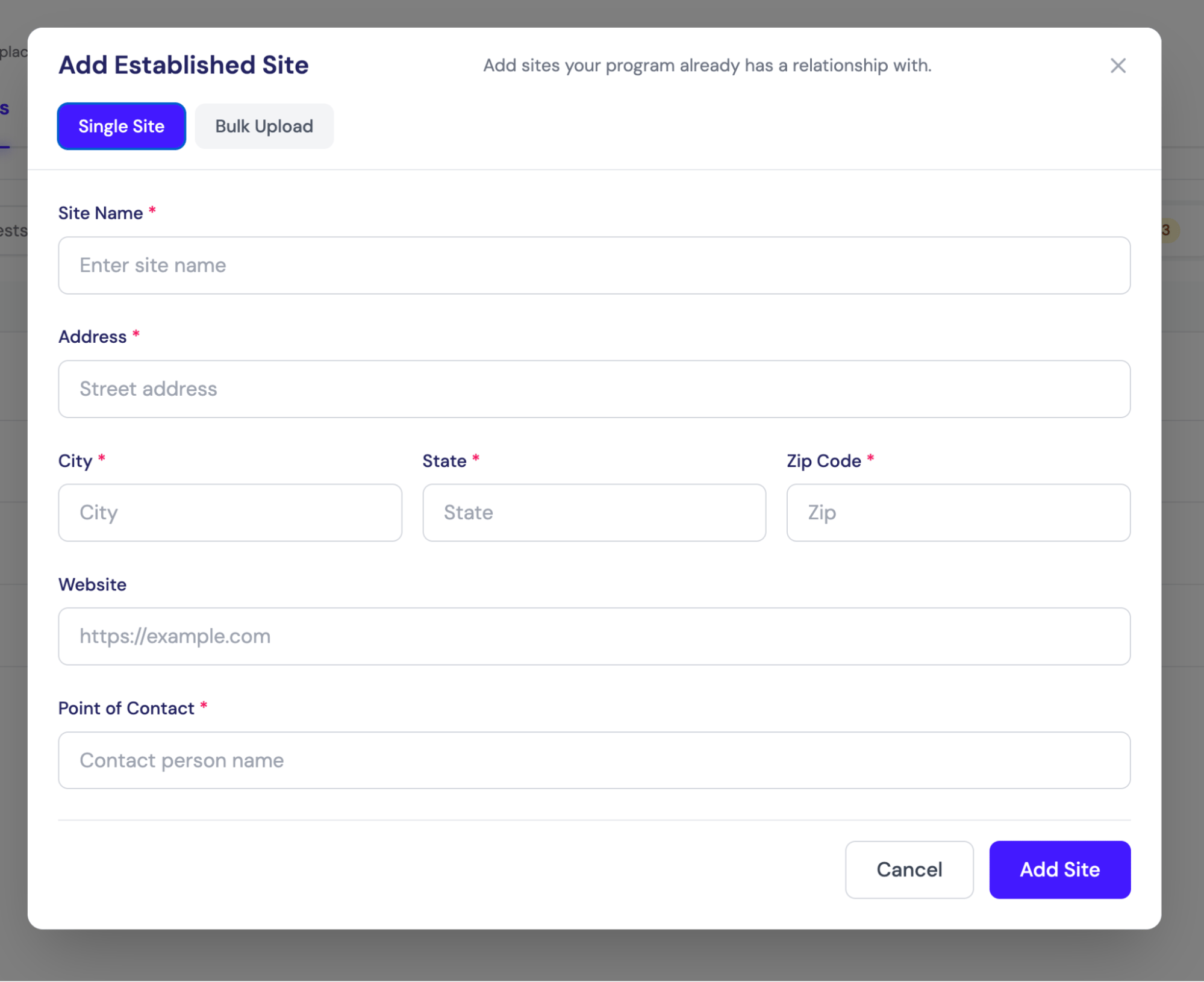
Click **Add Established Site** in the top right to open the **Add Site** modal. Two tabs:
* **Single Site** — manually enter site details (name, address, type, tags, contact info)
* **Bulk** — upload a CSV, spreadsheet, or text file with multiple sites at once
The bulk uploader uses AI to parse your file — no strict template required. Drop any reasonable list and it will extract the right fields.
If you want students who request an established site to be approved instantly, toggle **Auto-Approve Site Requests** on in **My Program → Settings**.
## Adding established sites yourself
Click **Add Established Site** in the top right to open the **Add Site** modal. Two tabs:
* **Single Site** — manually enter site details (name, address, type, tags, contact info)
* **Bulk** — upload a CSV, spreadsheet, or text file with multiple sites at once
The bulk uploader uses AI to parse your file — no strict template required. Drop any reasonable list and it will extract the right fields.
 ## Site affiliation agreements
For programs that need to store and track signed site affiliation agreements, FieldX includes a full DocuSeal-backed workflow:
1. Open **Field Experience → Affiliations** from the menu (or `/field-exp/affiliations`)
2. The page shows KPI cards (Total, Active, Pending, Expired) and a table of every agreement with its status, signatures, dates, and actions
3. Per-agreement actions: **Sign Now**, **Open in New Tab**, **Cancel Request**
4. Status updates flow back to the **Established Program Sites** sub-tab — sites with expiring agreements show **Expiring Soon** chips
Affiliation **templates** (reusable agreement documents) can be set up by your SimCare point of contact — contact [tiko@simcare.ai](mailto:tiko@simcare.ai) to get this configured for your program.
## Removing a student or supervisor from a site
Admins (and faculty, for supervisors) can end an active placement without deleting the historical record. Open a site row from any sub-tab to launch the **Site Details** modal, then use the **Students** or **Supervisors** tab.
**Remove a student from a site**
1. Open **Site Details → Students**.
2. Click the trash icon on the student's row (admin only).
3. Confirm in the inline red panel.
The student's placement is marked inactive and disappears from the site's roster. Their timesheets, reports, and other historical data are preserved.
**Remove a supervisor from a site**
1. Open **Site Details → Supervisors**.
2. Click the actions menu (⋮) on the supervisor's row and select **Remove from Site** (admin or faculty only).
3. Confirm in the inline panel.
Every student link to that supervisor at this site is removed. If the supervisor still has unsigned reports for students at the site, a warning toast shows how many remain so you can reassign or follow up before the placement closes out.
Both actions are reversible by re-adding the student or supervisor to the site — no historical data is destroyed.
## All-sites map view
For programs with many sites, an interactive map view (with AI search and clustering) is available. Reach out to SimCare to enable it for your program.
Next step: Create cohorts to organize students into classes or sections. See [Step 3: Set up cohorts](/docs/fieldx/step-3-set-up-cohorts).
## Site affiliation agreements
For programs that need to store and track signed site affiliation agreements, FieldX includes a full DocuSeal-backed workflow:
1. Open **Field Experience → Affiliations** from the menu (or `/field-exp/affiliations`)
2. The page shows KPI cards (Total, Active, Pending, Expired) and a table of every agreement with its status, signatures, dates, and actions
3. Per-agreement actions: **Sign Now**, **Open in New Tab**, **Cancel Request**
4. Status updates flow back to the **Established Program Sites** sub-tab — sites with expiring agreements show **Expiring Soon** chips
Affiliation **templates** (reusable agreement documents) can be set up by your SimCare point of contact — contact [tiko@simcare.ai](mailto:tiko@simcare.ai) to get this configured for your program.
## Removing a student or supervisor from a site
Admins (and faculty, for supervisors) can end an active placement without deleting the historical record. Open a site row from any sub-tab to launch the **Site Details** modal, then use the **Students** or **Supervisors** tab.
**Remove a student from a site**
1. Open **Site Details → Students**.
2. Click the trash icon on the student's row (admin only).
3. Confirm in the inline red panel.
The student's placement is marked inactive and disappears from the site's roster. Their timesheets, reports, and other historical data are preserved.
**Remove a supervisor from a site**
1. Open **Site Details → Supervisors**.
2. Click the actions menu (⋮) on the supervisor's row and select **Remove from Site** (admin or faculty only).
3. Confirm in the inline panel.
Every student link to that supervisor at this site is removed. If the supervisor still has unsigned reports for students at the site, a warning toast shows how many remain so you can reassign or follow up before the placement closes out.
Both actions are reversible by re-adding the student or supervisor to the site — no historical data is destroyed.
## All-sites map view
For programs with many sites, an interactive map view (with AI search and clustering) is available. Reach out to SimCare to enable it for your program.
Next step: Create cohorts to organize students into classes or sections. See [Step 3: Set up cohorts](/docs/fieldx/step-3-set-up-cohorts).