> ## Documentation Index
> Fetch the complete documentation index at: https://app.simcare.ai/docs/llms.txt
> Use this file to discover all available pages before exploring further.
# Step 0: Getting started
> A first look at the FieldX coordinator dashboard — the tab bar, KPI cards, and what each area is for.
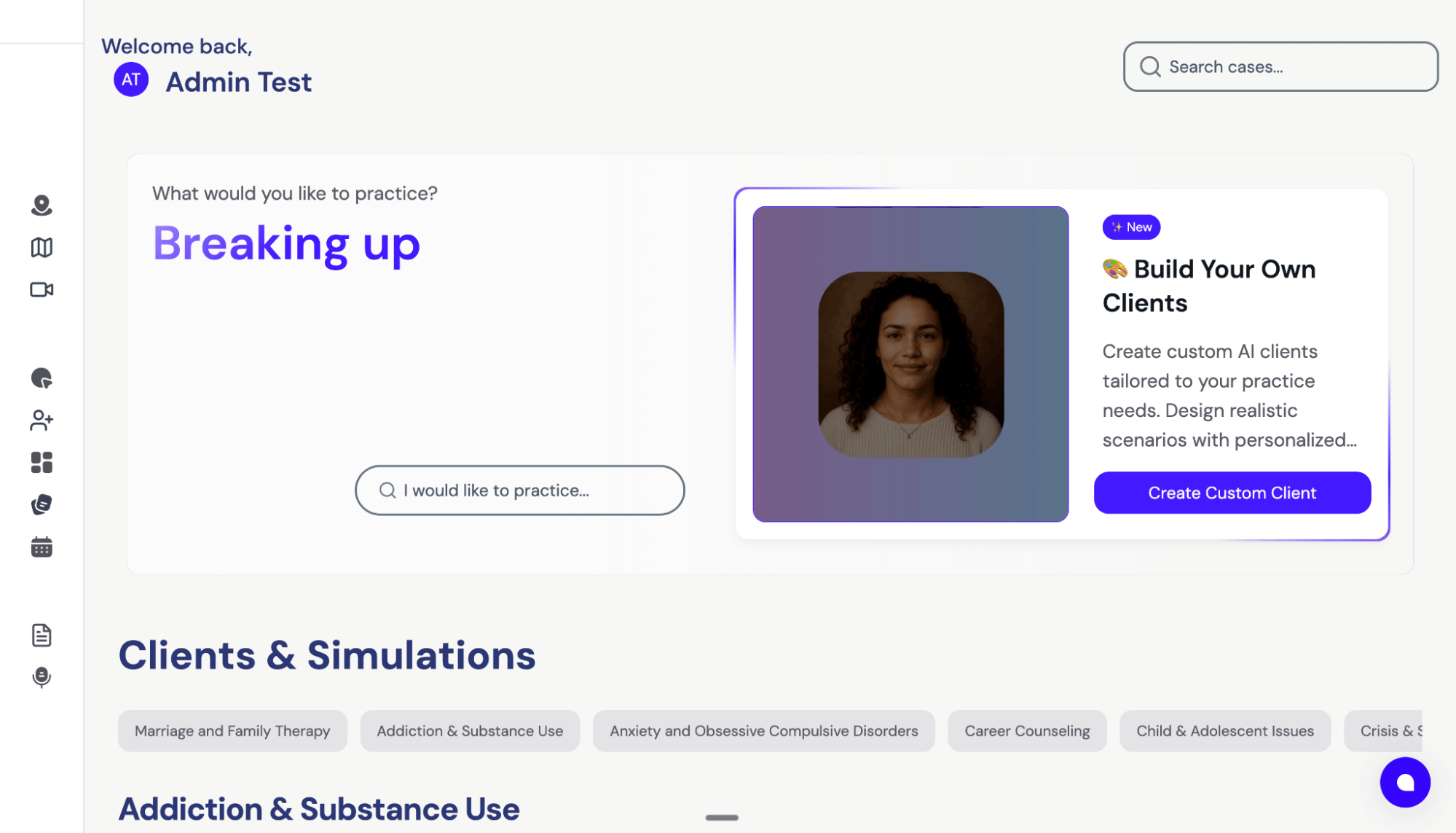
Welcome to FieldX! When you first log in as a Program Coordinator, your field experience dashboard opens to the **Overview** tab.
 ## Your six tabs
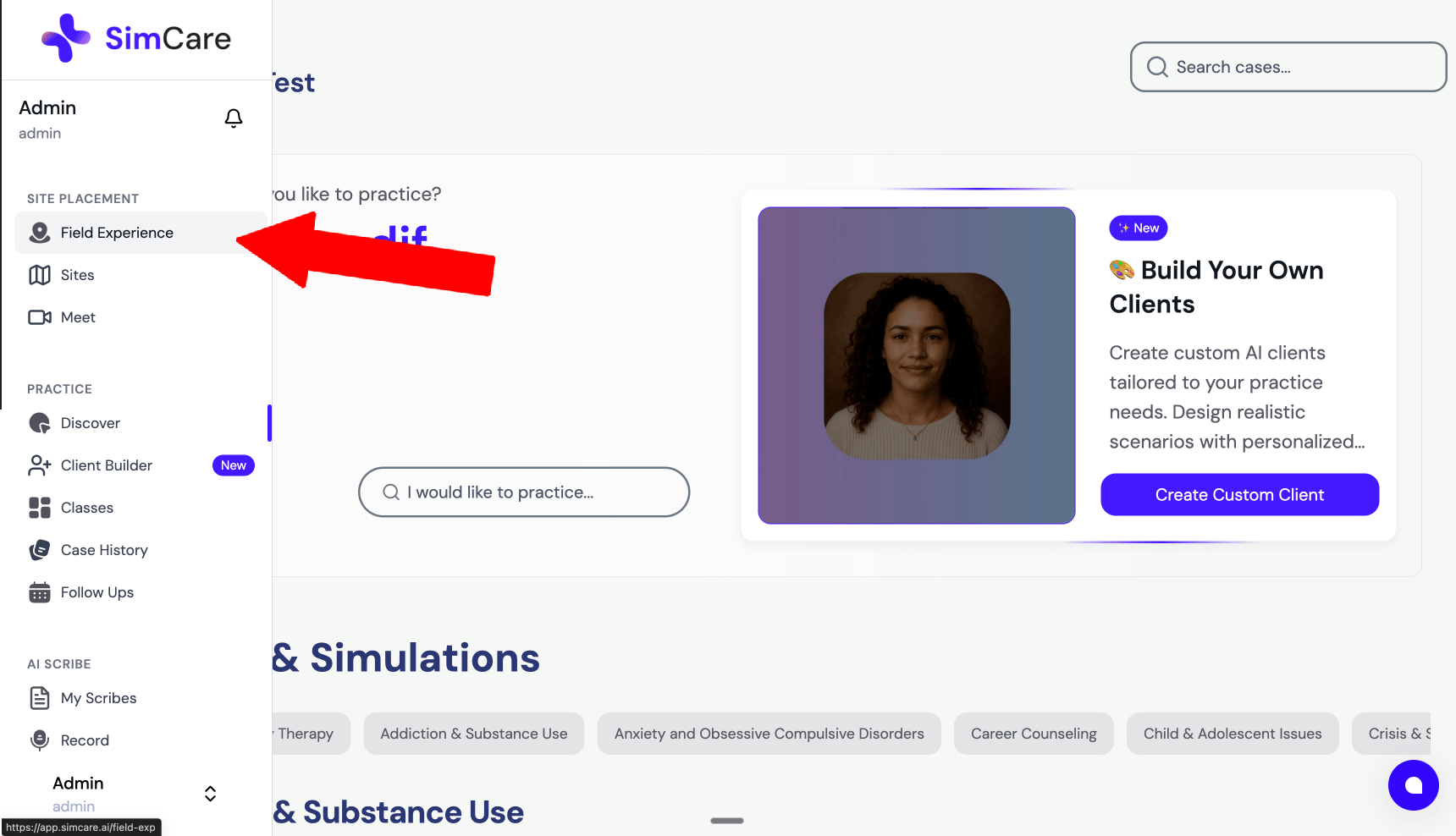
Your main tab bar has six destinations:
| Tab | What's here |
| ------------------ | -------------------------------------------------------------------------------------------------------- |
| **Overview** | KPI cards, the term selector, the program-wide student table, and hours graphs |
| **Cohorts** | Create and manage cohorts (your class sections) — open one to see its members, assignments, and settings |
| **Sites** | The student sites, established program sites, and pending site requests waiting on your approval |
| **Assignments** | The forms and report templates library — build forms, group them, and assign to cohorts |
| **Run Report** | Run any of the standard FieldX reports (hours ledger, compliance audit, competency profile, etc.) |
| **Ask AI** *(new)* | Chat with an AI that knows your program data — ask questions, build reports, check compliance |
## Your six tabs
Your main tab bar has six destinations:
| Tab | What's here |
| ------------------ | -------------------------------------------------------------------------------------------------------- |
| **Overview** | KPI cards, the term selector, the program-wide student table, and hours graphs |
| **Cohorts** | Create and manage cohorts (your class sections) — open one to see its members, assignments, and settings |
| **Sites** | The student sites, established program sites, and pending site requests waiting on your approval |
| **Assignments** | The forms and report templates library — build forms, group them, and assign to cohorts |
| **Run Report** | Run any of the standard FieldX reports (hours ledger, compliance audit, competency profile, etc.) |
| **Ask AI** *(new)* | Chat with an AI that knows your program data — ask questions, build reports, check compliance |
 If you or anyone on the platform needs quick assistance, click the blue circle in the bottom right. The support system will try to help first and escalate to a human if needed.
## The Overview tab
Here's what the Overview tab looks like once you have students:
If you or anyone on the platform needs quick assistance, click the blue circle in the bottom right. The support system will try to help first and escalate to a human if needed.
## The Overview tab
Here's what the Overview tab looks like once you have students:
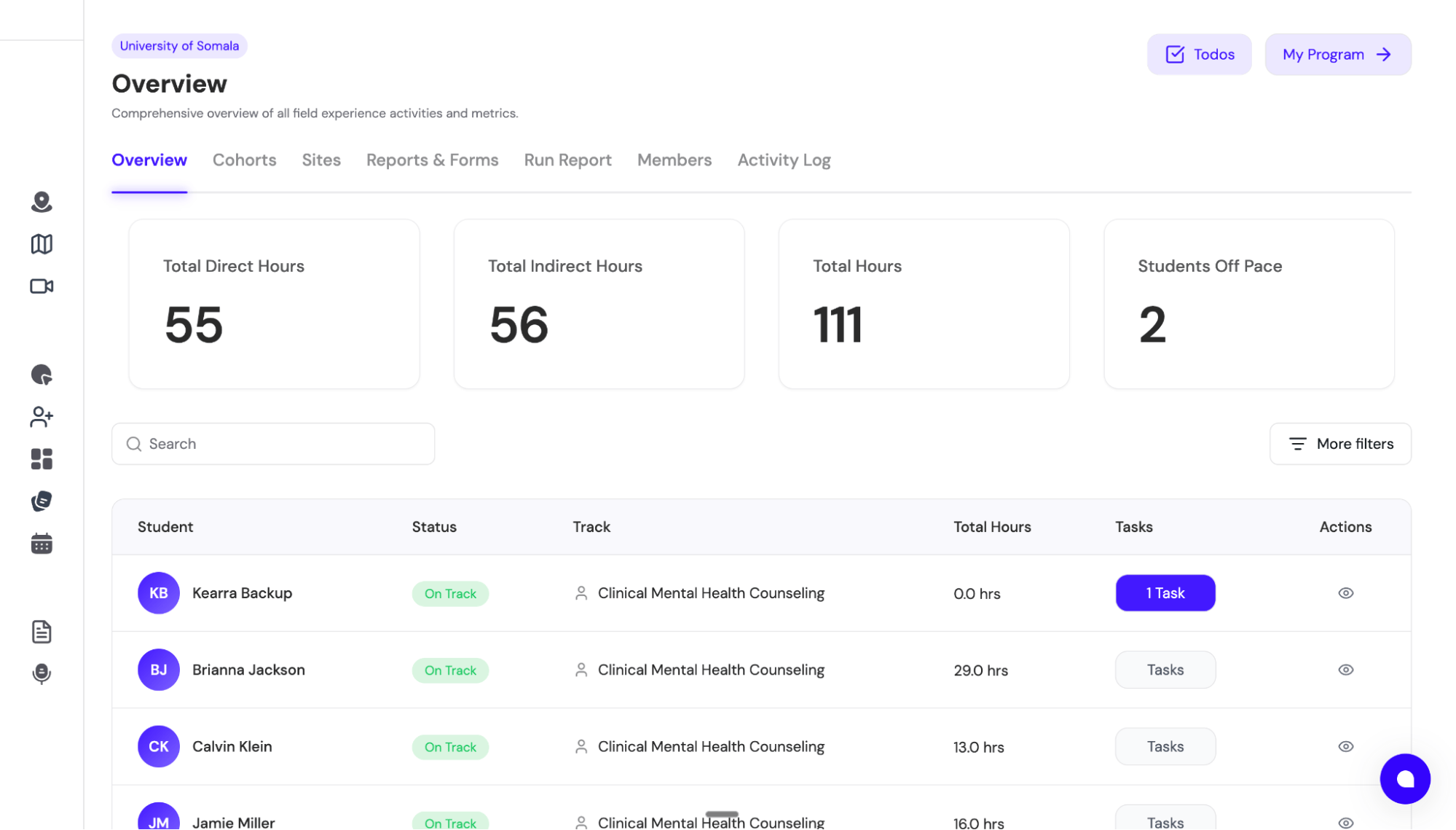 At the top you'll see three **KPI cards**:
* **Students Off Pace** — students whose hours progress is behind schedule. Click a student here to open a **Why is X off pace?** modal listing every timesheet report needing attention, who it's waiting on, and a **Remind** button that emails the pending signer directly.
* **Average Completion** — average percentage of hours completed across your students
* **Pending Tasks** — number of action items waiting on you
Just below the KPIs is a **filter bar** with a search field, active filter chips, a **term selector** so you can scope all KPIs and graphs to a specific academic term, and a **More filters** button. Clicking **More filters** opens a modal where you can narrow the table by:
* **Track** — any track or class your students belong to
* **Placement Status** — On Track, Off Pace, Completed, or Not in Term
* **Application Status** — App: Approved, App: Pending Approval, App: Started, App: Not Started, or App: Rejected
* **Hours** — bucketed by 0–20, 20–40, 40–60, 60–80, or 80+ hours logged
* **Activity** — students with no hours logged
Each active filter shows as a removable chip in the filter bar. Students whose application isn't approved yet display an **App:** chip in the student table so you can spot them at a glance; approved students show their pace status instead.
If your program has students enrolled in multiple programs at once, a small **N tasks from other programs** chip appears here listing forms those students owe to other programs.
Below the filter bar is a **student table** showing every active student in your program. Click any student row to open their full detail view (Overview, Insights, Sites, Timesheet, Learning Contract, Journal, Documents).
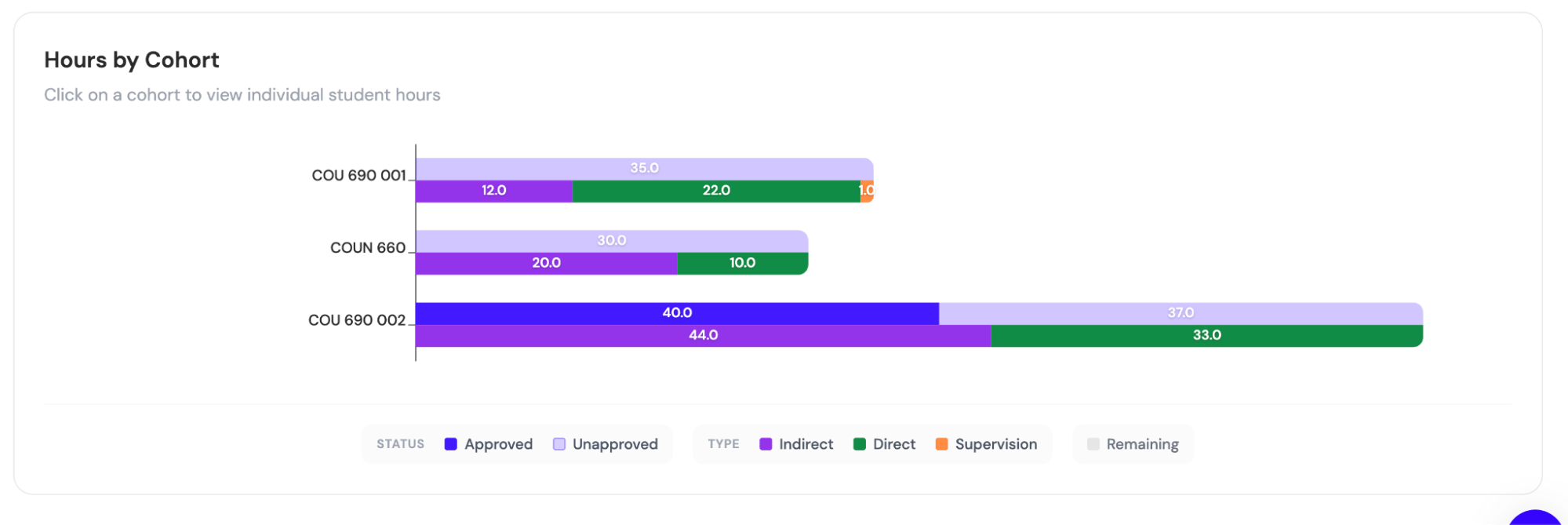
At the bottom is a graph showing hours completion per cohort and per student. Click into any cohort to see each student's progress toward their required hours.
At the top you'll see three **KPI cards**:
* **Students Off Pace** — students whose hours progress is behind schedule. Click a student here to open a **Why is X off pace?** modal listing every timesheet report needing attention, who it's waiting on, and a **Remind** button that emails the pending signer directly.
* **Average Completion** — average percentage of hours completed across your students
* **Pending Tasks** — number of action items waiting on you
Just below the KPIs is a **filter bar** with a search field, active filter chips, a **term selector** so you can scope all KPIs and graphs to a specific academic term, and a **More filters** button. Clicking **More filters** opens a modal where you can narrow the table by:
* **Track** — any track or class your students belong to
* **Placement Status** — On Track, Off Pace, Completed, or Not in Term
* **Application Status** — App: Approved, App: Pending Approval, App: Started, App: Not Started, or App: Rejected
* **Hours** — bucketed by 0–20, 20–40, 40–60, 60–80, or 80+ hours logged
* **Activity** — students with no hours logged
Each active filter shows as a removable chip in the filter bar. Students whose application isn't approved yet display an **App:** chip in the student table so you can spot them at a glance; approved students show their pace status instead.
If your program has students enrolled in multiple programs at once, a small **N tasks from other programs** chip appears here listing forms those students owe to other programs.
Below the filter bar is a **student table** showing every active student in your program. Click any student row to open their full detail view (Overview, Insights, Sites, Timesheet, Learning Contract, Journal, Documents).
At the bottom is a graph showing hours completion per cohort and per student. Click into any cohort to see each student's progress toward their required hours.
 ## Header actions
The top-right of every page has a few persistent actions:
* **Todos** — a dropdown with a count of pending tasks assigned to you. Open it to create, view, and complete to-dos.
* **My Program** — opens the program settings sidebar where you configure terms, tracks, clearance, members, notifications, and more
## Next steps
* [Customization settings](/docs/fieldx/step-0-2-customization-settings) — set up academic terms, student tracks, hour requirements, and clearance
* [Adding & managing faculty & students](/docs/fieldx/step-1-adding-managing-faculty-students)
* [Set up cohorts](/docs/fieldx/step-3-set-up-cohorts)
Want to try the workflows before you go live? Use the [**View as Student**](/docs/fieldx/view-as-student) feature to see exactly what your students see — no sandbox program required.
For additional questions or customization requests, contact [tiko@simcare.ai](mailto:tiko@simcare.ai).
## Header actions
The top-right of every page has a few persistent actions:
* **Todos** — a dropdown with a count of pending tasks assigned to you. Open it to create, view, and complete to-dos.
* **My Program** — opens the program settings sidebar where you configure terms, tracks, clearance, members, notifications, and more
## Next steps
* [Customization settings](/docs/fieldx/step-0-2-customization-settings) — set up academic terms, student tracks, hour requirements, and clearance
* [Adding & managing faculty & students](/docs/fieldx/step-1-adding-managing-faculty-students)
* [Set up cohorts](/docs/fieldx/step-3-set-up-cohorts)
Want to try the workflows before you go live? Use the [**View as Student**](/docs/fieldx/view-as-student) feature to see exactly what your students see — no sandbox program required.
For additional questions or customization requests, contact [tiko@simcare.ai](mailto:tiko@simcare.ai).