> ## Documentation Index
> Fetch the complete documentation index at: https://app.simcare.ai/docs/llms.txt
> Use this file to discover all available pages before exploring further.
# Step 0.2: Customization settings
> Configure academic terms, student tracks, certificates, clearance, notifications, and program behavior.
Before you start adding students, take a few minutes to configure FieldX for your program. Click **My Program** in the top-right of any page to open the program settings sidebar.
 ## The sidebar tabs
| Tab | What you configure |
| ----------------------- | ---------------------------------------------------------------------------------- |
| **General Information** | Program name, description, logo |
| **Terms and Tracks** | Academic terms, student tracks, certificates and hour requirements |
| **Clearance Tasks** | The pre-application steps each student must complete before logging hours |
| **Members** | Students, faculty, and admin roster — with bulk actions, term and track assignment |
| **Notifications** | Faculty daily digest, insurance expiration alerts, form due-date reminders |
| **Settings** | Program-wide behavior toggles |
| **Activity Log** | A searchable log of every form, report, timesheet, and page visit in your program |
*A **DocuSeal Templates** tab is also available to a small group of allow-listed accounts for building reusable signature templates.*
## General Information
Set your program name, description, and upload your program logo. The logo appears in the navigation header for everyone in your program.
## Terms and Tracks
## The sidebar tabs
| Tab | What you configure |
| ----------------------- | ---------------------------------------------------------------------------------- |
| **General Information** | Program name, description, logo |
| **Terms and Tracks** | Academic terms, student tracks, certificates and hour requirements |
| **Clearance Tasks** | The pre-application steps each student must complete before logging hours |
| **Members** | Students, faculty, and admin roster — with bulk actions, term and track assignment |
| **Notifications** | Faculty daily digest, insurance expiration alerts, form due-date reminders |
| **Settings** | Program-wide behavior toggles |
| **Activity Log** | A searchable log of every form, report, timesheet, and page visit in your program |
*A **DocuSeal Templates** tab is also available to a small group of allow-listed accounts for building reusable signature templates.*
## General Information
Set your program name, description, and upload your program logo. The logo appears in the navigation header for everyone in your program.
## Terms and Tracks
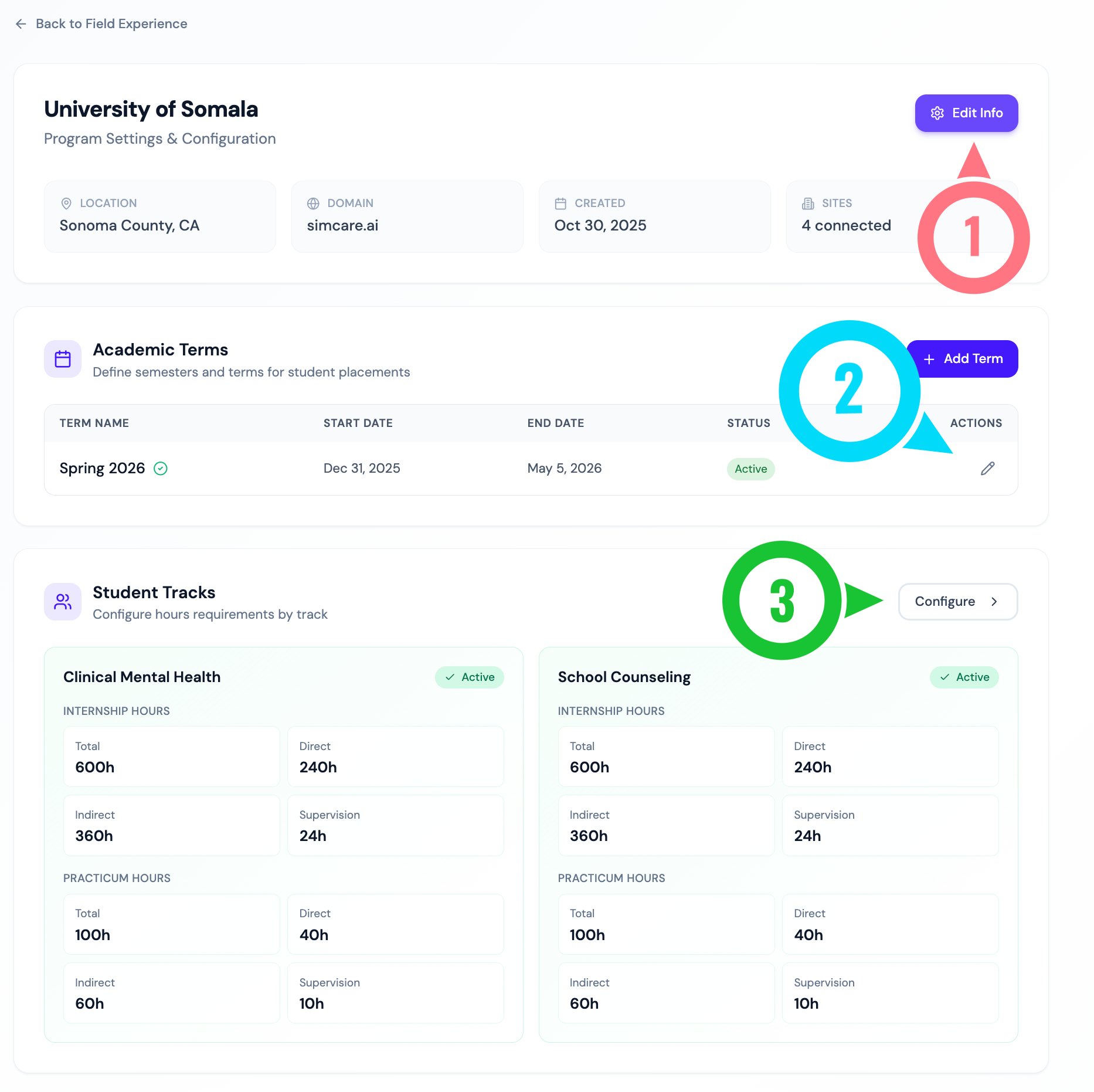 ### Academic terms
Academic terms control how student progress is tracked across a semester. Each term has a start and end date and is labeled **Active**, **Past**, or **Upcoming** automatically.
Click **+ Add Term** to create one. You can have multiple terms running side-by-side for cohorts on different schedules.
#### Submission windows (optional)
If your program has **Restrict Applications by Submission Window** turned on under **Settings**, each term also has its own **Submission Window** — an **Applications Open From** date and an **Applications Close On** date that gate when new pre-applications can select that term. Leave either date blank for no restriction on that side.
A closed term is still visible to students during clearance, but they cannot select it for a new application — you'll see an **Applications Closed** chip next to the term status in the table. The submission window is independent of the term's own start and end dates and never affects students already placed in a term.
To adjust several terms' open and close dates at once, open the **Clearance & Placement** tab and click **Manage Submission Windows** in the header.
### Student tracks
Student tracks define hour requirements for each kind of placement (e.g., Internship, Pre-Practicum, Practicum, Apprenticeship, PhD, Certificate). For each track you can:
* Enable or disable the track (this controls what students see in clearance)
* Set required total, direct, indirect, and supervision hours
* Choose **qualifying activity types** — granular control over which activities count toward each hour bucket
* Configure site requirements
The track editor is a 4-step modal: **Category Requirements** → **Hour Requirements** → **Site Requirements**, plus any extra steps based on enabled categories.
### Certificates
Set up **Program Certificates** with their own hour requirements (e.g., a Trauma certificate that requires N hours of trauma-related direct service). Certificates can be assigned to students individually.
## Clearance Tasks (Application Process)
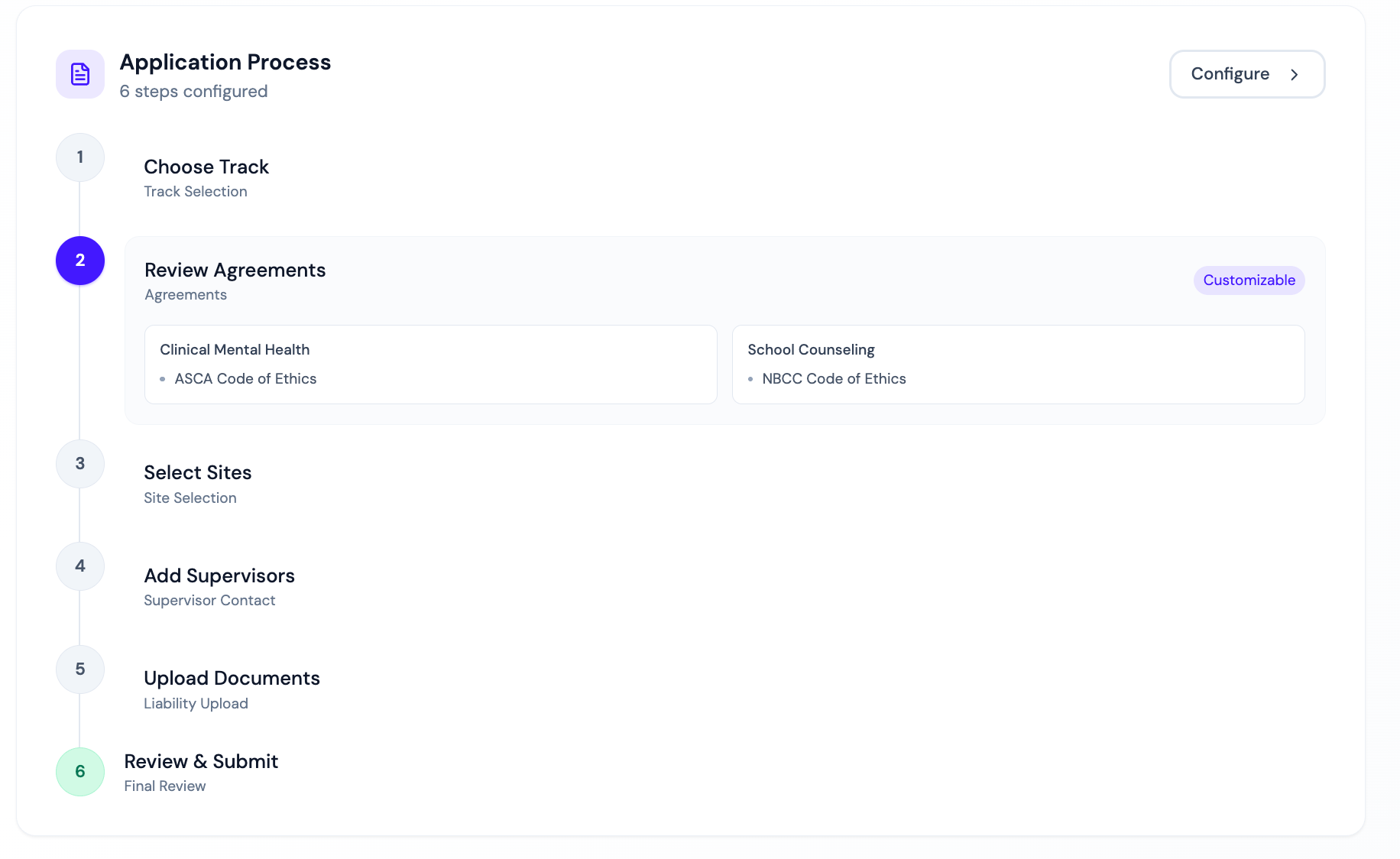
The clearance process determines what students must complete before they can log hours. By default the steps are:
1. **Choose Track** — pick their student track
2. **Review Agreements** — read and sign program agreements
3. **Select Sites** — pick an established site or request a new one
4. **Add Supervisors** — provide a supervisor's name, email, and credentials (triggers the supervisor invite email)
5. **Upload Insurance** — upload a liability insurance form
6. **Final Review** — submit for coordinator approval
### Academic terms
Academic terms control how student progress is tracked across a semester. Each term has a start and end date and is labeled **Active**, **Past**, or **Upcoming** automatically.
Click **+ Add Term** to create one. You can have multiple terms running side-by-side for cohorts on different schedules.
#### Submission windows (optional)
If your program has **Restrict Applications by Submission Window** turned on under **Settings**, each term also has its own **Submission Window** — an **Applications Open From** date and an **Applications Close On** date that gate when new pre-applications can select that term. Leave either date blank for no restriction on that side.
A closed term is still visible to students during clearance, but they cannot select it for a new application — you'll see an **Applications Closed** chip next to the term status in the table. The submission window is independent of the term's own start and end dates and never affects students already placed in a term.
To adjust several terms' open and close dates at once, open the **Clearance & Placement** tab and click **Manage Submission Windows** in the header.
### Student tracks
Student tracks define hour requirements for each kind of placement (e.g., Internship, Pre-Practicum, Practicum, Apprenticeship, PhD, Certificate). For each track you can:
* Enable or disable the track (this controls what students see in clearance)
* Set required total, direct, indirect, and supervision hours
* Choose **qualifying activity types** — granular control over which activities count toward each hour bucket
* Configure site requirements
The track editor is a 4-step modal: **Category Requirements** → **Hour Requirements** → **Site Requirements**, plus any extra steps based on enabled categories.
### Certificates
Set up **Program Certificates** with their own hour requirements (e.g., a Trauma certificate that requires N hours of trauma-related direct service). Certificates can be assigned to students individually.
## Clearance Tasks (Application Process)
The clearance process determines what students must complete before they can log hours. By default the steps are:
1. **Choose Track** — pick their student track
2. **Review Agreements** — read and sign program agreements
3. **Select Sites** — pick an established site or request a new one
4. **Add Supervisors** — provide a supervisor's name, email, and credentials (triggers the supervisor invite email)
5. **Upload Insurance** — upload a liability insurance form
6. **Final Review** — submit for coordinator approval
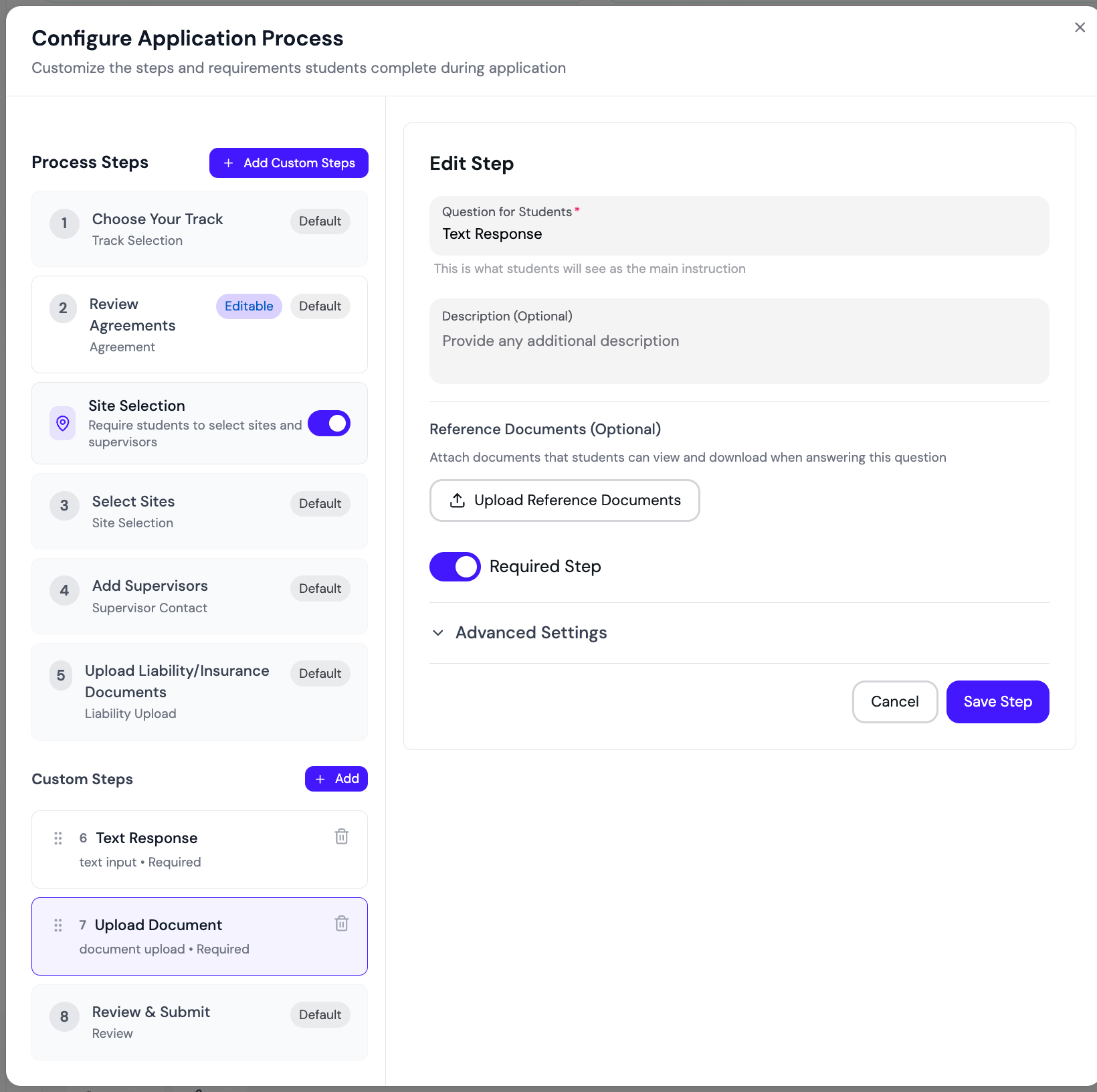
 ### Customizing the process
Click **Configure Application Process** to add, remove, or reorder steps. Available step types include `Track Selection`, `Agreement`, `Site Selection`, `Supervisor Contact`, `Liability Upload`, **`Custom Question`**, and embedded forms or quizzes.
Click **Configure Agreement Requirements** to manage the agreements students sign — set which agreements apply to which tracks, mark them required or optional, and connect them to DocuSeal templates.
### Customizing the process
Click **Configure Application Process** to add, remove, or reorder steps. Available step types include `Track Selection`, `Agreement`, `Site Selection`, `Supervisor Contact`, `Liability Upload`, **`Custom Question`**, and embedded forms or quizzes.
Click **Configure Agreement Requirements** to manage the agreements students sign — set which agreements apply to which tracks, mark them required or optional, and connect them to DocuSeal templates.
 ## Members
The Members tab is the canonical roster for your program. See [Step 1: Adding & managing faculty & students](/docs/fieldx/step-1-adding-managing-faculty-students).
## Notifications
Toggle the program-wide email automation:
* **Daily Assignment Digest** — track faculty get a morning email summarizing what their students completed yesterday. Pick the send time and what to include (assignments, clearance forms).
* **Insurance Expiration Alerts** — students and admins get alerts at 30, 7, and 0 days before insurance expires.
* **Form Due-Date Reminders** — students and signers are emailed 7 days and 1 day before a form deadline. Only the person blocking the form is emailed.
## Settings
Program-wide behavior toggles:
* **Auto-Approve Site Requests** — when on, students who request an established program site are approved immediately without coordinator review.
* **Restrict Applications by Submission Window** — when on, each academic term can have its own **Applications Open From** and **Applications Close On** dates (set on the term under **Terms and Tracks**). A closed term is still shown to students but cannot be selected for a new application, and you can grant a specific student an extension past a closed date. When off (default), every term is always open for new applications regardless of any dates set on it — the per-term dates are inert until you turn this on.
### Re-clearance requirements
Choose which changes require a student to redo the clearance flow. Existing cleared students are not affected — each toggle only applies to changes made after you enable it. All three are off by default.
* **Placement level changes** — when on, moving a student to a new level (for example Practicum → Internship) re-locks that student until they redo clearance for the new level.
* **Track changes** — when on, moving a student to a new track type (for example CODAC → Clinical Mental Health) re-locks that student until they redo clearance for the new track. See [Changing a student's track](/docs/fieldx/step-1-adding-managing-faculty-students#changing-a-student-s-track).
* **New term starts** — when on, students are automatically prompted to redo clearance at the start of each new term. Students who are already in an active Practicum or Internship placement are **not** blocked — they see a red dot on their **Clearance Tasks** button as a reminder, but can keep logging hours and accessing their placement. Students who are between placements (for example, cleared for a future term but not yet placed) are blocked until they complete the new term's clearance.
Level and track changes always block until re-clearance is complete. Term changes only block students who are not currently in an active placement.
## Learning Contract variants
If your program uses Learning Contracts, you can define **named variants** — each variant pairs a specific draft form with its own final sign-off form. Cohorts then pick which variant their students complete, so a single program can run different Learning Contracts for different tracks or student populations (for example, a standard practicum contract and a separate advanced MSW contract) without maintaining separate programs.
Learning Contract variants only appear for programs that have the Learning Contract feature turned on. If you don't see this section, contact [tiko@simcare.ai](mailto:tiko@simcare.ai) to enable it.
### Defining variants
From **My Program → Settings**, scroll to **Learning Contract Variants** and click **Add variant**. Each variant needs four fields:
| Field | What it is |
| ----------------------- | ------------------------------------------------------------------------------------------------------------------------- |
| **Key** | Short identifier used to link a cohort to this variant, e.g. `advanced_msw`. Lowercase, no spaces. |
| **Label** | Human-readable name shown to admins when picking a variant for a cohort, e.g. `Advanced MSW Practicum Learning Contract`. |
| **Draft form** | The form students fill out as the initial draft. Pick from any form owned by a program admin or teacher. |
| **Final sign-off form** | The form used for the final signature step after the draft is approved. |
Click **Save** at the bottom of the page to persist the list. Every variant needs all four fields filled in before you can save.
Cohorts you don't explicitly assign a variant to fall back to the **standard Learning Contract** for your program — you don't need to add a variant just to keep existing behavior.
### Assigning a variant to a cohort
Once a variant exists at the program level, open the cohort, go to **Settings → Learning Contract**, and choose the variant from the **Learning Contract Variant** dropdown. Leave it on **Program default** to use the standard contract. The forms used by the selected variant are listed below the dropdown with a preview link.
Changing a cohort's variant affects Learning Contracts students start from that point on. Contracts already in progress continue with the forms they were started on.
## Activity Log
A complete audit trail of program activity, with filters for type (Forms, Reports, Timesheets, Application Forms, Page Visits, Supervision Notes, Report Signatures), student, cohort, and date range. Export to CSV.
Next step: With your program configured, you're ready to add users. See [Step 1: Adding & managing faculty & students](/docs/fieldx/step-1-adding-managing-faculty-students).
For customizations not covered here, contact [tiko@simcare.ai](mailto:tiko@simcare.ai).
## Members
The Members tab is the canonical roster for your program. See [Step 1: Adding & managing faculty & students](/docs/fieldx/step-1-adding-managing-faculty-students).
## Notifications
Toggle the program-wide email automation:
* **Daily Assignment Digest** — track faculty get a morning email summarizing what their students completed yesterday. Pick the send time and what to include (assignments, clearance forms).
* **Insurance Expiration Alerts** — students and admins get alerts at 30, 7, and 0 days before insurance expires.
* **Form Due-Date Reminders** — students and signers are emailed 7 days and 1 day before a form deadline. Only the person blocking the form is emailed.
## Settings
Program-wide behavior toggles:
* **Auto-Approve Site Requests** — when on, students who request an established program site are approved immediately without coordinator review.
* **Restrict Applications by Submission Window** — when on, each academic term can have its own **Applications Open From** and **Applications Close On** dates (set on the term under **Terms and Tracks**). A closed term is still shown to students but cannot be selected for a new application, and you can grant a specific student an extension past a closed date. When off (default), every term is always open for new applications regardless of any dates set on it — the per-term dates are inert until you turn this on.
### Re-clearance requirements
Choose which changes require a student to redo the clearance flow. Existing cleared students are not affected — each toggle only applies to changes made after you enable it. All three are off by default.
* **Placement level changes** — when on, moving a student to a new level (for example Practicum → Internship) re-locks that student until they redo clearance for the new level.
* **Track changes** — when on, moving a student to a new track type (for example CODAC → Clinical Mental Health) re-locks that student until they redo clearance for the new track. See [Changing a student's track](/docs/fieldx/step-1-adding-managing-faculty-students#changing-a-student-s-track).
* **New term starts** — when on, students are automatically prompted to redo clearance at the start of each new term. Students who are already in an active Practicum or Internship placement are **not** blocked — they see a red dot on their **Clearance Tasks** button as a reminder, but can keep logging hours and accessing their placement. Students who are between placements (for example, cleared for a future term but not yet placed) are blocked until they complete the new term's clearance.
Level and track changes always block until re-clearance is complete. Term changes only block students who are not currently in an active placement.
## Learning Contract variants
If your program uses Learning Contracts, you can define **named variants** — each variant pairs a specific draft form with its own final sign-off form. Cohorts then pick which variant their students complete, so a single program can run different Learning Contracts for different tracks or student populations (for example, a standard practicum contract and a separate advanced MSW contract) without maintaining separate programs.
Learning Contract variants only appear for programs that have the Learning Contract feature turned on. If you don't see this section, contact [tiko@simcare.ai](mailto:tiko@simcare.ai) to enable it.
### Defining variants
From **My Program → Settings**, scroll to **Learning Contract Variants** and click **Add variant**. Each variant needs four fields:
| Field | What it is |
| ----------------------- | ------------------------------------------------------------------------------------------------------------------------- |
| **Key** | Short identifier used to link a cohort to this variant, e.g. `advanced_msw`. Lowercase, no spaces. |
| **Label** | Human-readable name shown to admins when picking a variant for a cohort, e.g. `Advanced MSW Practicum Learning Contract`. |
| **Draft form** | The form students fill out as the initial draft. Pick from any form owned by a program admin or teacher. |
| **Final sign-off form** | The form used for the final signature step after the draft is approved. |
Click **Save** at the bottom of the page to persist the list. Every variant needs all four fields filled in before you can save.
Cohorts you don't explicitly assign a variant to fall back to the **standard Learning Contract** for your program — you don't need to add a variant just to keep existing behavior.
### Assigning a variant to a cohort
Once a variant exists at the program level, open the cohort, go to **Settings → Learning Contract**, and choose the variant from the **Learning Contract Variant** dropdown. Leave it on **Program default** to use the standard contract. The forms used by the selected variant are listed below the dropdown with a preview link.
Changing a cohort's variant affects Learning Contracts students start from that point on. Contracts already in progress continue with the forms they were started on.
## Activity Log
A complete audit trail of program activity, with filters for type (Forms, Reports, Timesheets, Application Forms, Page Visits, Supervision Notes, Report Signatures), student, cohort, and date range. Export to CSV.
Next step: With your program configured, you're ready to add users. See [Step 1: Adding & managing faculty & students](/docs/fieldx/step-1-adding-managing-faculty-students).
For customizations not covered here, contact [tiko@simcare.ai](mailto:tiko@simcare.ai).