> ## Documentation Index
> Fetch the complete documentation index at: https://app.simcare.ai/docs/llms.txt
> Use this file to discover all available pages before exploring further.
# Accessing FieldX
> Open Field Experience from the SimCare sidebar and check your account role.
FieldX is available as **Field Experience** in the SimCare sidebar.
## Open Field Experience
1. Expand the left sidebar by moving your pointer over it.
2. Find **Field Experience** under **Site Placement** and click it.
3. FieldX opens the dashboard for your account and program role.
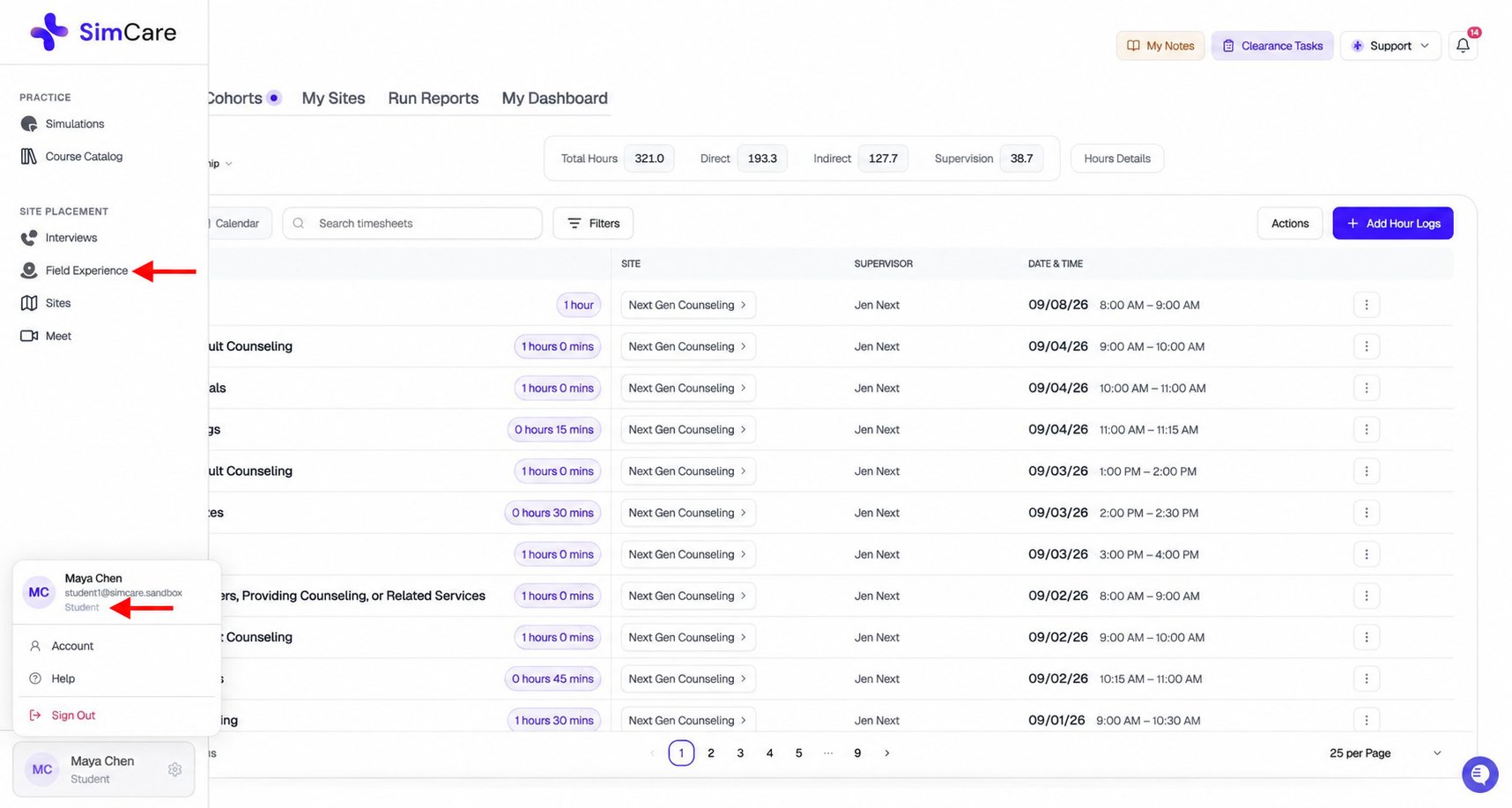 To check which account you are using, click your avatar or name at the bottom left. The account menu shows your name, email, and role.
## What's next
Visit the [FieldX overview](/docs/fieldx/fieldx-overview) to choose the guide for your role.
To check which account you are using, click your avatar or name at the bottom left. The account menu shows your name, email, and role.
## What's next
Visit the [FieldX overview](/docs/fieldx/fieldx-overview) to choose the guide for your role.